Microsoft postponed Clutter's retirement for the foreseeable future plans to turn clutter off completely on January 31, 2020.
What is clutter? It moves your less important email out of your Inbox and into the Clutter folder, where you can peruse it later. Most of the mail going into the folder should be bulk mail (advertisements) and messages from mailing lists.
Do you want to use Clutter?
Clutter is turned off by default in new Office 365 tenants but can be turned back on temporarily in Office 365 business and enterprise mailboxes, but it will be retired, eventually. Clutter is no longer available in Outlook.com accounts.
To turn Clutter back on, log into Outlook on the web at Outlook.office365.com
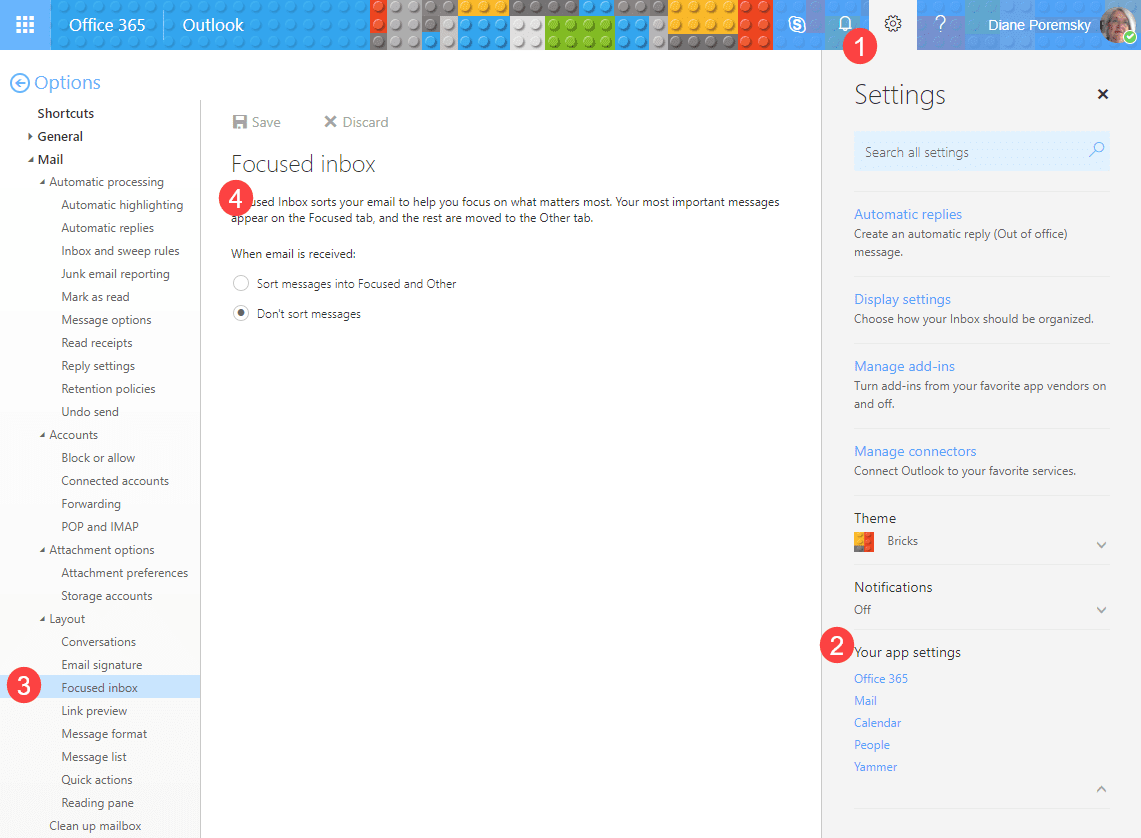
- Select Settings (), and under Your app settings at the bottom of the page, select Mail, then on the left under Layout, select Focused Inbox.
- Choose Don't sort messages then click Save.

- Refresh your browser and return to Mail Options.
- Clutter should now be an option under Mail’s Automatic processing section.
- Enable it and click Save. The Clutter folder will appear in Outlook on the web and sync down to Outlook shortly.

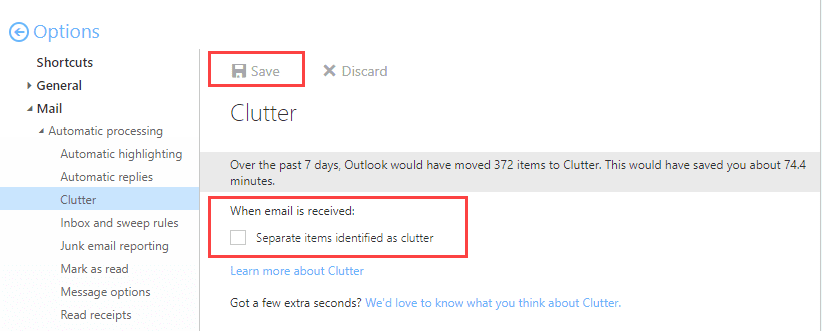
When clutter is enabled, it creates a folder in your mailbox called Clutter. The folder syncs with Outlook and is available on smartphones and tablets. If you disable clutter, you will be able to delete the Clutter folder from your mailbox.
How Clutter works
Clutter moves messages it determines (based on your reading habits) are less important to the clutter folder. While most of the messages will probably be bulk mail and mailing lists, other messages may end up in the clutter folder. If you are using OWA and need to mark messages as "not clutter", either right click on the message and choose Mark as not clutter or just drag it to the Inbox. If Exchange is missing messages you want marked as clutter, right click and choose Mark as clutter or drag it to the Clutter folder. In Outlook and other clients, you can drag a message to the clutter folder or right click and choose Move to clutter to mark it as clutter. To mark messages as 'not clutter', drag them to the Inbox.
What if you have rules moving messages? Clutter is applied after server-side rules are applied and items touched by rules won't be filtered by clutter.
Fed up with the daily messages reminding you messages were moved to clutter? You can disable this from Outlook on the web. Log into your email account online then go to Options, Mail, Clutter and uncheck the option to send notifications.
How much Clutter?
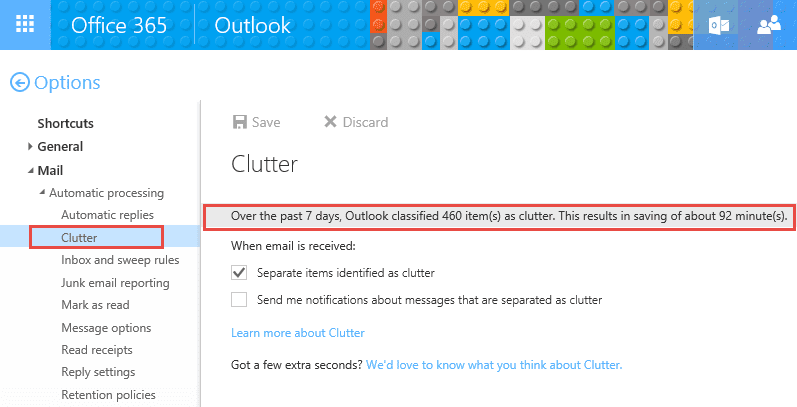
End users who want to see how much "time" they've supposedly saved by using clutter, need to log into Outlook on the Web and check Options, Clutter. The number of messages processed as clutter over the last 7 days will be listed.
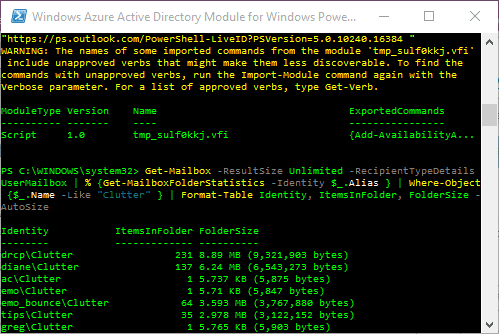
Administrators who want to see if people are using clutter can use the following cmdlet to check the stats on number of messages currently in the clutter folder in each mailbox.
Get-Mailbox –ResultSize Unlimited –RecipientTypeDetails UserMailbox | % {Get-MailboxFolderStatistics –Identity $_.Alias } | Where-Object {$_.Name –Like “Clutter” } | Format-Table Identity, ItemsInFolder, FolderSize –AutoSize
Disable Clutter & Delete the folder
Is there a way to disable the Clutter service in Office 365?
Sure, users can turn it off (or on) in Outlook on the Web's Options or administrators can turn it off (or on) for all users using the Set-Clutter cmdlet.
Users will log into OWA, and open Options, and go to Mail, Automatic processing, Clutter to change the setting.
Administrators who want to disable it for a single user, will use
Get-Mailbox alias | Set-Clutter -Enable $false
To disable it for all users in the organization, use this:
Get-Mailbox -Filter * -ResultSize Unlimited | Set-Clutter -Enable $false
Can I delete the Clutter folder?
Yes, if Clutter is disabled in your Outlook on the web options, you can delete it from Outlook desktop and it will remain deleted.

David Hill says
Hi Diane
Appreciate your efforts in showing us how to deal with this infuriating Clutter Folder issue. Like you, I have customers who do not want this feature and cannot understand why Microsoft would introduce such a feature without providing a way of removing it after determining that it is not wanted.
Could you please explain the effect of your suggestion about "hiding" it:
1. I have followed the instructions in various threads incl yours and Microsoft's regarding disabling the feature via OWA. For some customers, this works but for others, even when disabled, messages keep turning up in the Clutter Folder on their PCs.
2. If messages are still turning up in the local Clutter Folder, what is the effect of hiding the Clutter Folder, as per your suggestion? Wouldn't this mean that there are still messages being diverted into the Clutter Folder on the server but the customer would not be able to see them on their PC? If so, hiding the Clutter Folder is inadvisable as potentially important messages will never be seen.
3. Have you found disabling of this feature to be less reliable for Outlook 2013 users versus Outlook 2016 users? I.e. most of my customers never use OWA except to disable or enable sending of messages to the Clutter Folder. However Outlook 2013 users seem to be the ones finding that disabling Clutter in OWA makes no difference to Outlook 2013 on their PC: new messages just keep turning up in the Clutter Folder for some Outlook 2013 users, whether Clutter is enabled or disabled in OWA. I have not been able to establish a predictable pattern for this, other than it certainly happens to some Outlook 2013 users but not others.
Diane Poremsky says
1. If messages are added to clutter after you disable it, turn it back on, save, then turn it back off.
2. Hiding the folder will mean anything added to it will also be hidden. Hiding only works on Outlook, so the folder will be visible in OWA or on smartphones.
3. I hadn't noticed any problems, with either versions. I'll see what I can find out.
FWIW, sometime in the next few months clutter will be going away - replaced by a focused inbox option.
susie says
Hi Diane
My system is not showing the messages that it has put into clutter. It says there are 60+ including 12 in the last 7 days but there are only 4 in the folder. Some of the missing ones may well be important so your help would be much appreciated.
Diane Poremsky says
What view are you using on the folder? Does it say Filtered in the status bar in the lower left?
Doug Edwards says
Today Microsoft Clutter moved some important employment documents that delayed my starting a long-awaited new job. I won't loose the job, but delays mean lost wages for my family. I wish they would stop "helping" me!
Diane Poremsky says
Did you turn clutter off? log into outlook.office.com go to options and select clutter then turn it off.
The Octupus says
Can I set the clutter folder rules so that emails from Microsoft go there?
Diane Poremsky says
Unfortunately, not. You can create rules to delete messages from microsoft.com but if you are talking about the actual clutter notices "we moved this stuff to clutter" - you can turn those off. Log into web access, go to options then clutter (under Mail) to turn off notifications.
The Octupus says
Thanks!
Here's a random gripe.....I dislike it immensely when patronizing notices from Microsoft or anyone else say things to the effect of "we moved...." or "we noticed that...." In actuality, "we" didn't do anything. Rather, some code written by an overly bright, overly-oppressed-by-the-man Microsoft employee was triggered to send some electrons down one tiny little wire instead of not sending them down the tiny little wire, resulting in the company-approved "we" message to be barfed into my in box. Grrrrr. It would be better if the message was honest and said "Terribly sorry, but my quite ingenious code is puking this message into your in box because "the man" is oppressing me, causing me to use my God-given skills for said mundane task. Woe is me........have a nice day!". I feel better now. :) No reply required. :)
Doug Edwards says
Thank you for saying it - someone had to! I don't need their "help." As a matter of fact some important employment emails were sent to the Clutter folder, and I was not able to start a new job because of that. This help will end up costing me $400 to $800 dollars! I feel like swearing, but there are a lot of nice people here who don't deserve to hear it from me, but boy would I like to!!!!
james mendell says
i had deleted the clutter folder from my email a while back but it apparently is still putting items in a Clutter folder somewhere. How do I get these "moved" emails without a clutter folder in my outlook?
Diane Poremsky says
Did you turn clutter off before deleting or hiding the folder? If you log into owa do you see the clutter folder and missing mail?
oohgodyeah says
How does the Clutter feature work if you have Office 365 but are using Outlook 2010? Will the server still keep track of messages moved in & out of the Clutter folder from a 2010 mail client?
Diane Poremsky says
It's supposed collect the data for messages moved into or out of the clutter folder, yes. It can take a few days for it to start filtering the moved messages tho.
nobody says
I hate this "feature." I do not want mail accidentally going where I won't find it. I have rules set up to deal with unwanted email. I want to delete the folder permanently.
Diane Poremsky says
Right now you can't delete it (but can hide it in outlook as long as you don't use owa) - they've had a lot of blowback about it and I expect that a future update with correct this mistake.
Jeff says
I have to say the combination of the new Clutter service and Auto-Mate (recommended by Diane Poremsky) is absolutely fantastic. In a typical day I receive around 100 legitimate emails, 20 newsletter type emails , 20 read receipts, and some spam. Clutter takes care of the newsletters,100% success and no false positives, Microsoft takes care of spam, and automate sorts the rest. Happy camper
CHARLIE says
Yep... the folder has reappeared... like magic. I spoke with MS and a couple of Exchange MCE's ... Clutter will be rolled out across the board for all Exchange Online (O365) users over the next 6 months. If you don't have a Clutter folder now.... you will soon. Oh well...
Clay Johanson says
Clutter = crap if you actually know how to manage your e-mail. I've tried deleting the folder with MFCMAPI and it won't go away for me.
If you're reading this, Microsoft: It is unacceptable for you to force amateur-level features on professionals. Give us a way to PERMANENTLY get rid of the folder. Until you do, I won't be recommending Office 365 to anyone.
Vicki says
To permanently delete the folder after you've disabled the option, select the folder and then do Shift+Del - it does not give you the normal pop up about this being a permanent deletion, but it does delete the folder, at least it worked in Outlook 2010. Still shows in Office365 online, but at least it isn't cluttering up my daily work space.
Diane Poremsky says
it'll probably come back, especially if you use owa.
Charlie says
I can delete in Outlook 2013 by simply right clicking the folder and deleting. The issue is with iOS devices (where it can't be deleted because it is generated by Exchange). Is there a way to delete what is now a default folder in Exchange online? That way the clutter folder won't reappear sometime in the future..... I have read elsewhere that clutter may simply be turned on by default for everyone (like junk) and always "around". Oh well.
Diane Poremsky says
The problem with deleting it is that the server will regenerate it. If you hide a default folder, it's less likely to be regenerated or unhidden. If you hide a folder, it should remain hidden as long as you don't use OWA. Using OWA can regenerate folders that were hidden.
AFAIK, they will be enabling Clutter by default for new mailboxes - I'm not sure if it will apply to existing mailboxes.
Charlie says
I enabled Clutter and now want it gone. How do I delete the clutter folder? I have turned clutter off in settings, but the folder remains. I want the folder gone in Outlook 2013 and all my iOS devices. Any advice is appreciated.
Diane Poremsky says
You'll need to hide or delete it - if you can't delete it from OWA or it comes back, use mfcmapi or the macro at https://www.slipstick.com/outlook/delete-outlooks-default-folders/ to hide or delete it.
Len Raphael says
used it for three days now and still nothing has been moved into Clutter other than what I have manually moved there. This is on local Outllook 2013 under Office365 online.
Diane Poremsky says
Turn if off for 24 hours then re-enable it. That is the equivalent of rebooting. :)