Outlook 2016 with a February 2016 update installed is downloading multiple messages. The recommendation is to revert to the previous build. See Outlook 2016 POP Account Problems for more information and instructions. (This is fixed in the March 2016 update.
Outlook users complain when Outlook downloads duplicate messages when they re-use Outlook data files. This is expected behavior when you use an old pst and leave mail on the server.
I moved my pst files to a new computer and set up Outlook to use the old pst files. When I try the first send/receive, Outlook downloads all of the emails off of the server even though I already have copies in the inbox. How do I get it to stop downloading the copies of the email? If I can't, how do I sort the email for the newly downloaded identical copies and delete them?
Duplicate remover utilities are available at Duplicate Remover Tools
You can't avoid Outlook downloading duplicates when you leave mail on the server. The "Mailbox Manager" file Outlook uses to keep track of messages that were downloaded is associated with the account that created it and downloaded the mail. When you create a new account, Outlook has to re-download all of the mail again.
There are ways to deal with this issue though:
1: Because POP3 only downloads mail that is in the Inbox, you can move the mail from the Inbox to another folder in your account online (log in using webmail) before taking Outlook online.
2: Let Outlook download the mail then add the Modified date field to the view, sort by it and delete all of the mail you just downloaded (that was previously downloaded.)
To delete the mail after it is downloaded, add the Modified date field to the view and delete the duplicate messages. (If you are leaving mail on the server intentionally, you may want to change the option to delete mail from the server when it's deleted from Outlook. Look in Account Settings, More Settings, Advanced tab.)
- Close the Reading pane
- Right click on the row of field names and choose Field Chooser
- Select Date/Time fields from the drop down
- Drag Modified to the row of field names and drop it between two fields.
- Click on Modified to sort.
- Select the first message you downloaded in the session
- Scroll to the last (or last non-duplicate), hold Shift as you select the message
- Press Delete.
If you have an ongoing issue with duplicate mail, you can use a rule to move older mail to another folder or delete it as it arrives. This method is usually better if you are creating a new profile or needed to remove the account and add it back to Outlook, but you need to set it up before you begin downloading mail.
- Set Outlook to Work Offline (Send/Receive tab)
- If you want to leave the old mail on the server, change the option to delete mail from the server when it's deleted from Outlook. Go to File, Account Settings, double click on the email account, click More Settings, Advanced tab.
- Open Rules, Manage Rules & Alerts dialog.
- Create a New Rule
- Choose Apply rule on messages I receive then click Next.
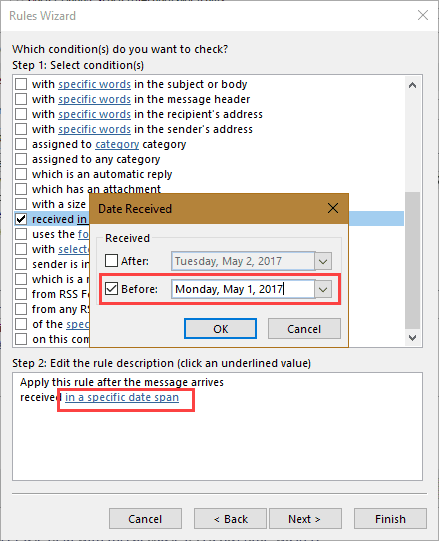
- Choose received in a specific date span
- Click the underlined words and tick Before: [date]. Choose yesterday's date if you haven't downloaded mail yet today. Click Ok then Next.

- On the actions page, select either move to the specified folder then select the folder or permanently delete it. Click Next.
- Create any exceptions and click Next then Finish the rule.
- On the Send/Receive tab, click the Work Offline button to go back online and let Outlook download mail.
- If you moved mail to a folder, review it then permanently delete it before changing Outlook's settings for handling deleted mail in File, Account Settings, double click on the email account, click More Settings, Advanced tab.
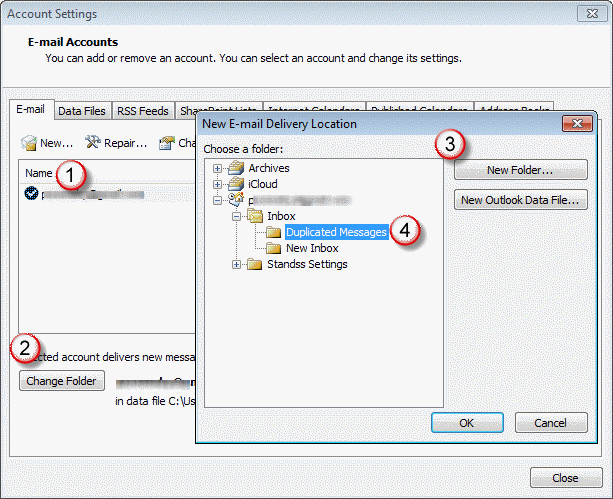
3: Turn off any rules you use and move the contents of the Inbox to a temporary folder. Download mail and delete the old mail from the Inbox. If you use Outlook 2007 and up, you don't need to move your mail out of the Inbox; you can choose a different folder as the delivery location in Account Settings, select account > Change folder then create a new folder and set it as the default delivery location.
4: You could use "Duplicate Remover Tools" to remove the duplicated messages. But honestly, that's not necessary in most cases.






























I have used Outlook 2003, in POP3/SMTP mode, to access 5 email accounts for many years. All are working fine but my main Gmail account started behaving oddly a week ago. It started repeatedly downloading the same incoming emails and also stopping after about 14 emails with error message 0x800CCC0F ‘The connection to the server was interrupted’. None of the other accounts were affected (inc. some other Gmail ones). I tried deleting the account in Outlook and then recreating it from scratch but that didn’t change anything. I checked that the account did not have the ‘leave a copy on the server’ box ticked. Then, suspecting a corrupt 'Mailbox Manager' file somewhere, I removed all the emails from the Gmail inbox using the web access and went to send/receive – hoping that with nothing to download everything would get back to normal. To my surprise, Outlook started downloading 245 emails from the main account but, as before, got as far as about number 14 (10 - 15 seconds) and then stopped and put up the same error message as before. This is driving me mad – do you have any suggestions as to what I can do to fix this… Read more »
Pleased to report that problem is solved.
I scanned the pst file with scanpst but this did not solve anything (although some errors were found and repaired). Once again, main Gmail account still got to about 15 out of now 300 emails and stopped with error message 0x800CCC0F.
Had another think and decided to temporarily disable all the shields on my AV software (Avast) and, hurray, backlog of emails all downloaded and now cleared so I am back to working normally. Shields restarted. Phew!
Interesting that it turned out not to be an Outlook 2003 problem after all!
I run SCANPST.EXE.
Go to the server and delete all e-mail on the server previous to a date you choose.
Nothing else works.
A GIANT pain...
I have seen your article this is very amazing and after reading your blog we found some interesting facts, so thanks
You forgot the "key rule" just stating "Create any exceptions and click Next then Finish the rule." that would not delete the duplicates, will delete everything.
You want to delete all mail that arrived on the server before yesterday (or some date in the past)... There is no rule that will only check for and delete duplicates - you need to delete (or move) all messages in the (server) mailbox before a specific date as those are the ones that should have been already downloaded.
if the mail is already downloaded, you'll need to use a utility or sort by last modified date and delete the ones with the same last modified date.
I have outlook 2010 on my 4 computers, networked using outlook connect to MDaemon on my work server.to manage the mail. Suddenly I have thousands of messages because a download is happening every minute, all duplicates. This started a few days ago.I uninstalled outlook and reinstalled, just to see if it was a corrupt version on one of the computers, but it still continues. I turned off MDaemon on my server. I removed all the mail in my cloud server (telus webmail) but as soon as I turn on MDaemon again, lots of messages download (4000 at a time) to my computer outlook, even though they are no longer on the Telus server...so I'm guessing MDaemon is causing the new issue.
Any ideas?
What type of account is configured in Outlook - pop or imap? It sounds like the messages are stored in MDaemon - MDaemon collects the mail from tellus and stores it locally then outlook connects to MDaemon to get mail. Something is messed up in MDaemon or in the connection between it and outlook.
Assuming Pop3: If you have outlook set to check mail every minute, raise it to at least 15 min now (30 or even higher will be better) - this will give outlook time to download everything and reset the last message id. After the duplicates stop, then you can lower the check every time to 5 to 8 minutes- don't go lower than 5. If all outlook's are configured for pop, set each one to a different time - 5,6,7,8 min. This will prevent them from overlapping mail checks.
Of course, the other option is to delete mail from MDaemon.
Dear Am getting redownloading of imap data file once it configured, Please advise me to sort out the issue.
Everything stored on the imap server is synced when you first set up the account. If anything happens to the data file, it will be resynced to a new data file. Outlook 2013 and up have a 'sync slider' so you can limit the sync to the newest messages.
Hello, I have two pop3 accounts in outlook 2007, Gmail and sbcglobal.net. Both accounts configured to leave the messages on the servers so I can get them on my phone too. Outlook never downloads duplicate messages from the Gmail account. However, it does it repeatedly from the sbcglobal.net irrespective of a number of messages on the server. Is there any way to address this? Thank you. Hamid
that generally means the 'mailbox manager' file that stores the last downloaded message id was corrupted - either because the connection was dropped before it completed or for other reasons.
How frequently are you downloading messages? Use no less than every 5 minutes.
Are you using the same pst file with different profiles? If so, that cause cause problems. Use a different one in each profile.
if the sbc account supports IMAP, that would be a better option as it syncs with the server - things deleted on either device will sync to all devices, read state also syncs.
You can create a rule to move or delete mail that was received before today - you'll also need to turn off the option to delete from the server when deleted from outlook & change the check every nn setting to a higher # - then just let it download everything. (I'll add those instructions to this page.)
Diane, I have a bellsouth.net email address and recently got a new computer. I set up Outlook and allowed all emails to download to the new machine. Everything worked fine for a few weeks, but suddenly emails didn't seem to be downloading to Outlook. I had been told by an ATT customer service rep a few months back that when I cancelled my last ATT product (Uverse cable TV service) that I would no longer be able to download my emails to an email client although I would be able to use webmail, so I figured ATT had finally cut me off. However, I decided to try to setup my email account again to make sure nothing was corrupted with my initial account....this seems to have worked as I am now downloading all my emails again but to the new account. However, my issue is this....i have many years worth of emails, so it takes a long time (days) to download them all. Is there a shortcut to allow the newly created email account to recognize already downloaded emails from my initial account?
No, sorry, you can't tell outlook not to download it - you can use rules to delete older mail as it downloads, to avoid duplicates.
did you try repairing the account in outlook? (using the Repair button in Settings)