• Outlook User
  • New Outlook app
  • Outlook.com
  • Outlook Mac
  • Outlook & iCloud
  • Developer
  • Microsoft 365 Admin
    • Common Problems
    • Microsoft 365
    • Outlook BCM
    • Utilities & Addins

Create a Hyperlink on an Outlook Custom Form

Slipstick Systems

› Developer › Custom Forms › Create a Hyperlink on an Outlook Custom Form

Last reviewed on September 27, 2021     10 Comments

If you need clickable links in a custom form, you can use VBScript code and a Label field or Command buttons to make clickable links.

Note: The Contact form has two hyperlink fields - WebPage and FTPSite. Add them to your custom form from the Field Chooser to a form page.

If you need more than two links, you can use code behind the form page to make a label clickable.

Thanks to a security update, in order to use code behind a form, you need to set a registry key. See Custom Form Security Changes for the registry key and more information.

Code behind a Label Control

Believe it or not, a label control on an Outlook form supports a Click event. So, you can put the text for the hyperlink in the control's caption and use code like this to launch the link in the browser when the user clicks the label. You could use a CommandButton control or store the URL in another field, other than the control's caption, or even generate it programmatically.

The code samples below work with your default web browser.

The first hyperlink in this screenshot uses just the label, formatted as a hyperlink. To open the second link, you need to click near Open URL. The URL is editable in the text box.
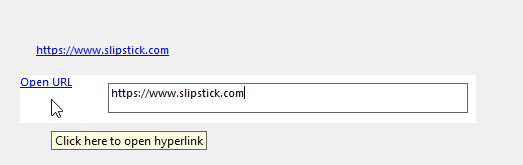
hyperlinks in a custom form

Sub Label1_Click()
strURL = Item.GetInspector.ModifiedFormPages("P.2").Controls("Label1").Caption
CreateObject("WScript.Shell").Run(strURL) 
End Sub

Or skip the controls and just use the URL in the code. The advantage in using the control caption is if you need to change the URL, you only need to edit the caption, not the VBScript.

Sub Label1_Click()
CreateObject("WScript.Shell").Run("https://www.slipstick.com/developer/custom-form/create-hyperlink-outlook-form/") 
End Sub

In this code sample, the label is clicked to open a URL in a text field. This method is useful when you need a different link for each contact. In the Open URL example in my screenshot above, I made the label field large and placed the text box over it. This allows the user to click anywhere near the URL (but not inside the black lines)

Sub Label2_Click()
strURL = Item.GetInspector.ModifiedFormPages("P.2").Controls("TextBox1").Value
CreateObject("WScript.Shell").Run(strURL) 
End Sub

You can format the label to show the link as blue and underlined, so users will know to click on it. To use the name of the page in the caption, put the hyperlink in the control's Tag property, changing the code above to use Tag instead of Caption.
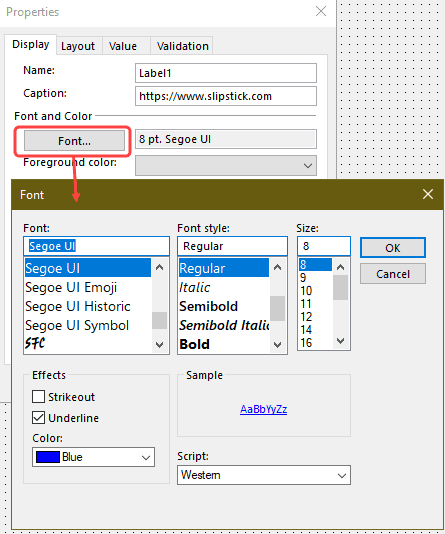
format the label to look like a hyperlink
The "Click here to open hyperlink" tool tip is in the ControlTipText property (in Advanced Properties).
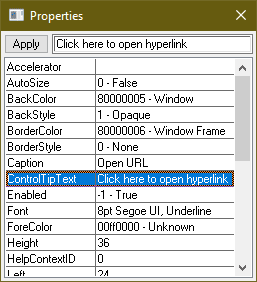
add a tool tip in advanced properties

Create a Hyperlink on an Outlook Custom Form was last modified: September 27th, 2021 by Diane Poremsky
Post Views: 17

Related Posts:

  • Sometimes we get some interesting questions and the solution, while no
    Remove the To field from an Outlook message form
  • Publish a custom form in another user's mailbox
  • Add a date/time picker control to a custom form
  • Do you send a lot of messages to one person or group and want to make
    How to create preaddressed messages

About Diane Poremsky

A Microsoft Outlook Most Valuable Professional (MVP) since 1999, Diane is the author of several books, including Outlook 2013 Absolute Beginners Book. She also created video training CDs and online training classes for Microsoft Outlook. You can find her helping people online in Outlook Forums as well as in the Microsoft Answers and TechNet forums.

Comments

  1. kaanturkum says

    August 2, 2023 at 10:20 am

    how can we add custom fields/ custom columns for hyperlinks ???

    Reply
    • Diane Poremsky says

      September 7, 2023 at 10:08 pm

      In the list view of the folder? You can't. You can only add the hyperlinks to the form. Sorry.

      Reply
  2. jay says

    July 23, 2023 at 4:51 am

    there is no "Click here to open hyperlink" in Advanced Properties. for ol2016 format contact field . whether missed out any library ?
    please assist

    Reply
    • Diane Poremsky says

      July 23, 2023 at 11:03 am

      sorry, I wasnt clear - that is where you put a screentip - it can say 'click here' or whatever you want.

      Reply
  3. jay says

    July 23, 2023 at 4:45 am

    how to format ol2016 contact item user defined field to enable hyperlink clickable . same as Webpage and IMAddress fields

    Reply
  4. Michael Mo says

    September 10, 2022 at 7:27 am

    Thank you. not sure if you can help, but I'm struggling on how to create new a custom field in a form that allows user to input a website address text that becomes a hotlink upon entry. This would be similar to the website field that outlook already has...where a user enters a website address and it is "clickable". I have a need for multiple user hotlink fields in the form. Thank you!

    Reply
    • Diane Poremsky says

      September 10, 2022 at 8:01 am

      The steps on this page will do it - you need to use a script and you need to set registry keys to enable it.

      Reply
    • Diane Poremsky says

      September 10, 2022 at 8:05 am

      BTW - if you only need one more, use the FTP field. Like the Web field, it is hyperlinked automatically.

      Reply
  5. Monica says

    July 3, 2022 at 9:47 am

    Hi Diane, please can you also assist me. I am trying to do the exact same as above to create a vba behind the command button in my custom contact form. I copied your code above but it does not seem to work. I changed the caption to Label1 - not too sure how to amend it? Please can you assist. I want to open the following website: http://www.astutefse.com.

    I created the command button, clicked on View Code, pasted the following: Sub Label1_Click()
    CreateObject("WScript.Shell").Run("https://www.astutefse.com/developer/custom-form/create-hyperlink-outlook-form/")
    End Sub  

    Do I need to change anything else (other than the website address)?

    Much appreciated!!

    Monica

    Reply
    • Diane Poremsky says

      September 10, 2022 at 8:07 am

      We solved this elsewhere... for references, the issue was the security setting - needed to set the registry key for the correct form name. The form display name was not the same as the form name.

      Reply

Leave a Reply Cancel reply

Your email address will not be published. Required fields are marked *

Visit Slipstick Forums.
What's New at Slipstick.com

Latest EMO: Vol. 31 Issue 5

Subscribe to Exchange Messaging Outlook


Support Services

Do you need help setting up Outlook, moving your email to a new computer, migrating or configuring Office 365, or just need some one-on-one assistance?

Our Sponsors

CompanionLink
ReliefJet
  • Popular
  • Latest
  • Week Month All
  • Jetpack plugin with Stats module needs to be enabled.
  • Sync Issues and Errors with Gmail and Yahoo accounts
  • Error Opening iCloud Appointments in Classic Outlook
  • Opt out of Microsoft 365 Companion Apps
  • Mail Templates in Outlook for Windows (and Web)
  • Urban legend: Microsoft Deletes Old Outlook.com Messages
  • Buttons in the New Message Notifications
  • Move Deleted Items to Another Folder Automatically
  • Open Outlook Templates using PowerShell
  • Count and List Folders in Classic Outlook
  • Google Workspace and Outlook with POP Mail
Ajax spinner

Recent Bugs List

Microsoft keeps a running list of issues affecting recently released updates at Fixes or workarounds for recent issues in classic Outlook (Windows).

For new Outlook for Windows: Fixes or workarounds for recent issues in new Outlook for Windows .

Outlook for Mac Recent issues: Fixes or workarounds for recent issues in Outlook for Mac

Outlook.com Recent issues: Fixes or workarounds for recent issues on Outlook.com

Office Update History

Update history for supported Office versions is at Update history for Office

Outlook Suggestions and Feedback

Outlook Feedback covers Outlook as an email client, including Outlook Android, iOS, Mac, and Windows clients, as well as the browser extension (PWA) and Outlook on the web.

Outlook (new) Feedback. Use this for feedback and suggestions for Outlook (new).

Use Outlook.com Feedback for suggestions or feedback about Outlook.com accounts.

Other Microsoft 365 applications and services


New Outlook Articles

Sync Issues and Errors with Gmail and Yahoo accounts

Error Opening iCloud Appointments in Classic Outlook

Opt out of Microsoft 365 Companion Apps

Mail Templates in Outlook for Windows (and Web)

Urban legend: Microsoft Deletes Old Outlook.com Messages

Buttons in the New Message Notifications

Move Deleted Items to Another Folder Automatically

Open Outlook Templates using PowerShell

Count and List Folders in Classic Outlook

Google Workspace and Outlook with POP Mail

Newest Code Samples

Open Outlook Templates using PowerShell

Count and List Folders in Classic Outlook

Insert Word Document into Email using VBA

Warn Before Deleting a Contact

Use PowerShell to Delete Attachments

Remove RE:, FWD:, and Other Prefixes from Subject Line

Change the Mailing Address Using PowerShell

Categorize @Mentioned Messages

Send an Email When You Open Outlook

Delete Old Calendar Events using VBA

VBA Basics

How to use the VBA Editor

Work with open item or selected item

Working with All Items in a Folder or Selected Items

VBA and non-default Outlook Folders

Backup and save your Outlook VBA macros

Get text using Left, Right, Mid, Len, InStr

Using Arrays in Outlook macros

Use RegEx to extract message text

Paste clipboard contents

Windows Folder Picker

Custom Forms

Designing Microsoft Outlook Forms

Set a custom form as default

Developer Resources

Developer Resources

Developer Tools

VBOffice.net samples

SlovakTech.com

Outlook MVP David Lee

Repair PST

Convert an OST to PST

Repair damaged PST file

Repair large PST File

Remove password from PST

Merge Two Data Files

Sync & Share Outlook Data

  • Share Calendar & Contacts
  • Synchronize two computers
  • Sync Calendar and Contacts Using Outlook.com
  • Sync Outlook & Android Devices
  • Sync Google Calendar with Outlook
  • Access Folders in Other Users Mailboxes

Diane Poremsky [Outlook MVP]

Make a donation

Mail Tools

Sending and Retrieval Tools

Mass Mail Tools

Compose Tools

Duplicate Remover Tools

Mail Tools for Outlook

Online Services

Calendar Tools

Schedule Management

Calendar Printing Tools

Calendar Reminder Tools

Calendar Dates & Data

Time and Billing Tools

Meeting Productivity Tools

Duplicate Remover Tools

Productivity

Productivity Tools

Automatic Message Processing Tools

Special Function Automatic Processing Tools

Housekeeping and Message Management

Task Tools

Project and Business Management Tools

Choosing the Folder to Save a Sent Message In

Run Rules on messages after reading

Help & Suggestions

Submit Outlook Feature Requests

Slipstick Support Services

Buy Microsoft 365 Office Software and Services

Visit Slipstick Forums.

What's New at Slipstick.com

Home | Outlook User | Exchange Administrator | Office 365 | Outlook.com | Outlook Developer
Outlook for Mac | Common Problems | Utilities & Addins | Tutorials
Outlook & iCloud Issues | Outlook Apps
EMO Archives | About Slipstick | Slipstick Forums
Submit New or Updated Outlook and Exchange Server Utilities

Send comments using our Feedback page
Copyright © 2026 Slipstick Systems. All rights reserved.
Slipstick Systems is not affiliated with Microsoft Corporation.