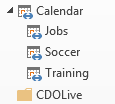
 Use this Excel macro to create appointments in different subcalendars in Outlook. To use, type the appointment data in the rows and then run the macro. The macro processes all rows that contain data in Column A, creating appointments using the data in the other columns.
To use, create a spreadsheet with the fields in this order: Calendar Name, Subject, Location, Body, Category, Start, Start Time, End, End Time, Reminder. Set Excel's VBA security to low, then paste the macro into Excel's VBA editor and run the macro.

The calendar's listed in Column A need to exist, Outlook won't create them.
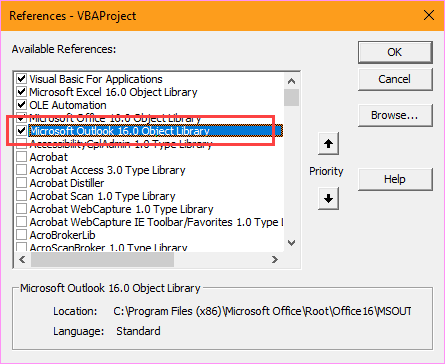
This is an Excel macro. You'll also need to set a reference to the Outlook object model in Excel's VBA Editor's Tools, References dialog.
A version of the macro that skips previously imported events is here. A sample workbook is here.
Tip: If all appointments start and/or end at the same time, you can set a specific time value instead of getting it from the spreadsheet:
        .Start = Cells(i, 5) + TimeValue("9:00:00")
        .End = Cells(i, 7) + TimeValue("10:00:00")
Option Explicit
Public Sub CreateOutlookApptz()
   Sheets("Sheet1").Select
    On Error GoTo Err_Execute

    Dim olApp As Outlook.Application
    Dim olAppt As Outlook.AppointmentItem
    Dim blnCreated As Boolean
    Dim olNs As Outlook.Namespace
    Dim CalFolder As Outlook.MAPIFolder
    Dim subFolder As Outlook.MAPIFolder
    Dim arrCal As String

    Dim i As Long

    On Error Resume Next
    Set olApp = Outlook.Application

    If olApp Is Nothing Then
        Set olApp = Outlook.Application
         blnCreated = True
        Err.Clear
    Else
        blnCreated = False
    End If

    On Error GoTo 0

    Set olNs = olApp.GetNamespace("MAPI")
    Set CalFolder = olNs.GetDefaultFolder(olFolderCalendar)

    i = 2
    Do Until Trim(Cells(i, 1).Value) = ""
    arrCal = Cells(i, 1).Value
    Set subFolder = CalFolder.Folders(arrCal)

    Set olAppt = subFolder.Items.Add(olAppointmentItem)

    'MsgBox subFolder, vbOKCancel, "Folder Name"

    With olAppt

    'Define calendar item properties
        .Start = Cells(i, 6) + Cells(i, 7)
        .End = Cells(i, 8) + Cells(i, 9)
        .Subject = Cells(i, 2)
        .Location = Cells(i, 3)
        .Body = Cells(i, 4)
        .BusyStatus = olBusy
        .ReminderMinutesBeforeStart = Cells(i, 10)
        .ReminderSet = True
        .Categories = Cells(i, 5)
        .Save

    End With

        i = i + 1
        Loop
    Set olAppt = Nothing
    Set olApp = Nothing

    Exit Sub

Err_Execute:
    MsgBox "An error occurred - Exporting items to Calendar."

End Sub
Create Appointments in One Calendar
This version of the macro creates all of the appointments in one calendar. (This sample uses the default calendar.)
To use, create a spreadsheet with the fields in this order: Subject, Location, Body, Category, Start, Start Time, End, End Time, Reminder. Set Excel's VBA security to low, then paste the macro into Excel's VBA editor and run the macro.
Option Explicit
Public Sub CreateOutlookAppointments()
   Sheets("Sheet1").Select
    On Error GoTo Err_Execute

    Dim olApp As Outlook.Application
    Dim olAppt As Outlook.AppointmentItem
    Dim blnCreated As Boolean
    Dim olNs As Outlook.NameSpace
    Dim CalFolder As Outlook.MAPIFolder

    Dim i As Long

    On Error Resume Next
    Set olApp = Outlook.Application

    If olApp Is Nothing Then
        Set olApp = Outlook.Application
         blnCreated = True
        Err.Clear
    Else
        blnCreated = False
    End If

    On Error GoTo 0

    Set olNs = olApp.GetNamespace("MAPI")
    Set CalFolder = olNs.GetDefaultFolder(olFolderCalendar)

    i = 2
    Do Until Trim(Cells(i, 1).Value) = ""

    Set olAppt = CalFolder.Items.Add(olAppointmentItem)

    With olAppt

    'Define calendar item properties
        .Start = Cells(i, 5) + Cells(i, 6)
        .End = Cells(i, 7) + Cells(i, 8)
        .Subject = Cells(i, 1)
        .Location = Cells(i, 2)
        .Body = Cells(i, 3)
        .BusyStatus = olBusy
        .ReminderMinutesBeforeStart = Cells(i, 9)
        .ReminderSet = True
        .Categories = Cells(i, 4)
        .Save
' For meetings or Group Calendars
     ' .Send
    End With

        i = i + 1
        Loop
    Set olAppt = Nothing
    Set olApp = Nothing

    Exit Sub

Err_Execute:
    MsgBox "An error occurred - Exporting items to Calendar."

End Sub
Add or Delete Appointments from the Calendar
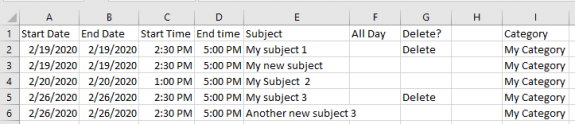
This version of the Excel macro will add or delete appointments in a spreadsheet. For example, it will solve this user's problem: Delete Outlook Appts with Excel sheet
Please note: this macro has the fields in a different order than the other macros on this page.
This is an Excel macro.
The appointments created with this macro will use the default reminder times configured in your Outlook at the time of the import.
This macro is also available in this text file.
Option Explicit
Public Sub CreateDeleteAppointments()
   ActiveSheet.Select
    On Error GoTo Err_Execute
    Dim olNs As Object 'Outlook.Namespace
    Dim olApp As Object 'Outlook.Application
    Dim olAppt As Object 'Outlook.AppointmentItem
    Dim blnCreated As Boolean
    Dim CalFolder As Object 'Outlook.MAPIFolder

   Dim CalItems As Object 'Outlook.Items
   Dim ResItems As Object 'Outlook.Items
   Dim sFilter, strSubject As String
   Dim itm As Object
   Dim dtStart, dtEnd As Date

    Dim i As Long

    On Error Resume Next

Set olApp = GetObject(, "Outlook.Application")
If Err.Number <> 0 Then
Set olApp = CreateObject("Outlook.Application")
  blnCreated = True
 Err.Clear
Else
blnCreated = False
End If

    On Error GoTo 0

    Set olNs = olApp.GetNamespace("MAPI")
    Set CalFolder = olNs.GetDefaultFolder(9)
    Set CalItems = CalFolder.Items
    CalItems.Sort "[Start]"

    i = 2
    Do Until Trim(Cells(i, 1).Value) = ""

If Cells(i, 7).Value = "Delete" Then

' create search string to find events to delete
    strSubject = Cells(i, 5)
    dtStart = Cells(i, 1) + Cells(i, 3)
    dtEnd = Cells(i, 2) + Cells(i, 4)

    'create the Restrict filter by day and recurrence"
sFilter = "[Start] = '" & dtStart & "' And [End] = '" & dtEnd & "' And [Subject] = """ & strSubject & """"

'Debug.Print sFilter

Set ResItems = CalItems.Restrict(sFilter)

'Debug.Print ResItems.Count

'Loop through the items in the collection.
For Each itm In ResItems
   itm.Delete
Next

Else

    Set olAppt = CalFolder.Items.Add(1)

    With olAppt

    'Define calendar item properties
        .Start = Cells(i, 1) + Cells(i, 3)
        .End = Cells(i, 2) + Cells(i, 4)
        .Subject = Cells(i, 5)
        '.Location = Cells(i, 2)
       ' .Body = Cells(i, 3)
If Cells(i, 7).Value = "x" Then
     .AllDayEvent = True
End If
        .BusyStatus = 2 'olBusy
       ' .ReminderMinutesBeforeStart = Cells(i, 9)
        '.ReminderSet = True
        .Categories = Cells(i, 9)
        .Save
' For meetings or Group Calendars
     ' .Send
    End With

    End If
        i = i + 1
        Loop
    Set olAppt = Nothing
    Set olApp = Nothing

    Exit Sub

Err_Execute:
    MsgBox "An error occurred - Exporting items to Calendar."

End Sub
Create Appointments in Different Time Zones
You can create the appointments in different time zones. This sample creates appointments in the default calendar from Excel data. The time zones are hardcoded. If you need to use different time zones for each appointment, add the time zone names to the spreadsheet and add the time zones like this:
  Dim timezonestart As Variant, timezoneend As Variant

i = 2
    Do Until Trim(Cells(i, 1).Value) = ""
     timezonestart = Cells(i, 12)
     timezoneend = Cells(i, 13)

     Set tzStart = olApp.TimeZones.Item(timezonestart)
     Set tzEnd = olApp.TimeZones.Item(timezoneend)
Option Explicit
Public Sub CreateOutlookApptTZ()
   Sheets("Sheet1").Select
   ' On Error GoTo Err_Execute

    Dim olApp As Outlook.Application
    Dim olAppt As Outlook.AppointmentItem
    Dim blnCreated As Boolean
    Dim olNs As Outlook.Namespace
    Dim CalFolder As Outlook.MAPIFolder
    Dim arrCal As String
    Dim tzStart As TimeZone, tzEnd As TimeZone

    Dim i As Long

    On Error Resume Next

 Set olApp = Outlook.Application
 Set tzStart = olApp.TimeZones.Item("Eastern Standard Time")
 Set tzEnd = olApp.TimeZones.Item("UTC")

    If olApp Is Nothing Then
        Set olApp = Outlook.Application
         blnCreated = True
        Err.Clear
    Else
        blnCreated = False
    End If

    On Error GoTo 0

    Set olNs = olApp.GetNamespace("MAPI")
    Set CalFolder = olNs.GetDefaultFolder(olFolderCalendar)

    i = 2
    Do Until Trim(Cells(i, 1).Value) = ""

    Set olAppt = CalFolder.Items.Add(olAppointmentItem)

    With olAppt

    'Define calendar item properties
        .StartTimeZone = tzStart
        .Start = Cells(i, 6) + Cells(i, 7)
        .EndTimeZone = tzEnd
        .End = Cells(i, 8) + Cells(i, 9)
        .Subject = Cells(i, 2)
        .Location = Cells(i, 3)
        .Body = Cells(i, 4)
        .BusyStatus = olBusy
        .ReminderMinutesBeforeStart = Cells(i, 10)
        .ReminderSet = True
        .Categories = Cells(i, 5)
        .Save

    End With

        i = i + 1
        Loop
    Set olAppt = Nothing
    Set olApp = Nothing

    Exit Sub

Err_Execute:
    MsgBox "An error occurred - Exporting items to Calendar."

End Sub
Create Appointment from Selected Row
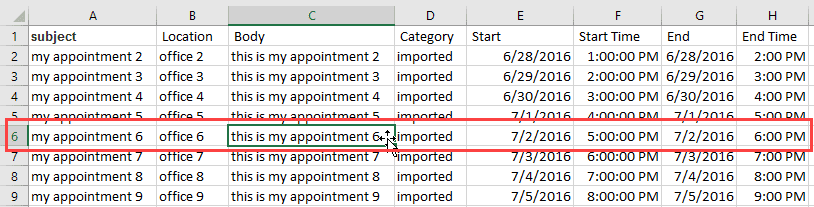
This Excel macro is used to create an appointment using the data in the selected row. To use, select a cell in the row you wish to use then run the macro.
Option Explicit
Public Sub CreateOneAppointment()
    Dim olApp As Outlook.Application
    Dim olAppt As Outlook.AppointmentItem
    Dim blnCreated As Boolean
    Dim olNs As Outlook.Namespace
    Dim CalFolder As Outlook.Folder

    Dim i As Long

    On Error Resume Next
    Set olApp = Outlook.Application

    If olApp Is Nothing Then
        Set olApp = Outlook.Application
         blnCreated = True
        Err.Clear
    Else
        blnCreated = False
    End If

    Set olNs = olApp.GetNamespace("MAPI")
    Set CalFolder = olNs.GetDefaultFolder(olFolderCalendar)
    i = ActiveCell.Row

    Set olAppt = CalFolder.Items.Add(olAppointmentItem)
    With olAppt
    'Define calendar item properties
        .Start = Cells(i, 5) + Cells(i, 6)
        .End = Cells(i, 7) + Cells(i, 8)
        .Subject = Cells(i, 1)
        .Location = Cells(i, 2)
        .Body = Cells(i, 3)
        .BusyStatus = olBusy
        .ReminderMinutesBeforeStart = Cells(i, 9)
        .ReminderSet = True
        .Categories = Cells(i, 4)
        .Save

    End With

    Set olAppt = Nothing
    Set olApp = Nothing

End Sub
Send Meeting Requests
Use this macro to send meeting requests. Do not use a location if you are adding a resource.
As written for the macro below, the fields in the CSV are, left to right:
Subject
Location
Body
Categories
Start Date
Start Time
End Date
End Time
Minutes before Start
Required **
Optional **
Resource **
** Note: The attendees and resources are limited to group in this macro. to send to multiple names, you need to resolve each name. More information follows this macro.
If your CSV has the fields in a different order, change the column number in in the appointment code, for example: .Body = Cells(i, 3).
If you need to send it to multiple addresses, you'll need to use the split function then loop the attendee code to add each address separately.
Option Explicit
Public Sub CreateOutlookAppointments()
   Sheets("Sheet1").Select
    On Error GoTo Err_Execute

    Dim olApp As Outlook.Application
    Dim olAppt As Outlook.AppointmentItem
    Dim blnCreated As Boolean
    Dim olNs As Outlook.Namespace
    Dim CalFolder As Outlook.MAPIFolder

    Dim i As Long

    On Error Resume Next
    Set olApp = Outlook.Application

    If olApp Is Nothing Then
        Set olApp = Outlook.Application
         blnCreated = True
        Err.Clear
    Else
        blnCreated = False
    End If

    On Error GoTo 0

    Set olNs = olApp.GetNamespace("MAPI")
    Set CalFolder = olNs.GetDefaultFolder(olFolderCalendar)

    i = 2
    Do Until Trim(Cells(i, 1).Value) = ""

    Set olAppt = CalFolder.Items.Add(olAppointmentItem)
    With olAppt
       .MeetingStatus = olMeeting
    'Define calendar item properties
        .Subject = Cells(i, 1)

    ' don't use a location if using a resource
      ' .Location = Cells(i, 2)
        .Body = Cells(i, 3)
        .Categories = Cells(i, 4)
        .Start = Cells(i, 5) + Cells(i, 6)
        .End = Cells(i, 7) + Cells(i, 8)

        .BusyStatus = olBusy
        .ReminderMinutesBeforeStart = Cells(i, 9)
        .ReminderSet = True

'## Start Recipient code
' get the recipients
        Dim RequiredAttendee, OptionalAttendee, ResourceAttendee As Outlook.Recipient
        Set RequiredAttendee = .Recipients.Add(Cells(i, 10).Value)
            RequiredAttendee.Type = olRequired
        Set OptionalAttendee = .Recipients.Add(Cells(i, 11).Value)
            OptionalAttendee.Type = olOptional
        Set ResourceAttendee = .Recipients.Add(Cells(i, 12).Value)
            ResourceAttendee.Type = olResource
'## End Recipient code
' For meetings or Group Calendars
' use .Display instead of .Send when testing or if you want to review before sending
        .Send

    End With

        i = i + 1
        Loop
    Set olAppt = Nothing
    Set olApp = Nothing

    Exit Sub

Err_Execute:
    MsgBox "An error occurred - Exporting items to Calendar."

End Sub
Send meetings to multiple addresses
In order to send a meeting to multiple addresses you need to enter the addresses in the recipient cells separated by a semicolon.
Replace the recipient code in the macro above with the code.
'## Start Recipient code
' get the recipients
    Dim objAttendee As Outlook.Recipient
    Dim arrRecipients As Variant
    Dim strRecipient As String
    Dim countRecip As Long
    Dim exCell
    Dim exRecipents
    Dim olType


 For exCell = 1 To 3

    Select Case exCell
     Case 1
      exRecipents = Cells(i, 10).Value
      olType = olRequired
     Case 2
      exRecipents = Cells(i, 11).Value
      olType = olOptional

     Case 3
      exRecipents = Cells(i, 12).Value
      olType = olResource

    End Select

    arrRecipients = Split(exRecipents, ";")

      If UBound(arrRecipients) >= 0 Then
      For countRecip = 0 To UBound(arrRecipients)
       strRecipient = arrRecipients(countRecip)
       Debug.Print strRecipient, countRecip, olType

    Set objAttendee = .Recipients.Add(strRecipient)
      objAttendee.Type = olType
      objAttendee.Resolve

      Next
    End If
Next
'## End Recipient code
How to use macros
First: You will need macro security set to low during testing.
To check your macro security in Excel 2010 or newer, go to File, Options, Trust Center and open Trust Center Settings, and change the Macro Settings.
After you test the macro and see that it works, you can either leave macro security set to low or sign the macro.
Open the VBA Editor by pressing Alt+F11 on your keyboard.
Paste the macro in Excel and run.

Josh K says
This is very helpful, thank you. How do I use 'Send meetings to multiple addresses' with a shared calendar (on an Exchange server)? I tried following the instructions listed here: https://www.slipstick.com/developer/working-vba-nondefault-outlook-folders/
But, I still couldn't figure out what I needed to plug in and replace. Let's say the shared calendar is called "Test1." Can you please provide guidance on how to modify the 'Send meetings to multiple addresses' code accordingly?
Makis says
Hello and thank you
Can this be done with google calendars?
Thank you !
Diane Poremsky says
Not directly with Gmail.com's calendar -you would need to add the events to a calendar in outlook and use a 3rd party sync utility (like Companionlink) to sync back to the online calendar.
Makis says
I understand, but this software is paid one, so I cannot use it. Thank you!
Diane Poremsky says
You other option - import into Outlook desktop, save the calendar as an ics file and import it into gmail.
Also gmail should be able to import CSV files too.
Michael J Olifirowicz says
the Calendar I'm trying to access is a "group calendar" that was created and has an e-mail address of e-mail@organization.onmicrosoft.com . I've tried a few ways to get to the calendar and have failed. Any thoughts?
Diane Poremsky says
Group calendars a weird. :) I have not tried adding to a group calendar recently, but in the past, you needed to select the group calendar, not call it by name.
Set CalFolder = olNs.ActiveExplorer.CurrentFolder
That's how I did it in How to Import Appointments into a Group Calendar (slipstick.com) - I don't recall if I tried using a macro like the ones on this page, but the source shouldn't matter.
francisco says
I am using a script to send bulk emails to people in my company.
we want to send a teams meeting invite as attachment so they can optionally attend a training session on fridays.. coding a teams meeting invite is a not straight forward. i tried use SENDKEYS but i am far from my desired goal
Emily says
Hello- from the CSV, what format should the time and dates be in so that it properly creates the meeting invite? I keep getting a type mismatch.
Diane Poremsky says
Use your default short date format and short time format.
I know 10/20/2021 and 10:45 AM work.
dannyG says
Hey there,
Thanks so much for the code, it is running great except for one random issue!
It seems to be adding duplicates of a select handful of events (among a total list of roughly 70). In excel, and in the code for this data, there is nothing different about these items, yet it still wants to keep duplicating the same each time I test importing the entire list. Some of these items are entered twice, others three times.
However, when I test only adding one of these items independently instead of the entire list (but inputting "Imported" for every other entry), it enters it in properly as a single instance.
I am clueless as to why this is happening and appreciate any help to solve it.
Thanks!
guest says
Hello,
I am getting this error: "The attempted operation failed. An object could not be found."
With the debug landing on this line: Set subFolder = CalFolder.Folders(arrCal)
Not sure what the issue would be, I have copied your column headers exactly and my Calendar Name matches to my Outlook calendar.
I appreciate the help.
Diane Poremsky says
Are you using calendar subfolders? If you are adding the events to your default calendar, you don't need that line.
guest says
Hi Diane,
I believe I am using a subfolder underneath "My Calendars" in Outlook - I will attach a photo. In my "Calendar Name" column I am using the name "Dates" as this is the calendar I would like to have appointments made in.
Also, when I try to run without the subfolder lines I am getting error 13, type mismatch on this line:
'Define calendar item properties
.Start = Cells(i, 6) + Cells(i, 7)
Thanks,
David
Diane Poremsky says
Switch to the folder list - Ctrl+6 - to see where the folder is. Just being under My Calendars doesn't mean much.
Alternately, you can right click on the calendar, choose Properties - you'll see the path under the calendar name, in this format -
\\data file name\path\the calendar
in my screenshot - the Moon calendar is a subfolder of the Calendar.
Paul van Schalkwyk says
Hi Diane,
Thank you so much for this code - it really is brilliant. I am able to add items to my calendar correctly.
However, when I try and delete items, it doesn't remove them from my calendar. Uncommenting the Debug.Print statements, it would appear that the ResItems count remains at 0 after the line:
It is correctly building the string for sFilter.
I am not using an Outlook mailbox (instead I have configured my gmail account in Outlook appplication).
Could you please help me identify whey the ResItems line is not populating correctly?
Thanks again.
Paul
Diane Poremsky says
Is the calendar labeled 'this computer only'? I'll need to test it - it could be the calendar, it could be the code - deleting has been kind of buggy.
Paul van Schalkwyk says
Hi Diane,
Yes, the calendar is labeled Calendar (This computer only). I have also noted that the calendar entry is only visible in Outlook. When I open the calendar entry, it provides the option to "Copy to My Calendar". However, even if I click that, the duplicate entry does not get deleted - or become visible outside of Outlook. The duplicate entry also still contains the option to "Copy to My Calendar".
Thanks for your help
Kind regards,
Paul
Diane Poremsky says
That is an IMAP calendar. Those calendars don't sync anywhere - they are only in Outlook desktop.
Pratik says
Hello Everyone,
Can anyone share the VBA code to create .ics files from the data in Excel with different time zones & start & end time and that to be saved in desktop. Please help
Diane Poremsky says
I don't have any code samples that create ICS files from Excel but there might be some, somewhere. There are utilities that can do it too.
Creating meeting invites or outlook appointments in different time zones is not difficult.
Hiroko says
I am now getting system error &H8004010F(-2147221233), although last week the code was running perfectly, created new categories with subject and body and all. What cause this? The folder is shared calendar.
Diane Poremsky says
That is a compile error. I'll test it and see if I can reproduce the error and figure out what is going on.
Magda says
Hi,
thanks for providing the code. I am trying to adapt it to send the same reminders for a whole week so will probably add some loop into it. However when reminders for one day are sent I also get at least twice the amount of reminder set for a day in December in 1899. Can you advise?
Diane Poremsky says
The obvious question: Are there any events for that date? If it a recurring event with a reminder, it could be picked up as occurring every day (even though the pattern is not daily.)
Aaron says
My attempt is getting hung up on the define calendar item properties. .Start = Cells(i, 1) + Cells(i, 3) "Run-time error '440': Automation error
Aaron says
After enabling the outlook library, it changed the error to Run-time error 9 subscript out of range. Any recommendations?
Raymond Lourens says
Good Day,
Thanks for the code. The Delete Appointments from the Calendar code does not remove the previous appointment from the calendar as expected. It only avoids adding duplication to the calendar.
Do perhaps have an update code to solve this?
Is it also possible to avoid adding duplicate reminders in the calendar and to ignore lines with no dates, but still look through all the lines in the table?
Thanks!
Brendan says
Hi Dianne,
Fantastic macros, thank you so much!
I'm trying to adapt/combine two of these macros to create one that checks whether appointments have been scheduled, schedules new appointments and sends a meeting request to required attendees.
I've used the code you created here (https://www.slipstick.com/macros/excel-save-calendar-macro.txt) as a base, then attempted to add the relevant code from your 'Send Meeting Requests' code and adjust the macro accordingly (I disabled the optional attendees and resource attendees as I'm not using them and it was creating an error message for me).
When I run the code, it doesn't prompt any error, it runs through the rows on the sheet and marks them as imported. BUT, no meeting requests are sent out. I've attached my testing spreadsheet for reference.
I can't figure out why it seems to run successfully, but creates no appointments/meeting requests. Any help would be great! Thank you!
Brendan says
Sorry, just realised the code was not presenting well in my original comment, so I have also included it in a text file attached to this comment.
James Thomas says
Hi Diane,
Thanks for the meeting request code, it works a treat, i'm really no good at VBA and would very much like the code to change what it does when it encounters and specific email address. I am trying to setup a ROTA and i have the code searching for dates in an excel list via HLOOKUP and returning the email address of people it finds at that date and sends out meeting requests to each individual to remind them
However not everyone puts their name down on the rota and i've managed to use some Excel codes to paste a team email address into a cell when it finds a blank date.
However my code then emails the team email address inviting everyone on the list. i have two questions which i hope you can help with:
1) how can i exclude the team email address from being part of the code so it ignores it and moves on?
2) How can i setup the code to instead send an email out to the team email address basically saying there is currently noone down for ROTA?
Thanks
James
Ninnut85 says
I've managed to get the "Create Appointments in One Calendar" to work as i need it. The only extra thing i need it to do is if it finds a blank cell in the 'start' and 'end' columns.
Basically, I have a formula in those boxes where it displays a date if another cell has been populated but will display "" (blank) if the other cell hasn't been populated.
How can I get this to work where it will ignore any cells with no dates in them? When the cells are blank, the macro just errors.
For example, in the screen shot, If cell E10 is empty because the formula has not found a date in the other sheet, how can I make it so this will ignore the empty cell and generate the appointments for the dates that are populated?
Many thanks,
Adeeb Ahmed says
Hi Diane:
The code seems really helpful. I am probably the least experienced in this. I'll explain what I need and if you could then direct me for the right code.
I have 2 mailboxes set in outlook. I am trying to use one to create multiple meeting requests on a daily basis.
I tried the meeting request code but I received an error saying Compile error: User-defined type not defined and it highlights Dim olApp As Outlook.Application.
Just a note, should I be having a calendar name on the excel file? Additionally, it needs to be saved as a CSV file right?
Looking forward to your assistance.
Thanks
Adeeb
Chayanon T. says
Hi Daine,
Your code is working well. Thank you very much.
I got a problem while I coding more 5 macros in order to send 5 invitations at the same time. I'm using call function and its time for some macro is reference cell is incorrect. For example, in my worksheet, I put 11:00 for start time and 12:00 for the end time (24 hrs format). Unfortunately, the calendar was sent time as 23:00 - 00:00.
Could you please advise what should I do.
Thanks...
Deepak says
Hello Diane,
Thanks a lot for the post. It was really helpful. I used your template for making a vacation calendar for a team and it works. However, if i make some modifications in the excel sheet and run the macro again, it duplicates all entries which were previously entered. How can i avoid this and import only the new changes?
The worksheet has 5 columns in the following order: Calendar, Last Name, First Name, Start Date, End Date
FYI: I'm already working with the version where you mentioned skips previous imports.
Thanks in advance!
chilly says
Hi Diane,
thank you for taking the time to write this.
I appear to be having the same issue where it says Compile Error User defined type not defined.
what can i do to fix this?
i look forward to your reply.
kind regards,
chilly
Susan Murphy says
Hi Diane -
Thank you so much for sharing this code -
I modified it to work with the spreadsheet I am using, however, nothing is appearing in my calendar. My code is below as well as a print screen of the calendar and the workbook.
Can you tell me what I am doing wrong??
Thanks
Susan
Option Explicit
Public Sub CreateOutlookApptz()
Sheets("May 18").Select
On Error GoTo Err_Execute
Dim olApp As Outlook.Application
Dim olAppt As Outlook.AppointmentItem
Dim blnCreated As Boolean
Dim olNs As Outlook.Namespace
Dim CalFolder As Outlook.MAPIFolder
Dim subFolder As Outlook.MAPIFolder
Dim arrCal As String
Dim i As Long
On Error Resume Next
Set olApp = Outlook.Application
If olApp Is Nothing Then
Set olApp = Outlook.Application
blnCreated = True
Err.Clear
Else
blnCreated = False
End If
On Error GoTo 0
Set olNs = olApp.GetNamespace("MAPI")
Set CalFolder = olNs.GetDefaultFolder(olFolderCalendar)
i = 2
Do Until Trim(Cells(i, 1).Value) = ""
arrCal = Cells(i, 1).Value
Set subFolder = CalFolder.Folders(arrCal)
Set olAppt = subFolder.Items.Add(olAppointmentItem)
'MsgBox subFolder, vbOKCancel, "Folder Name"
With olAppt
'Define calendar item properties
.Order Date = Cells(i, 5) + TimeValue("12:00:00")
.Due Date = Cells(i, 4) + TimeValue("24:00:00")
.Job = Cells(i, 8)
.Customer = Cells(i, 7)
.PO# = Cells(i, 6)
.BusyStatus = olBusy
.Reminder = Cells(i, 16)
.ReminderSet = True
.Category = Cells(i, 17)
.Save
End With
i = i + 1
Loop
Set olAppt = Nothing
Set olApp = Nothing
Exit Sub
Err_Execute:
MsgBox "An error occurred - Exporting items to Calendar."
End Sub
Diane Poremsky says
i think it fails because of the blank rows - this lines tells it to stop when there is a blank in column 1:
Do Until Trim(Cells(i, 1).Value) = ""
Susan Murphy says
Thank you - does it matter were in the code I put it?
Diane Poremsky says
I'm not sure what you are talking about - but yeah, it probably does.
Susan says
Hi Diane -
Thanks so much for posting this.
I am getting the same error message as Chris below:
Compile error:
User-defined type not defined
(Highlighted in code) olApp As Outlook.Application
I have set a reference to the Outlook Item as listed about but I still get this message. Is there something else I can do that I am not?
Also - I have changed/renamed entries to match my spreadsheet. I have attached I here can you take a look and tell me if I am on the right track?
Thanks !
Diane Poremsky says
so you still got the error after setting the reference to outlook object library? that should fix the error.
cesar d says
Hi Diane
Thanks a lot for the code that's brilliant. my knowledge is quite limited with VBA.
I am using the "Send Meeting Requests" code and i was wondering is it possible to make them appear on a shared calendar, instead of my calendar?
Thanks in Advance!
Cesar
Diane Poremsky says
Sure, as long as you have the proper permissions. You'll need to use the code at https://www.slipstick.com/developer/working-vba-nondefault-outlook-folders/#shared to get the owner.
Set CalFolder = NS.GetSharedDefaultFolder(objOwner, olFolderCalendar)
Janna says
Hi Diane,
Thanks for the great code but I am having the same issue as James Wong. The code works great to send appointments from my default calendar but when I try the Set CalFolder = olNs.ActiveExplorer.CurrentFolder I get Run-time error '438': Object doesn't support this property or method.
Any suggestions why? Using Outlook 2016 if that matters.
I am trying to schedule the appointments in a sub calendar named "Test-ACSDI and have it open.
Diane Poremsky says
as long as a calendar by the same name exists as a subfolder of the selected calendar, it should work. The error seems to say the folder is not a calendar though.
Debby says
Hello Diane,
This macro is so helpful! I am not very familiar with macros and I am getting a run-time error type '13': Mismatch with the Start times and End times. I was reading online it looks like the error is stemming from the format of the text in the cell. However, I tried converting the time to a number and I still get the same error. The only way I can get the macro to work is to change these two lines to text: '.Start = Cells(i, 5) + Cells(i, 6) '+ TimeValue("9:00:00")
'.End = Cells(i, 7) + Cells(i, 8) '+ TimeValue("10:00:00").
Any ideas on what I could be doing wrong? Thanks in advance for your help!
Diane Poremsky says
If the value is in the cell is coming over as a date (use debug.print Cells(i, 5) + Cells(i, 6) to see how its coming over), it can still work... but you need to know the value outlook sees in the cell. It's definitely better if the format of the cell is what outlook is expecting.
Debby says
Thank you for responding so quickly! I think I may be doing something wrong... I put some slides together to show what happens when I try to use the Start time and End times in the Macro. If I don't use them, the macro works, however I cannot set the times. Please let me know if you have any suggestions :) Thank you!
mark says
HI Diane.. first of all thanks for some great code. I had a quick question regarding the use of time zones. I seem to have created my script to appropriately adding the StartTimeZone and EndTimeZone, but for some reason outlook does a funny mutation on the different time zones. Its showing the right time zone name in outlook, but has unexpectedly shifted the appointment by the difference between the two time zones which i don't want. It seems to assume that any times (start/end) inputted are in the home time zone (arabian) and then only modifying the outlook appointment time to the listed time zone?
My home time zone for the computer is Arabian Standard time
example in excel input:
Start time 4am Arabian Standard Time,
End Time 11:45 South Africa Standard Time
once into outlook it shows as
Start Time 04:00a Arabian Standard Time
End Time 09:45 South Africa Standard Time
**** this is for some reason shifted 2 hours (the diff in time zones)
Do you know how to fix this? Appreciate it.
Happy to attach a sample file if needed!!!
Thanks
Mark
Diane Poremsky says
i'll need to see the code. You can paste it into a text file and attach it to a comment.
Edd says
Hello Diane,
First off, thanks for sharing this very helpful piece of code! Really works great. I have it in use on a couple of spreadsheets and it makes planning a lot easier.
However, I'm trying to set up a new sheet with a list of subjects to select from. The layout is the same as in your example however 250 rows with subjects to choose from (followed with the rest of the info like start date, time etc.)
Via a userform it is possible to select subjects, the userform in return hides all the rows that are not selected. This leaves only a couple of rows visible.
How do I get this code to use only the visible rows when adding to the calendar?
Hope you get this question and many thanks for your time
Diane Poremsky says
this is how you select only visible cells in the used range (using the proper sheet references per your macro)
ActiveSheet.UsedRange.SpecialCells(xlCellTypeVisible).Select
But i don't think you really want the selection, just the first row, so getting the first used row should work -
Cells(Columns("A").Rows.Count, "A").End(xlUp).Select
if you have a header row visible, you'll need to move down one - .offset or this might work:
Cells(Columns("A").Rows.Count + 1, "A").End(xlUp).Select
Edd says
Hello Diane,
Thanks for your quick reply. I replaced:
Do Until Trim(Cells(i, 1).Value) = ""with your code:
Do Until Cells(Columns("A").Rows.Count + 1, "A").End(xlUp).SelectBut this gives me a run-time error 1004 in return. I think i'm doing something wrong here :S
Just to clarify as I think I wasn't to clear on this. After making a selection from the userform with all the subjects, a list of variable rows is left visible. (for example, rows 4-10, 12, 14, 21-25 etc) These in return will become the calendar appointments.
Also, I'm using the script from your "Create Appointments in One Calendar" example
Again thank you for your time!
Diane Poremsky says
the line i gave you picks the second visible row (first would be the header row). You could use it to set the row value in your code, although it looks like it needs some work.
Edd says
Thanks Diane but I''m not to sure what to do now :S
I thought your latest piece of code had to replace the line behind the ''Do Until'' but this is giving me the error I mentioned previously.
Further help would be greatly appreciated!
Diane Poremsky says
I think you need to get the first visible row
This: Cells(Columns("A").Rows.Count + 1, "A").End(xlUp).Select
or this: ActiveSheet.UsedRange.Rows.SpecialCells(xlCellTypeVisible)
should do it, then you need to work down the it. I don't know if i will have time to test code that does it before the end of the year though.
James Wong says
Hi Diane,
Thanks for the code and it works great! can you help me modify this code to add event on a selected current calendar? thank you.
Public Sub CreateOneAppointment()
Dim olApp As Outlook.Application
Dim olAppt As Outlook.AppointmentItem
Dim blnCreated As Boolean
Dim olNs As Outlook.Namespace
Dim CalFolder As Outlook.Folder
Dim i As Long
On Error Resume Next
Set olApp = Outlook.Application
If olApp Is Nothing Then
Set olApp = Outlook.Application
blnCreated = True
Err.Clear
Else
blnCreated = False
End If
Set olNs = olApp.GetNamespace("MAPI")
Set CalFolder = olNs.GetDefaultFolder(olFolderCalendar)
i = ActiveCell.Row
Set olAppt = CalFolder.Items.Add(olAppointmentItem)
With olAppt
'Define calendar item properties
.Start = Cells(i, 2) + Cells(i, 18) '+ TimeValue("9:00:00")
.End = Cells(i, 2) + Cells(i, 38) '+TimeValue("10:00:00")
.Subject = Cells(i, 34)
.Location = Cells(i, 39)
.Body = Cells(i, 35)
.BusyStatus = olBusy
.ReminderMinutesBeforeStart = Cells(i, 36)
.ReminderSet = True
.Categories = Cells(i, 12)
.Save
End With
Set olAppt = Nothing
Set olApp = Nothing
End Sub
Diane Poremsky says
Try changing Set CalFolder = olNs.GetDefaultFolder(olFolderCalendar) to
Set CalFolder = olNs.ActiveExplorer.CurrentFolder
James Wong says
it didn't work for some reasons.
Diane Poremsky says
Any error messages? What happened when you tried?
James Wong says
nothing happen when I run the macro, no error message appears
Diane Poremsky says
Find and comment out all on error resume next lines and run it- see if it triggers any error messages. Without an error message, its really difficult to know why its not running.
David says
Thank you very much for these useful codes, they really come in handy within corporate environment. :)
Jack says
Hi Diane, very new to VBA - but this code has helped a lot :)
Just wondering how I would go about stopping duplicates in the Create Appointments in One Calendar code?
Thanks:)
Diane Poremsky says
You'd do it the same as in the other code - add a field and add a value when the event is created, check the field when importing.
If Trim(Cells(i, 11).Value) = "" Then
Set olAppt = CalFolder.Items.Add(olAppointmentItem)
-- snipped create event --
Cells(i, 11) = "Imported"
End If
Charlie says
Hi Diane!
Thanks for the awesome macro about sending meeting request. I'm getting Run- time error '-2147219712 (80040700) ': The operation failed. the messaging interfaces have returned an unknown error. if the problem persist, restart outlook. cannot resolve recipient. can you please help? i followed all the instructions provide. Thanks for your help in advance!
Diane Poremsky says
does it show you want line its hanging on? Wild guess, it's the recipient lines and you are using display names in the cell, not email address.
Try this adding .recipients.ResolveAll after each attendee type line:
Set RequiredAttendee = .Recipients.Add(Cells(i, 10).Value)
RequiredAttendee.Type = olRequired
.recipients.ResolveAll
(Adding it once after the last attendee line should work too.)
If this fails, you'll need to read all of the recipients and resolve them one at a time.
Jasper says
Hi There,
Firstly, many thanks for the great Macro. I've modified the code slightly, because I wanted to review the MR before sending and some data had to come from the same particular cell, which resulted in the following:
Option Explicit
Public Sub CreateOutlookAppointments()
Sheets("MR").Select
On Error GoTo Err_Execute
Dim olApp As Outlook.Application
Dim olAppt As Outlook.AppointmentItem
Dim blnCreated As Boolean
Dim olNs As Outlook.Namespace
Dim CalFolder As Outlook.MAPIFolder
Dim i As Long
On Error Resume Next
Set olApp = Outlook.Application
If olApp Is Nothing Then
Set olApp = Outlook.Application
blnCreated = True
Err.Clear
Else
blnCreated = False
End If
On Error GoTo 0
Set olNs = olApp.GetNamespace("MAPI")
Set CalFolder = olNs.GetDefaultFolder(olFolderCalendar)
i = 2
Do Until Trim(Cells(i, 1).Value) = ""
Set olAppt = CalFolder.Items.Add(olAppointmentItem)
With olAppt
.MeetingStatus = olMeeting
'Define calendar item properties
.Subject = Cells(i, 1)
' doni use location if using a resource
.Location = Cells(i, 2)
.Body = Cells(i, 3)
.Categories = Cells(i, 4)
.Start = Cells(i, 5) + Cells(i, 6) '+ TimeValue("9:00:00")
.End = Cells(i, 7) + Cells(i, 8) '+TimeValue("10:00:00")
.BusyStatus = olBusy
.ReminderMinutesBeforeStart = Cells(1, 19)
.ReminderSet = True
' get the recipients
Dim RequiredAttendee As Outlook.Recipient
Set RequiredAttendee = .Recipients.Add(Cells(1, 20).Value)
RequiredAttendee.Type = olRequired
' For meetings or Group Calendars
.Display
End With
i = i + 1
Loop
Set olAppt = Nothing
Set olApp = Nothing
Exit Sub
Err_Execute:
MsgBox "An error occurred - Exporting items to Calendar."
End Sub
The problem now is that it loops (i.e. it opens up all the items), while I just want one MR from the row that I have selected. Could you help me identify how to fix this as merely removing the word loop doesn't seem to cut it :(.
Kind regards
Jasper
Diane Poremsky says
so you just want to create the appointment for the currently selected row? use i = ActiveCell.Row (and remove Loop)
https://www.slipstick.com/developer/create-appointments-spreadsheet-data/#row
Cameron says
Brilliant code! I've got it working perfectly, except for one thing. The spreadsheet I'm using this for will be a "living" document, meaning that I'll be adding more appointments to it (sometimes a few a day) moving forward. Every time I run this script it creates duplicate appointments and sends reminders to each recipient. So basically I end up with a copy of every calendar appointment each time I run the script. How can it be modified to ONLY set up and send out appointments that are NEW? Does that make sense?
Thanks!!
Diane Poremsky says
The macro sample at https://www.slipstick.com/macros/excel-save-calendar-macro.txt marks items as they are imported and skips them next time.
Cameron says
That does do exactly what you said, but it does not include the option to add recipients. I tried to add just that string of code myself, and it worked, BUT I must have put it in the wrong spot because it now ignores what you added where it skips the ones marked as "imported". If possible I'd love for it to include the option to send calendar invites AND skip duplicates. Is that possible?
Diane Poremsky says
This should do it
Chris says
I copied and pasted the code, and this is what I get. I am not VBA knowledgeable, so I am stuck.
Compile error:
User-defined type not defined
(Highlighted in code) olApp As Outlook.Application
Can you help? please!!
Thank you.
Diane Poremsky says
You need to set a reference to the Outlook object model in Excel's VBA Editor - Tools, References.
Chris says
I have done that. Do I need to set that reference for all workbooks, or is it a universal change?
Chris says
Nevermind, I had to set a reference for Office, not just Outlook.
Will this code work for the Excel sheet on a network and a shared calendar?
Diane Poremsky says
Yes, as long as you have the paths correct - the excel worksheet side is a piece of cake. The calendar folder name will need to be fixed: Set CalFolder = olNs.GetDefaultFolder(olFolderCalendar) only works for default calendars. See https://www.slipstick.com/developer/working-vba-nondefault-outlook-folders/ for code that works with shared mailbxoes.
Guy says
Hi Diane,
Many thanks this wonderful piece of code, i am not skilled with VBA, but this nearly did everything I needed. I am having issues with the part for adding attendees as I have the required and optional fields, but if I leave the optional blank an error is encountered: "THERE MUST BE ATE LEAST ONE NAME OR CONTACT GROUP in the TO, CC or BCC" how do I get around this? Also, how do I add multiple email addresses in the optional field instead of just one?
I have looked through the previous messages trying the fixes that have been suggested where similar to my issues, but they don't seem to work
What would I need to change in the below code to correct the issues I am having:
------------------
' get the recipients
Dim RequiredAttendee, OptionalAttendee, ResourceAttendee As Outlook.Recipient
Set RequiredAttendee = .Recipients.Add(Cells(i, 11).Value)
RequiredAttendee.Type = olRequired
Set OptionalAttendee = .Recipients.Add(Cells(i, 12).Value)
OptionalAttendee.Type = olOptional
' For meetings or Group Calendars
.Send
-----------------
Thanks in advance for your assistance
Diane Poremsky says
to account for blank fields, either use on error resume next or check for blanks:
if Cells(i, 12).Value <> "" then
Set OptionalAttendee = .Recipients.Add(Cells(i, 12).Value)
OptionalAttendee.Type = olOptional
end if
To add multiples, you can try entering the addresses in the cell, seperated by a semi-colon. I don't recall if i tested it, so it may not work. If not, you'd need to convert to the cell value to an array and loop through the names. (not tested, so i may have mistyped something)
dim myarray
arrAddresses = Cells(i, 12).Value
myarray=split(arrAddresses,";")
For i = LBound(myarray) To UBound(myarray)
Set OptionalAttendee = .Recipients.Add(myarray(i))
OptionalAttendee.Type = olOptional
Next i
Antony says
Hi Diane,
I have looked to use your code to generate appointments from excel in a shared outlook calendar. The challenge I have is that I, as the creator of the calendar see the reminder pop up, but my colleagues who I share the calendar with do not.
Any suggestions on how all persons who have editing rights to the shared calendar can receive appointment reminders, regardless of who run the macro to create the appointments?
Regards,
Antony
Diane Poremsky says
unfortunately, there is no good solution. You'd need to copy the events to your calendar to get a reminder... otherwise, you'd need to use macros to send email reminders to everyone.
DANIELLE MURPHY says
Diane, I first need to say you are a lifesaver with this code.
I know you have answered my question I am about to ask about 50 different ways, but I was hoping you would try to answer me in simple terms :)
I have a shared calendar that I need my employee to use this same code and access.
I do not know what code to change or what to change it to.
I can tell you the folder name comes over to me with his name - test.
Example (Smith, John R - test)
Is this what I need in the code as well? Where to I insert? By the way I am using the code "Send meeting requests" with an additional column 1 for the Calendar name, which I really dont need to use.
Any help would be greatly appreciated!
Diane Poremsky says
Are you creating it on his calendar as shared calendar or is he going to run it himself and wants the events on a Calendar named Test?
This sets the folder and is what you'd change. This specific example is the default calendar.
Set CalFolder = olNs.GetDefaultFolder(olFolderCalendar)
This is a subfolder of the default:
Set CalFolder = olNs.GetDefaultFolder(olFolderCalendar).Folders("calendar name")
this is a folder at the same level (as seen in the folder list (Ctrl+6), not in the calendar navigation pane)
Set CalFolder = olNs.GetDefaultFolder(olFolderCalendar).Parent.folders("calendar name")
A shared calendar needs a bit more code - i have an example at
https://www.slipstick.com/developer/working-vba-nondefault-outlook-folders/
Paul says
Hi Diane,
Is it possible to upload to a Shared Calendar if I am set-up as an Editor on that Calendar?
Also - is it possible for the upload not to be duplicated?
Diane Poremsky says
You should be able to create and import events... and no, outlook doesn't check for duplicate events.
Alison says
Diane,
Thank you very much for this code. It helps tremendously! What if you need to add a bunch of information to the body, not just one cell. In my situation, I need to add an itinerary to the body. I am creating the itinerary on a separate worksheet in the same workbook. Any suggestions? Like many others looking at this code, I am a newbee. Any help is greatly appreciated.
Diane Poremsky says
Adding it to the body should work -
strItinerary = Sheets("Sheet2").Range("A1:B6")
.Body = Cells(i, 4) & strItinerary
Alison says
Diane,
Thank you for your response. How do I define strItinerary? If I define it as a string, I get a type mismatch. If it is a range, I get a RTE 91 Object variable or with block variable not set. Thank you again for your help.
Diane Poremsky says
Sorry I missed this, i wanted to test it but haven't had time (and am taking a shaort vacation now).
Try using just Dim:
Dim strItinerary
Bernie says
Not working for me, the debugger stops at this: Set subFolder = CalFolder.Folders(arrCal)
Diane Poremsky says
That means the Subfolder under Calendar does not exist. If you aren't using subfolders, try Set subFolder = CalFolder - this way you won't need to edit the code too much.
Bernie says
Thank you, that corrected the problem and it worked once, the second time I tried it nothing was created in the calendar, then I get a run-time error 462: The remote server machine does not exist or is unavailable. If I download a new example workbook and make the change to the Subfolder under calendar, it will work 1 time only. If that makes sense.
Diane Poremsky says
That doesn't make sense... i'll take a look. In the meantime, it's possible it's due to the olapp code. It may need to be changed to
set olApp = GetObject(,"Outlook.Application")
but first, add Set olNs = Nothing before the olapp = nothing line and see if it works.
Erin says
Hello Diane,
Thanks so much for the code! I'm using the code here to skip previously imported appointment here: https://www.slipstick.com/macros/excel-save-calendar-macro.txt. It's the first time I'm using macros or VBA, so I have no useful knowledge of either. I'm running Outlook and Excel 2016.
When I try to run the code, I get "run-time error 91: Object variable or With block variable not set." The debugger highlights "Set olNs = olApp.GetNamespace ("MAPI")
Any suggestions?
Diane Poremsky says
is olApp set as application? (Its in the code, so it should be).
Try changing that to application:
Set olNs = Application.GetNamespace ("MAPI")
Erin says
Thanks for the suggestion. This results in Run-time error 438: "Object doesn't support this property or method." Same line of code.
Diane Poremsky says
oh... did you set a reference to the outlook object library in tools, references?
Erin says
I did. I have been wondering if that might be the issue, but I have the reference set and I can't find another object library in the list for Outlook.
Diane Poremsky says
You're using the exact code? Did you add any other fields? (its not erroring here.)
Diane Poremsky says
for most people there is only one outlook object library - the number will change depending on your version.
Diane Poremsky says
oh... did you set a reference to the outlook object library in tools, references?
Charles B says
Firstly, this is a wonderful code and does exactly what I need with one exception. The dates that I want to use are actually a formula based from the original date. If original date is May 1, 2017 the notification date is set for 4 months later. I think it is having trouble reading the formula instead of the displayed date but I can't figure out how to correct this. Any suggestions?
Diane Poremsky says
So its reading the formula, not the value? Try adding value to the cell : Cells(i, 6).value
Kei says
Hi Diane,
Your code is very useful however, is there a way for the appointment to originate from someone else's email account by way of allowing the user to enter their username into a MsgBox linked to a Cell?
This is because the file I created will sit in my OneDrive on Office 365 and will open with my user details attached.
Thank you
Diane Poremsky says
The owner or organizer should be the account in the Outlook profile, regardless of where it is stored - so no need to enter a name.
Adam Newbold says
This was really very helpful. It took me a bit of time to figure everything out and use the macro (my first time using it), but your instructions made it simple and it worked beautifully. It will save me a lot of time in the future!
Mike says
Hello,
I am trying to create PTO form for my company and would like the supervisor to then be able to schedule it as a meeting on the Human Resources calendar with the press of a macro button.
I am pointing the relevant fields to Sheet 1, which I have set-up according to the instruction. When I try to run the macro I get a compile error:
"user defined types not defined" and
" Dim olApp As Outlook.Application" is highlighted.
Do you have any suggestions as to what I may have done wrong?
Thank you so much for any help. If I can get this to work, it will save a lot of time.
Mike
Diane Poremsky says
This:
"user defined types not defined" and
" Dim olApp As Outlook.Application" is highlighted.
means you did not set a reference in the VBA editor's Tools, References for the Microsoft Outlook object library.
Isabel says
Thanks Diane! The code worked beautifully!
I had to send meeting requests to multiple recipients and i was able to follow your advice and add the splitter and loop to achieve this effect.
Here's the slight modification to your "Get the recipients' code you wrote for that section to add multiple recipients for those readers interested; (I am doing it for just RequiredAttendee, but feel free to add OptionalAttendee, ResourceAttendee as necessary)
The code below assumes that you have multiple emails in the same cell, separated by semi-colon, ";'
'get the recipients
Dim REquiredAttendee As Outlook.Recipient
Dim j As Long
Dim WrdArray() As String
Dim text_string As String
Dim strg As String
text_string = Cells(i, 10).Value
WrdArray() = Split(text_string, ";")
For j = LBound(WrdArray) To UBound(WrdArray)
strg = WrdArray(j)
Set REquiredAttendee = .Recipients.Add(strg)
REquiredAttendee.Type = olRequired
Next j
Tim Scongack says
On the send to Macro, I'm getting that I have to include someone to send the message to. I've put the email addresses in the cells but they don't seem to be registering, do that contact have to be in my contacts?
Diane Poremsky says
no, as long as its the full email address, you don't need to have them in contacts. Try adding .Resolve after adding the recipient. For example, in the meeting request code sample, add RequiredAttendee.Resolve after the Add line or you can resolve all before sending -
If Not Recipients.ResolveAll Then
For Each Recipient In Recipients
If Not Recipient.Resolved Then
MsgBox Recipient.Name
End If
Akil says
Diane,
I went ahead and deleted and re-created my sub calendars and the code worked perfectly. I'd like to now create appointments for multiple shared calendars in exchange. I'd like to continue using your code:
https://www.slipstick.com/macros/excel-save-calendar-macro.txt but just tweak it to look at shared calendars instead. Is it possible in the same VB to add appointments in both sub-calendars and shared exchange calendars at the same time? I saw that you directed users to this code also:
Dim NS As Outlook.NameSpace
Dim objOwner As Outlook.Recipient
Set NS = Application.GetNamespace("MAPI")
Set objOwner = NS.CreateRecipient("maryc")
objOwner.Resolve
If objOwner.Resolved Then
'MsgBox objOwner.Name
Set newCalFolder = NS.GetSharedDefaultFolder(objOwner, olFolderCalendar)
End If
I'm going to take some time to research VB and learn this code so I know exactly what is occurring when the macro is running but any help you can give is much appreciated.
Thanks,
Akil
To add an item to a folder in a shared mailbox, use Items.add:
Set objAppt = newCalFolder.Items.Add(olAppointmentItem)
Diane Poremsky says
You need to add lines to a a calendar folder object for each folder you want to use - basically, repeating this lines with unique objects:
Set objOwner = NS.CreateRecipient("maryc")
objOwner.Resolve
If objOwner.Resolved Then
'MsgBox objOwner.Name
Set newCalFolder = NS.GetSharedDefaultFolder(objOwner, olFolderCalendar)
End If
then either loop the code that creates the items, changing the folder name - Set objAppt = newCalFolder.Items.Add(olAppointmentItem) - or copy tho each calendar.
Akil says
Hello Diane,
Thanks very much for sharing your knowledge on this subject. This is my first time using VB with Excel and Outlook to create appointments... so I'm sorry if you've already answered this question but I just found this site a few days ago.
Either way, I'm using the code from https://www.slipstick.com/macros/excel-save-calendar-macro.txt. When I run the code the excel spreadsheet indicates "Imported" and the appointments are created in Outlook 2016 appointments for the first calendar... but VB then shows a Run-time error '-2147221233 (8004010f)': The attempted operation failed. An object could not be found. When I select "Debug" it highlights this part of the code: Set subFolder = CalFolder.Folders(arrCal)
The calendars are sub calendars under my main calendar. Eventually I would like to also create appointments in shared calendars but I can't resolve this issue with just the sub calendars.
In addition, I saw some other post where you indicated to use "set Items" but I was confused since the code found at https://www.slipstick.com/macros/excel-save-calendar-macro.txt. uses "SetCalFolder and Set subfolder and Set olAppt in various areas but not "Set Items" anywhere?
Any help you can give would be much appreciated.
Thank you,
Akil
Diane Poremsky says
This error: An object could not be found. When I select "Debug" it highlights this part of the code: Set subFolder = CalFolder.Folders(arrCal)
means the subfolder can't be found. Check the spelling and look for trailing spaces.
Wim van den Bosch says
Dear Diane thank you for your code, I was looking for this for along time. Unfortunately I get an type mismatch (Error 13) in this line: .Start = Cells(i, 5) + Cells(i, 6) '+ TimeValue("9:00:00") when I use the code. My VBA knowledge is very limited but I try to learn it. Is this error due to a date/time format (I live in The Netherlands) I hope you can help me. Thank you for your answer in return.
Diane Poremsky says
It could be due to the time or date format - it should work with the default format for your system or yyyy/mm/dd. Time format needs to be 00:00 format.
Mark says
Good morning Diane - I followed your cell formatting advice above but but I'm still getting the type mismatch run time error. I've tried with the format as default time "13:30", and as hh:mm and as h:mm none of which have solved the error. Thank you for any assistance you might be able to provide!
Diane Poremsky says
Did you also try h:mm:ss AM/PM format?
Greg Martini says
Hi for the Sending Meeting Requests Macro, can you be more specific on how to send to multiple email address at the same time? New to VBA and not quite sure where to go from here.
Diane Poremsky says
Sorry I missed this earlier. You need the addresses in the cell in semi-colon delimited format.
Rushab Shailesh Saurastri says
Hey Dianne, I am using Microsoft Office Suit 2013 - have been trying since the past 3 hrs to run your "Send Meeting Requests' marco but could not be run it. Wanted to know if you have a working file that i can download and use. Currently i am getting the following error - Run-Time error '-2147352567 (80020009) Automation error Exception Error.
Your previous macro - Create Appointments Using Spreadsheet Data works very well
My requirement is that i have to schedule multiple appointments with multiple stakeholders and this macro would really help me organize 50 + appointments in systamatic order. Please do let me know a working solution to this issue.
Diane Poremsky says
If the other macros work, then you are using it in Excel (a common mistake, since most macros here are used in Outlook). This macro is essentially the same as the other macros - it just adds the line to make it a meeting and adds the attendees. Step through it - what line does it error on?
Rushab Saurastri says
If the other macros work, then you are using it in Excel (a common mistake, since most macros here are used in Outlook) - could you elaborate on this line..
I am using an excel macro to make the appointments in outlook.. or am I misunderstanding the statement. Also the error comes as an overall error and not line wise. Hence i requested if you had a working excel sheet with the macro inbuilt - i could try using that and see if i am getting the same error
Diane Poremsky says
The macro is an Excel macro - you need to run it from Excel and it creates the meeting in outlook. You said another other macro on the page worked - it's also an Excel macro - so you are using it in the correct program. Some users miss the Excel part and try to use it in Outlook. I will see if i can repro it.
Rushab Shailesh Saurastri says
Dear Diane
I tried incorporating the the excel macro in another PC - it still shows the same error. Wanted to ask if you have tested sending a meeting invite using the macro - because there does not seem to be a fix or solution for the above error. Please let me know if there is any way to see a working version of the maro so that i can use it. My deadline for sending requests is coming to a close. Please do help
Diane Poremsky says
Sorry I missed this earlier- I'm trying to catch up after taking off for the holidays. I have tyested the meeting request code - if you rare still having problems i can record a video using it.
Kyler says
Hi Diane,
Thanks for the awesome code! I'll start out by saying that I am very new at VBA. I am trying to add appointments to a exchange account and in a shared calendar. The location is: \Public Folders - Name@domain.comFavorites
Im wondering how to change your code to reflect this differences. The error that I currently get is: Run-time error '13': Type Mismatch
Set CalFolder = olNs.GetDefaultFolder(olFolderCalendar)
Any help would be much appreciated!
Diane Poremsky says
how to use other folders is here - https://www.slipstick.com/developer/working-vba-nondefault-outlook-folders/. You'll need to use the shared mailbox code and 'walk' down the public folders using olNs.GetDefaultFolder(olPublicFoldersAllPublicFolders).folder("subfolder").folders("subfolder")
Simon Warrington says
Hi Diane.
Great piece of coding.
I note in this article you state this will not work for outlook on the web. Do you have a macro that can do this. I am an experienced VBA programmer but I am struggling with this. I have adapted your code to work for the way I want but It just doesn't populate Outlook on the web. I am using Excel 2007 and Outlook on the web linked to my Windows 10 Phone.
Any Help would be much appreciated
Diane Poremsky says
Macros won't work with outlook on the web - only outlook desktop. But if the account is set up in outlook as an exchange account, the appointments will sync up to the server.
Simon Warrington says
Hi Diane. I have this working properly now. What I would like to know now is can I add multiple appointments into one ICS file?
Thanks for your code so far.
Diane Poremsky says
You need to create a multi-event ics file. My recommendation is to save a calendar to an ics in Outlook then open it in outlook and see how it's created. Or create the events in a calendar in Outlook then save it as an ics...
Beau says
Hi Diane -
I am trying to tweak this to add tasks instead of appointments, but can't seem to get the code to work. Any suggestions?
Option ExplicitPublic Sub CreateOneTask()
Dim olApp As Outlook.Application
Dim olTask As Outlook.TaskItem
Dim blnCreated As Boolean
Dim olNs As Outlook.Namespace
Dim TaskFolder As Outlook.Folder
Dim i As Long
On Error Resume Next
Set olApp = Outlook.Application
If olApp Is Nothing Then
Set olApp = Outlook.Application
blnCreated = True
Err.Clear
Else
blnCreated = False
End If
Set olNs = olApp.GetNamespace("MAPI")
i = ActiveCell.Row
Set TaskFolder = olNs.GetDefaultFolder(olFolderTasks).Folders(Cells(i, 5))
Set olTask = TaskFolder.Items.Add(olTask)
With olTask
'Define task item properties
.StartDate = Cells(i, 3)
.EndDate = Cells(i, 4)
.Subject = Cells(i, 1) + " " + Cells(i, 2)
.Location = "Office"
.Body = Cells(i, 2) + " for " + Cells(i, 1)
.ReminderSet = True
.ReminderTime = olTask.DueDate - 0.5
.Save
End With
Set olTask = Nothing
Set olApp = Nothing
End Sub
I would be very appreciative of any guidance you may be able to give. Thank You.
Diane Poremsky says
Do you get any error messages?
The task sub folder identified in Cells(i, 5) exists? Does it work if you create it in the default task folder Set TaskFolder = olNs.GetDefaultFolder(olFolderTasks)
Not all of these fields are supported or they have different names.
.StartDate = Cells(i, 3)
.EndDate = Cells(i, 4)
.Location = "Office"
Ivor says
Hello Diane
Just discovered this post and what a great piece of coding, thank you. It works great but is there a way to stop previous entries from being duplicated within outlook? I will be adding entries throughout a day and don't want older entries to be repeated every time I run the code. Finally, could this code be run as a 'workbook change' event as well as via a button? Thanks again.
Diane Poremsky says
There is a sample that does that at https://www.slipstick.com/macros/excel-save-calendar-macro.txt - it writes to a column as it imports and skips entries with a value in that column.
javier says
thanks for the code Diane...
its posible to use outlook.com or office365 instead?
Diane Poremsky says
Of the account is opened in Outlook, yes. You can't use this method to add to Outlook on the web's calendar - and it can only accept ics files, not CSV. if you have outlook installed, you can use the macro to add to a pst then export the calendar as an ics.
j2associates says
Great site, lots of useful code, especially for someone who has done mostly Excel VBA to this point.
My wife uses Office 365 at work. I am trying to write some Excel VBA to load flight travel information into Outlook calendar items. I have it working for my Office 2010. Do you have any code that demonstrates how to add the items to a pst as mentioned in your response above? Thanks...
Diane Poremsky says
This line: Set CalFolder = olNs.GetDefaultFolder(olFolderCalendar) - adds them to the default calendar in the profile. You can use a calendar folder in a different data file using the GetFolderPath function at https://www.slipstick.com/developer/working-vba-nondefault-outlook-folders/#GetFolderPath
You'd then change the line to
Set CalFolder = GetFolderPath("the pst name\Calendar")
Adil says
Hi Diane,
I am using the macro under your "Create Appointments in One Calendar" section. I have Outlook open, and have filled in two meetings in Excel, using the exact column headings you mentions, and also put VBA security to low.
After I past the macro in Excel's VBA editor and click "Run", it gives me an error:
Compile Error:
Then, when I click ok, the line in the macro that is highlighted is:
"Public Sub CreateOutlookAppointments()"
and this is also highlighted "Dim olApp As Outlook.Application"
Any tips on how I can fix this? What am I doing wrong?
Diane Poremsky says
this is an Excel macro and you need to to set a reference to outlook object library in the vba's tool, references dialog.
Hans says
What does that mean for someone who doesn't know VBA?
Diane Poremsky says
You need to go to Tools, References in the VBA editor and find Microsoft Outlook Object model and ass a check mark to it. A screenshot of the dialog is here - https://www.slipstick.com/developer/word-macro-apply-formatting-outlook-email/#macros
sneha says
Hi Daine,
Thanks for the help!
I am trying to create a macro for sending "skype" meeting invites on outlook rather than just outlook meeting. I am new to macros, so I am not sure how to address this.
Could you please help me on this?
Thanks in advance
Diane Poremsky says
i'm not sure you can as you need the skype meeting url. AFAIK, Skype doesn't support VBA but I will check into it.
sneha says
Thank you. The help is truly appreciated.
sneha says
Hi Diane,
Could we convert this appointment into Lync meeting, online meeting I mean. Any help is truly appreciated! Thank you :)
Regards,
Sneha
Diane Poremsky says
No, not really. If you have a pre-determined url for the lync meeting, you can include it, and we might be able to set the property to allow lync to see it as a lync meeting, but AFAIk, we can't generate the lync meeting url.
Walt says
do i need all the headers to for the macro to work? Would the macro work if all I needed was Name, Subject, Start, End, Location, Date
Diane Poremsky says
Yes, you can use just the fields/columns you need, but it might help if you remove the lines that reference fields you aren't using. The big thing is to make sure the excel columns match the fields in the vba.
Eric says
HI and thanks for all this data, it's amazing that you help people this way. Please forgive me, I am very new to Macros, I'd like to use the calendar spreadsheet I created in excel, import to outlook (done this successfully ), have a reminder for the event (not so successful ), and then email to recipient calendar in which they acknowledge event and a response is sent back. Is this possible? Perhaps it already exists? Also, where can you recommend I go to learn about writing macros?
Diane Poremsky says
Reminders are set using
.ReminderMinutesBeforeStart = 15 ' (time in minutes)
.ReminderSet = True
.MeetingStatus = olMeeting
To add recipients-
Dim RequiredAttendee, OptionalAttendee, ResourceAttendee As Outlook.Recipient
Set RequiredAttendee = .Recipients.Add Cells(i, 7).Value
RequiredAttendee.Type = olRequired
Set OptionalAttendee = .Recipients.Add Cells(i, 8).Value
OptionalAttendee.Type = olOptional
Set ResourceAttendee = .Recipients.Add Cells(i, 9).Value
ResourceAttendee.Type = olResource
Ron says
Diane, I have been trying to use your method to send a spreadsheet with a list of their conference sessions to all the speakers. By running your macro in the spreadsheet I send them, it then adds the sessions to their calendars. But I would like them to be able to then respond (accept/tentative/decline) to each of the proposed sessions. Your macro adds the meetings nicely but, when opening the menu item, it's prompting them to invite someone to the meeting rather than respond to me. What I would like to do is have them look at each meeting I've had them add and click accept/tentative/decline to respond back to me.
Is this macro not appropriate? Instead, do I have to create a macro that will generate and send e-mails to them with an invitation to each meetings separately so it will go on their calendar where they can then accept/tentative/decline?
Diane Poremsky says
It sounds like they are not being sent as meetings. What code are you using the with olAppt to generate the meetings? you need .meetingstatus, and .recipients and of course, .send.
Emily says
Hi I've only used vba with excel so I was so glad I found your macro to help me import my data into my outlook calendar. I used your Excel macro to create appointments in different subcalendars in Outlook, however I wondered if you had the same code, but that can update an entry if it already exists. I use a unique identifier 16 characters long in the body (column c) that could be used? Any help would be appreciated. I did look at another entry here but it was mainly to do with copying calendars and completely lost me! Thank you.
Diane Poremsky says
The unique identifier can be used. you just need a way to fix it. There is a code sample at https://www.slipstick.com/developer/copy-new-appointments-to-another-calendar-using-vba/ that updates calendars - my unique code is at the end so i can find it with the Right function. If it's in the middle of the body, you'll need to use a max of instr and mid or use regex to find it.
Kris says
Emily,
Did you by any chance get this working?
Diane Poremsky says
Probably the easiest way to update is to delete and replace, but whether to actually update or delete, you need to do a lookup (find or restrict statement).
Ron Legg says
Hi
I've searched high and low for solutions to my challenge and I have finally found a forum that has the expert advice I need to help me. I've used Diane's code in "Create Appointments Using Spreadsheet Data" and have a few follow-up questions.
My challenge is to take appointments data from a backend Oracle database and populate calendars in Outlook 2016. I have the source data linked to Excel via OLEDB and the field list can be refreshed regularly with no problems. I have tested Diane's code and it works fine with my test calendar being refreshed however for this to be really effective I need to know how to achieve the following:
1. Ideally have the Excel VBA update a shared calendar that several people can add to their Outlook. This means I would only need to update one calendar. Does this involve creating the calendar in Exchange?
2. Can I create custom fields in my calendar from data in my backend data?
3. How do I create a filter form to restrict content based on the standard fields (dates, location, categories and custom fields)? Is there a simpler way to filter appointments information rather than developing a form in Outlook.
Advice is very much appreciated.
Diane Poremsky says
1. Yes, it would need to be in Exchange - in a shared mailbox or public folder.
2. Yes.
3. Not sure what you are trying to do, but you can use filtered views. You don't need a custom form to use custom fields.
Ron Legg says
Hi Diane, thanks for the advice.
I will come back to creating a shared calendar at a later stage. I have used a simple user form from one of your previous posts that allows the filtering of certain appointment subjects (extract below)
objView.Filter = Chr(34) & "urn:schemas:httpmail:subject" & Chr(34) & " LIKE '%" & strFilter & "%'"I now need to know how to add a custom field from my source data e.g. 'Department' to my appointment data in my calendar. As you know there is no calendar field for Department and therefore I'm unsure how to map this.
Any pointers please?
Diane Poremsky says
the easiest way to find out is to create a filter on a view and check the SQL tab. It may look something like this:
"https://schemas.microsoft.com/mapi/string/{00020329-0000-0000-C000-000000000046}/chkBilling" = 1 (this is for a check box named chg-kBilling)
Ron says
I want to use your macro to send conference speakers the dates/times for their sessions and other critical dates/times (e.g., deadlines). Initially, the appointments will have tentative dates/times. Later, as we get closer to the conference, the meetings will now have a location (meeting room) and the dates/times might have changed. Over time, I suspect I will end up sending them multiple updates.
I'm thinking any updates I send them will have to have two parts: a spreadsheet of the prior dates/times/etc. accompanied by a spreadsheet of the new dates/times/etc. The first spreadsheet would have a Delete Old Schedule button/macro, and the second spreadsheet would have an Add New Schedule button that uses your CreateOutlookApptz. Is this the best approach? Is so, do you have a corollary macro for deleting the appointments created using CreateOutlookApptz?
Diane Poremsky says
I don't have a macro that deletes the old appointments using data in a spreadsheet, although it isn't hard - you need to find the appointments first though. If the subject contains the same keywords or you assign a category, then you could easily delete the old appointments and add the new ones, using one 1 macro. The macro at the end of this page https://www.slipstick.com/developer/copy-new-appointments-to-another-calendar-using-vba/ shows how to search on something and delete (you'd use from the Dim's to the end sub - but with a different search term).
Mark says
Hi there... i'm trying to add in the time zone to the macro. where exactly do you input the following code
------------
timezonestart = Cells(i, 12)
timezoneend = Cells(i, 13)
Set tzStart = olApp.TimeZones.Item(timezonestart)
Set tzEnd = olApp.TimeZones.Item(timezoneend)
---------------
all others i've fixed in the spreadsheet input. I've added Timezonestart and timezone end at the top in the dim.
system time zone : Arabian Time Zone
mtg input : start time 8am Eastern Time Zone
outcome in outlook... file start time reflected in Outlook = 12am EST
it seems that it's taking any time inputted into excell, assumign it's inputted into the local system time and converting to the desired meeting time. what I want it to do it to input the meeting time based on the time zone listed on the excel..
Option Explicit
Public Sub MH_CreateOutlookApptTZ()
Sheets("Sheet1").Select
' On Error GoTo Err_Execute
Dim olApp As Outlook.Application
Dim olAppt As Outlook.AppointmentItem
Dim blnCreated As Boolean
Dim olNs As Outlook.Namespace
Dim CalFolder As Outlook.MAPIFolder
Dim subFolder As Outlook.MAPIFolder
Dim arrCal As String
Dim tzStart As TimeZone, tzEnd As TimeZone
Dim timezonestart As Variant, timezoneend As Variant
Dim i As Long
On Error Resume Next
Set olApp = Outlook.Application
'Set tzStart = olApp.TimeZones.Item("Eastern Standard Time")
'Set tzEnd = olApp.TimeZones.Item("UTC")
If olApp Is Nothing Then
Set olApp = Outlook.Application
blnCreated = True
Err.Clear
Else
blnCreated = False
End If
On Error GoTo 0
'-set calendar-------------------------------------------------------------
Set olNs = olApp.GetNamespace("MAPI")
Set CalFolder = olNs.GetDefaultFolder(olFolderCalendar)
i = 3
Do Until Trim(Cells(i, 1).Value) = ""
arrCal = Cells(i, 1).Value
Set subFolder = CalFolder.Folders(arrCal)
If Trim(Cells(i, 14).Value) = "" Then
Set olAppt = subFolder.Items.Add(olAppointmentItem)
timezonestart = Cells(i, 11)
timezoneend = Cells(i, 12)
Set tzStart = olApp.TimeZones.Item(timezonestart)
Set tzEnd = olApp.TimeZones.Item(timezoneend)
With olAppt
'Define calendar item properties
.StartTimeZone = tzStart
.Start = Cells(i, 6) + Cells(i, 7) '+ TimeValue("9:00
Diane Poremsky says
if you are inserting a different time zone into each appointment, set it in the appt loop. Using EST, PST in the spreadsheet isn't working here tonight - but writing the names out is working - Central Standard Time, Mountain Standard Time
Top -
Dim TimeZoneStart
Dim TimeZoneEnd
- inside the new appt code -
Set CalFolder = olNs.GetDefaultFolder(olFolderCalendar)
i = 2
Do Until Trim(Cells(i, 1).Value) = ""
TimeZoneStart = Cells(i, 12)
TimeZoneEnd = Cells(i, 13)
Set tzStart = olApp.TimeZones.Item(TimeZoneStart)
Set tzEnd = olApp.TimeZones.Item(TimeZoneEnd)
Set olAppt = CalFolder.Items.Add(olAppointmentItem)
With olAppt
'Define calendar item properties
.StartTimeZone = tzStart
.Start = Cells(i, 6) + Cells(i, 7) '+ TimeValue("9:00:00")
.EndTimeZone = tzEnd
Dan says
Hi Diane,
I found this article and tested out the code which works well - thank you. Is it possible to add a column for required attendees whereby when creating the appointment, it will also add the attendee's e-mail and send the appointment to them?
Many Thanks
Diane Poremsky says
Yes, you can add columns for required, optional, resources. You also need to make sure the item type is meeting, not appointmnent. then send it. I thought i had a code sample on the site but can't find it tonight.
Yes, you can add columns for required, optional, resources. You also need to make sure the item type is meeting, not appointmnent. then send it. I thought i had a code sample on the site but can't find it tonight.
Short version is you need to set it as a meeting -
.MeetingStatus = olMeeting
get the recipients-
Dim RequiredAttendee, OptionalAttendee, ResourceAttendee As Outlook.Recipient
Set RequiredAttendee = .Recipients.Add Cells(i, 7).Value
RequiredAttendee.Type = olRequired
Set OptionalAttendee = .Recipients.Add Cells(i, 8).Value
OptionalAttendee.Type = olOptional
Set ResourceAttendee = .Recipients.Add Cells(i, 9).Value
ResourceAttendee.Type = olResource
then send:
.send
Dan says
Hi Diane - I hadn't received a notification of you replying so I must apologise for not saying thank you for this! I am not experienced in using Macro's at all so sorry to sound like a complete novice (I am!) but where in the main code would I need to paste the above lines to make this work?
Diane Poremsky says
put it inside the with statement:
With olAppt
'Define calendar item properties
-- snipped--
' add meeting stuff here
.Save
End With
Danny says
Hi Diane - I feel so stupid here so please excuse me! I have created a spreadsheet with columns labeled as suggested and then I followed your link which inserted in the developer tab as per a usual macro. When trying to run it I can an error.
So if I create a new sheet, insert the code from your link and have the columns in the correct order, is there anything else I should have done?
Diane Poremsky says
it's an excel macro and it's looking for sheet1:
Sheets("Sheet1").Select
if you want to use any activesheet, you can change that line to ActiveSheet.select or
sheetname = ActiveSheet.name
Sheets(sheetname).Select
(hope i have that right - my excel coding is a little rusty).
Kris Venema says
Dan - did you get this working? I am having some trouble...
Diane Poremsky says
i added a code sample at https://www.slipstick.com/developer/create-appointments-spreadsheet-data/#meeting - you need to make sure your columns match the columns in the code (that tripped me up too many times when testing the code :))
pike says
like...
Function CheckForFolder(strFolder As String) As Boolean
Dim olApp As Outlook.Application
Dim olNS As Outlook.Namespace
Dim olInbox As Outlook.MAPIFolder
Dim FolderToCheck As Outlook.MAPIFolder
Set olApp = Outlook.Application
Set olNS = olApp.GetNamespace("MAPI")
Set olInbox = olNS.GetDefaultFolder(olFolderInbox)
On Error Resume Next
Set FolderToCheck = olInbox.Folders(strFolder)
On Error GoTo 0
If Not FolderToCheck Is Nothing Then
CheckForFolder = True
End If
ExitProc:
Set FolderToCheck = Nothing
Set olInbox = Nothing
Set olNS = Nothing
Set olApp = Nothing
End Function
Function CreateSubFolder(strFolder As String) As Outlook.MAPIFolder
Dim olApp As Outlook.Application
Dim olNS As Outlook.Namespace
Dim olInbox As Outlook.MAPIFolder
Set olApp = Outlook.Application
Set olNS = olApp.GetNamespace("MAPI")
Set olInbox = olNS.GetDefaultFolder(olFolderInbox)
Set CreateSubFolder = olInbox.Folders.Add(strFolder)
ExitProc:
Set olInbox = Nothing
Set olNS = Nothing
Set olApp = Nothing
End Function
pike says
Hi Diane,
read a few more of your posts and work that out .. might programmatically add two extra sub calendars 30DayReminder and FiveDayReminder and just write the appointments to them . of course the one day reminder in the main calendar
pike says
Hello Diane,
Is there any way to add multiple reminders to a appointment?
A reminder for 30, five and one day before the appointment.
Diane Poremsky says
No, that is not possible at this time. Sorry.
Chad Dresnick says
How do I make the Outlook Appointments that are created from the spreadsheet occur annually on the same date? Can I just add a couple of lines of code to the above? You are truly remarkable and I appreciate your help!
Diane Poremsky says
You want them recurring? That takes a little more code - you need to set the pattern.
Dim pattern As Outlook.RecurrencePattern
With olAppt
'the other appt fields here
Set pattern = .GetRecurrencePattern
pattern.RecurrenceType = olRecursYearly
pattern.StartDate = .start
pattern.NoEndDate = True
.Save
end with
Chad Dresnick says
I am assuming I have something incorrect. I get a "Run Time error 438, Object doesn't support this property or method" error on the pattern.StartDate = .Start line.
With olAppt
'Define calendar item properties
.Start = Cells(i, 6) + Cells(i, 7)
.End = Cells(i, 8) + Cells(i, 9)
.AllDayEvent = True
.Subject = Cells(i, 2)
.Location = Cells(i, 3)
.Body = Cells(i, 4)
.BusyStatus = olBusy
.ReminderMinutesBeforeStart = Cells(i, 10)
.ReminderSet = True
.Categories = Cells(i, 5)
Set pattern = .GetRecurrencePattern
pattern.RecurrenceType = olRecursYearly
pattern.StartDate = .Start
pattern.NoEndDate = True
.Save
Diane Poremsky says
sorry, use pattern.PatternStartDate = Cells(i, 6) - the code i use in outlook works pattern.startdate and i copied it from that sample. :)
Chad Dresnick says
I tried pattern.StartDate = Cells(i, 6) instead of pattern.StartDate = .Start and I get the same error. Any other ideas?
Diane Poremsky says
Try pattern.PatternStartDate
Chad Dresnick says
Thank you so much!
Chad Dresnick says
Hi Diane! When I try to run this, I get caught on the line ".Start = Cells(i, 6) + Cells(i, 7) '+ TimeValue("9:00:00")". Any ideas? I have my data formatted exactly as yours is in the sample. Any help you can provide is REALLY appreciated.
Diane Poremsky says
Is that the type mismatch error? See this comment https://www.slipstick.com/developer/create-appointments-spreadsheet-data/#comment-195084
Chad Dresnick says
I think my problem is because I do not have a subcalendar. Can you help me with removing the items that are specific to the subcalendar? I keep getting errors at my .Start line.
Diane Poremsky says
This edit removes the subcalendar requirement -
Set olNs = olApp.GetNamespace("MAPI")
Set CalFolder = olNs.GetDefaultFolder(olFolderCalendar)
i = 2
Do Until Trim(Cells(i, 1).Value) = ""
Set subFolder = CalFolder
Set olAppt = subFolder.Items.Add(olAppointmentItem)
Add
MsgBox Cells(i, 6) + Cells(i, 7)
right before With olappt - it will display the date and time in a dialog. is the date & time properly formatted?
John L says
Implementing this seems to remove the ability to choose what calendar the appointments are created in. Is there any way to remove the sub calendar requirement but still have the ability to designate what calendar the appointments are created in?
Diane Poremsky says
These two lines control the calendar -
Set CalFolder = olNs.GetDefaultFolder(olFolderCalendar)
Set subFolder = CalFolder.Folders(arrCal)
You just need to change them to point to the right calendar. You change the subfolder to use the calfolder calendar to avoid editing the code (other macros on the page use only one calendar)
Set subFolder = CalFolder
You can set a different calendar using code - if the calendar is at the same level as the default calendar, you could use
Set subFolder = CalFolder.Parent.Folders("Calendar name")
if you want to select the calendar, you need to use the outlook folder picker - i have some code for it here somewhere.
Chad Dresnick says
I got this working, thank you.
Chad Dresnick says
How can I do this for all day appointments? Can the calendar events be categorized?
Diane Poremsky says
You can, you just need to add a column in the spreadsheet and set it to the correct field in the macro -
the first macro has a category field:
.Categories = Cells(i, 5)
if all events are all day, you can set the field in macro
.AllDayEvent = True
otherwise, use a cell value that has either true or false
.AllDayEvent = Cells(i, 10)
Sindri says
Hi Diane,
This code has been extremely helpful and thank you for this. I am trying to use this AllDayEvent addition and it is giving me some difficulties. I have a column in the spreadsheet that indicates weather it is an All day event or not and then I have this in my code:
.AllDayEvent = IIf(.Cells(i, 9) = "Yes", True, False)
If I want my appointment to be an All day event I leave the Start & End Time empty. This automatically puts the event as an appointment at midnight the same day yet not as an All day event. The only way to make this as an All day event is if I put any time that last at least one minute like: 10:00 - 10:01.
Do you have any suggestion how to get around this and leave the Time fields empty?
Diane Poremsky says
You could try using an if for the start and end times too - if .cells(i,6) = "" then .cells(i,6) = "10:00"
Sindri says
Hi again,
I found out that of course I should not have anything in the column for end date. I blame it on starting again after a long holiday break.
Melissa says
Hi Diane,
Thanks for posting this information.
I am looking to use this code to create calendar entries on other people's primary calendar(s).
I see in another comment where you state "...If you want to add appointments to other users calendars, they need to be open in your profile and you'll need to add the code at Use a shared folder (Exchange mailbox) to resolve the user aliases. (arrcal would be used in the CreateRecipient line to get the person's calendar.)... " but this is actually my first experience with both VBA and macros. If you could please provide a little more specifics as to where to place the code found in the other referenced document (Use a shared folder...), it would be appreciated.
Thank you in advance.
Diane Poremsky says
See https://www.slipstick.com/developer/working-vba-nondefault-outlook-folders/ for the methods used to use a shared calendar.
Also, the macros at https://www.slipstick.com/developer/copy-new-appointments-to-another-calendar-using-vba/ show how to call a calendar in another mailbox or one that is open as a shared calendar. You'd use some bits from that macro in this one.
Howard says
Dear Diane
When running your code to create an appointments in Outlook, I get
I get "the attempted operation failed. An object could not be found" and the code below is highlighted
Set subFolder = CalFolder.Folders(arrCal)
It would be appreciated if you could kindly advise what I need to do to resolve this
Diane Poremsky says
Does the calendar subfolder exist? You'll get that error if the calendar folder identified by the arrCal variable doesn't exist.
Howard says
Hi Dianne
How do I go about setting up he calendar sub-folder and what do I name this as?
Diane Poremsky says
You can use any name you like - the macro gets the calendar name from the first column of the spreadsheet. If you only want to use your default calendar, you can tweak the code to use it.
change Set subFolder = CalFolder.Folders(arrCal) to Set subFolder = CalFolder
and make sure there is something in column A - the macro stops adding records in that cell is empty. Or you can change the 1 to 2 in Do Until Trim(Cells(i, 1).Value) = "" so it checks the subject field instead.
Howard says
I created sub folder names in the calendar and code now works perfectly. Thanks for your input
stéphane says
Hi Diane,
I'm using Outlook and the calendar for appointment. I created a template.oft. How can I use Application.CreateItemFromTemplate("Path\Name.oft") with a subCalendar? Thanks
Diane Poremsky says
try using CreateItemFromTemplate(path\name.oft, foldername)
Tim says
Hi, this is just what I need, but I get a 'Run-time error 9; Subscript out of range' I'm not a programmer, so not sure what this means ...any ideas?
Diane Poremsky says
Does Sheet1 exist? This code - Sheets("Sheet1").Select uses a sheet named sheet1.
Tim says
Thanks - first obvious mistake corrected, but I still get a system error code ...if I step into the macro it stops on the first line, and I have checked the Microsoft Outlook 15 object library in references. (I'm using Office 365 ProPlus).
Diane Poremsky says
Was office 365 upgraded to office 2016? if so, you need the outlook 16 object model. (If it's not listed as an option in the references dialog, it's not installed)
Tim says
...I'm using office version 15.0.4787.1002
Diane Poremsky says
is it the same runtime error or a new error?
Tim says
It's a different error - when I run the Macro from the spreadsheet dialogue I get 'System Error &H8004010F (-2147221233)'
When I run it from the VBA screen I get Run-time error -2147221233 (8004010F) Automation error.
Tim says
OK, I've started again and downloaded your sample xls, deleted the first row of numbers, changed the calendar name to 'test1' which is a calendar in Outlook, bu the macro runs up to this line: Set subFolder = CalFolder.Folders(arrCal) at which point I'm told 'An object could not be found' . The relevant object libraries are on in the VBA reference list. I'd love to get this working as it would solve loads of headached for me! Thanks
Diane Poremsky says
That folder needs to exist as a subfolder under your calendar folder to use the macro as written.
Monica says
I keep getting a Runtime Error 13 Type Mismatch at this line:
.Start = Cells(i, 6) + Cells(i, 7) '+ TimeValue("9:00:00")
What format should I be entering into the spreadsheet?
Diane Poremsky says
You'll type in it as 9:00 AM. Switch the cell format to General or Number - it should convert to a decimal (for a fraction of the day). If it doesn't switch to a decimal, then the entry is a string, not a number.
Monika says
Nevermind. I'm clearly an idiot. I had copied the sample file verbatim into my workbook, and with it came row A which was just the numbers 1 through 10. THAT was my problem. Thank you so much for your help Diane!
Diane Poremsky says
thanks for the update - I'm sure you weren't the only person that it happened to.
Monica says
I have imported this code and it runs fine until we get to the line
Set subFolder = CalFolder.Folders(arrCal)
and then it throws a system error. I've made sure Microsoft Office 14.0 Outlook Library is checked VBA tools-references and I'm running Excel 2010. I have created a new calendar changed the name of the calendars in the sample workbook to match it, but I still don't know what the issue is.
Diane Poremsky says
That line looks for a Calendar as a subfolder of the default calendar - the calendar name is in column 1 of the spreadsheet.
Jay says
How do I set this so I don't have hundreds of 9:00 calendar entries?
Diane Poremsky says
it sets the time here - .Start = Cells(i, 6) + Cells(i, 7) '+ TimeValue("9:00:00") - in this example, it's getting the time and date from the spreadsheet, column6 is the date, 7 is the time. (timevalue is commented out - you'd use it only if you want to set a specific time for al levents).
getrede says
Hi Diane. Do you have similar directions for importing spreadsheet data into outlook TASKS? I am particularly looking for VB code for importing custom fields and task assignments.
Diane Poremsky says
You'll change these lines to task objects and change the fields used to ones supported in tasks.
Dim olAppt As Outlook.AppointmentItem
Set CalFolder = olNs.GetDefaultFolder(olFolderCalendar)
Set olAppt = subFolder.Items.Add(olAppointmentItem)
add custom fields:
Dim objProp As Outlook.UserProperty
Set objProp = olAppt.UserProperties.Add("Index", olText, True)
objProp.Value = your-value
Importing task assignments for previously sent tasks will not work as the task needs to be sent - if you wanted to send it, you could do that though.
Sarajane says
Hi again,
I got what I needed working, now I am working on another problem.
I am hoping to have separate columns in my excel sheet for different pieces of data that will all be imported into the Body of the Calendar appointment. Is there anyway to do this?
Thanks!
Diane Poremsky says
use this format to add to the body field - vbcrlf adds a line feed. Use & " " & format to add spaces or text between cells.
.Body = Cells(i, 4) & vbcrlf & .cells(i,5)
Sarajane says
Hi Diane,
This is incredibly helpful, thank you!!
There is one change I'd like to make if possible. When I update the data in the excel sheet (for example, the Subject) to be different than the original, then run the macro, it does not alter the Subject on Outlook, but instead adds another event with the new Subject.
Is there a way to make it so changing the data in the Excel sheet automatically changes the data in Outlook, instead of creating an entirely new event?
Diane Poremsky says
You'd need to search for the appointment and make the change - it would be easier if you added a unique code to the body of each appointment so you could search on it - find the match, make the change. The change macro at https://www.slipstick.com/developer/copy-new-appointments-to-another-calendar-using-vba/ should give you an idea of how to do it.
systemfish says
Hi Diane that If statement is perfect,where would i place it within the VBA i am currently running?
Thanks
Diane Poremsky says
Add it after
Do Until Trim(Cells(i, 1).Value) = ""
systemfish says
Hi Diane, for some reason everytime i ask a question here it disappears so i will try again..
I am using the VBA code you posted above which skips duplicate appointments. However, when an appointment (in this case qualification expiration) is renewed, I need the Imported status to be removed so the renewed appointment will be added. Is it possible to alter the code to do this?
Thanks in advance!
Diane Poremsky says
it doesn't disappear - it just goes into the moderation queue until i get to it (this helps me see which messages still need answered).
Are you adding the renewal appointment to the spreadsheet, or how are you getting the new date? You could use an if statement to filter before reading the import field - something like this:
If cells(address of date) < now then cell(address of imported) = ""
the main thing is that you need to have a value to compare so you know it needs to be imported again.
JP says
Hello Diane - great site!
I don't have subcalendars, but rather want the reminders to be created to the users' default calendar. I get this error: Run-Time error '-2147221223 (8004010f)': The attempted operation failed. An object could not be found.
When I click "Debug", it shows the error happened at Set subFolder = CalFolder.Folders(arrCal)
What did I do wrong?
Thank you!
Diane Poremsky says
The macro needs to be changed to work with different calendars. If you want to add appointments to other users calendars, they need to be open in your profile and you'll need to add the code at Use a shared folder (Exchange mailbox) to resolve the user aliases. (arrcal would be used in the CreateRecipient line to get the person's calendar.) if you are using just one calendar, use set subfolder = calfolder so you don't have to do other editing.
Rob__ says
I get this error: "Compile error: User-defined type not defined" on this line "olApp As Outlook.Application"
I have Office v 14.0.6 (32 bit) and Microsoft Office 14.0 Object Library ticked in the references menu.
Any idea what is going wrong?
Thanks
Diane Poremsky says
Do you also have the Outlook library checked?
rich says
using 14.0 outlook object lib (outlook10) I get runtime eoorr -2147221233(80004010F) automation error?
Diane Poremsky says
It's an automation error - the code can't find outlook.
DAVID says
Hi Diane,
This post is Awesome and really useful. My knowledge of macro is pretty low but I've been able to follow this post step by step. I am able to create the Appointment in my calendar and have every detail i want in each appointment. Now, I am trying to add attendees to the appointment and send the meeting invite. My only problem is to send it, when I run my Macro the attendees are added to the appointment but i cant get it to send the meeting invite.
You'll find below the code that i am currently using:
Option Explicit
Public Sub CreateOutlookApptz()
Sheets("Sheet1").Select
' On Error GoTo Err_Execute
Dim olApp As Outlook.Application
Dim olAppt As Outlook.AppointmentItem
Dim blnCreated As Boolean
Dim olNs As Outlook.Namespace
Dim CalFolder As Outlook.MAPIFolder
Dim subFolder As Outlook.MAPIFolder
Dim arrCal As String
Dim i As Long
On Error Resume Next
Set olApp = Outlook.Application
If olApp Is Nothing Then
Set olApp = Outlook.Application
blnCreated = True
Err.Clear
Else
blnCreated = False
End If
On Error GoTo 0
Set olNs = olApp.GetNamespace("MAPI")
Set CalFolder = olNs.GetDefaultFolder(olFolderCalendar)
i = 3
Do Until Trim(Cells(i, 1).Value) = ""
arrCal = Cells(i, 1).Value
Set subFolder = CalFolder.Folders(arrCal)
If Trim(Cells(i, 9).Value) = "" Then
Set olAppt = subFolder.Items.Add(olAppointmentItem)
'MsgBox subFolder, vbOKCancel, "Folder Name"
With olAppt
'Define calendar item properties
.Start = Cells(i, 6)
.AllDayEvent = True
.Subject = Cells(i, 3) + " - " + Cells(i, 4)
.Location = Cells(i, 7)
.Categories = Cells(i, 2)
.RequiredAttendees = "dgaudreau@harrisrebar.com"
.OptionalAttendees = Cells(i, 8)
.Save
End With
olAppt.Send
Cells(i, 9) = "Imported"
End If
i = i + 1
Loop
Set olAppt = Nothing
Set olApp = Nothing
ThisWorkbook.Save
Exit Sub
Err_Execute:
MsgBox "An error occurred - Exporting items to Calendar."
End Sub
I hope that you will be able to assist me.
Thank you and greatly appreciated.
Regards,
David
Diane Poremsky says
You need to set it as a meeting request after you create it
Set olAppt = subFolder.Items.Add(olAppointmentItem)
olappt.MeetingStatus = olMeeting
David says
Thank you,
It works perfectly... Now i am facing a bit of a situation when i have to push all my appointments or re-schedule a few.
Is there a way to either add to the current macro or have a different macro to search for existing and change to the new date?
Thank you again and your help is greatly appreciated.
Diane Poremsky says
you'd need to look up the appointment and change them. See the change section on the following page for the basic steps needed to make changes.
https://www.slipstick.com/developer/copy-new-appointments-to-another-calendar-using-vba/
David says
I forgot to mention, I've removed the attendees... I only create an appointment, since my dates change almost everyday it was getting annoying for them to get an update everytime. So i've been sharing my calendar instead.
Here is the Code I currently use:
-----------------------------------------------------------------------------------------------------------------------
Option Explicit
Public Sub Send2Outlook()
Sheets("Sheet1").Select
' On Error GoTo Err_Execute
Dim olApp As Outlook.Application
Dim olAppt As Outlook.AppointmentItem
Dim blnCreated As Boolean
Dim olNs As Outlook.Namespace
Dim CalFolder As Outlook.MAPIFolder
Dim subFolder As Outlook.MAPIFolder
Dim arrCal As String
Dim i As Long
On Error Resume Next
Set olApp = Outlook.Application
If olApp Is Nothing Then
Set olApp = Outlook.Application
blnCreated = True
Err.Clear
Else
blnCreated = False
End If
On Error GoTo 0
Set olNs = olApp.GetNamespace("MAPI")
Set CalFolder = olNs.GetDefaultFolder(olFolderCalendar)
i = 11
Do Until Trim(Cells(i, 1).Value) = ""
arrCal = Range("B$1").Value
Set subFolder = CalFolder.Folders(arrCal)
If Trim(Cells(i, 6).Value) = "" Then
Set olAppt = subFolder.Items.Add(olAppointmentItem)
'MsgBox subFolder, vbOKCancel, "Folder Name"
With olAppt
'Define calendar item properties
.Start = Cells(i, 4)
.AllDayEvent = True
.ReminderSet = False
.Subject = Cells(i, 1) + " - " + Cells(i, 2)
.Location = Cells(i, 5) & " KGS"
.Save
End With
Cells(i, 6) = "UPDATED"
End If
i = i + 1
Loop
Set olAppt = Nothing
Set olApp = Nothing
ThisWorkbook.Save
Exit Sub
Err_Execute:
MsgBox "An error occurred - Exporting items to Calendar."
End Sub
-----------------------------------------------------------------------------------------------------------------------
Thanks again
David says
Hi Diane,
I took a look at the link you sent me and can't figure out which section of the code to add to mine. I am looking to create what has not been created and update the date if it has been modified.
Thanks for your help
Diane Poremsky says
You'll use this part of the change code - strbody will be what you are searching on - in this example, it searches on a guid but you can search on the subject, if its going to be unique.
strBody = Right(Item.Body, 38)
For Each objAppointment In CalFolder.Items
If InStr(1, objAppointment.Body, strBody) Then
Set cAppt = objAppointment
End If
Next
With cAppt
.Start = Item.Start
.Duration = Item.Duration
.Location = Item.Location
.Save
End With
Om says
Hi Nice work
I was trying to run the sheet attached, but i am getting error.
Could you please help me out to resolve the error.
Error:
Compile error
Can't find project or library
Diane Poremsky says
What version of Outlook are you using? In the Excel VBA Editor, go to Tools, References. If you aren't using Outlook 2013, you need to find the Outlook object model in the list and add a check to it.
Roboo says
"This is an Excel macro. You'll also need to set a reference to the Outlook object model in the VBA Editor's Tools, References dialog."
How exactly do I do this? It sounds simple enough but I can't get the macro to work because of a lack of detail in what I am trying to achieve in this step. Thanks
Diane Poremsky says
In Excel's VBA editor, look on the Tools tab. Select references the find Microsoft Outlook object model in the list and add a checkmark to it.
Renee says
hi im having issues with the code in this section
Public Sub CreateOutlookApptz()
Sheets("Sheet1").Select
' On Error GoTo Err_Execute
Dim olApp As Outlook.Application
from the above Dim olApp As Outlook.Application
im getting error message user-defined type not defined.
i know very basics about VBA
thankm you in advanced
Diane Poremsky says
It's an Excel macro and you need to set a reference to the Outlook object model in Excel VBA Editor's Tools, References dialog.
Martin says
Hello Diane,
the whole code works perfect!
But my problem is that I want to create a Lync Meeting, does that work in any way?
thanks a lot.
Diane Poremsky says
You can't create it in Lync using vba and would need a way to get the Lync meeting url. If you have the url in the spreadsheet, you can add it to the appointment form. Oh, and you can't create meetings by importing - they aren't really meeting until sent. You'd need to use VBa.
Wouter says
Hi, i would like to use this macro but something doesn't work right. I get the follow problem:
Set subFolder = CalFolder.Folders(arrCal) => at this point the macro blocks.
What do i have tot do to complete it.
Thanks a lot.
Diane Poremsky says
This macro adds appointments to multiple subcalendar folders listed in the first column. The subfolders need to exist - it won't create them. If you want to use just your default calendar, you need to make a few changes.
Remove the arrCal line and Set subFolder lines and change
Set olAppt = subFolder.Items.Add(olAppointmentItem)
to
Set olAppt = Application.CreateItem(olAppointmentItem)
Paul N says
Hi Diane
Am trying to get flight details from excel to Outlook.
My flights are international and cover multiple time zones. When I get ticket details from airlines they will use local time for departure and local time of arrival. Have a lookup table in excel that works out the time zone being used for departure and arrival, but can not find the required code to be able to use this for the appointment for outlook
Need to use the time zone as I may be in GMT +1, getting my flight details of next month when I would be in GMT +4
Would appreciate any steer you can give me
Many thanks
Paul
Diane Poremsky says
Try this:
Dim tzCentral As TimeZone, tzUTC As TimeZone
Set olApp = Outlook.Application
Set tzCentral = olApp.TimeZones.Item("Eastern Standard Time")
Set tzUTC = olApp.TimeZones.Item("UTC")
Then in the code that creates the appt:
.StartTimeZone = tzUTC
.Start = Cells(i, 6) + Cells(i, 7)
.EndTimeZone = tzCentral
.End = Cells(i, 8) + Cells(i, 9)
Diane Poremsky says
Here is a macro that creates appointments in the default calendar and sets the time zones Create Appt with TZ
ema says
I know this is a basic step but I do not know VBA at all, but that has not stopped me from trying to automate outlook calendar events. I have googled setting a reference to the Outlook object model, but I'm still lost. If you could help that would be appreciated. Thank you
ema says
I figured that out / spoke to soon. but now the Set subFolder = CalFolder.Folders(arrCal) is saying run-time error, the attempted operation failed. an object could not be found.
Diane Poremsky says
does the calendar subfolder exist? The code doesn't create the folders if they don't exist.
Diane Poremsky says
In Excel's VBA editor, go to Tools, References and find Microsoft Outlook in the list. Add a check to it and close the dialog.
Timothy G says
Hey Diane,
Thank you for this great article!
I tried your code to enter appointments in one of our shared public calendars, but I can´t get it to work.
I tried a GetFolder function and your GetFolderPath function, but it always adds the appointment in my default calendar.
This shared public calendar is however not really linked to an exchange user: it is created under the "administrator"account and accessible to everybody in our company.
The link is as follows (translated): "Public folders - **my company email here**/Favorites/Logistiek Gent"
OR (depending on where I get the address) "Public folders - **my company email here**/All public folders/Planning/Logistiek Gent".
Is it possible to use your code to add appointments in this kind of shared public calendar?
Many Thanks!
Diane Poremsky says
That path looks like a public folder. As long as the calendar is on your calendar navigation pane and you have write permissions, the macro should work, But you need to call the calendar using folders:
olns.Folders("Public Folders - alias@domain.com").Folders("All Public folders").Folders("Myfolder").Folders("MySubfolder")
Dimitris says
Hello Diane,
Thank you for sharing this very useful code;
However I am getting an Compile error : Cant find project or Library. I checked online and it seems to be a problem with related to my Microsoft Outlook version,
When i check the References i see ticked the "MISSING: Microsoft Outlook 16.0 Object Library". I tried unticking it and keeping only the Microsoft Outlook 15.0 Object, but then i get the Compile error: user-defined type not defined, on the Dim olApp As Outlook.Application part of the VBA code.
I am not proficient with VBA, so any advice you can give me would be very helpful,
Best
Dimitris
Diane Poremsky says
Which version of Outlook is installed? I would try repairing the office installation - you need to tick the same version as your outlook.
Jake says
Hey there, thanks for the code.
I know similar questions have been asked but I cant quite get it to work. What I have is my excel workbook that is going to be updated every time there is a new event while old events will still exist. So basically what I think I want to do is have the macro search the subjects on the existing calendar events and then add whichever ones do not already exist in the calendar from the workbook. I have the basic code working but that re-adds all events when I only want to updated it with new ones. Any ideas?
Diane Poremsky says
it would be more efficient to add a field to the spread sheet to mark it as used. I think the code below is correct, i didn't test it, but it might need tweaked a little.
Before Set olAppt = subFolder.Items.Add(olAppointmentItem)
add if cells(i,12) = "" then ' 12 = first unused column in the sheet - update as needed
' do the create appt
before i = i + 1, add
Cells(i, 12) = "Used" ' 12 = first unused column in the sheet - update as needed
end if
Diane Poremsky says
A macro that writes to a column as the item is added to the calendar and checks that column before creating a event is here. My code uses Column K (11) but you can easily change that.
A Gorgenyi says
That's brilliant, many thanks for your feedback Diane.
May I have one more question please :)
I would also like to implement the following:
- VBA code to check if a meeting by the Subject is in fact already in the outlook calendar
- If not found, then insert it, which is working fine
- If found, then get hold of its recurring pattern, and update the number of occurrence set, to always have it in the calendar say for a year in advance
I am trying to find how to find items, iterate through them and update them base don this 1 year ahead criteria but I am not having much joy.
Do you have any suggestions please?
Many thanks :)
Diane Poremsky says
Finding is fairly easy - change the recurrence pattern is a bit more as you need to check the recurrence pattern and work from there.
Dim objAppointment As AppointmentItem
dim strSubject as string
strSubject = Cells(i, 2)
For Each objAppointment In subfolder.Items
If InStr(1, objAppointment.subject, strsubject) Then
' do whatever
' Set olAppt = objAppointment
End If
Next
A Gorgenyi says
Hi Diane,
Many thanks, this worked great, it's all up and running :)
Arpad Gorgenyi says
Hi,
Brilliant macro, many thanks for sharing!
In runtime, I would like to check whether I have permission to book a room, so .resource = meetingroom email address.
In case I do not have permission, I would like to catch this as an error, and maybe try a few minutes later, or move on to another room.
How can I do this?
I tried: olAppt.Recipients.ResolveAll
Try catch a SecurityException but that seems to be .net, and not VBA.
Can you suggest something please?
Many thanks
Diane Poremsky says
.resolve is used in vba - but that just checks the address to insure its valid. it doesn't check the permissions. I'll check, but I;m pretty sure you can't check the permissions directly unless you use Redemption (and I'm not 100% sure redemption can do it... but it would be something you'd use extended mapi to do).
Diane Poremsky says
Yes, Redemption can do it -
http://www.dimastr.com/redemption/rdo/rdoacl.htm
Frank says
Hi Diane. I keep getting a run time error '2147221233. It says an object could not be found, specifically (arrCal). I've tried every name that my calendar have or could have and it still does not work. I'm using exchange, would that affect it?
Diane Poremsky says
That error means you aren't using the correct calendar name. The macro adds appointments to sub-calendars under the default calendar.
This line calls the default calendar:
Set CalFolder = olNs.GetDefaultFolder(olFolderCalendar)
and these lines set the name of the calendar subfolder under the default:
arrCal = Cells(i, 1).Value
Set subFolder = CalFolder.Folders(arrCal)
Loc says
Hi Diane,
It would be great if you can advise how can I enhance your code. I found that every time I update new line in excel file & run the code, it again create all the appointments. How can I modify the code to delete all existing appointment or either search & delete all existing appointment item by search the "subject" then create from the beginning. This will avoid duplicated items.
Thank you so much for your help !
Diane Poremsky says
if you are using one file and adding to it, you have two options: mark each row as the appointment is added or check for an existing appointment and skip to the next if a match is found. If the calendar o9nly contains appointments from the excel sheet, you could delete the appointments and start over.
Because this is an excel macro, updating rows would be fairly easy.
Set subFolder = CalFolder.Folders(arrCal)
If left(Cells(i, 10),5) = "Added" then
i = i + 1
loop
end if
Set olAppt = subFolder.Items.Add(olAppointmentItem)
Add a line after the i = i + 1 that comes after the appt is created to update the row:
Cells(i, 10) = "Added" & date
loop
Loc says
Hi Diane,
Sorry for my silly question as I am new to VBA,i am trying to copy the code to test with my file. I create the same file like you but when i run the code an error message appear with "Run-time error '13' Type mismatch at the code
".Start = Cells(i, 6) + Cells(i, 7) '+ TimeValue("9:00:00")"
What do i do wrong, can you advise the date & time format that you select in excel file.
Diane Poremsky says
what values are in columns 6 and 7? Outlook is expecting a date and time, as seen in this screenshot:
https://www.slipstick.com/images/2013/calendar/spreadsheet-format.png
Treflip says
Anybody port this over to 2010 yet? I am getting user defined type not defined for Outlook.Application, GetNameSpace, etc...
Diane Poremsky says
it should work in 2010 - that probably referring to the object model - in the VB Editor, go to Tools, References - is the outlook object model selected? (will update the article to add this information, thanks for bringing it to my attention.)
Pat says
Hi Diane,
Thank you for this valuable resource!
I'm having trouble with adding attendees using the above code. When I run the macro, i receive run-time error '91', the new appointment is added to my calendar (but not my attendees), and the debugger points me to the line "Set myAttendee = olAppt.Recipients.Add(Cells(i, 11))."
My first thought is that my references were incorrect and/or I was inputting the names of my attendees incorrectly. However, after several hours of trial and error, I thought it might be time to ask your thoughts. Do you have any ideas?
Thank you for your help in advance!
Diane Poremsky says
Are the recipients in that cell? How many and are they semicolon delimited?
Pat says
They are in that cell. I've been working with groups of 3. They are listed by their email address and are semicolon delimited. However, I've been trying to get just a single recipient to go through - no success. If it is helpful, below is my code:
Option Explicit
Public Sub CreateOutlookApptz()
Sheets("Sheet1").Select
On Error GoTo Err_Execute
Dim olApp As Outlook.Application
Dim olAppt As Outlook.AppointmentItem
Dim blnCreated As Boolean
Dim olNs As Outlook.Namespace
Dim CalFolder As Outlook.MAPIFolder
Dim subFolder As Outlook.MAPIFolder
Dim arrCal As String
Dim objRecip As Outlook.Recipients
Dim myAttendee As Outlook.Recipient
Dim myOptional As Outlook.Recipient
Dim i As Long
On Error Resume Next
Set olApp = Outlook.Application
If olApp Is Nothing Then
Set olApp = Outlook.Application
blnCreated = True
Err.Clear
Else
blnCreated = False
End If
On Error GoTo 0
Set olNs = olApp.GetNamespace("MAPI")
Set CalFolder = olNs.GetDefaultFolder(olFolderCalendar)
i = 2
Do Until Trim(Cells(i, 1).Value) = ""
arrCal = Cells(i, 1).Value
Set subFolder = CalFolder.Folders(arrCal)
Set olAppt = subFolder.Items.Add(olAppointmentItem)
'MsgBox subFolder, vbOKCancel, "Folder Name"
With olAppt
'Define calendar item properties
.Start = Cells(i, 6) + Cells(i, 7) '+ TimeValue("9:00:00")
.End = Cells(i, 8) + Cells(i, 9) '+TimeValue("10:00:00")
.Subject = Cells(i, 2)
.Location = Cells(i, 3)
.Body = Cells(i, 4)
.BusyStatus = olBusy
.ReminderMinutesBeforeStart = Cells(i, 10)
.ReminderSet = True
.Categories = Cells(i, 5)
.MeetingStatus = olMeeting
.AllDayEvent = True
.Save
End With
olAppt.Send
i = i + 1
Loop
Set olAppt = Nothing
Set olApp = Nothing
Set myAttendee = olAppt.Recipients.Add(Cells(i, 11))
myAttendee.Type = olRequired
Set myOptional = olAppt.Recipients.Add(Cells(i, 12))
myOptional.Type = olOptional
olAppt.Display
Exit Sub
Err_Execute:
MsgBox "An error occurred - Exporting items to Calendar."
End Sub
Diane Poremsky says
You need the attendee lines inside the loop. You currently have it after the appt is sent. Try moving those lines to right befor the olappt.send line.
Sean Harsent says
Hi Diane,
Many thanks for passing on your invaluable knowledge. I have managed to adapt your code to my needs but have a question that would enhance my requirements:
I would like to try and prevent duplicate entries in the calendar when I run the macro. I could add a column to the excel spreadsheet that could be used to identify when the macro was run e.g. Code run `Yes` or 'cell blank' in say column N:N. If blank then the entries would be added to the calendar. How could I integrate this into the code or is there a more refined solution?
I would appreciate your assistance on this.
Diane Poremsky says
if you are using a column to determine if it was imported, you'd use something like
if cells(i,20) = "" then
'do whatever
end if
maybe add a cells(i, 20)="imported" before the end if to mark it imported. (and don't forget to save the changes to the workbook.)
Sean Harsent says
Thanks for your super prompt response. I am just learning the basics of VBA and am really enjoying getting to grips with it. Would you be able to add the suggested code into the body of the below for me? This would be a big help to see how this would be completed. Thank you in advance - Sean
Option Explicit
Public Sub CreateOutlookApptz()
Sheets("Sheet1").Select
On Error GoTo Err_Execute
Dim olApp As Outlook.Application
Dim olAppt As Outlook.AppointmentItem
Dim blnCreated As Boolean
Dim olNs As Outlook.Namespace
Dim CalFolder As Outlook.MAPIFolder
Dim subFolder As Outlook.MAPIFolder
Dim arrCal As String
Dim i As Long
On Error Resume Next
Set olApp = Outlook.Application
If olApp Is Nothing Then
Set olApp = Outlook.Application
blnCreated = True
Err.Clear
Else
blnCreated = False
End If
On Error GoTo 0
Set olNs = olApp.GetNamespace("MAPI")
Set CalFolder = olNs.GetDefaultFolder(olFolderCalendar)
i = 2
Do Until Trim(Cells(i, 1).Value) = ""
arrCal = Cells(i, 1).Value
Set subFolder = CalFolder.Folders(arrCal)
Set olAppt = subFolder.Items.Add(olAppointmentItem)
'MsgBox subFolder, vbOKCancel, "Folder Name"
With olAppt
'Define calendar item properties
.Start = Cells(i, 6) + Cells(i, 7) '+ TimeValue("9:00:00")
.End = Cells(i, 8) + Cells(i, 9) '+TimeValue("10:00:00")
.Subject = Cells(i, 2)
.Location = Cells(i, 3)
.Body = Cells(i, 4)
.BusyStatus = olBusy
.ReminderMinutesBeforeStart = Cells(i, 10)
.ReminderSet = True
.Categories = Cells(i, 5)
.Save
End With
i = i + 1
Loop
Set olAppt = Nothing
Set olApp = Nothing
Exit Sub
Err_Execute:
MsgBox "An error occurred - Exporting items to Calendar."
End Sub
Diane Poremsky says
Column 11 (K) should be empty. If it has data in it, change the two instances of Cells(i, 11) to use a different column. As the appointment is added to the calendar, that column is marked so the appointment isn't imported again.
Option Explicit
Public Sub CreateOutlookApptz()
Sheets("Sheet1").Select
On Error GoTo Err_Execute
Dim olApp As Outlook.Application
Dim olAppt As Outlook.AppointmentItem
Dim blnCreated As Boolean
Dim olNs As Outlook.Namespace
Dim CalFolder As Outlook.MAPIFolder
Dim subFolder As Outlook.MAPIFolder
Dim arrCal As String
Dim i As Long
On Error Resume Next
Set olApp = Outlook.Application
If olApp Is Nothing Then
Set olApp = Outlook.Application
blnCreated = True
Err.Clear
Else
blnCreated = False
End If
On Error GoTo 0
Set olNs = olApp.GetNamespace("MAPI")
Set CalFolder = olNs.GetDefaultFolder(olFolderCalendar)
i = 2
Do Until Trim(Cells(i, 1).Value) = ""
arrCal = Cells(i, 1).Value
Set subFolder = CalFolder.Folders(arrCal)
If Cells(i, 11) = "" Then
Set olAppt = subFolder.Items.Add(olAppointmentItem)
'MsgBox subFolder, vbOKCancel, "Folder Name"
With olAppt
'Define calendar item properties
.Start = Cells(i, 6) + Cells(i, 7) '+ TimeValue("9:00:00")
.End = Cells(i, 8) + Cells(i, 9) '+TimeValue("10:00:00")
.Subject = Cells(i, 2)
.Location = Cells(i, 3)
.Body = Cells(i, 4)
.BusyStatus = olBusy
.ReminderMinutesBeforeStart = Cells(i, 10)
.ReminderSet = True
.Categories = Cells(i, 5)
.Save
End With
Cells(i, 11) = "Imported"
End If
i = i + 1
Loop
Set olAppt = Nothing
Set olApp = Nothing
Exit Sub
Err_Execute:
MsgBox "An error occurred - Exporting items to Calendar."
End Sub
Jody Muelaner says
Hi Diane,
Thank you for this it looks very useful but at the moment I can't get it to work.
I get the error message, "Run-time error '-2147221233 (8004010f)': The attempted operation failed. An object could not be found."
Diane Poremsky says
Do the calendars in Col A exist as subfolders of your Calendar?
Tim says
Hi Diane,
Could you please tell me how would I modify this code to not use sub calendars and just create the appointments in a specific primary calendar that I specify the name of using the cells in column A.
Thanks!
Diane Poremsky says
Do you want to create the appointments in a shared calendar that is in your mailbox?
Marcelo says
Hi Diane
Great work on those codes.
I'm looking for help, newby with VBA and with all this codes I don't know which one should I use.
I'm Using the first template example.
What I need is a code for a share excel file, so my co-worker can enter a meeting and add attends too, and the other columns in the first example.
Can you help me out. I'm using outlook and excel 2010.
Let me know, thanks in advance for your help
Diane Poremsky says
Do you need to add the Excel file as an attachment? You can use .attachments.add "C:\path\filename.xlsx"
Kurt says
Hi Diane,
Is it possible to add an appointment in a windows live account (Name@live.com, password: Pass).
I know how to do this in outlook365 but I need to have the appointments also in the live account.
Can you point me into the correct direction with an example.
Thanks in advance,
Kurt
Diane Poremsky says
This line tells it to use the default calendar: Set CalFolder = olNs.GetDefaultFolder(olFolderCalendar)
You need to replace it with this:
Set CalFolder = GetFolderPath("name@live.com\Calendar")
and get the GetFolderPath function from https://www.slipstick.com/developer/working-vba-nondefault-outlook-folders/
Kurt says
Diane,
Thanks for the reply. You request the calendar from the live account name@live.com. But what with the password entry.
Where must you enter this, because without it is not possible to access the calendar.
Thanks,
Kurt
Diane Poremsky says
If the calendar is in your profile, you won't need the password - it's already authenticated - and it needs to be in your profile to use this code. However, if you are adding more than one or two appointments, its often better to import the appointments into outlook.com using a browser as users report problems syncing
otherwise.
I don't have any code that can pass the password to authenticate with the server - I believe you'd need to use Redemption objects.
Lev says
Hi, Diane
I have created a shared calendar in Kerio and connected in the Outlook as "other mailbox." Need from excel to add an appointment to my calendar does not default, and in calendar kalendar1 @ mayl.ru
Tell me how can I make it. We in Russia is very little information on this topic. Thank you.
Diane Poremsky says
The macro imports into Set CalFolder = olNs.GetDefaultFolder(olFolderCalendar) - aka the default calendar. You need to use
Set Calfolder = GetFolderPath("kalendar1 @ mayl.ru\Calendar") - (or whatever the correct path is). You'll need the Getfolderpath function at the end of the article at https://www.slipstick.com/developer/working-vba-nondefault-outlook-folders/
Lev says
Thank you, Diane
Prompt, where you can download the library Mapi for vba. Without it, I understand I'm having errors in lines of code.
Set Ns = Application.GetNamespace("MAPI")
error: object doesn't support this property or method
If you can send my e-mail: lioon @ mail . ru
Diane Poremsky says
The object model help is in TechNet and MSDN online as well as in the VBA Help files. It's possible it's related to using kerio but as long as the calendar is in outlook, it *should* work. Can you post the entire code you are using?
Lev says
Diane, figure Outlook window: https://yadi.skhttps://www.slipstick.com/images/okAMyNoNbS6Uw
This code adds a meeting in Stationery calendar, when I try to connect it to function GetFolderPath nothing happens:
this code works:
Sub wwww()
Dim OutApp As Outlook.Application
Dim OutMail As Outlook.AppointmentItem
Set OutApp = New Outlook.Application
Set OutMail = OutApp.CreateItem(olAppointmentItem)
With OutMail
.MeetingStatus = olMeeting
.Location = "Krasnoyarsk"
.Subject = "Zadanie"
.Start = "8:00 PM" & Format(Date)
.End = "9:00 PM" & Format(Date)
.Body = "GoGoGo" '
.Save
End With
End Sub
Diane Poremsky says
is that a shared mailbox? if so, try using GetSharedDefaultFolder
Dim NS As Outlook.NameSpace
Dim objOwner As Outlook.Recipient
Set NS = Application.GetNamespace("MAPI")
Set objOwner = NS.CreateRecipient("maryc")
objOwner.Resolve
If objOwner.Resolved Then
'MsgBox objOwner.Name
Set newCalFolder = NS.GetSharedDefaultFolder(objOwner, olFolderCalendar)
End If
Steve says
Code works great.. Thanks for all your help on this.. SUPERSTAR :o)
Steve says
My code is working fantastic. I have two questions:
1) Can i change the sub folder reference to a different column? Say column 2 (B) for example.. Which bit would you change. (i want to switch columns A and B around if possible)
2) Instead of a button triggering the creation of appointments can this be triggered to run if a cell is changed. So if i change say B3 to "BOOK" it the sends that appointment. My page code is this:
Private Sub Worksheet_Change(ByVal Target As Range)
Dim ValRtn As Integer
If Target.Rows.Count > 1 Then Exit Sub
If Target.Columns.Count > 1 Then Exit Sub
If Target.Column = 2 And Target.Value = "BOOK" Then
ValRtn = MsgBox("Do you want to book this appointment?", vbYesNo)
If ValRtn = vbYes Then
CreateOutlookApptz
End If
End If
End Sub
It 'almost works' but when i change say B3 to 'book' it still creates all the appointments in the list - i want it to just send that row only. (Note: I have also added a msgbox as a confirmation just to prevent accidental booking).
I figure I just need to change something in the module code which is:
Option Explicit
Public Sub CreateOutlookApptz()
Sheets("Sheet3").Select
On Error GoTo Err_Execute
Dim olApp As Outlook.Application
Dim olAppt As Outlook.AppointmentItem
Dim blnCreated As Boolean
Dim olNs As Outlook.Namespace
Dim CalFolder As Outlook.MAPIFolder
Dim subFolder As Outlook.MAPIFolder
Dim arrCal As String
Dim objRecip As Outlook.recipients
Dim myAttendee As Outlook.Recipient
Dim myOptional As Outlook.Recipient
Dim i As Long
On Error Resume Next
Set olApp = Outlook.Application
If olApp Is Nothing Then
Set olApp = Outlook.Application
blnCreated = True
Err.Clear
Else
blnCreated = False
End If
On Error GoTo 0
Set olNs = olApp.GetNamespace("MAPI")
Set CalFolder = olNs.GetDefaultFolder(olFolderCalendar)
i = 2
Do Until Trim(Cells(i, 1).Value) = ""
arrCal = Cells(i, 1).Value
Set subFolder = CalFolder.Folders(arrCal)
Set olAppt = subFolder.Items.Add(olAppointmentItem)
'MsgBox subFolder, vbOKCancel, "Folder Name"
With olAppt
'Define calendar item properties
.MeetingStatus = olMeeting
.start = Cells(i, 8) + Cells(i, 9)
.End = Cells(i, 10) + Cells(i, 11)
.subject = Cells(i, 4) & " - " & Cells(i, 5)
.location = Cells(i, 6) & ", " & Cells(i, 7)
.body = "Appointment topic: " & Cells(i, 12) & vbNewLine & "Additional notes: " & Cells(i, 16)
.BusyStatus = olBusy
.ReminderMinutesBeforeStart = Cells(i, 19)
.ReminderSet = True
.Categories = Cells(i, 17)
Set myAttendee = olAppt.recipients.Add(Cells(i, 3))
myAttendee.Type = olRequired
'Set myOptional = olAppt.recipients.Add(Cells(i, 18))
'myOptional.Type = olOptional
olAppt.display
olAppt.Send
End With
i = i + 1
Loop
Set olAppt = Nothing
Set olApp = Nothing
Exit Sub
Err_Execute:
MsgBox "An error occurred - Unable to book appointment in Outlook calendar."
End Sub
Thanks in advance.
Diane Poremsky says
1) Can i change the sub folder reference to a different column? Say column 2 (B) for example.. Which bit would you change. (i want to switch columns A and B around if possible)
This calls column B: Column = 2. Changing it to Column = 1 should work.
in the outlookapptz macro, this sets the column used for the calendar name - change the 2 to 1 (or whatever you want)
Do Until Trim(Cells(i, 2).Value) = ""
arrCal = Cells(i, 2).Value
2) Instead of a button triggering the creation of appointments can this be triggered to run if a cell is changed. So if i change say B3 to "BOOK" it the sends that appointment.
Yes, you can do that. Something like this should work (I won't have time to test it before late afternoon.)
Private Sub Worksheet_Change(ByVal Target As Range)
' Code goes in the Worksheet specific module
Dim rng As Range
' Set Target Range
Set rng = Range("A1")
' Only look at single cell changes
If Target.Count > 1 Then Exit Sub
If Intersect(Target, rng) Is Nothing Then Exit Sub
' run the outlook macro
end if
End Sub
Diane Poremsky says
This works here to create an appointment for the row I typed 'book' in (book is case sensitive).
in the sheet1 code:
Private Sub Worksheet_Change(ByVal Target As Range)
Dim ValRtn As Integer
Dim rng As Range
Set rng = Range("A:A")
If Target.Count > 1 Then Exit Sub
If Intersect(Target, rng) Is Nothing Then Exit Sub
Debug.Print Target.Column
If Target.Column = 1 And Target.Value = "book" Then
' ValRtn = MsgBox("Do you want to book this appointment?", vbYesNo)
' If ValRtn = vbYes Then
curRow = Target.Rows.Row
Debug.Print curRow
CreateOutlookApptz
End If
'End If
End Sub
in a module:
Option Explicit
Public curRow As Long
Public Sub CreateOutlookApptz()
Sheets("Sheet1").Select
On Error GoTo Err_Execute
Dim olApp As Outlook.Application
Dim olAppt As Outlook.AppointmentItem
Dim blnCreated As Boolean
Dim olNs As Outlook.Namespace
Dim CalFolder As Outlook.MAPIFolder
Dim subFolder As Outlook.MAPIFolder
Dim arrCal As String
Dim objRecip As Outlook.Recipients
Dim myAttendee As Outlook.Recipient
Dim myOptional As Outlook.Recipient
Dim i As Long
On Error Resume Next
Set olApp = Outlook.Application
If olApp Is Nothing Then
Set olApp = Outlook.Application
blnCreated = True
Err.Clear
Else
blnCreated = False
End If
On Error GoTo 0
Set olNs = olApp.GetNamespace("MAPI")
Set CalFolder = olNs.GetDefaultFolder(olFolderCalendar)
i = curRow
'Do Until Trim(Cells(i, 2).Value) = ""
arrCal = Cells(i, 2).Value
Set subFolder = CalFolder.Folders(arrCal)
Set olAppt = subFolder.Items.Add(olAppointmentItem)
'MsgBox subFolder, vbOKCancel, "Folder Name"
With olAppt
'Define calendar item properties
'.MeetingStatus = olMeeting
.Start = Cells(i, 8) + Cells(i, 9)
.End = Cells(i, 10) + Cells(i, 11)
.Subject = Cells(i, 4) & " - " & Cells(i, 5)
.Location = Cells(i, 5) '& ", " & Cells(i, 7)
.Body = "Appointment topic: " & Cells(i, 12) & vbNewLine & "Additional notes: " & Cells(i, 16)
.BusyStatus = olBusy
' .ReminderMinutesBeforeStart = Cells(i, 19)
'.ReminderSet = True
.Categories = Cells(i, 7)
'Set myAttendee = olAppt.Recipients.Add(Cells(i, 3))
' myAttendee.Type = olRequired
'
''Set myOptional = olAppt.recipients.Add(Cells(i, 18))
' 'myOptional.Type = olOptional
olAppt.Display
olAppt.Save
End With
'i = i + 1
' Loop
Set olAppt = Nothing
Set olApp = Nothing
Exit Sub
Err_Execute:
MsgBox "An error occurred - Unable to book appointment in Outlook calendar."
End Sub
Falk says
Hello,
So far I really found many helpful articles on this site. Thank you for that.
At the Moment I'm trying to develop a button in Excel which creates an appointment for the selected row. But I'm stuck. Excel doesn't realize Outlook.Application as correct. It also doesn't know olAppointmentItem and so on.
For example I get the error:
Dim olApp As Outlook.Application
ERROR: User-defined type not defined
Is there an Addin I have to register?
THX
Falk
Diane Poremsky says
You need to set a reference to the outlook object model in Excel's VBA editor - look on the tools menu.
Or, you can use late binding and reference outlook this way:
Dim olApp As Object
Set olApp = CreateObject("Outlook.Application")
Late binding is handy if you are sharing the code because you don't need to do anything to make it work. Early binding is faster IMHO and you only need to set the reference once.
Falk says
Thank you for your reply.
I already tried late binding because I was not able to find the reference to Outlook Object.
But in this case I get the error:
Set CalFolder = olNs.GetDefaultFolder(olFolderCalendar)
ERROR: Variable not defined
Can you tell me how to find the reference to Outlook object model or how to define "olFolderCalendar"?
Thank you.
Diane Poremsky says
the error there is probably on olNs. Try changing it to olApp (or change the outlook application object to olNs)
Mike says
Hello, This site has been a huge help so far! I am having a huge hurdle though as I need to create Lync Online Meetings for my VBA macro. I got the invite and attendees and everything else except for being able to make it an Online Meeting and display the meeting info. We use Lync 2010, and will soon be on Lync 2013.
I have tried setting IsOnlineMeeting = true.
I have also tried using the AppointmentItem.MeetingWorkspaceURL.
Not sure what else to do. I can't seem to get my VBA appointments to display the Lync meeting information in the meeting invite. Any advice?
Thanks in advance!
Alex says
I am having trouble sending the appointment to my shared calendar. The code above just copied the appointment multiple times to the same calendar in outlook. I am creating a pop up tool in excel for employees to request days off. I have a shared calendar on the exchange drive.
Is it possible just to use a macro in excel vba to send the appointment to the shared calendar?
\\Ops.Svc.Shared.Calendar@cfins.com that is the file path for the shared calendar.
I am new to vba and any help is greatly appreciated.
Most of my code is in the user form.
Here is my code below:
Private Sub CommandButton2_Click()
Call security
Call AddAppointments
Sheets("sheet1").Range("J1").Value = DTPicker1
End Sub
Sub AddAppointments()
'Finds User Name
Const lpnLength As Integer = 255
Dim status As Integer
Dim lpName, lpUserName As String
lpUserName = Space$(lpnLength + 1)
status = WNetGetUser(lpName, lpUserName, lpnLength)
If status = NoError Then
lpUserName = Left$(lpUserName, InStr(lpUserName, Chr(0)) - 1)
Else
MsgBox "Unable to get the name."
End
End If
' Create the Outlook session
Set Myoutlook = CreateObject("Outlook.Application")
' Start at row 1
r = 1
Do Until Trim(Cells(r, 1).Value) = ""
' Create the AppointmentItem
Set myApt = Myoutlook.CreateItem(1)
' Set the appointment properties
myApt.Subject = lpUserName & "-" & Hour(Now) & ":" & Minute(Now) & "-" & DateValue(Now) & "-" & UserForm2.ComboBox1.Value & "-" & UserForm2.TextBox2.Value
myApt.Start = UserForm2.tbStDate.Value
myApt.End = UserForm2.tbEndDate.Value
'myApt.TimeValue(Item.Start) = UserForm.DTPicker1
' If Busy Status is not specified, default to 2 (Busy)
If Trim(Cells(r, 5).Value) = "" Then
myApt.BusyStatus = 2
Else
myApt.BusyStatus = Cells(r, 5).Value
End If
If Cells(r, 6).Value > 0 Then
myApt.ReminderSet = True
myApt.ReminderMinutesBeforeStart = Cells(r, 6).Value
Else
myApt.ReminderSet = False
End If
myApt.Body = Cells(r, 7).Value
myApt.Save
r = r + 1
Loop
End Sub
Private Sub Application_Startup()
Dim NS As Outlook.Namespace
Set NS = Application.GetNamespace("\\Ops.Svc.Shared.Calendar@cfins.com")
Set curCal = NS.GetSharedFolder("\\Ops.Svc.Shared.Calendar@cfins.com").Items
Set NS = Nothing
End Sub
Private Sub curCal_ItemAdd(ByVal Item As Object)
Dim cAppt As AppointmentItem
Dim moveCal As AppointmentItem
' On Error Resume Next
Set newCalFolder = oFolder.Folders("\\Ops.Svc.Shared.Calendar@cfins.com")
If Item.BusyStatus = olBusy Then
Set cAppt = Application.CreateItem(olAppointmentItem)
With cAppt
.Subject = "Copied: " & Item.Subject
.Start = Item.Start
.End = Item.End
.Location = Item.Location
.Body = Item.Body
End With
Diane Poremsky says
(moving the replies to this page and deleting the other copy of the code)
1. No \\ in the folder names.
Set newCalFolder = oFolder.Folders("Ops.Svc.Shared.Calendar@cfins.com")
2. Is this the name of the folder or is there a calendar subfolder?
3. Is the folder visible in your profile? (I assume you have create item permissions on the folder. )
4. Actually, it looks like the current calendar and new calendar are the same
Set curCal = NS.GetSharedFolder("Ops.Svc.Shared.Calendar@cfins.com").Items
I didn't look over the Excel code - but this fixes issues in two outlook macros:
Private Sub Application_Startup()
Dim NS As Outlook.NameSpace
Set NS = Application.GetNamespace("MAPI")
Set curCal = NS.GetSharedFolder("Ops.Svc.Shared.Calendar@cfins.com").Items
Set NS = Nothing
End Sub
Private Sub curCal_ItemAdd(ByVal Item As Object)
Dim cAppt As AppointmentItem
' On Error Resume Next
Set newCalFolder = oFolder.Folders("Ops.Svc.Shared.Calendar@cfins.com")
If Item.BusyStatus = olBusy Then
' instead of moving, add to the folder
Set cAppt = newCalFolder.Items.Add(olAppointmentItem)
With cAppt
.Subject = "Copied: " & Item.Subject
.Start = Item.Start
.End = Item.End
.Location = Item.Location
.Body = Item.Body
End With
cAppt.Save
End If
End Sub
Scott says
Is it possible to create all day events?
Thanks!
Scott
Diane Poremsky says
Sure. If you want all appointments ot be all day events, add .AllDayEvent = True in the With block. If you only want some all day, use .alldayevent = Cells(i, 11) where column 11 has True or False.
Henry says
Hi Diane,
I was hoping to create something like this. We have a team of people that are on duty at different/irregular times. I was hoping to create something like this that would create calendar appointments but only for those that are on duty. is it possible for add something in so that it only sends the correct event to the correct person, based on an email field?
TIA
Henry
Diane Poremsky says
Yes, that would be passable. You'll set it up as a meeting request. Basically, like below, with the correct cell references of course. :)
Dim myRequiredAttendee, myOptionalAttendee, myResourceAttendee As Outlook.Recipient
with olApp
.MeetingStatus = olMeeting
.Subject = Cells(i, 2)
.Location = Cells(i, 2)
.Start = Cells(i, 2)
.Duration = 90
Set myRequiredAttendee = .Recipients.Add(Cells(i, 2))
myRequiredAttendee.Type = olRequired
Set myOptionalAttendee = .Recipients.Add( Cells(i, 2))
myOptionalAttendee.Type = olOptional
Set myResourceAttendee = .Recipients.Add(Cells(i, 2))
myResourceAttendee.Type = olResource
.Display
.Send
end with
Rob says
Hi Diane - I am trying to use this macro now with an Microsoft Exchange ActiveSync account, and it is not recognizing the sub-calendars that have been set up within the Live account. Any suggestions?
Diane Poremsky says
Are they subcalendars (under the default calendar) or at the same level? If at the same level, use parent.folders:
.GetDefaultFolder(olFolderCalendar).Parent.Folders("SharedCal")
Rob says
I created a sub-calendar below my default calendar, and the macro works fine without adding in the "Add Attendees" code, But once that is in the macro, I get that error msg.
Here is my code:
Option Explicit
Public Sub CreateOutlookApptz()
Sheets("Sheet1").Select
On Error GoTo Err_Execute
Dim olApp As Outlook.Application
Dim olAppt As Outlook.AppointmentItem
Dim blnCreated As Boolean
Dim olNs As Outlook.Namespace
Dim CalFolder As Outlook.MAPIFolder
Dim subFolder As Outlook.MAPIFolder
Dim arrCal As String
Dim objRecip As Outlook.Recipients
Dim myAttendee As Outlook.Recipient
'Dim myOptional As Outlook.Recipient
Dim i As Long
On Error Resume Next
Set olApp = Outlook.Application
If olApp Is Nothing Then
Set olApp = Outlook.Application
blnCreated = True
Err.Clear
Else
blnCreated = False
End If
On Error GoTo 0
Set olNs = olApp.GetNamespace("MAPI")
Set CalFolder = olNs.GetDefaultFolder(olFolderCalendar)
i = 2
Do Until Trim(Cells(i, 1).Value) = ""
arrCal = Cells(i, 1).Value
Set subFolder = CalFolder.Folders(arrCal)
Set olAppt = subFolder.Items.Add(olAppointmentItem)
'MsgBox subFolder, vbOKCancel, "Folder Name"
With olAppt
'Define calendar item properties
.Start = Cells(i, 6) + Cells(i, 7) '+ TimeValue("9:00:00")
.End = Cells(i, 8) + Cells(i, 9) '+TimeValue("10:00:00")
.Subject = Cells(i, 2)
.Location = Cells(i, 3)
.Body = Cells(i, 4)
.BusyStatus = olBusy
.MeetingStatus = olMeeting
.ReminderMinutesBeforeStart = Cells(i, 10)
.ReminderSet = True
.Categories = Cells(i, 5)
.Save
End With
Set myAttendee = olAppt.Recipients.Add(Cells(i, 11))
myAttendee.Type = olRequired
' Set myOptional = olAppt.Recipients.Add(Cells(i, 12))
' myOptional.Type = olOptional
olAppt.Display
olAppt.Send
i = i + 1
Loop
Set olAppt = Nothing
Set olApp = Nothing
Exit Sub
Err_Execute:
MsgBox "An error occurred - Exporting items to Calendar."
End Sub
Diane Poremsky says
I'm guessing the error is related to the fact that outlook can't track updates to the meetings in subfolders - it pops up up a warning to alert you. I don't know why it's erroring instead of displaying the warning (although the warning would be annoying when you are creating a lot of events.
Rob says
Sorry - you're right - it is a warning, not an error - it asks if I want to send anyway, and when I select Yes, it sends and puts the appointment into the sub-cal. I am planning to use this to create a daily shift schedule for up to 30 employees, so when scheduling multiple days at a time, yes it will be annoying to need to click through hundreds of these...although maybe I'll just take out the olAppt.Send command and use the step as a quick review to ensure each one is correct...if you come up with a solution, great, otherwise thanks for the help on this! You are great!!
Steve says
Hi Diane. I am having the same message appear, i found when i ended my code with olAppt.Send the appointment would go into my sub folder but not the atendee's folder. I then changed it to .display and when i hit send i got this warning which when accepted adds the appointment. My theory (right or wrong) is that when you just do send it doesn't work as the message hasn't been accepted.
My code now ends with:
olAppt.display
olAppt.Send
End With
This now displays it and pulls up the warning which when you accept automatically sends the appointment which is OK. However, i don't actually need the replies to appointment and happy to just accept every time but is there a way to get the code to automatically accept it and send? Perhaps something like:
olAppt.display
a line of code that auto accepts the error message to save me clicking it each time.
olAppt.Send
End With
(PS - Great code)
Diane Poremsky says
Nah, that shouldn't be necessary.
Rob says
Hi Chris - I had the same error - it may be the formatting of your excel cells - the time / date formats need to be exactly as displayed above.
Rob says
Thank you Diane - works better, now! My last problem I am encountering is a message box for each appointment before it sends "This meeting is not in the calendar folder for this account. Responses to this meeting will not be tallied. Do you want to send anyway?"
I am sending these appointments to personal gmail accounts, and want the responses to tally in my outlook so I can track who has accepted their shift schedule. Any suggestions?
Diane Poremsky says
Responses are only tallied if the meeting is in the default calendar for the account. If it is your default account, then it ,may be related to the import. I'll need to check on it.
Chris says
I imported the code into excell. All of the appointments are created but the error still pops up. The error appears at:
.Start = Cells(i, 6) + TimeValue("9:00:00")
Again, it appears to be working but just no cleanly.
Thanks for the awesome macro!
Chris says
This is fantastic however I'm coming up with an run-time error '13': Type Mismatch. Any thoughts?
Diane Poremsky says
Did you put it in Excel or Outlook? It's an excel macro. Which line is the error triggering on?
Rob says
Hi Diane,
This is a perfect solution to a issue I have been trying to resolve. I have added in the Add Attendees code to the above, and all is working fine. I am just curious if, instead of opening the appointments and having them ready to send, if there is a way to automatically Send through the macro. I am setting up a workforce scheduling excel file, and want each appointment to send to the employee's calendar automatically.
Thanks - very much appreciated!
Rob
Diane Poremsky says
Add olAppt.Send after End With (before the i=i+1).
gcsimpson says
Not sure this took so here it is again.
Dianne.
I’m not sure this is the proper forum, but here goes.
I am creating a court calendar which will contain monthly events, such that, once established, it need never be changed from one year to the next. Worked fine in Outlook, using their limited settings, until year two of the calendar, when the changed location of the first day of the month in a particular month caused the appointment to jump up or back a week from where it needed to be. This resulted in my need to set
X event to take place annually beginning in 2015 for one hour at 8 a.m. on Monday prior to the second Tuesday of each January to recur each year thereafter in perpetuity, with Jane@email.com to be an invitee to the recurring event, and the category color in all of this recurring event to be dark red.
Perhaps once the event is created, I can use the regular menu to open it and add the invitee and set the category color?
I have about four events for each month which will be similar, but I feel that if 1) you could write me a code for that x event, then I should be able to extrapolate from that to create the rest, and 2) Tell me where to actually put that code such that the event will appear in the calendar (I am assuming I would use the visual basic sub tab under developer tab in the outlook calendar.
I wonder therefore if it might be possible that you could write me one code for the above x event and then tell me exactly what to do with that code so that it will appear in the calendar.
Gareth says
Hi Diane,
Just wondering - should the call to olappt.Items.Find above actually be a call to subFolder.Items.Find?
This worked for me. Your code has helped me solve a particularly tricky problem at work. Thanks!
Gareth.
Diane Poremsky says
Yes, it needs to be subfolder, since the olappt is set as a new item. Thanks.
Michelle says
Hi Diane, I couldn't delete my previous post! This is my current code which works fine I am simply trying to generate a warning if the appointment already exists. I would really appreciate a steer in the right direction.
Public Sub CreateOutlookApptz()
Dim olApp As Outlook.Application
Dim olAppt As Outlook.AppointmentItem
Dim olNs As Outlook.Namespace
Dim CalFolder As Outlook.MAPIFolder
Dim subFolder As Outlook.MAPIFolder
Dim arrCal As String
Dim objPattern As Object
Dim i As Long
On Error Resume Next
Set olApp = Outlook.Application
If olApp Is Nothing Then
Set olApp = Outlook.Application
Err.Clear
End If
On Error GoTo Err_Execute
Set olNs = olApp.GetNamespace("MAPI")
Set CalFolder = olNs.GetDefaultFolder(olFolderCalendar)
i = 5
Do Until Trim(Sheet4.Cells(i, 3).Value) = ""
arrCal = Sheet4.Cells(i, 3).Value
Set subFolder = CalFolder.Folders(arrCal)
Set olAppt = subFolder.Items.Add(olAppointmentItem)
'MsgBox subFolder, vbOKCancel, "Folder Name"
With olAppt
'Define calendar item properties
Set objPattern = olAppt.GetRecurrencePattern
With objPattern
.RecurrenceType = olRecursWeekly
Select Case Weekday(Sheet4.Cells(i, 4).Value)
Case 1
.DayOfWeekMask = olSunday
Case 2
.DayOfWeekMask = olMonday
Case 3
.DayOfWeekMask = olTuesday
Case 4
.DayOfWeekMask = olWednesday
Case 5
.DayOfWeekMask = olThursday
Case 6
.DayOfWeekMask = olFriday
Case 7
.DayOfWeekMask = olSaturday
End Select
.Occurrences = Sheet4.Cells(i, 6).Value
.Duration = DateDiff("n", Sheet4.Cells(i, 4), Sheet4.Cells(i, 4))
.PatternStartDate = Sheet4.Cells(i, 4).Value
.StartTime = Sheet4.Cells(i, 5).Value
.EndTime = Sheet4.Cells(i, 7)
End With
.Subject = Sheet4.Cells(i, 1).Value
.Location = Sheet4.Cells(i, 8).Value
.Body = Sheet4.Cells(i, 1).Value & ":" & Sheet4.Cells(i, 10)
.BusyStatus = olBusy
.Categories = Sheet4.Cells(i, 2).Value
.Save
End With
i = i + 1
Loop
Set olAppt = Nothing
Set olApp = Nothing
Exit Sub
Err_Execute:
MsgBox "Unable to book appointment."
End Sub
Diane Poremsky says
You need to search for the subject (and start if the subject is not unique) before creating the appt - something like this -
Set olappt = olappt.Items.Find("[subject] =" & chr(34) & Sheet4.Cells(i, 1).Value & chr(34) & "AND [Start] =" & chr(34) & Sheet4.Cells(i, 5).Value & chr(34)
If TypeName(olappt) = "Nothing" Then
'code creates the appt
end if
Michelle says
Thank you DIane, sorry its taken me while to respond. But the code works perfectly.
Prasad says
this code works well with them, many thanks for this.
every time I hit the button it is creating a new appointment for the same time; after creating first appointment I just need to replace the appointment with new subject. could you please give me the code to replace the appointment.
Diane Poremsky says
This is where the subject pulls from - .Subject = Cells(i, 2).
Prasad. says
Dear Diane
Can you, please, give me some code how to create an appointment on shared calendar via excel sheet.
I managed to create an appointment from excel to subcalendar but not on shared calendar.
My shared calendar name is CNPEP.
Many Thanks
Prasad.
Diane Poremsky says
Try this - change the folder you are adding to, to this;
Set Calfolder = GetFolderPath("CNPEP\Calendar")
Get the getfolderpath function from https://www.slipstick.com/developer/working-vba-nondefault-outlook-folders/#GetFolderPath
Karen says
Hi Diane, thank you very much for your answer. :)
I think I have a workaround, I use 'Extra-Outlook' to run my Outlook 2010 so if I can run a program from VBA, then add a 'pause' I can call the .bat file I use then wait for outlook to load then the rest of the VBA runs :)
Diane Poremsky says
Yeah, that will work. You can call a batch from VBA - and Redemption *might* be able to load the profile in Extra Outlook (I'm not 100% sure.)
Peter Sullivan says
Thanks now I can set and schedules my appointment. I think it is also easy to create and easy to modify. But if you want I want to auto reminder then is this possible.
Karen says
Hi Diane, Great work.
I hope you have had an enjoyable holiday period. :)
I want to simplify mine a little so the following occurs (with a twist)
Things to consider:
Choose Outlook Profile (Admin)
Date range (Month & Year only)
No time specified, nor date
My data has repeated dates - I only want 1 date (so uniques only otherwise there will be over 3,000 appointments generated)
I want to create the appointment in my Admin Outlook 2010 Profile,
On the first Tuesday of the following month AND
On the 5th last day of the following month (so 1st reminder, 2nd reminder)
No backdating (or a way to check for an existing appointment and skip it)
Basically the idea is that when I run a sales report I can then set the calendar to remind me when i need to follow up the report and then when payment is due (5 days before EOM).
App1: from: Feb-2013 becomes: 4th March 2013
App2: from: Feb-2013 becomes: 27th March 2013
Any directional tips would be terrific, thank you in advance!
Diane Poremsky says
It sounds like you want an appointment to regenerate, like how tasks can regenerate when they are marked complete, rather than to import a list or create a recurring appointments. A custom form with code behind would be the better option.
I'm not sure you can select the profile in VB, you may need to use RDO. If you mean, select a specific calendar folder in your profile, this is this line:
Set CalFolder = olNs.GetDefaultFolder(olFolderCalendar)
you need to use get the GetFolderPath function from https://www.slipstick.com/developer/working-vba-nondefault-outlook-folders/ and use that method.
Date range needs a filter - the macro assumes the CSV contains only dates you want to import. You should be able to convert it to use selected rows.
You'll need to set the all day flag and generate a recurring event. Outlook is not good with weird recurrence patterns and you can't create patterns Outlook doesn't support.
Michellle says
Dear Diane
Thanks for posting this code it is extremely useful. Is there a way to make the appointment re-ocurring for a set number of weeks if i populate the number of weeks in one of the cells?
Diane Poremsky says
Yes, you just need to use the recurring field names.
You'll need to set the pattern and # of occurrences before you save the appt.
.GetRecurrencePattern = olRecursWeekly
.GetRecurrencePattern.Occurrences = 3
to pull the occurrence from the spreadsheet, reference the correct cell the same way its done for the other values.
Steve says
Hi diane, when I try to use the recurrence patterns I'm having an issue where it either allows me to set the type or the number of occurrence. Not both. I'm attempting to do it monthly for 3 months.
.GetRecurrencePattern.RecurrenceType = olRecursMonthly
.GetRecurrencePattern.Occurrences = 3
Whichever one I have last is the one that is sent to outlook. Any help would be fantastic! Thank you.
Diane Poremsky says
You need the recurrence type first and the # of occurrences after that. Are you setting other values, like a patternenddate? That can mess up occurrence settings.
More info: https://msdn.microsoft.com/en-us/library/office/ff868812(v=office.15).aspx
Guy Falleyn says
Dear Diane,
Where can I find all methods and properties of the Outlook Object Library? I suppose this would help me finding out how to solve these problems myself in the future..
F.i.: how to show a picture in the body of a message
Guy
Diane Poremsky says
The object model is in the VB Editor or use MSDN. if you want a copy outside of the editor, you can get the files here - https://www.microsoft.com/en-us/download/details.aspx?id=40326 and the msdn reference files are here - https://msdn.microsoft.com/en-us/library/office/aa221870(v=office.11).aspx
Guy Falleyn says
Great, so simple.. (why did I not find this out myself ;) ) - Thank you !!!
Guy Falleyn says
Dear Diane,
I am working with iCalendar items (appointment items), sent from Excel. Yet, I want to add attachments to these appointment items. Is there any way to do this?
Thank you!
Guy
Diane Poremsky says
Try adding this after categories. You can use the full path it it, if it's the same for all appt.
.Attachments.Add Cells(i, 13)
Volker says
Hello Diane,
I am followed your advice. First I received no return value. After I changed the folder hierarchy, the expected value was indicated. The code is correct.
Again many thanks for your help!
Your Internet site is very interesting. In the past I could already apply some tip.
Volker
Anthony says
Hi Volker, How did you change the folder's hierarchy I am also working with iCloud\Calendar... (called Calendar_Me and Calendar_School)... Thanks
Volker says
Hi Diane,
many thanks for the quick help. I have substituted the code line and have added the function.
I receive now one error message in the line
Set subFolder = CalFolder.Folders(arrCal)
Laufzeitfehler 91 (runtime error 91)
What must I still change, so that the code runs perfectly? The code is following.
Thank you very much!
Volker
Public Sub CreateOutlookApptz()
Sheets("Tabelle1").Select
On Error GoTo Err_Execute
Dim olApp As Outlook.Application
Dim olAppt As Outlook.AppointmentItem
Dim blnCreated As Boolean
Dim olNs As Outlook.Namespace
Dim CalFolder As Outlook.MAPIFolder
Dim subFolder As Outlook.MAPIFolder
Dim arrCal As String
Dim i As Long
On Error Resume Next
Set olApp = Outlook.Application
If olApp Is Nothing Then
Set olApp = Outlook.Application
blnCreated = True
Err.Clear
Else
blnCreated = False
End If
On Error GoTo 0
Set olNs = olApp.GetNamespace("MAPI")
Set CalFolder = GetFolderPath("iCloud\Calendar")
i = 2
Do Until Trim(Cells(i, 1).Value) = ""
arrCal = Cells(i, 1).Value
Set subFolder = CalFolder.Folders(arrCal)
Set olAppt = subFolder.Items.Add(olAppointmentItem)
'MsgBox subFolder, vbOKCancel, "Folder Name"
With olAppt
'Define calendar item properties
.Start = Cells(i, 6) + Cells(i, 7) '+ TimeValue("9:00:00")
.End = Cells(i, 8) + Cells(i, 9) '+TimeValue("10:00:00")
.Subject = Cells(i, 2)
.Location = Cells(i, 3)
.Body = Cells(i, 4)
.BusyStatus = olBusy
.ReminderMinutesBeforeStart = Cells(i, 10)
.ReminderSet = True
.Categories = Cells(i, 5)
.Save
End With
i = i + 1
Loop
Set olAppt = Nothing
Set olApp = Nothing
Exit Sub
Err_Execute:
MsgBox "An error occurred - Exporting items to Calendar."
End Sub
Function GetFolderPath(ByVal FolderPath As String) As Outlook.Folder
Dim oFolder As Outlook.Folder
Dim FoldersArray As Variant
Dim i As Integer
On Error GoTo GetFolderPath_Error
If Left(FolderPath, 2) = "\\" Then
FolderPath = Right(FolderPath, Len(FolderPath) - 2)
End If
'Convert folderpath to array
FoldersArray = Split(FolderPath, "\")
Set oFolder = Application.Session.Folders.Item(FoldersArray(0))
If Not oFolder Is Nothing Then
For i = 1 To UBound(FoldersArray, 1)
Dim SubFolders As Outlook.Folders
Set SubFolders = oFolder.Folders
Set oFolder = SubFolders.Item(FoldersArray(i))
If oFolder Is Nothing Then
Set GetFolderPath = Nothing
End If
Next
End If
'Return the oFolder
Set GetFolderPath = oFolder
Exit Function
GetFolderPath_Error:
Set GetFolderPath = Nothing
Exit Function
End Function
Diane Poremsky says
Add a Debug.print arrCal after the arrCal = Cells(i, 1).Value line. 91 usually means an object or variable is not set - it looks like everything is set, so it could be that the path is not what it is expecting.
The results will be in the Immediate window in the VB Editor. Press Ctrl+G to view it (or select it on the VB Editor's View menu).
Volker says
I do not only use the standard calendar.
My calendar is called iCloud with the subcalendars Kalender1, Kalender2, Kalender3
How is the code to be changed, so that he accesses the calendar iCloud?
I use the German office package and Outlook in 2013.
I would be rather grateful for every help.
Thank you very much!
Diane Poremsky says
Try changing Set CalFolder = olNs.GetDefaultFolder(olFolderCalendar) to Set CalFolder = GetFolderPath("icloud\Calendar") and get the GetFolderPath function.
HS says
Wow, thanks for the prompt response.
When I used the instant search it defaulted to a single calendar. I went into settings and could see it was indexing ok but the search option was set to "This folder only". I have changed it to "All mailboxes" and your suggestion now works (or rather it will do when I have an appropriate keyword - a quick tweak in Excel).
HS says
I have been doing just this to keep our team organized. Periodically though there is a change and I have to clear out the calendars and then run the macro again to repopulate with the updated information.
Is there a way to view multiple calendars in list view so I can quickly delete the appointments? I am using Outlook 2013 through a corporate 365 account and I find it is sluggish otherwise.
Diane Poremsky says
No, you can't view multiple calendars in a list view. Instant search can search multip0le calendars, and should include shared calendars if you are caching shared folders though... so if there is a keyword you can search on, you can find the events using Instant Search.
eh says
thanks! definitely one of the best Outlook websites
eh says
That's great. How can I add attendees?
Diane Poremsky says
Add this to the top
Dim objRecip As Outlook.Recipients
Dim myAttendee As Outlook.Recipient
Dim myOptional As Outlook.Recipient
Add this in with the With olAppt:
.MeetingStatus = olMeeting
Add this after the End With where the appt are created.
Set myAttendee = olAppt.Recipients.Add(Cells(i, 11))
myAttendee.Type = olRequired
Set myOptional = olAppt.Recipients.Add(Cells(i, 12))
myOptional.Type = olOptional
olAppt.display
Mike says
Diane, when I tried this code with multiple recipients in the cells (i,11), using semi-colon delimited, it errors out on the line "olAppt.Send." with the error "The Operation Failed. An Object Cannot be Found." In the cell (i,11), I have the following: email@something.com; email2@something.com. I also have olAppt.display turned off and instead use olAppt.send to auto-send. But if I have olAppt.display turned on, the appointment pops up and I can manually send the email just fine. I just didn't want to have to manually send 30-40 emails. I also tried using olAppt.Recipients.ResolveAll, before olAppt.send, but it still doesn't work. Any suggestions? Thanks!
Diane Poremsky says
It sounds like it's a resolution issue since it works ok if you use Display. You'll either need to resolve each address separately or try using .To instead of recipients.add.
This works for a person also trying to use a string of addresses -
Dim objOutlookRecip As Recipient
Dim Recipients As Recipients
For Each objOutlookRecip In oappt.Recipients
objOutlookRecip.Resolve
Next
Martina says
Hi Diane
This is amazing. Any way of doing the same thing for other calendars, such as google calendar, ical etc?
Diane Poremsky says
Only Outlook supports VBA - if the calendar is opened in outlook and is not read only, you can do it in outlook. If the other calendar can import CSV files, you could save the spreadsheet as a csv file and import it.
Raj says
Hello,
Is there any way in adding attachment option to Create Appointments in One Calendar
Diane Poremsky says
Yes. You need to add the path (or the file name, if all in the same folder), or if adding 1 attachment to all, put the path in the macro.
strAttach = "C:\path\to\" & Cells(i, 9)
Before the .save, use
'full path to attachment
strAttach = "C:\path\to\" & Cells(i, 9) ' change 9 to the column where the file name is
.attachments.add strAttach
Mike says
Diane, thank you for your response. I wasn't able to get it to work with Resolve. Also, .To is not an option for appointments, though it works for emails. I did find that there is a .RequiredAttendees and .OptionalAttendees that fixed my problem. So instead of using the code you recommended above and adding extra variables, I just added those 2 statements below and I'm good to go.
.RequiredAttendees = Cells(i, 10)
.OptionalAttendees = Cells(i, 11)
So below is my completed code. Thanks again for your help!
Public Sub CreateOutlookApptz()
Sheets("Sheet1").Select
On Error GoTo Err_Execute
Dim olApp As Outlook.Application
Dim olAppt As Outlook.AppointmentItem
Dim blnCreated As Boolean
Dim olNs As Outlook.Namespace
Dim CalFolder As Outlook.MAPIFolder
Dim i As Long
On Error Resume Next
Set olApp = Outlook.Application
If olApp Is Nothing Then
Set olApp = Outlook.Application
blnCreated = True
Err.Clear
Else
blnCreated = False
End If
On Error GoTo 0
Set olNs = olApp.GetNamespace("MAPI")
Set CalFolder = olNs.GetDefaultFolder(olFolderCalendar)
i = 2
Do Until Trim(Cells(i, 1).Value) = ""
Set olAppt = CalFolder.Items.Add(olAppointmentItem)
With olAppt
'Define calendar item properties
.Subject = Cells(i, 2)
.Location = Cells(i, 3)
.Body = Cells(i, 4)
.Start = Cells(i, 5) + Cells(i, 6) '+ TimeValue("9:00:00")
.End = Cells(i, 7) + Cells(i, 8) '+TimeValue("10:00:00")
.ReminderMinutesBeforeStart = Cells(i, 9)
.ReminderSet = True
.RequiredAttendees = Cells(i, 10) 'cell must be semi-colon delimited
.OptionalAttendees = Cells(i, 11) 'cell must be semi-colon delimited
.MeetingStatus = olMeeting
.BusyStatus = olFree
.Save
End With
' olAppt.Display 'displays before sending
olAppt.Send 'sends appt
i = i + 1
Loop
Set olAppt = Nothing
Set olApp = Nothing
Exit Sub
Err_Execute:
MsgBox "An error occurred - Exporting items to Calendar."
End Sub