The macros on this page tweak the code from "Create an Outlook Appointment from a Message" to watch the Inbox for specially-crafted messages and create the appointment from the information contained in the message.
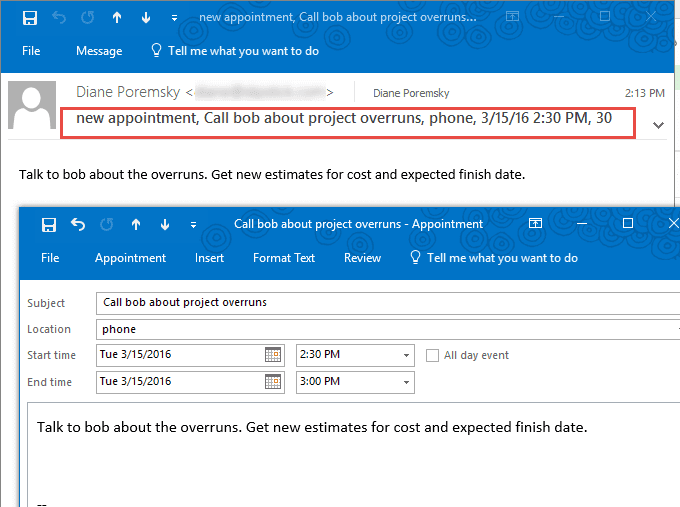
The first macro creates an appointment using the data in the message subject. It looks at the subject for a keyword (I'm using "new appointment" but any unique keyword will work) and if a metch is found, creates an appointment using the contents of the subject line, which is formatted like this:
keyword, appointment subject, location, date & time, duration in minutes
Any valid date format should work. I tested it with these two date and time formats:
1/1/2016 3:30 PM and 1/1/16 3 P
To leave the location field blank, use two commas:
new appointment, this is a test,,3/20/16 4 P, 30
If you want to "watch a different folder", change this line:
Set olInbox = NS.GetDefaultFolder(olFolderInbox).Items
To send the appointment as a meeting uncomment the meeting status, required attendee, and send lines.
Dim WithEvents olInbox As Items

Private Sub Application_Startup()
   Dim NS As Outlook.NameSpace
   Set NS = Application.GetNamespace("MAPI")
   Set olInbox = NS.GetDefaultFolder(olFolderInbox).Items
 Set NS = Nothing
End Sub

Private Sub olInbox_ItemAdd(ByVal Item As Object)

' subject is arranged like this:
' new appointment, appointment subject, location, start date & time 1/1/2016 4 PM, duration in minutes
' do not use commas except as separators

If InStr(1, LCase(Item.Subject), "new appointment") Then
Dim objAppt As Outlook.AppointmentItem
Dim apptArray() As String

'split the subject at the comma
apptArray() = Split(Item.Subject, ",")

Set objAppt = Application.CreateItem(olAppointmentItem)

With objAppt
  '  .MeetingStatus = olMeeting
  '  .RequiredAttendees = Item.SenderEmailAddress
    .Subject = apptArray(1)
    .Location = apptArray(2)
    .Start = apptArray(3)
    .Duration = apptArray(4)
    .Body = Item.Body
    .Save
   ' .Send
End With

    Set objAppt = Nothing
End If
 End Sub
Use Appointment Data in the Message Body
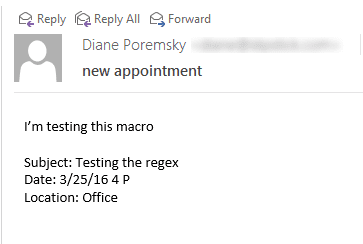
This code uses appointment data in the message body to create the appointment.
Dim WithEvents olInbox As Items

Private Sub Application_Startup()
   Dim NS As Outlook.NameSpace
   Set NS = Application.GetNamespace("MAPI")
   Set olInbox = NS.GetDefaultFolder(olFolderInbox).Items
 Set NS = Nothing
End Sub

Private Sub olInbox_ItemAdd(ByVal Item As Object)

If InStr(1, LCase(Item.Subject), "new appointment") Then
    Dim objAppt As Outlook.AppointmentItem
    Dim Reg1 As Object
    Dim M1 As Object
    Dim M As Object
    Dim strSubject As String
    Dim strLocation As String
    Dim sDate

    Set Reg1 = CreateObject("VBScript.RegExp")

With Reg1
For i = 1 To 3

    Select Case i
    Case 1
        .pattern = "(Subject[:](.*))\r"
        .Global = False
    Case 2
       .pattern = "(Date[:](.*))\r"
       .Global = False
    Case 3
        .pattern = "(Location[:](.*))\r"
        .Global = False

    End Select

    If Reg1.test(Item.Body) Then
     On Error Resume Next
        Set M1 = Reg1.Execute(Item.Body)
        For Each M In M1
            Debug.Print M.SubMatches(1)

If i = 1 Then strSubject = Trim(M.SubMatches(1))
If i = 2 Then sDate = Trim(M.SubMatches(1))
If i = 3 Then strLocation = Trim(M.SubMatches(1))

         Next
    End If

Next i
End With

Set objAppt = Application.CreateItem(olAppointmentItem)

With objAppt
    '.MeetingStatus = olMeeting
    '.RequiredAttendees = Item.SenderEmailAddress
    .Subject = strSubject
    .Location = strLocation
    .Start = sDate
    .Duration = 60
    .Save
    '.Send
End With

Set Reg1 = Nothing

    Set objAppt = Nothing
  End If
 End Sub
Use in a Run a Script Rule
The macros above are ItemAdd macros, meaning the macro watches the Inbox (or another folder) and checks each message that is added to the folder. Changing these macros to work in a run a script rule simple: remove the application_startup macro, change the name from Private Sub olInbox_ItemAdd(ByVal Item As Object) to
Public Sub WatchForAppt(Item As MailItem)
then create a rule using the script.
To learn more about Run a Script rules, see "Outlook's Rules and Alerts: Run a Script".
Because we're using a rule, we can check for words in the subject in the rule and don't need to check it using the script (but can, if desired.)
Public Sub WatchForAppt(Item As MailItem)
' subject is arranged like this:
' new appointment, subject, location, start date & time, duration
Dim objAppt As Outlook.AppointmentItem
Dim apptArray() As String

'split the subject at the comma
apptArray() = Split(Item.Subject, ",")
Set objAppt = Application.CreateItem(olAppointmentItem)

With objAppt
  '  .MeetingStatus = olMeeting
  '  .RequiredAttendees = Item.SenderEmailAddress
    .Subject = apptArray(1)
    .Location = apptArray(2)
    .Start = apptArray(3)
    .Duration = apptArray(4)
    .Body = Item.Body
    .Save
   ' .Send
End With
    Set objAppt = Nothing
End Sub
How to use the macros
First: You will need macro security set to low during testing.
To check your macro security in Outlook 2010 or 2013, go to File, Options, Trust Center and open Trust Center Settings, and change the Macro Settings. In Outlook 2007 and older, it’s at Tools, Macro Security. If Outlook tells you it needs to be restarted, close and reopen Outlook. Note: after you test the macro and see that it works, you can either leave macro security set to low or sign the macro.
Now open the VBA Editor by pressing Alt+F11 on your keyboard.
To use the macro code in ThisOutlookSession:
- Expand Project1 and double click on ThisOutlookSession.
- Copy then paste the macro into ThisOutlookSession. (Click within the code, Select All using Ctrl+A, Ctrl+C to copy, Ctrl+V to paste.)
Application_Startup macros run when Outlook starts. If you are using an Application_Startup macro you can test the macro without restarting Outlook by clicking in the first line of the Application_Startup macro then clicking the Run button on the toolbar or pressing F8.
More information as well as screenshots are at How to use the VBA Editor.

Taijha says
Trying to do the "Use Appointment Data in the Message Body" option but when I select "a script" it is not listed as an option. Help!
Diane Poremsky says
The run a script option is missing in the rules wizard or the script isn't visible? The first two macros are automatic macros - you don't use them with a script. The 3rd one Public Sub WatchForAppt(Item As MailItem) works with rules.
no run a script option: https://www.slipstick.com/outlook/rules/outlook-2016-run-a-script-rules/
Jennifer says
Thanks Diane this has been super helpful for me. Could you tell me how to search for multiple keywords in the Subject line? I work on several different projects and the subject line will always contain the project number "1234" or "5678" etc. Thanks in advance.
Diane Poremsky says
Sorry I missed this earlier. :( For two, you can use
If InStr(1, LCase(Item.Subject), "new appointment") OR InStr(1, LCase(Item.Subject), "other word") Then
if you need more words, use an array.
Dim StrSubject As String
Dim arrSubject As Variant
' Set up the array
arrSubject = Array("key1", "key2", "key3", "key4", "key5", "key6", "key7", "key8", "key9")
' Go through the array and look for a match, then do something
For i = LBound(arrSubject) To UBound(arrSubject)
If InStr(LCase(Item.Subject), arrSubject(i)) Then
' do whatever
Next i
More info on arrays is at https://www.slipstick.com/developer/using-arrays-outlook-macros/
Chris says
Hi Diane,
Thanks for the thread with the useful information.
I was just wondering if it were possible to modify the script to have an apptArray optional.
When i run the script and send and email with one piece of apptArray missing, a debug notification appears.
I have the following script but would only like an ".End = apptArray(3)" as optional if entered in the subject field.
With objAppt
' .MeetingStatus = olMeeting
' .RequiredAttendees = Item.SenderEmailAddress
.Subject = apptArray(1)
.Start = apptArray(2)
.End = apptArray(3)
.AllDayEvent = True
.body = Item.body
.Save
' .Send
End With
Any advice is greatly appreciated
Diane Poremsky says
1. Add on error resume next - it may skip those lines when they error.
2. use an if statement - something like
if UBound(apptArray) > 2 then
.End = apptArray(3)
end if
Chris says
Thank you so much Diane.
The If Statement worked perfectly.
Mike says
Hello Diane,
Is it possible to do this for mail-enabled public folders?
We have a shared team calendar and would like to be able to add entries to the calendar via email. Is it possible to run this script on the Exchange server or as a server-side rule so Outlook would not need to be running?
Thanks,
Mike
Diane Poremsky says
You can't run it server side - it only runs if outlook is open. You can run it on a public folder though - as an itemadd macro.
David says
Hi Diane,
So I posted recently on another thread about opening URLs in email. So on that I got everything working great then I added a 3 click process through the link web browser. All very nice. So after that process is finished I get a confirmation email that confirms that process and contains client info... Only the body of the email contains client information,(adddress, phone , time , date, etc). So I have tried to create a rule, that automatically, sets category, priority, and moves it to a (active work orders) folder, and then a copy to the calendar. But the calendar does NOT automatically post a appointment. So my question is. Does script 2 in this post work for my needs. Its NOT a a appointment invitation that I'm receiving, but just a email that contains that info in the message body. Advice?
Diane Poremsky says
The second one should work for you - either leave these two lines commented out or delete them to create appointments:
'.MeetingStatus = olMeeting
'.RequiredAttendees = Item.SenderEmailAddress
You'll need to change this line to watch the active work orders folder - this assumes a subfolder of inbox -
Set olInbox = NS.GetDefaultFolder(olFolderInbox).folders("active work orders").Items
more info here -https://www.slipstick.com/developer/working-vba-nondefault-outlook-folders/
you could watch the inbox, create the appointment, move the message and set the flags etc from this macro instead of using a rule. Or use the rule to call a Script that does everything (all actions need to be in the script). You have lots of options!
David says
so I am already running the open url Macro out of project1.vbs as module1. Do I just insert a second module, save it and it will work? Or do I create a different project?
Diane Poremsky says
You can add it to the same module or to a new one, whichever makes it easier for you. I prefer separate modules if the macros aren't similar and put all functions into a one module since they can be shared by other macros.
Outlook only uses one project file.
David says
And to separate them into 2 modules. I would change the above text to a Public Sub? Is that what this 3rd bit of code is for? Sorry I haven't had much time lately to work on this, but It would really stream line things if I got it working.If I recall making it public lets Outlook populate the 2nd module option in the script selection list correct?
Diane Poremsky says
Correct making it public lets outlook use the value in another sub.
(Sorry I missed this earlier.)
Ken says
HI Diane,
As before, your code works great and thank you for the headstart in the outcome I was looking for.
It seems my question from 5 days ago about showing conflicting times for an appointment created in a non-default calendar didn't make the cut/got deleted. Found a solution.
Diane Poremsky says
Not deleted, I'm just way behind on answering. :) Do you mind sharing your solution?
Matt Sweet says
Hi Diane,
How would you alter this macro to cancel meetings using the same fields? For example a meeting cancellation email is received and the macro scans the message and cancels an appointment at that time.
Diane Poremsky says
Sorry I missed this. You can use an if statement to find it based on the subject (and date). There is sample code at the end of https://www.slipstick.com/developer/copy-new-appointments-to-another-calendar-using-vba/
Pat says
I am struggling with this and I can not figure out why... my code had to be modified for the purpose of having a folder that requests I recieve go directly into. Other than that it won't even bring up the appointment. Nothing. Here is what I have:
Dim WithEvents olInbox As Items
Private Sub Application_Startup()
Dim NS As Outlook.NameSpace
Set NS = Application.GetNamespace("MAPI")
Set Items = NS.GetDefaultFolder(olFolderInbox).Folders("Outsource Requests").Items
Set NS = Nothing
End Sub
Private Sub olInbox_ItemAdd(ByVal Item As Object)
Please help!
Diane Poremsky says
Sorry I missed this so long ago.
This: Set Items = NS.GetDefaultFolder(olFolderInbox).Folders("Outsource Requests").Items
Sets Items, it should be olInbox.
Private Sub olInbox_ItemAdd(ByVal Item As Object)
Shiv says
Hi Diane,
Great article. Just what i was looking for. Just a little help though. I changed the name of the folder to be watched by this macro. Is the syntax of this code correct? Will this work?
Dim WithEvents olITSC As Items
Private Sub Application_Startup()
Dim NS As Outlook.NameSpace
Set NS = Application.GetNamespace("MAPI")
Set olITSC = NS.GetDefaultFolder(olFolderITSC).Items
Set NS = Nothing
End Sub
Private Sub olITSC_ItemAdd(ByVal Item As Object)
If InStr(1, LCase(Item.Subject), "Change") Then
Dim objAppt As Outlook.AppointmentItem
Dim Reg1 As Object
Dim M1 As Object
Dim M As Object
Dim strSubject As String
Dim strLocation As String
Dim sDate
Set Reg1 = CreateObject("VBScript.RegExp")
With Reg1
For i = 1 To 3
Select Case i
Case 1
.pattern = "(Subject[:](.*))\r"
.Global = False
Case 2
.pattern = "(Date[:](.*))\r"
.Global = False
Case 3
.pattern = "(Location[:](.*))\r"
.Global = False
End Select
If Reg1.test(Item.Body) Then
On Error Resume Next
Set M1 = Reg1.Execute(Item.Body)
For Each M In M1
Debug.Print M.SubMatches(1)
If i = 1 Then strSubject = Trim(M.SubMatches(1))
If i = 2 Then sDate = Trim(M.SubMatches(1))
If i = 3 Then strLocation = Trim(M.SubMatches(1))
Next
End If
Next i
End With
Set objAppt = Application.CreateItem(olAppointmentItem)
With objAppt
'.MeetingStatus = olMeeting
'.RequiredAttendees = Item.SenderEmailAddress
.Subject = strSubject
.Location = strLocation
.Start = sDate
.Duration = 60
.Save
'.Send
End With
Set Reg1 = Nothing
Set objAppt = Nothing
End If
End Sub
Diane Poremsky says
No, it's not correct. You can't get getdefault folders with non-default folders - you need to use getfolder function if it's in a different data file or use .folders("name") if it's a subfolder of the default. See https://www.slipstick.com/developer/working-vba-nondefault-outlook-folders/ for the function and more information.
Jon says
How do i add the mail item as an attachement
Diane Poremsky says
you'd use .attachments add item - put it as the first line under with objAppt.
Lane says
If I understand this correctly - this code will only run when the application starts.
Is it possible to have it run every time an item is received by a folder - without using a custom rule in the rule wizard?
Diane Poremsky says
That would be an itemadd macro - and yes, you can watch a folder and run the macro on each item as it drops in the folder. The frist two samples are items adds - they watch the inbox, but that can be changed to any folder.
Lane says
Two questions!
1) Is it possible to use Rules to Run a Script on a *shared* folder? From my Outlook client?
2) You mentioned above to get rid of the 'application startup macro' - does that mean getting rid of these lines?
Dim WithEvents olInbox As Items
Private Sub Application_Startup()
Dim NS As Outlook.NameSpace
Set NS = Application.GetNamespace("MAPI")
Set olInbox = NS.GetDefaultFolder(olFolderInbox).Items
Set NS = Nothing
End Sub
(I'm not sure if I get rid of Dim WithEvents olInbox As Items)
Diane Poremsky says
1. No, rules only work on the inboxes for accounts in your profile. If you add the shared mailbox as an account, you could do it. The itemadd macros can watch any folder.
2. yes, including Dim with events.
Lane says
For 2. -
Getting rid of the Application Macro leaves me with this -
Private Sub olInbox_ItemAdd(ByVal Item As Object)
' subject is arranged like this:
' new appointment, appointment subject, location, start date & time 1/1/2016 4 PM, duration in minutes
' do not use commas except as separators
If InStr(1, LCase(Item.Subject), "new appointment") Then
Dim objAppt As Outlook.AppointmentItem
Dim apptArray() As String
'split the subject at the comma
apptArray() = Split(Item.Subject, ",")
Set objAppt = Application.CreateItem(olAppointmentItem)
With objAppt
' .MeetingStatus = olMeeting
' .RequiredAttendees = Item.SenderEmailAddress
.Subject = apptArray(1)
.Location = apptArray(2)
.Start = apptArray(3)
.Duration = apptArray(4)
.Body = Item.Body
.Save
' .Send
End With
Set objAppt = Nothing
End If
End Sub
I'm a little confused, because my assumption is this is placed into "ThisOutlookSession" - but I'm not sure what line of code in here is dictating which folder to watch.
I'm actually certain there is no line doing that, and was wondering what line of code might work (and where in the code) to watch a certain folder?
Thanks.
Diane Poremsky says
You need the application_startup macro to set the folder to watch. This line tells it which folder to watch: Set olInbox = NS.GetDefaultFolder(olFolderInbox).Items
If you wanted to use a rule or run the macro manually you don't need the app startup macro, but you do need to tweak the itemadd macro to work with either rules or manually.
Lane says
I was being silly. I'll be using the application_startup macro.
Does this code below look correct?
Dim WithEvents olInbox As Items
Private Sub Application_Startup()
Dim NS As Outlook.NameSpace
Dim objOwner As Outlook.Recipient
Set NS = Application.GetNamespace("MAPI")
Set objOwner = NS.CreateRecipient("Shared Calendar")
objOwner.Resolve
If objOwner.Resolved Then
MsgBox objOwner.Name
Set newCalFolder = NS.GetSharedDefaultFolder(objOwner, olFolderCalendar)
End If
MsgBox "Yay. The application started."
End Sub
Private Sub olInbox_ItemAdd(ByVal Item As Object)
MsgBox "I recognize the folder received an item"
If Item.Subject = "Test" Then
Dim objAppt As Outlook.AppointmentItem
MsgBox "I see the subject in this shared folder item is Test"
End If
Set objAppt = newCalFolder.Items.Add(olAppointmentItem)
Set calFolder = Item.Parent
With objAppt
Dim subjectTextRemove As String
subjectTextRemove = Item.Location
subjectTextRemove = Replace(subjectTextRemove, "X", "")
subjectTextRemove = Replace(subjectTextRemove, "Y", "y")
subjectTextRemove = Replace(subjectTextRemove, "Z", "z")
.Subject = subjectTextRemove
.Location = Item.Location
.Categories = "ROOM SET/STRIKE"
.Start = DateAdd("n", -30, Item.Start)
.Save
.Move calFolder
End With
Set objAppt = newCalFolder.Items.Add(olAppointmentItem)
With objAppt
.Subject = "Strike WVHD"
.Location = Item.Location
.Categories = "ROOM SET/STRIKE"
.Start = DateAdd("n", 0, Item.End)
.Save
.Move calFolder
End With
Set objAppt = Nothing
End Sub
This is being placed into "ThisOutlookSession".
From what I understand, this will create two new appointments before and after the item that triggers this. Any glaringly obvious mistakes?
Thanks a ton!
Lane says
Hey Diane.
I'm trying to just copy paste what you've got in "Use Appointment Data in the Message Body".
I don't seem to be able to assign this as a macro in the Ribbon. After I get rid of the word "Private" in the line, I can assign the macro.
After that however, I'm still not capable of producing any created appointment.
Can you think of anything that might be preventing that?
Diane Poremsky says
That is an automatic macro - it runs as messages arrive. It can be changed into a sript that works with a rule or to run it manually, you need to make a couple of changes.
You don't need the application_start up part - replace all of the lines down to If InStr(1, LCase(Item.Subject), "new appointmnt") Then with the following. You could actually remove that line too, and the last end if if you are running it manually on a selected message. Select a message, run the macro.
Private Sub createappt()
Dim Item As Outlook.MailItem
Set Item = Application.ActiveExplorer.Selection.Item(1)
If InStr(1, LCase(Item.Subject), "new appointmnt") Then