We hear a lot of complaints about the Conversation Groups that were introduced in Outlook 2010. They don't work as expected with Exchange 2003 or 2007, conversations don't stay expanded, and the old conversation view from older versions is not available.
The conversation group features uses a Conversation field to determine if the message belongs in a conversation with other messages. This works great with Internet mail accounts. It works great with Exchange 2010/2013. It doesn't work as well with Exchange 2007 or Exchange 2003, as both use the subject in determining which messages should group together.
The most noticeable effect on Exchange 2007/2003 users is that messages that don't belong in a "conversation" are grouped together anyway. As a result, users may have a lot of messages with the same subject grouped in a conversation. While this makes it easy to locate junk mail you need to delete, it's still annoying.
To make matters worse, if you group by conversation and add a category to a single message in your Inbox, other items with the same subject but in other folders will be categorized too, even if they don't belong to the conversation. This is because individual messages in the Inbox are both a message and a group header and adding a category to a group header adds the category to all messages within that group. While this is fine when the messages are all part of a conversation, it has unexpected results for Exchange 2007/2003 users.
When you apply a category to a conversation group, all new messages in the conversation will be categorized as they arrive, even if you turn Show as Conversations off. To stop this behavior, you need to remove the category from the conversation header.
In Show as Conversations view, click on the category in the Conversation group header (1 in the screenshot below). This will remove the category from all messages in the conversation. Add categories to individual messages if any need to be categorized. When you turn conversations off, new messages your receive in the conversation won't be categorized.
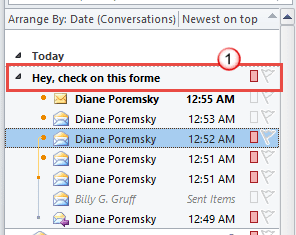
We get many requests asking for help creating the conversation view found in older versions of Outlook. This view can't be replicated in Outlook 2010. Your choice is using the new conversation view or not grouping by conversation.
Another frequent request is the ability to keep all conversations expanded. This is not possible in Outlook 2010. Conversation groups ignore the Expand/Collapse default setting in View Settings > Group by.
'Show messages from other folders' Bug
First, appointments are grouped with messages with the same subject. These are not meeting requests that could be remotely considered part of the thread, they are totally unrelated appointments that just happen to have the same subject. Unfortunately, there is no way to remove the calendar folder from folders used in conversation grouping, other than by disabling 'Show messages from other folders' options.
The second bug is an interesting one. As we already know when using Exchange 2003 or 2007, messages with the same subject are erroneously grouped together but it’s a bit more tolerable when 'Show messages from other folders' is disabled (View ribbon, Conversation settings). However, if you have one message in the current folder and add a category to it using the quick click category field, every message that Outlook wants to group with this message (if Show messages in other folders was enabled) is also categorized. Ouch.
The workaround: Either turn off conversations or open the message and add the category.
It only appears to work like this with Categories, not Delete. When you delete a group of messages by selecting the group header, you only delete the messages in the current folder, not all messages in the conversation. Quick click categories should work much the same way (but don't) - if you can't see the message in the view, a category should not be applied.
Conversation View FAQ
While we're on the subject of the Conversation view in Outlook 2010, the following are frequently asked questions about the conversation view.
Q: Why do messages without a subject or with identical subjects group together when they are not in one conversation?
A: They should not group together when you are connected to a data store that is compliant with the new conversation logic. Exchange 2010 and native Outlook 2010 stores are compliant and should handle this correctly, but that's not my experience with messages from the Internet.
Q: Can you mark messages to remove them from the conversation?
A: No, there is no way remove (or add) messages from a conversation. The conversation is a grouping of all messages that are replies & forwards of the original message (except as noted in the previous question).
Q: How do you stop Outlook from including messages from other folders?
A: Go to the View tab, Conversation settings and deselect Show messages from Other Folders.
Conversations and Cached mode
I'm using Outlook 2010 RTM with an Exchange server mailbox and the ability to clean up conversations is disabled. What do I need to do to enable it?
The option to "Show Messages from Other Folders" is missing from Outlook 2010. The other 3 options are there. This is connected to an Exchange 2007 server with cached mode disabled if that makes any difference.
Yes, cached mode makes a big difference

Mike says
Diane,
I use conversations exhaustively in Outlook (2013 and 2016 currently) and one item that I am surprised doesn't have a configuration option is the ability to disable auto-assigning categories to other emails contained within a conversation if the header email has a category.
Many times, I just want to tag the first email for future reference and\or searches but don't want every single email in that thread to have the same category.
Can you think of any way around this issue other than not to use conversations?
Here is a thread about it with my example in it.
Sincerely,
Mike
Heather says
Is there anyway to manually create a designation for the CONVERSATION field? Sometimes I have multiple emails with multiple subjects that are all related to a single project, and I'd like to somehow group them all together. I didn't want to use categories as I would need several hundred. Any thoughts or suggestions?
Diane Poremsky says
There isn't a native method build in but you can use redemption and a macro. I've got one laying around here somewhere.
Nikhil says
Hi Diane,
I am trying to set up an Outlook rule where Conversations started by me are assigned a particular category and I can focus on them first. Is there a way to achieve it? I couldn't locate in the default options in the rule menu.
Thanks in advance.
Nikhil
Diane Poremsky says
No, you can't do that using a rule. I'm not so sure you could do it using a script either.
Tracy says
We're using Outlook 2013 and I have a user who has conversations turned on as well as the setting to View items in other folders. From what I can see, I have the same settings and I'm working fine - however - for this one user, she can no longer see her sent items in the conversation if she's then moved that sent email to another sub-folder under her inbox. In my view, even if I move my sent item to a sub-folder of "misc stuff", I still see it in my conversation in my inbox. It just changes from 'sent items' to 'misc stuff' in my view. What could we be missing here?
Roel Peeters says
@Diane, I understand that but that isn`t the situation. The senders are completely different en didn't know each other.
Diane Poremsky says
Are they pop or imap accounts?
Roel Peeters says
I see different subjects in the same discussion. The messages have no connection with each other. I work in Outlook 2010 without exchange. I don`t work with categories. How is that possible?
Diane Poremsky says
Were they senders involved in the original messages? If they create new messages by hitting reply and changing the subject and message body, outlook sees it as part of the thread because the conversation id is in the message header.
Sun W Kim says
I've seen what roel describes if the emails were migrated over from a different ISP or from a non outlook mailbox. The grouping may occur because they were migrated around the same time. We migrated over from groupwise and all the migrated email are clumped into one giant group. Emails that are created within outlook do t have this issue.
Sun Kim says
I'd like to see a way that we can group e-mails into one group. Sometimes we have different threads or subjects that appear as different conversations, but they are part of the same.
Diane Poremsky says
Yeah, that would be nice, to either combine conversations or split them.
Babs Peters says
I tried 'group per conversation' for a few days and indeed.... ran into the problem you describe. Since I don't want Outlook to automatically assign a category, I stopped grouping per conversation. I now just sort on date field and nothing else.
But, Outlook still applies categories on new incoming mails (that Outlook thinks are part of a conversation). Can I somehow stop the program from doing that?
Diane Poremsky says
When you set the category in the conversation view, you set it on the conversation header and that links it to the entire conversation. Switch to Group by conversation, remove the categories from the conversation by clicking on the group header. Apply Categories to individual messages under the group header if you want any to have a category.
JT says
Has anyone heard about this behavior: email is sent to a lot of people. There are several replies to all, a thread is started. Eventually, someone removes a person from the thread and the thread continues without that person. Somehwhere down the road the person that was removed gets another email from that thread, but their address is not in the recipients list. Does this sound familiar? I thought I saw something like this reported and now I can't find it.
Diane Poremsky says
It sounds like someone put their address in the BCC field, unless you are using Exchange server, then it could be because it was sent to a distribution group they are a member of or they are a delegate of a person the message was sent to.
My best guess and most logical explanation is someone decided they should see the message and put their address in the BCC field.
davehill47 says
That workaround is great ... to a point. But you lose the indentation of the conversation that was present in Outlook 2003.
Each month I manually reviews all my mail to flag and export email items before they get gacked by our company's 90 day retention policy. Grouping by conversation is critical, but either losing the ability to see items nested into conversations that were updated more recently, or the ability to see responses within the conversation, is unacceptable. MS, in trying to make Conversation mode more clever, has removed functionality I used.
V Hilbert says
I found this workaround online. I've only just set it up so I don't know of any drawbacks, if any, yet. But, it does keep conversations expanded.
In outlook:
- View Settings:
- Group By: Conversation(ascending)
- Sort items by: Conversation (ascending)
- then by: Received (Descending)
The trick is to add the Conversation in the Sort field.