As many users have discovered, the Outlook:// protocol no longer works outside of Outlook 2007 (and up). This protocol allows users to create shortcuts to Outlook items and open the items outside of Outlook. You can use this protocol on a folder home page, on the Web toolbar, or in the body of an Outlook item but not in a web page that does not open in a folder homepage.
See Using Outlook Links to learn how to use the Outlook:// protocol
This is because the Office installer no longer registers Outlook to a URL protocol. This is due to Microsoft not officially supporting the Outlook URL protocol as explained in KB 929590 Fortunately, Outlook still supports it, but to use it, you will need to add it as a URL protocol in the Windows Registry.
The Fix
Note: It is recommended that your make a backup copy of your registry before editing the registry.
You'll need to use the path to your Outlook - for the 64-bit click to run version of Outlook 2016, 2019, 2021 and 365, Outlook.exe is at C:\Program Files\Microsoft Office\root\Office16\outlook.exe
In 32-bit Outlook 2016, 2019, 2021 and 365, Outlook.exe is at C:\Program Files (x86)\Microsoft Office\root\Office16\outlook.exe using Click-to-run (most people will have click to run).
In Outlook 2007, the path is "C:\Program Files\Microsoft Office\Office12\OUTLOOK.EXE"; in Outlook 2010, "C:\Program Files\Microsoft Office\Office14\OUTLOOK.EXE"
- Open the registry editor and select root key HKEY_CLASS_ROOT
- Add a new Key named “outlook”
- Edit the (Default) string value and add URL:Outlook Folders
- Add the new string value “URL Protocol”, no string value is required
- Add subkeys \shell\open\command
- Select the Default Icon key and enter:
C:\Program Files\Microsoft Office\root\Office16\outlook.exe
Note: If you are using a 64-bit Windows operating system with 32-bit Outlook, then instead of “Program Files” use “Program Files (x86)”. Don't forget to use the correct version of Office!- Select the command key value under shell\open, edit the (Default) string value and add the following string: (Note this assumes you installed Office in the default location/) You need to include the double quotes in the string.
"C:\Program Files\Microsoft Office\root\Office16\outlook.exe" /select "%1"
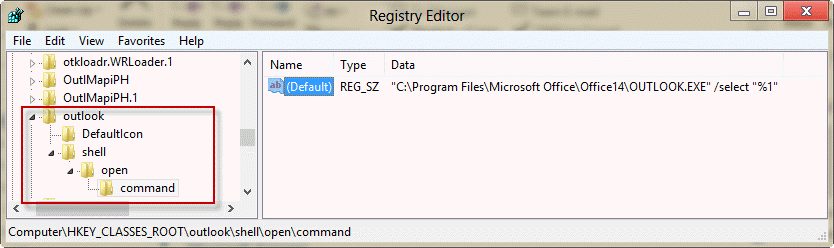
You can test it by clicking here. If Outlook opens to your Inbox, the keys were created correctly.
Do It for Me
To use, download the correct file for your system then double click to add the key to your registry.
If you are using the same "bitness" of Windows and Outlook (both are 32-bit or both are 64-bit):
Outlook 2016/2019/365 Outlook 2013
Outlook 2010 Outlook 2007
If you are using 32-bit Outlook on 64-bit Windows:
Outlook 2016/2019/365 (32-bit/Wx64) Outlook 2013 (32-bit/Wx64)
Outlook 2010 (32-bit/Wx64) Outlook 2007 (32-bit/Wx64)
Note: Outlook does not automatically recognize the Outlook protocol when you type a url containing it into the body of any item. However, the protocol works if you set it as a hyperlink.
More Information
Known issues when you develop custom solutions for Office Outlook 2007
For general information on registering an application to a URL protocol, see Registering an Application to a URI Scheme

Gerard says
does this work for W11?
Diane Poremsky says
Yes, it works in Windows 11.
JanosV says
I can't thank enough for this solution!
I have ca. 1,500 PST subfolders in Outlook (2007). To access them easily I created an Excel (2007) sheet with all folder paths exported, search box and a macro added to call the hyperlink protocol for the selected path.
It worked like charm for months and my life was happy. However, after the recent W10 patch (KB5015807) Outlook started refusing the hyperlink calls saying 'Cannot display the selected folder or item'. It also says it may be due to spaces allegedly included in the path names and I should replace them with %20, which the system by the way automatically did.
After rolling back the update already twice, the protocol works again.
Can anyone give me a clue why it is happening?
Nicholas Davidowicz says
On my system (Windows 10) I have an extra subdirectory and I had to adjust the paths to
Chris says
Thanks so much. This note saved me.
anonymous user says
How do i launch outlook with existing eml file using url scheme.
From html anchor tag..?
it opens from commandline
"C:\Program Files (x86)\Microsoft Office\Office15\OUTLOOK.EXE" /eml "C:User\Desktop\20200708091507_7297827F823C258E179F59FD347.eml"
I want it in <a href ="outlook ://> format
Diane Poremsky says
The outlook protocol is used for items in the mailbox, bot saved to the hard drive. Files on the hard drive use the computer's file association.
Balaji says
Try webcal://
Diane Poremsky says
That will only work for calendars items.
Balaji says
It launches the client outlook not just the calender, i am using this feature which is working so far good.
Balaji says
This launches the Outlook client, I used this protocol and it worked..
Marcin says
Instruction in this article are not enough for Outlook 2016. I got it to work by also adding an empty string value named "URL Protocol" in key "Computer\HKEY_CLASSES_ROOT\Outlook"
Peter says
Hi! Thank you, this worked perfectly for me in Win7 & Outlook13. Moving to Win10 & Outlook16 now, the Windows Shell asks for admin rights. This is not the case with every .vbs, but with this one. Any idea maybe?
Diane Poremsky says
which vbs are you use?
Gerard says
Hi, any alternative if we are not allowed do modify the registry?
Thanks
Diane Poremsky says
Unfortunately not. Sorry for missing this earlier. :(
Gerard Goddard says
Hi, I had the same issue, i dont have admin rights in my machine. However, if you can run regedit, you should have access to modify the [HKEY_CURRENT_USER] tree.
I replaced all the [HKEY_CLASSES_ROOT] with [HKEY_CURRENT_USER] as follows:
Windows Registry Editor Version 5.00
[HKEY_CURRENT_USER\SOFTWARE\Classes\outlook]
@="URL:Outlook Folders"
"URL Protocol"=""
[HKEY_CURRENT_USER\SOFTWARE\Classes\outlook\DefaultIcon]
@="\"C:\\Program Files\\Microsoft Office\\root\\Office16\\OUTLOOK.EXE\""
[HKEY_CURRENT_USER\SOFTWARE\Classes\outlook\shell]
@="open"
[HKEY_CURRENT_USER\SOFTWARE\Classes\outlook\shell\open]
@=""
[HKEY_CURRENT_USER\SOFTWARE\Classes\outlook\shell\open\command]
@="\"C:\\Program Files\\Microsoft Office\\root\\Office16\\OUTLOOK.EXE\" /select \"%1\""
and IT WORKED!! I run W10 64bits + Outlook 365 64 bits
David says
Once again thank you Diane. Your help has enabled me to complete my vision for the way I use OneNote !
Cort says
Do you know of any "security" concerns on why I wouldn't want to change the registry? I have several paralegals who need this functionality but other folks here are worried that changing the registry in Windows 10 to make this work will affect security. Thoughts?
Diane Poremsky says
No, not to my recollection, but at this point, it's security by obscurity as only a small % of users would have the key set. :) It was removed as part of the deprecated feature that allowed you to use outlook as a file explorer.
Tom says
Hi, is there any way to do it for Outlook for Mac?
Diane Poremsky says
No, not to my knowledge. sorry.
Ofer says
I tried the "Outlook 2016 (32-bit/Wx64)" its in the registry
Now I added in an index.html a line
<a > Outlook
clicking on it does nothing.
How do I use the Outlook:// protocol in html?
Diane Poremsky says
how did you format the link? https://www.slipstick.com/outlook/using-outlook-links/ has examples. This would open the sent folder in a users exchange mailbox: Outlook://Mailbox - Mary Conrad/Sent Items
Ofer says
For may own mailbox it is working fine with: Conversation historyOfer or any other folder
For the added mailbox I have access to (test22@Novuslaw.com)
I tried most combinations and I get "Cannot display the selected folder or item"
//Mailbox - test 22inbox'
//Mailbox - test22@Novuslaw.cominbox
Any suggestions?
thanks
Diane Poremsky says
Did the mailbox sync? If not, do you have full access permissions?
Assuming the mailbox actually synced - did you try resetting the view on the folder?
John says
I was having trouble with the 2016 reg file also. It turns out the path to outlook on my machine did not have the root folder. The corrected path is this:
"C:\Program Files (x86)\Microsoft Office\Office16\Outlook.exe"
When I made that change in the registry it worked. I also added "/recycle" before "/select" as suggested by okDude so that it would reuse the current Outlook window when opening folders. Works great...thank you okDude!
And thanks so much Diane for this tip. I used it in Outlook 2013 also. I find it really handy for referencing my Evernote notes back to emails.
Diane Poremsky says
Yeah, if you have 3 bit outlook, you need 32bit key.
Tomaka says
This works great, even with Outlook 2016 64 bits!
But using it from another office program, I still have to deal with security check. How do you add the " Outlook://*" protocol to trusted websites ? It doesn't pass the coherence test, I think we should add it directly to the registry but don't know how.
Diane Poremsky says
Try this - https://www.slipstick.com/how-to-outlook/disable-unsafe-hyperlink-warning-opening-attachments/
Sharon Phelps says
I've made the changes to the registry for my version of Outlook (2010, and in Program Files folder). I added the link Outlook:Inbox in an Excel worksheet cell as a hyperlink. When I click on the cell, I get a hyperlink warning message. When I click "yes" to continue, a window flashes open then immediately closes. Any thoughts on what is causing this? TIA
Diane Poremsky says
first guess would be the link you are trying to open is not valid.
Second guess is that the registry key has an error - this should only apply if you edited it yourself.
Sharon Phelps says
Your second guess was right, and though I looked again and again for my error and never found it, when I just deleted my additions and ran your routine, it worked like a charm. Thank you!
OkDude says
I recommend adding /recycle parameter to the command line so you wouldn't wind up with a new instance of outlook every time you click the URL
Windows Registry Editor Version 5.00[HKEY_CLASSES_ROOT\outlook]
@="URL:Outlook Folders"
"URL Protocol"=""
[HKEY_CLASSES_ROOT\outlook\DefaultIcon]
@="C:\\PROGRA~2\\MICROS~1\\Office14\\OUTLOOK.EXE,-9403"
[HKEY_CLASSES_ROOT\outlook\shell]
@="open"
[HKEY_CLASSES_ROOT\outlook\shell\open]
@=""
[HKEY_CLASSES_ROOT\outlook\shell\open\command]
@="\"C:\\Program Files (x86)\\Microsoft Office\\Office14\\OUTLOOK.EXE\" /recycle /select \"%1\""
Kiran says
Thank you for this tip Diane. Now the linker program works like charm (https://teamscope.com/support/releases.asp) .
gardoglee says
I had a slight issue when I used the downloadable regedit file. The file created the correct sequence of keys/subkeys as outlook->shell->open, but then placed a subkey under Open of "Command", and inserted the program name ""C:\Program Files\Microsoft Office\Office14\OUTLOOK.EXE" /select "%1"" as the Default string for key "Command". This did not work for me. However, after looking at the instructions above I tried copying the Default string vale from "Command" to the Default string value of the key above "Open". that worked. I am not enough of a windows person to know exaclty why the difference, but I thought it might help some others if they ran into the same issue.
This posting is awesome! Thank you, as it solves my problem, which was that all the various formats for Outlook reference hyperlinks were not working for me. My sortable ToDo lists in Access and Excel that reference emails to which I must respond and meetings for which I must prepare is much enhanced. I prefer a list I can format, sort, export, link and enhance as I like to the native Outlook task list.
And for a simple macro to make the pasteable link for an Outllok item (probably already somewhere else on this site, but I did not find it here):
'Adds a link to the currently selected message to the clipboard
Sub AddLinkToMessageInClipboard()
Dim objMail As Object
Dim doClipboard As New DataObject
Dim message As String
'One and ONLY one message muse be selected
If Application.ActiveExplorer.Selection.Count 1 Then
MsgBox ("Select one and ONLY one message.")
Exit Sub
End If
Set objMail = Application.ActiveExplorer.Selection.Item(1)
doClipboard.SetText ""
doClipboard.PutInClipboard
End Sub
Note: You must add the "MS Forms" library reference to support the "doClipboard" object, in order to paste the link to the clipboard, if it is not already default in your configuration.
The original macro is from https://answers.microsoft.com/en-us/office/forum/office_2010-outlook/vba-create-a-link-to-a-specific-email-and-copy-it/686ec402-8151-4e32-8948-edd33fc801a2. I found that their form with [[...]] bracketing and the subsequent bracketing did not work for me, so this is a simplfied version.The macro is useful in that you can create a hyperlink from whatever the selected item is in your outlook session, and then paste it into something like an Excel spreadsheet, a shortcut, or Word document.
BTW, the resulting link will open the Outlook item from your local Outlook file without requiring that you log into Outlook or present your Outlook password when the link is invoked on your machine. That implies some nasty things about Outlook security, or lack thereof. Be warned!
Omri Alon says
Hi diane,
That was a great article.
Do you know which file works on windows server 2003 with outlook 2007?
brgds
Omri Alon
Diane Poremsky says
Assuming it's 32-bit Windows, https://www.slipstick.com/doit/OutlookProtocol2007.reg - if you have 63bit windows, it's the other outlook 2007 file.
Andy Mercer says
I've been working on integrating Outlook direct folder links into an Office 2013 web app, and so I tried this out. I have gotten it mostly working, except that it keeps opening a brand new instance of Outlook. Is there any way to have it just open the current running instance and move the view to the new folder? Thanks!
hathija says
Hello !
Thanks a lot for the post. For my project i would like to do a link to access Outlook Adress book via a protocol like Outlook:AddressBook but it doesn't work for me ? Do you know the right shortcut ?
Diane Poremsky says
You can link to the contacts folder or a specific contact using a url and the outlook:// protocol, but not to the address book specifically.
Jitendra Kumar says
hay thanks a ton for this valuable information
Fabrizio says
I also want to clarify that my href is in a html page,not in a outlook mail.
Diane Poremsky says
It should work outside of outlook. I tried to repro it last night but couldn't get it to work on a system with outlook 2013 installed, even though 2010 was open. I'll try today with a different system then see if it will work 2013.
Fabrizio says
Dear Diane,
I followed all the steps above but I encountred a big issue. When I click the HREF (outlook:+GUID of the email record) I just can only open the outlook application but the selected email.
Do you have any tip?
best regards,
FP
Duran says
This is all great info Diane. I finally got my hyperlinks to open outlook, though I now have a new problem. When I already have outlook open and I click on a link pointing to a folder in outlook, a new outlook window is opened. So at that case I would have two instances of outlook open. How can I make it so that the link opens my folder in my already open outlook? I'm using Outlook 2007 on Windows XP. Thank you in advance!
Diane Poremsky says
I'll look into it - if you used the reg file I supplied, try the one from TeamScope. They should be identical, but maybe I missed something he did not.
BTW, you have two windows open, not two instances. While it seems like splitting hairs, it's not a "full blown Outlook, the resource hog" - it's just another window. It's no different than using right click, open in new window on any Outlook folder.
R.D. Kripner says
We are having more than our share of problems with Outlook 2007. Outlook works just fine on my side, however when I log off my side and my wife logs in on her side, Outlook will not function for her. We have tried deleting and reloading office 2007 to no avail. Has anyone have a solution to this issue ????
Diane Poremsky says
What exactly happens when she tries to use it?