This hard to understand error means the security certificate your email server is using has expired or is invalid for other reasons.
I'm getting a security warning when I open Outlook. It says: 'The server you connected to is using a security certificate that cannot be verified. A required certificate is not within its validity period when verifying against the current system clock or the timestamp in the file'
That message is saying that the certificate the mail server uses has likely expired.
If you are the administrator, you need to install an updated certificate; if you are an end-user, you need to speak to your admin. You can't hide the warning or turn it off, but in all likelihood, it's safe to OK it and connect to your mail server.
The message made perfect sense to me but not to the people who asked about it, so I asked a couple of family members who aren't into technology what they thought the message was trying to tell them and what they would do if it came up while they were on the computer. Their answer: it "hurt" to read it and they'd ask me to look at it. I guess that proves it's a poorly written, overly technical error message.
Target Principle name is incorrect
I have a SSL IMAP email account that I just setup in Outlook. Every time I run the program I get a popup: "Internet Security Warning" The server you are connected to is using a security certificate that cannot be verified. The target principle name is incorrect. View Certificate. The certificate is self signed so I always just click Yes to continue using the server/email account, but how do I get Outlook to remember?
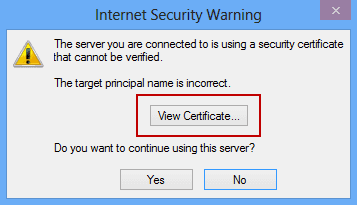
This warning indicates the server name does not match the name in your account settings, or in the case of Exchange server, that the address in the autodiscover file does not match the address the server is using. This is a common problem when the administrator uses self-published certificates.
The easiest fix is to change the server name, if your mail provider supports other server names.
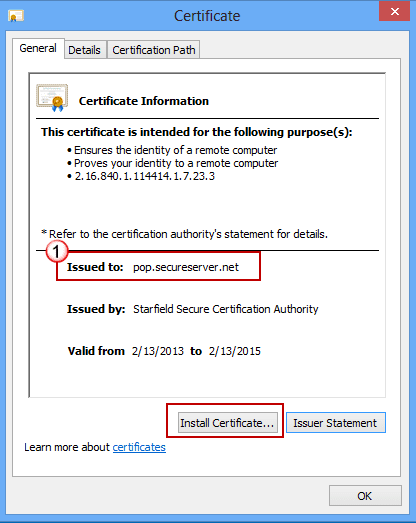
For example, in the dialog in this screenshot, the server certificate was issued to pop.secureserver.net but I'm using mail.mydomain.com as the server name in my account settings. Since GoDaddy lets you use either server name, you can eliminate the error message if you use the secureserver.net server names.
To get your mail server's IP address:
- Type cmd on the Start menu to open a Command Prompt.
- Type
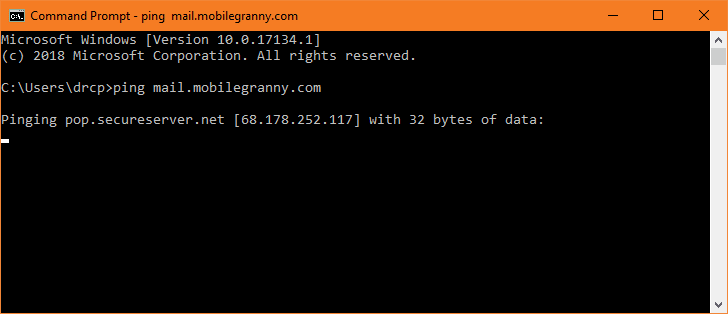
ping mail.yourservername.comto find your IP address and the hosts server name.

- If the server name in the ping results matches the name on the certificate, use it as the mail server name in Outlook.
- If the name is different, ping the server name used in the certificate. If the IP address matches your mail server's IP address use it as the mail server name in Outlook.
If your host does not have a server name you can use to eliminate the error, John Roper-Lindsay uses these steps:
You can get around the "Target Principal Name is incorrect" by following the steps below:
- If you didn't ping your server for the IP address (or didn't make note of it), open a cmd prompt and ping your incoming mail server - e.g. ping mail.fred.com returns IP address like 111.222.111.222.
- View the certificate as above and note the server name under Issued To.
e.g. elephant.giraffe.co.nz or *.giraffe.co.nz - Edit the hosts file and add a new line for IP address 111.222.111.222. The hosts file is in
%windir%\system32\drivers\etc. - To open the hosts file, search for Notepad on the Start menu, right click on it and choose Run as Administrator. Paste the path to the hosts file in File, Open dialog. Select All Files as the file types on the right.
- The entry you create in the hosts file should look something like this.
111.222.111.222 elephant.giraffe.co.nz - Edit Outlook account settings and change the incoming and outgoing mail server to elephant.giraffe.co.nz
What does this do? Basically your mail server name needs to match the name on the certificate or Outlook will complain. The above process changes the mail server name to the name on the certificate and the hosts file will ensure that mail traffic to this server name will be correctly directed to your mail server.
NOTE:- If the certificate name is wildcarded, i.e. *.giraffe.co.nz, you could create a hosts file entry of anything.giraffe.co.nz, as the wildcard will cover anything.
NOTE:- you won't need to trust the certificate anywhere, as long as your mail provider is using a valid Certificate Authority to issue the certificate, which they certainly should be.
NOTE: This assumes the incoming and outgoing mail servers are the same. If they're not you may have to fiddle around with 2 server names.

Paul says
very late joining this discussion but it was very helpful to remove the certificate popup I was experiencing with my GMX mail account for all these years LOL. For some reason I needed to include the imap and also the smtp to make the cert message go away.
Thank you for this as I have tried other solutions that just didn't work out.
james says
did this, did not help it still pops up. this happened after I renewed my subscription and only on
my computer the other 3 are fine.
W.M. Willett says
I use Microsoft Outlook 2007 and was having the same problem. The solution for me was to download and install 2007 Microsoft Office Suite service pack 3. Hope this is helpful.
Simon Malka says
This certificate popup can also keep appearing when the mail server matches that on the certificate, but the port number is wrong. I've encountered one provider publishing port 587, which when used caused this issue until it was changed to 465.
mosa phuma says
that work for me great job
Dream says
Thank you! That worked perfectly well. You're a genius.
Daniel Souza says
thanks, this solution worked for our company.
djkfglkaaaaa says
I don't get it. I have 5 accounts in outlook, and for EVERY ONE of them I keep getting these popups, tried everything, and these 'instructions' are very vague: if it says 'imap.gmail.com' do I then have to install it? or ping it first? or ping what server? This doesn't solve anything, each time I reopen outlook, the alerts are back...pfff
Benjamin Chong says
Fantastic! Solved this nagging problem for me!
Benton says
Thanks very much for this valuable information. The instructions are clear and easy to understand. I got an error after editing the hosts file and failed. The reason was that both my incoming outgoing mail server were not properly modified by adding the word mail. to the server I found from the certificate.
I. Halil Asilbay says
Thank you so much. It works smoothly. A great solution.
Dave says
Thank you. This has been bugging me for years and I've never found a solution other than this that worked.
John says
No idea if this is frowned upon here but I resolved an issue like this by just switching the outgoing and incoming encryption from SSL/TLS to None and after that the pop-up disappears.
Isaki Dube says
I don't care about the secure protocols anymore than having to deal with 5 popups every time I need to use Outlook. Microsoft has many unfixed issues that will still be there in Windows 50!
Rallo says
What is it with Microsoft and repeating a message over and over and over, no matter how many times you reply? Company is manned by donkeys. Google is eating you.
david says
Thank you very much for being an unpaid debugger for Microsoft systems. Actually, you paid for this privilege. didn't you. You are making the world better for that monopoly called "You have no other practical choice - Microsoft."
Bernard says
Thank you very much for this Brother
Paul says
Thanks a lot - very useful tip to edit the hosts file to match the server to the SSL cert :)
Bernardo Morais says
You are a f****** genius! Thank you, oh IT lord!
Saved the day!
Philip L Miller says
This is very maddening. My server certifdicate was renewed. It is up to date. And yet Outlook 2007 still "sees" the old expiration date. It does recognize the update letsencrypt certificate.
Why is Outlook not registering the updated certificate? When you say install a new certificate. Where and how? All the algorithms keep changing. And iOS is even worse. Private key. Chain. Full chain?
I had this problem for a year with InMotion Hosting when they updated a certificate.
Diane Poremsky says
Is it seeing the old one on the incoming or outgoing connection? (or both)
Type certificate on the start menu to open the certificate manager - is the old one there?
Ted Waltman says
Editing the hosts file worked great. Thank you for this article!
Will says
If anyone is getting this message and are using Outlook 2007 and you are using an older Microsoft email address (live, hotmail, msn) then your server probably needs to be updated in your Outlook 2007 email accounts settings.
In my case, my server settings were all configured for the older LIVE.COM server which caused no issues under Outlook 2003 but when I moved to OUTLOOK 2007 recently, it became an issue. You will probably just need to update the name of your incoming and outgoing email server in your Outlook 2007 email accounts setup.
In my case, just changing the name of the server in my email account did the trick for me:
OLD:
pop3.live.com
smtp.live.com
NEW:
pop-mail.outlook.com
smtp-mail.outlook.com
BTW, nothing that I found on an internet search showed these settings would work with an older MSN account like mine. And never have I received any email from Microsoft telling me to update or change the server.
Good luck.
WIll
Diane Poremsky says
I know they popped up notifications when they moved to the new server - but it was mostly for people using the old Outlook Connector. POP and IMAP worked with the old server names - the new server names were in the outlook.com options but they probably figured everyone was using exchange. :)
The server names work with all outlook.com accounts, regardless of the domain.
Riady says
Amazing solution. thanks. works like a charm.
now i can work out with outlook without clicking on yes every time
Sultan says
Thanks Diane, it works well for me. No more annoying warning.
George Czaplinski says
My "Internet Security Warning" does not have "View Certificate."
Where can I view the certificate?
Thanks for your help
Diane Poremsky says
if the button is not there (it isn't in some situations), you can't view it. Try John's solution to get past the problem.
Justin says
John Roper-Lindsay fix works for outlook internet security warning target principal name incorrect. Thanks heaps I looked everywhere for this.
nana says
To publish the certificate, click View Certificate then Install Certificate. Choose Current user, click Nest then Install. but my problem is there is no install certificate button to click. How i'm going to install the certificate?
Diane Poremsky says
You can't publish it unless you have a copy of the certificate - usually a pfx file. Sorry.
Diane Poremsky says
As an FYI, after you publish the certificate, you may still receive the 'do you want ot connect' dialog, but it should be less frequent.
Terry HelpMe says
Wow. This didn't help at all. Publish what certificate in what certificate store? OMG. I think it has something to do with my incoming and outgoing servers as I am with AT&T but have and old sbcglobal email address. I think I'd rather kill myself than call AT&T.
Diane Poremsky says
target principle name error means the certificate was issued for different server names than you use for pop3/imap and smtp. You'll get it if you use mail.sbcglobal.com as the server name and redirect you to att (or yahoo) servers. Click view certificate then Install Certificate - choose current user, the click Browse and install it in the Trusted Publishers folder.
pcunite says
Thank you John Roper-Lindsay, that worked.
Starbuck says
I just setup IMAP for a new domain so this topic is suddenly relevant to me and my trusty Outlook 2010.
I don't understand the need to add a hosts entry.
If the name of the server connection is changed to match the certificate, nothing else should be required.
Undoubtedly the mail server is accessible via DNS already.
Having setup a new domain I wanted my email headers "branded" with mail.mydomain.tld. For this small site I'm using my shared-host's email server. Given that this is as-yet a new and small site, and such branding within email headers is not much more than a geeky attempt to hide the embarrassment of using a cheap shared host, I decided simplicity was much more important than vanity, and simply changed the connection host to clusterX.mail.myhost.com, which matches their cert.
Sometimes the easiest and most obvious solution is the best.
Now, if I'm missing something, and creating a hosts entry does allow my headers to have mail.mydomain.tld, I humbly request clarification of the solution.
Thanks!
Diane Poremsky says
The cheap server name is going to be in the header, you can't avoid it - at the very least it will show mail.yourdomain.com handed the message off to smtp.cheap-host.com. If you can change it in outlook, that works, but if your host doesn't have a general smtp address you would need to use the hosts file.