• Outlook User
  • New Outlook app
  • Outlook.com
  • Outlook Mac
  • Outlook & iCloud
  • Developer
  • Microsoft 365 Admin
    • Common Problems
    • Microsoft 365
    • Outlook BCM
    • Utilities & Addins

Hide Extra Folders in Outlook.com

Slipstick Systems

› Outlook › Hide Extra Folders in Outlook.com

Last reviewed on May 29, 2024     14 Comments

Applies to: Outlook.com

Many years ago Microsoft added a feature to Outlook.com that gave users the opportunity to link various online contact sources, such as Gmail, Facebook, Twitter and others with Outlook.com accounts. This created additional contact folders in the mailbox, one for each linked service. This service is no longer available but, unfortunately, the folders remain in the mailbox. These folders are visible in both Outlook desktop and on smartphones but are hidden in Outlook on the web.

I’m starting to hear from users who have these empty contacts folders in Outlook but are unable to delete them. A few seconds after deleting the folder, it pops back into view in Outlook.
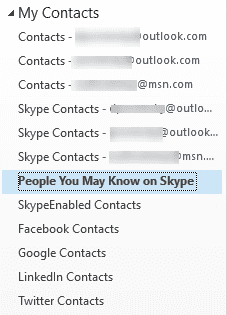
extra contact folders

Deleting the folders in Outlook doesn't work; the folders pop back up within seconds.

The solution: hide the folders using MFCMAPI. I have instructions to do one folder at a time at How to Hide or Delete Outlook's Default Folders but if you have multiple accounts in your profile, each with some of these extra folder, it can take some time to hide all of the folders.
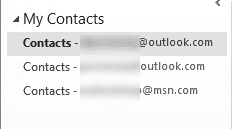
contacts hidden
This version of the macro checks all mailboxes in the profile and hides any of the folders it finds. The code to search for the folders is from Michael Bauer at VBOffice.net, using bits of code from Find a Folder by its Name and Expand All Folders.

If you have other folders you want to hide, add the folder name to the array, comma separated and wrapped in quotes. The macro will work with any folder (but Outlook may unhide the folder later).

arrFolder = Array("Skype Contacts", "People You May Know on Skype", "SkypeEnabled Contacts", "Facebook Contacts", "Linkedin Contacts", "google contacts", "twitter contacts", "Yahoo Contacts")

Hide Folders Macro

Private m_Folder As Outlook.MAPIFolder
Private m_Find As String

Private Const SpeedUp As Boolean = True

Public Sub HideFolders()
  Dim Name$
  Dim Folders As Outlook.Folders

  Set m_Folder = Nothing
  m_Find = ""

Dim Ns As Outlook.NameSpace
Set Ns = Application.GetNamespace("Mapi")
 
Dim strFolder As String
Dim arrFolder As Variant

' Set up the array
arrFolder = Array("Skype Contacts", "People You May Know on Skype", "SkypeEnabled Contacts", "Facebook Contacts", "Linkedin Contacts", "google contacts", "twitter contacts", "Yahoo Contacts")

' Go through the array and look for a match, then do something
For i = LBound(arrFolder) To UBound(arrFolder)
      m_Find = arrFolder(i)
  
  m_Find = LCase$(m_Find)
  m_Find = Replace(m_Find, "%", "*")

  Set Folders = Application.Session.Folders
  LoopFolders Ns.Folders, True

Next i

End Sub

Private Sub LoopFolders(Folders As Outlook.Folders, ByVal bRecursive As Boolean)
  Dim F As Outlook.MAPIFolder
  Dim Found As Boolean
  
Dim oFolder As Outlook.Folder
Dim oPA As Outlook.PropertyAccessor
Dim PropName, Value, FolderType As String

PropName = "http://schemas.microsoft.com/mapi/proptag/0x10F4000B"
Value = True
  If SpeedUp = False Then DoEvents

  For Each F In Folders
      Found = (LCase$(F.Name) = m_Find)

    If Found Then
    Debug.Print F.Name
    Set oPA = F.PropertyAccessor
      oPA.SetProperty PropName, Value
    
    End If
    
      LoopFolders F.Folders, bRecursive
      If Not m_Folder Is Nothing Then Exit For
  Next
End Sub

How to use the macros on this page

First: You need to have macro security set to the lowest setting, Enable all macros during testing. The macros will not work with the top two options that disable all macros or unsigned macros. You could choose the option Notification for all macros, then accept it each time you restart Outlook, however, because it's somewhat hard to sneak macros into Outlook (unlike in Word and Excel), allowing all macros is safe, especially during the testing phase. You can sign the macro when it is finished and change the macro security to notify.

To check your macro security in Outlook 2010 and newer, go to File, Options, Trust Center and open Trust Center Settings, and change the Macro Settings. In Outlook 2007 and older, look at Tools, Macro Security.

After you test the macro and see that it works, you can either leave macro security set to low or sign the macro.

The macros on this page should be placed in a module.

Open the VBA Editor by pressing Alt+F11 on your keyboard.

To put the code in a module:

  1. Right click on Project1 and choose Insert > Module
  2. Copy and paste the macro into the new module.

More information as well as screenshots are at How to use the VBA Editor

Hide Extra Folders in Outlook.com was last modified: May 29th, 2024 by Diane Poremsky

Related Posts:

  • Move Outlook Folders using VBA
  • Shortcuts to open Outlook folders
  • VBA: File messages by client code
  • Macro to Create an Outlook Contact from an Email Message

About Diane Poremsky

A Microsoft Outlook Most Valuable Professional (MVP) since 1999, Diane is the author of several books, including Outlook 2013 Absolute Beginners Book. She also created video training CDs and online training classes for Microsoft Outlook. You can find her helping people online in Outlook Forums as well as in the Microsoft Answers and TechNet forums.

Subscribe
Notify of
14 Comments
newest
oldest most voted
Inline Feedbacks
View all comments

juanlopez
November 3, 2022 5:00 pm

Puede usar su dirección de correo electrónico confirmada para iniciar sesión en su cuenta, así como convertirla en su dirección principal para todas las comunicaciones entre usted y ID.me

0
0
Reply
David Ings
September 16, 2019 8:10 pm

FWIW I'll note that this problem still exists in macOS Outlook 365 as of today, September 2019. Also, the hiding solution suggested above is (AFAIK) for Windows only.

While it's annoying, it's not the end of the world, as it seems to have no practical effect. Still I find it very surprising that MS hasn't fixed this yet.

0
0
Reply
Diane Poremsky
Author
Reply to  David Ings
September 16, 2019 10:10 pm

Correct, its windows only. I don't think there is a solution for mac - microsoft needs to delete the folders.

0
0
Reply
David Ings
Reply to  Diane Poremsky
November 4, 2019 8:16 pm

Sometime between when I posted (Sept 16) and today (Nov 4) this problem disappeared (for me, YMMV). I no longer have any extra/legacy contacts folders showing in macOS Outlook Contacts. Yeah! :-)

0
0
Reply
Diane Poremsky
Author
Reply to  David Ings
November 4, 2019 9:58 pm

Cool, i hope that means they finally removed those folders.
Thanks for sharing!

0
0
Reply
ahmetgns
Reply to  David Ings
November 14, 2019 2:22 am

Confirmed on the web interface also by doing the below steps which Microsoft help desk suggested me once upon a time:
Sign-in on IE, press F12, on Emulation tab, select User agent as IE8 or older, the page reloads with old and simple interface. There are no longer those extra folders listed on Contacts folder management page. Those have really gone. Thanks.

0
0
Reply
Tony
November 21, 2018 5:37 am

Hi Diane. I don't know if you can help me.

I've managed to hide the unused contact folders, but I want to delete them. But I keep getting this message. It happens on all these folders and I confirmed that they are empty.

Any idea?

Untitled.png
0
0
Reply
Diane Poremsky
Author
Reply to  Tony
November 23, 2018 1:19 am

I'm not sure why that error is coming up (I'm getting the same error.)

0
0
Reply
Bob
November 15, 2018 6:24 am

Is there any word on when MS will properly fix this so people can simply delete the folders at will? Or when MS plans to remove all of them the way they are doing with the Skype contact folders?

0
0
Reply
Diane Poremsky
Author
Reply to  Bob
November 23, 2018 12:53 pm

I have not heard anything recently, but when i talked to them about this problem, they said they would remove them. It's apparently a very slow process - its taking close to a year to remove skype from all of the mailboxes.

0
0
Reply
ahmetgns
July 22, 2018 3:32 am

If you can succeed deleting those folders also from Deleted Items folders after deleting them from their original location in that “a few seconds” before they pop back into the original location, you can completely and permanently get rid of them . :D I did it, it works!

2
0
Reply
David Goodhand
Reply to  ahmetgns
October 24, 2018 8:10 am

That worked, after a few tries to get the timing right. I opened two windows, side-by-side. I deleted the empty social contact folder in the left window, then right-clicked to empty the deleted items folder in right window.

0
0
Reply
Bob
Reply to  ahmetgns
November 15, 2018 6:16 am

This also worked for me in terms of what the local Outlook desktop UI shows, but each delete operation did log a sync issue such as "Error in folder 'LinkedIn Contacts'" and "Synchronization of some deletions failed."

0
0
Reply
Diane Poremsky
Author
Reply to  Bob
November 23, 2018 12:54 pm

Yeah, delete is failing. :(

0
0
Reply

Visit Slipstick Forums.
What's New at Slipstick.com

Latest EMO: Vol. 30 Issue 36

Subscribe to Exchange Messaging Outlook


Support Services

Do you need help setting up Outlook, moving your email to a new computer, migrating or configuring Office 365, or just need some one-on-one assistance?

Our Sponsors

CompanionLink
ReliefJet
  • Popular
  • Latest
  • Week Month All
  • Use Classic Outlook, not New Outlook
  • How to Remove the Primary Account from Outlook
  • How to Hide or Delete Outlook's Default Folders
  • Removing Suggested Accounts in New Outlook
  • Reset the New Outlook Profile
  • This operation has been cancelled due to restrictions
  • iCloud error: Outlook isn't configured to have a default profile
  • Adjusting Outlook's Zoom Setting in Email
  • Online Services in Outlook: Gmail, Yahoo, iCloud, AOL, GoDaddy
  • Add Holidays to Outlook's Calendar
  • Opt out of Microsoft 365 Companion Apps
  • Mail Templates in Outlook for Windows (and Web)
  • Urban legend: Microsoft Deletes Old Outlook.com Messages
  • Buttons in the New Message Notifications
  • Move Deleted Items to Another Folder Automatically
  • Open Outlook Templates using PowerShell
  • Count and List Folders in Classic Outlook
  • Google Workspace and Outlook with POP Mail
  • Import EML Files into New Outlook
  • Opening PST files in New Outlook
Ajax spinner

Recent Bugs List

Microsoft keeps a running list of issues affecting recently released updates at Fixes or workarounds for recent issues in classic Outlook (Windows).

For new Outlook for Windows: Fixes or workarounds for recent issues in new Outlook for Windows .

Outlook for Mac Recent issues: Fixes or workarounds for recent issues in Outlook for Mac

Outlook.com Recent issues: Fixes or workarounds for recent issues on Outlook.com

Office Update History

Update history for supported Office versions is at Update history for Office

Outlook Suggestions and Feedback

Outlook Feedback covers Outlook as an email client, including Outlook Android, iOS, Mac, and Windows clients, as well as the browser extension (PWA) and Outlook on the web.

Outlook (new) Feedback. Use this for feedback and suggestions for Outlook (new).

Use Outlook.com Feedback for suggestions or feedback about Outlook.com accounts.

Other Microsoft 365 applications and services


New Outlook Articles

Opt out of Microsoft 365 Companion Apps

Mail Templates in Outlook for Windows (and Web)

Urban legend: Microsoft Deletes Old Outlook.com Messages

Buttons in the New Message Notifications

Move Deleted Items to Another Folder Automatically

Open Outlook Templates using PowerShell

Count and List Folders in Classic Outlook

Google Workspace and Outlook with POP Mail

Import EML Files into New Outlook

Opening PST files in New Outlook

Newest Code Samples

Open Outlook Templates using PowerShell

Count and List Folders in Classic Outlook

Insert Word Document into Email using VBA

Warn Before Deleting a Contact

Use PowerShell to Delete Attachments

Remove RE:, FWD:, and Other Prefixes from Subject Line

Change the Mailing Address Using PowerShell

Categorize @Mentioned Messages

Send an Email When You Open Outlook

Delete Old Calendar Events using VBA

VBA Basics

How to use the VBA Editor

Work with open item or selected item

Working with All Items in a Folder or Selected Items

VBA and non-default Outlook Folders

Backup and save your Outlook VBA macros

Get text using Left, Right, Mid, Len, InStr

Using Arrays in Outlook macros

Use RegEx to extract message text

Paste clipboard contents

Windows Folder Picker

Custom Forms

Designing Microsoft Outlook Forms

Set a custom form as default

Developer Resources

Developer Resources

Developer Tools

VBOffice.net samples

SlovakTech.com

Outlook MVP David Lee

Repair PST

Convert an OST to PST

Repair damaged PST file

Repair large PST File

Remove password from PST

Merge Two Data Files

Sync & Share Outlook Data

  • Share Calendar & Contacts
  • Synchronize two computers
  • Sync Calendar and Contacts Using Outlook.com
  • Sync Outlook & Android Devices
  • Sync Google Calendar with Outlook
  • Access Folders in Other Users Mailboxes

Diane Poremsky [Outlook MVP]

Make a donation

Mail Tools

Sending and Retrieval Tools

Mass Mail Tools

Compose Tools

Duplicate Remover Tools

Mail Tools for Outlook

Online Services

Calendar Tools

Schedule Management

Calendar Printing Tools

Calendar Reminder Tools

Calendar Dates & Data

Time and Billing Tools

Meeting Productivity Tools

Duplicate Remover Tools

Productivity

Productivity Tools

Automatic Message Processing Tools

Special Function Automatic Processing Tools

Housekeeping and Message Management

Task Tools

Project and Business Management Tools

Choosing the Folder to Save a Sent Message In

Run Rules on messages after reading

Help & Suggestions

Submit Outlook Feature Requests

Slipstick Support Services

Buy Microsoft 365 Office Software and Services

Visit Slipstick Forums.

What's New at Slipstick.com

Home | Outlook User | Exchange Administrator | Office 365 | Outlook.com | Outlook Developer
Outlook for Mac | Common Problems | Utilities & Addins | Tutorials
Outlook & iCloud Issues | Outlook Apps
EMO Archives | About Slipstick | Slipstick Forums
Submit New or Updated Outlook and Exchange Server Utilities

Send comments using our Feedback page
Copyright © 2025 Slipstick Systems. All rights reserved.
Slipstick Systems is not affiliated with Microsoft Corporation.

:wpds_smile::wpds_grin::wpds_wink::wpds_mrgreen::wpds_neutral::wpds_twisted::wpds_arrow::wpds_shock::wpds_unamused::wpds_cool::wpds_evil::wpds_oops::wpds_razz::wpds_roll::wpds_cry::wpds_eek::wpds_lol::wpds_mad::wpds_sad::wpds_exclamation::wpds_question::wpds_idea::wpds_hmm::wpds_beg::wpds_whew::wpds_chuckle::wpds_silly::wpds_envy::wpds_shutmouth:
wpDiscuz

Sign up for Exchange Messaging Outlook

Our weekly Outlook & Exchange newsletter (bi-weekly during the summer)


Please note: If you subscribed to Exchange Messaging Outlook before August 2019, please re-subscribe.

Never see this message again.

You are going to send email to

Move Comment