• Outlook User
  • New Outlook app
  • Outlook.com
  • Outlook Mac
  • Outlook & iCloud
  • Developer
  • Microsoft 365 Admin
    • Common Problems
    • Microsoft 365
    • Outlook BCM
    • Utilities & Addins

Turn Off the Print Picture Wizard when Printing Attachments

Slipstick Systems

› Outlook › Email › Turn Off the Print Picture Wizard when Printing Attachments

Last reviewed on December 5, 2018     4 Comments

When you print an email message with images attached and include the attachments in the printout, you'll see the Print Picture wizard dialog during the print process:
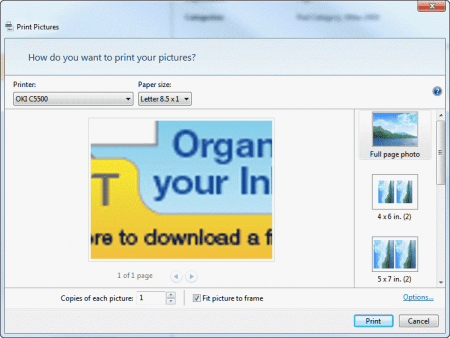
Outlook's print dialog

This is because the Windows Photo Viewer is set as the default application for viewing this image type (and probably for all image types). This is the default setting on new Windows installations.

In order to stop seeing this dialog, you need to change the default application for viewing images.

  1. Open My Documents and find an image of the same file type.
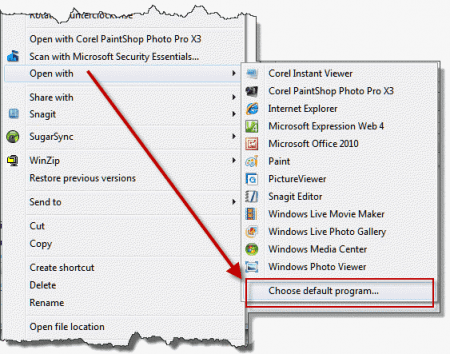
  2. Right click on the image and choose Open with.
    open-with-new
  3. Select Choose default program.. at the bottom of the menu.
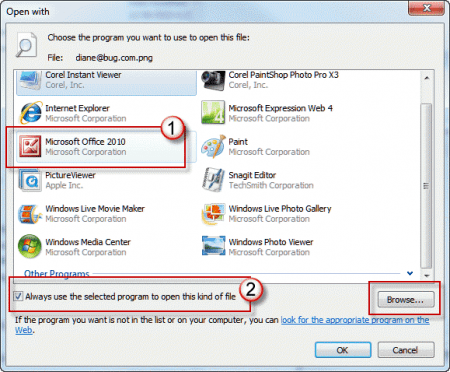
  4. Select a different image viewer. Most installations should have Paint and Microsoft Office (also known as Picture Manager) listed as options, but depending on what other programs are installed, you may have a long list of programs to choose from.
  5. If the program you want to use is installed but not listed, click the Browse button to locate it.
  6. Make sure the Always use the selected program to open this kind of file option is checked before you click Ok to exit the dialog.
    open-with-dialog

Close the application when it opens and return to Outlook. The attached images will now print without bringing up the Print Picture dialog.

More Information

If you need a better picture viewer, there are a number of good (and often free) viewers available, such as IrfanView.

Turn Off the Print Picture Wizard when Printing Attachments was last modified: December 5th, 2018 by Diane Poremsky
Post Views: 20

Related Posts:

  • Opening Outlook attachments in Windows 8
  • Outlook Express displays image attachments at the bottom of the messag
    View Attached Images in the Message, not as Attachments
  • Print Outlook's Business Cards
  • Calendars aren’t printing in color

About Diane Poremsky

A Microsoft Outlook Most Valuable Professional (MVP) since 1999, Diane is the author of several books, including Outlook 2013 Absolute Beginners Book. She also created video training CDs and online training classes for Microsoft Outlook. You can find her helping people online in Outlook Forums as well as in the Microsoft Answers and TechNet forums.

Comments

  1. Roy Hutton says

    August 25, 2015 at 5:21 am

    Yeah, same here, the jpeg file type is now associated with office 2010 but just brings up that picture viewer instead of the windows one....

    Reply
    • Diane Poremsky says

      August 25, 2015 at 11:41 am

      When yo change the association, the picture will open in the new program. Attachments that aren't pictures should use that application for printing. Pictures are different, especially in Windows 8/10, because they removed the ability to set the print application in default programs.

      Reply
  2. William says

    August 10, 2015 at 11:03 am

    I have the same issue. I've been waiting for months for a solution (which I thought would be in Windows 10), however, it appears to do the same thing...any ideas?

    Reply
  3. Cat P says

    May 19, 2015 at 10:19 am

    Unfortunately, this did not work for me - the print wizard still pops up every time. (Outlook 2010 on Windows 7).

    Reply

Leave a Reply Cancel reply

Your email address will not be published. Required fields are marked *

Visit Slipstick Forums.
What's New at Slipstick.com

Latest EMO: Vol. 31 Issue 3

Subscribe to Exchange Messaging Outlook


Support Services

Do you need help setting up Outlook, moving your email to a new computer, migrating or configuring Office 365, or just need some one-on-one assistance?

Our Sponsors

CompanionLink
ReliefJet
  • Popular
  • Latest
  • Week Month All
  • Jetpack plugin with Stats module needs to be enabled.
  • Sync Issues and Errors with Gmail and Yahoo accounts
  • Error Opening iCloud Appointments in Classic Outlook
  • Opt out of Microsoft 365 Companion Apps
  • Mail Templates in Outlook for Windows (and Web)
  • Urban legend: Microsoft Deletes Old Outlook.com Messages
  • Buttons in the New Message Notifications
  • Move Deleted Items to Another Folder Automatically
  • Open Outlook Templates using PowerShell
  • Count and List Folders in Classic Outlook
  • Google Workspace and Outlook with POP Mail
Ajax spinner

Recent Bugs List

Microsoft keeps a running list of issues affecting recently released updates at Fixes or workarounds for recent issues in classic Outlook (Windows).

For new Outlook for Windows: Fixes or workarounds for recent issues in new Outlook for Windows .

Outlook for Mac Recent issues: Fixes or workarounds for recent issues in Outlook for Mac

Outlook.com Recent issues: Fixes or workarounds for recent issues on Outlook.com

Office Update History

Update history for supported Office versions is at Update history for Office

Outlook Suggestions and Feedback

Outlook Feedback covers Outlook as an email client, including Outlook Android, iOS, Mac, and Windows clients, as well as the browser extension (PWA) and Outlook on the web.

Outlook (new) Feedback. Use this for feedback and suggestions for Outlook (new).

Use Outlook.com Feedback for suggestions or feedback about Outlook.com accounts.

Other Microsoft 365 applications and services


New Outlook Articles

Sync Issues and Errors with Gmail and Yahoo accounts

Error Opening iCloud Appointments in Classic Outlook

Opt out of Microsoft 365 Companion Apps

Mail Templates in Outlook for Windows (and Web)

Urban legend: Microsoft Deletes Old Outlook.com Messages

Buttons in the New Message Notifications

Move Deleted Items to Another Folder Automatically

Open Outlook Templates using PowerShell

Count and List Folders in Classic Outlook

Google Workspace and Outlook with POP Mail

Newest Code Samples

Open Outlook Templates using PowerShell

Count and List Folders in Classic Outlook

Insert Word Document into Email using VBA

Warn Before Deleting a Contact

Use PowerShell to Delete Attachments

Remove RE:, FWD:, and Other Prefixes from Subject Line

Change the Mailing Address Using PowerShell

Categorize @Mentioned Messages

Send an Email When You Open Outlook

Delete Old Calendar Events using VBA

Repair PST

Convert an OST to PST

Repair damaged PST file

Repair large PST File

Remove password from PST

Merge Two Data Files

Sync & Share Outlook Data

  • Share Calendar & Contacts
  • Synchronize two computers
  • Sync Calendar and Contacts Using Outlook.com
  • Sync Outlook & Android Devices
  • Sync Google Calendar with Outlook
  • Access Folders in Other Users Mailboxes

Diane Poremsky [Outlook MVP]

Make a donation

Mail Tools

Sending and Retrieval Tools

Mass Mail Tools

Compose Tools

Duplicate Remover Tools

Mail Tools for Outlook

Online Services

Calendar Tools

Schedule Management

Calendar Printing Tools

Calendar Reminder Tools

Calendar Dates & Data

Time and Billing Tools

Meeting Productivity Tools

Duplicate Remover Tools

Productivity

Productivity Tools

Automatic Message Processing Tools

Special Function Automatic Processing Tools

Housekeeping and Message Management

Task Tools

Project and Business Management Tools

Choosing the Folder to Save a Sent Message In

Run Rules on messages after reading

Help & Suggestions

Submit Outlook Feature Requests

Slipstick Support Services

Buy Microsoft 365 Office Software and Services

Visit Slipstick Forums.

What's New at Slipstick.com

Home | Outlook User | Exchange Administrator | Office 365 | Outlook.com | Outlook Developer
Outlook for Mac | Common Problems | Utilities & Addins | Tutorials
Outlook & iCloud Issues | Outlook Apps
EMO Archives | About Slipstick | Slipstick Forums
Submit New or Updated Outlook and Exchange Server Utilities

Send comments using our Feedback page
Copyright © 2026 Slipstick Systems. All rights reserved.
Slipstick Systems is not affiliated with Microsoft Corporation.