The problem: You have a shared mailbox in your profile and Send as permission on the mailbox. When you send a message from the shared mailbox, the sent message goes into your own Sent Items folder. By default, sent messages are stored in your own mailbox, not the shared mailbox and the DelegateSentItemsStyle registry value is used if you want to store the messages in the shared mailbox Sent Items folder.
If your mailbox is located on Exchange Server 2010, or on Exchange 2013 CU9 or newer (including Office 365 Exchange Online), the Exchange administrator can configure Exchange to save sent items in the shared mailbox automatically. The benefit: you don't need to add DelegateSentItemsStyle to the registry on every computer that uses shared mailboxes, it just works.
Beginning with Exchange 2013 CU9, when a message is sent from a shared mailbox, the sent message can be stored in the sent folder in the shared mailbox without adding DelegateSentItemsStyle to the registry.
Yes, it's been a long time coming, but finally, all shared mailboxes will retain a copy of emails sent from the mailbox. This setting can be enabled or disabled in the Office admin portal or using PowerShell.
Office 365
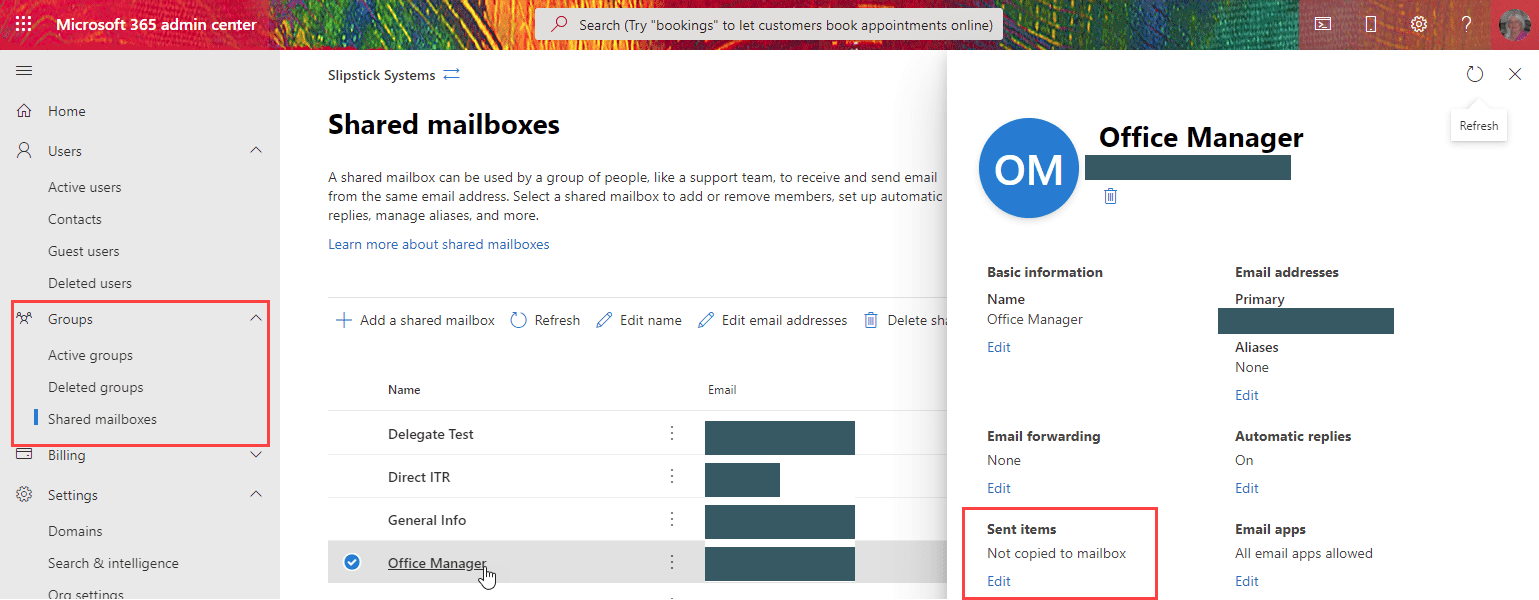
To enable or disable it in the Office 365 admin portal:
- Login into Office 365 Admin portal
- Expand Groups and select Shared mailboxes
- Double click on the shared mailbox you want to change

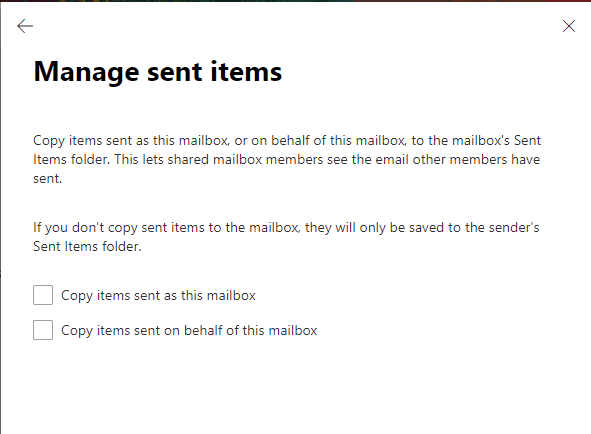
- Click Edit under Sent items
- Change the settings then Save and close the dialog.
Cmdlet for Exchange 2013 CU9 and Office 365
To enable it for emails Sent As the shared mailbox, set the enable flag to true and run the cmdlet:
set-mailbox mailbox-name -MessageCopyForSentAsEnabled $True
To enable it on all shared mailboxes, use this cmdlet:
Get-Mailbox -ResultSize unlimited -Filter {(RecipientTypeDetails -eq 'SharedMailbox')} | set-mailbox -MessageCopyForSentAsEnabled $True
If the email was Sent On Behalf of the shared mailbox, use
set-mailbox mailbox-name -MessageCopyForSendOnBehalfEnabled $True
To disable it for emails Sent As the shared mailbox, use this cmdlet:
set-mailbox mailbox-name -MessageCopyForSentAsEnabled $False
If the email was Sent On Behalf of the shared mailbox, use
set-mailbox mailbox-name -MessageCopyForSendOnBehalfEnabled $False
You can only use use these parameter on shared mailboxes. If you have Send as permissions on a user's mailbox, you need to use the DelegateSentItemsStyle registry key.
If DelegateSentItemsStyle was added to the registry, delete it as it will prevent the server-side feature from working correctly. Look for it at HKEY_CURRENT_USER\Software\Microsoft\Office\xx.0\Outlook\Preferences or use the registry file for your version of Outlook:
Delete DelegateSentItemsStyle Outlook 2016
Delete DelegateSentItemsStyle Outlook 2013
Delete DelegateSentItemsStyle Outlook 2010
Exchange Server 2010
Update Rollup 4 for Exchange Server 2010 Service Pack 2 introduces the Exchange PowerShell cmdlet, Set-MailboxSentItemsConfiguration , giving the administrator the ability to configure which Sent Items folder a message is copied to. Because this new feature is handled by the Exchange server, Outlook can be configured for Online or Cached Exchange Mode.
However, the Exchange server feature only works if the Outlook DelegateSentItemsStyle registry value is disabled.
To save sent items in the sender's Sent Items folder, use this cmdlet:
Set-MailboxSentItemsConfiguration alias -SendAsItemsCopiedTo Sender -SendOnBehalfOfItemsCopiedTo Sender
To save sent items in the Sent Items folder of both the sender and the shared mailbox, use this cmdlet:
Set-MailboxSentItemsConfiguration alias -SendAsItemsCopiedTo SenderAndFrom -SendOnBehalfOfItemsCopiedTo SenderAndFrom

David says
I've posted on the TechNet community site about this behaviour and how it is a design flaw that this behaviour is the default behaviour and that we need to have workflows and policies in place to correct it. Just about every single mailbox, be it a shared mailbox or a delegated user mailbox, I have set up the delegate and shared mailbox users have always agreed they want this behaviour. In terms of security, privacy and integrity, it is also dangerous for an organisation to, by default, have shared mail accounts able to send emails without the primary controller or owner of the mailbox being able to see a copy of any Sent (or deleted) items, by default. Here's my post attempting to raise this and discuss it. I welcome any input or confirmation and challenges to my point.
https://techcommunity.microsoft.com/t5/microsoft-365/current-default-behaviour-for-saving-sent-items-in-delegate-and/m-p/3114579
Diane Poremsky says
Are you using Exchange online? Leave a suggestion here -
https://feedbackportal.microsoft.com/feedback/forum/84b411cc-50d1-ec11-a7b5-0022481f35a4
Api says
Hi Diane
Could you please provide me the macro to insert in outlook to save sent emails from shared mailbox to sent folder from shared mailbox ?
Thank you very much
David Jones says
Hi Diane,
Thanks for the detailed article. Very handy.
For small business clients of mine (CSP partner here) who have a basic level of in house IT abilities, getting them to set this through the Admin Centre is great but shared mailboxes, as discussed here, are not the only place you'd make this setting...
Delegate shared mailboxes also need to have this setting changed. Seems the default behaviour for delegate shared mailboxes is for sent items to only be retained in the delegate's sent items folder and not in the sent items folder of the delegator, with the only way to fix this being through the Exchange PowerShell. It baffles me how Microsoft would make this the default behaviour but then so much they do seems to baffle on an ever increasing basis, these days! The default behaviour for regular and delegate shared mailboxes should be for copies to go into both the senders sent items as well as the sent items of whomever they are sending on behalf of.
Cheers,
David
Simon says
Thanks! Making the change through the Microsoft 365 Admin Center was the easiest solution in our case.
Note: These steps must be performed in the Microsoft 365 Admin Center, not the Exchange Admin Center. The option to manage where sent items are stored does not appear to be exposed in the latter location. This is what was catching us out as we thought we had looked everywhere for this setting; it turns out we were just looking in the wrong place.
ray says
but i cant find this "SENT ITEM" in My O365 admin center....
Natarajan A says
HI Diane,
After migrated from On-premise exchange server to O365, only one mailbox sent items is duplicating if user sent as email from a shared mailbox. Checked all the settings SendAsItemsCopiedTo is false.
I changed "Set-ItemProperty -Path HKCU:\SOFTWARE\Microsoft\Office\16.0\Outlook\Preferences -Name DelegateSentItemsStyle -Value 0" in my PC and tested, it created one sent item in a shared mailbox and another one in my mailbox.
From other shared mailbox sent item stayed in my mailbox.
Could you let help to fix this problem.
Thank you
Natarajan
Jarle says
Such a great tutorial! Darling youre a absolute legend!
Carly says
This worked, thanks so much!
Rok1215 says
Hello,
I used the following command:
Set-MailboxSentItemsConfiguration alias -SendAsItemsCopiedTo SenderAndFrom -SendOnBehalfOfItemsCopiedTo SenderAndFrom
But it is now causing issues with sending mails to external email addresses, how do I revert this command? How do I disable it?
Diane Poremsky says
it definitely should not be affecting messages sent to external addresses - it only copies the sent messages to both the sender and the shared mailbox's sent folders.
You'd use Sender to revert back to the default behavior.
Set-MailboxSentItemsConfiguration alias -SendAsItemsCopiedTo Sender -SendOnBehalfOfItemsCopiedTo Sender
Junaid Khan says
Hi,
this is not working in my environment, I have hybrid setup where the shared mailbox is in on premise server and the user in an o365.
but the permissions are not working.
Ben Sherwin says
Did you find a solution? I have the same environment.
Bob the Builder says
It didn't help....
Michael Winter says
same here, doesn't work...
Diane Poremsky says
The powershell method on the exchange account creates a copy - the sent item should be in both accounts sent folders. The older reg key method should not be used if Exchange is properly configured.
Michael Kashitani says
If both settings are enabled will it cause a conflict?
Diane Poremsky says
If it is enabled on the server and you set the DelegateSentItemsStyle registry key on the client, you may experience weird behavior and saving sent items may not work as expected.
Jonathan says
Thank you for keeping this updated! I came back here for the powershell commands, and I see it is built-in to the admin center now. Awesome!
Alex Admin says
Hi guys,
I have two customers ( different O365 tenants ) for whom I have performed this change. It worked but now I can see that the sent items are saved in both shared mailbox and the primary mailbox. Anyone else that seen that so far?
I mention that the reg key for Outlook wasn't set and is not existing.
If you have any hints - I'll be happy to listen :).
By the way - the article is really well explained.
Diane Poremsky says
That is how it works... MessageCopyForSentAsEnabled copies it, it doesn't move it.
Josh Moore says
Good news - this feature can now be set in the user interface of Office365 rather than having to use PowerShell.
1. Go to Admin portal>Groups>Shared Mailboxes
2.Click the Shared Mailbox you created>click SENT ITEMS - EDIT
3.Turn on "Copy sent as this mailbox" & Copy sent as behalf of this mailbox" and SAVE.
Michel says
Hi Josh..and what if you do not see Shared mailboxes in Admin Center, but only Active and Deleted groups ?
Diane Poremsky says
It sounds like you are in the right place - admin.microsoft.com/Adminportal/Home#/SharedMailbox/
Does your account have the proper permissions to edit the settings?
Brandon says
For the command "set-mailbox mailbox-name -MessageCopyForSentAsEnabled $True"
I'm assuming 'mailbox-name' would be the name of the box we're trying to set this for? I'm fairly green on using the Powershell.
Diane Poremsky says
it would be the shared mailbox name.
Graham says
HI Diane, I seem to connect to the Exchange online server fine and when I type Get-Mailbox I see several mailboxes that look familiar. In the results of that cmdlet it shows 4 columns...Name, Alias,ServerName and ProhibitSendQuota.
My question is the name in the first column is what must be substituted into the cmdlet you have provided i.e "set-mailbox mailbox-name -MessageCopyForSentAsEnabled $True" should then become "set-mailbox XXXXZZZZ -MessageCopyForSentAsEnabled $True". Many thanks.
Kenny says
Hello Diane,
Is there an equivalent command for deleted items for Office 365 since they also save deleted messages from shared mailboxes to the user deleted folder rather than the shared mailbox deleted folder?
Diane Poremsky says
You'd need to use the registry key in Outlook. See https://www.slipstick.com/exchange/shared-mailboxes-deleted-items-folder/
cd smith says
I followed the instructions in this article and the one below however the SENT Items behavior did not change. I checked the workstation to make sure the registry key was not present. I am using an actual "shared" mailbox. Any ideas?
https://practical365.com/exchange-server/managing-shared-mailbox-sent-items-behaviour-in-exchange-server-2013-and-office-365/
Diane Poremsky says
What version of Exchange are you using? If not Office 365, are all updates installed?
Rizni says
O365 has added the feature to enabled for individual shared mailbox under setting for the page.
Lisa says
For Office 365 enabling of sent items on 'all' shared mailboxes, that command does not work. The error I get says Invalid filter syntax. What is the correct syntax that worked for you?
Diane Poremsky says
That is the correct cmdlet and syntax. Does Get-Mailbox (nothing else, just get-mailbox) return an error?
https://www.slipstick.com/exchange/cmdlets/powershell-log-office365-exchange/
Ralf says
Hi,
What does the statement mean exactly? "the Exchange server feature only works if the Outlook DelegateSentItemsStyle registry value is disabled."
Do i have to change the registry setting back if i enabled it in the past?
Or does it work both ways: on clients where it is not set (aka disabled) the server setting works and on the clients where it it set (aka enabled) the server setting does not work but the client setting does the work?
i would be glad if you could clear that up for me.
Thanks
Ralf
Diane Poremsky says
If you added that key in the past, it needs to be deleted. If you don't delete the key (or change the value to disable it) you'll have weird results - it might work, might not and you might have duplicates.
Chris says
Hi Diane,
Mustn't the property be set on the "SharedMailbox" instead of the "UserMailbox" ?
Diane Poremsky says
Yeah, it is. Thanks for catching it. I have the "all mailbox script" portion saved to a shortcut key and forgot to change it when added the setmail script to it.
Samir says
Hi Diane,
would you perhaps know if any server side feature exists for deleted items in Shared mailbox.
Diane Poremsky says
At this time, no. I don't know if they will do anything like they did with sent items.
Joe B says
Is there any way to make this work with regular mailboxes within Office 365-Exchange Online?
I regularly access another email account - which is added to my main email account.
Diane Poremsky says
It should work as long as you don't have the registry key set to move - if the server side changes weren't applied to your tenant or account, use the registry key - https://www.slipstick.com/exchange/sending-email-from-a-secondary-exchange-mailbox/
Your exchange admin can check your mailbox and see if it was enabled.
Annemarie says
No! this feature only works for Microsoft's definition of "shared" mailboxes, not regular mailboxes that are shared. (At least on our instance of Exchange 2013 CU 10 On Premises)
Diane Poremsky says
Correct, it's only for Shared mailboxes, not mailboxes that are shared.