As more people try Office 2013, I'm seeing more complaints and confusion about Outlook 2013's handling of IMAP sent folders.
I upgraded from Outlook 2010 to Outlook 2013. Is it true that "Saving Sent Messages" on the server is no longer possible with IMAP servers? If not, where are my "Sent Messages"? When I look at a conversation, sent messages show up and Outlook shows that it's in the "sent" folder but I can't find it in my Sent folder.
As I mentioned in an Outlook Tip, Outlook 2013 gets the Sent Items folder from the server using the XLIST command and falls back to the local Sent Items folder if the IMAP server does not support XLIST. Users can no longer select a sent folder to use.
How this works: when you set up the account, Outlook "talks" to the IMAP server, "asking" what the server supports. If the server supports XLIST, it responds with the folder that should be used for Sent items. If the server does not use XLIST, Outlook 2013 uses the local Sent items folder. If you want to use a different folder, you need to rules to move the sent item.
For example, when Outlook 2013 connects to GMail, GMail responds with this:
[rx] * CAPABILITY IMAP4rev1 UNSELECT IDLE NAMESPACE QUOTA ID XLIST CHILDREN X-GM-EXT-1 XYZZY SASL-IR AUTH=XOAUTH AUTH=XOAUTH2
Then Outlook gets the folder list:
[tx] md83 XLIST "" "*"
[db] OnNotify: asOld = 5, asNew = 5, ae = 3
[rx] * XLIST (\HasNoChildren \Inbox) "/" "Inbox"
[rx] * XLIST (\HasNoChildren) "/" "Junk E-mail"
[rx] * XLIST (\HasNoChildren) "/" "Outlook Users"
[rx] * XLIST (\HasNoChildren) "/" "Tips"
[rx] * XLIST (\Noselect \HasChildren) "/" "[Gmail]"
[rx] * XLIST (\HasNoChildren \AllMail) "/" "[Gmail]/All Mail"
[rx] * XLIST (\HasNoChildren \Drafts) "/" "[Gmail]/Drafts"
[rx] * XLIST (\HasNoChildren \Important) "/" "[Gmail]/Important"
[rx] * XLIST (\HasChildren \HasNoChildren \Sent) "/" "[Gmail]/Sent Mail"
Find the Sent folder
If you can't find the sent folder but see the sent items when you use the conversation view, you can use the macro at Folder: Get the path to identify the folder path. Simply select a sent message in a conversation and run the macro. A message box will show you the path (in \\alias@domain.com\Inbox\Sent format) and you can click the button to switch to it.
If you switch to the Folder list (Ctrl+6) after letting the macro take you to the folder, it will be expanded so you can see where it is in relation to the other folders.
Folders marked with "(This computer only)" are stored in the local data file. They are not uploaded to the server.
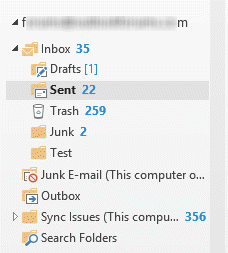
When you create an Outlook 2013 profile that contains only an IMAP account, your calendar, contacts, notes, and tasks will be stored in the IMAP data file (*.ost). These folders are marked with (This computer only) for easy identification. If your IMAP data file includes folders marked (This computer only) and you want to keep the contents, you need to export those folders to a pst file before removing the IMAP account from your profile.
In Outlook 2007 and Outlook 2010, IMAP users choose the Sent Items folder but it only uses the designated folder when you start the message in Outlook. If you have an IMAP account and use a File, Send by email command in other applications, the sent message is stored in the local Sent Items folder, not in the IMAP account's designated Sent Items folder.
I use the "Send using email" feature many programs have, for ease and speed of use. However when I do this the sent email is saved to the Outlook data file and not the sent items folder in the IMAP account. I would like all sent item to appear in the sent items file from the address i sent it from.
This happens because the Send email commands in other applications use Simple MAPI and it calls up the new messages using a method that hooks into Outlook in a way that prevents it from using the designated Sent Items folder.
Note: Outlook 2013 gets the Sent Items folder from the XLIST command and falls back to the local Sent Items folder if the IMAP server does not support XLIST. All messages should use the same Sent Items folder, irregardless of how you started the message.
You can use these methods with Outlook 2013 or Outlook 2003 and earlier to save IMAP sent items on the IMAP server.
You have three options when you use the Send email command in other applications:
1. Select the Save Sent Item To folder before sending the message.
Before sending, switch to the Options tab, expand the Save Sent Item to button and select Use Default Folder.
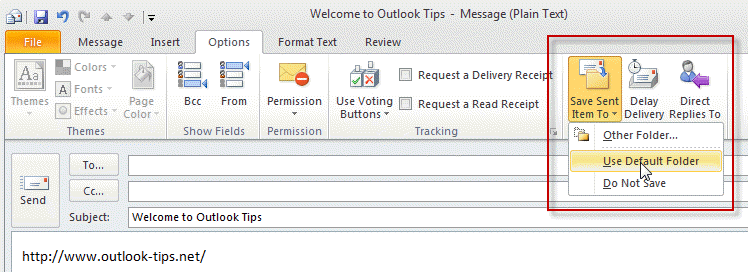
In older versions of Outlook, this option is on the Options dialog.
2. Move the sent messages later.
After you send the message, go to the Sent Items folder and drag the item to the correct Sent folder. You can do this at the end of the day, rather than each time you send a message.
3. Use a macro to watch for new items in the Sent folder and move them to the correct folder.
Use the macro at Use a macro to move IMAP account sent items to move the message as it's added to the local sent items folder. You'll need to the use GetFolderPath function since the sent items folder is in a different data file.
You can also use an "after sending" rule to move sent items, however, the sent items will be marked unread. While I have a VBA code sample that marks the message read, you should use the move sent macro linked above, except when you need to use rules for more complicated filters.

Gayle says
What do you do if you do not have a sent folder at all in Outllook?
Diane Poremsky says
it should be there, somewhere. Gmail puts their's under [Gmail] folder, some imap servers put it under the Inbox.
Theo Dijkstra says
I have changed the server settings. That is I designated 'Sent Items' as default folder on the server. (My ISP allows this). Copied the mail. All OK now.
Simon says
I cannot believe Microsoft have done this, it is such a dumb oversight. It is clearly obvious to save space on servers you can have the option of Sent/Trash/Drafts all on the Local Machine as they are not usually needed on all devices if IMAPed.
The only solution I have used from here (Thank you) was to create a rule to remove from Imap Sent Items and to Local Sent Items.
The problem is with this, I have 5 people running PC's and it randomly moves the files, so they have to check all machines should they need to recover sent items.
Really I cannot believe they have done this, and after 2 years of being out, there obviously isn't a cure.
Frank says
"dumb oversight"? No, setting the Sent folder is an absolute fundamental in any IMAP client.
Who on earth would want his sent mail to be stored on one device, while incoming mail is on the server?
No, Microsoft don't want to make IMAP to work too well. It has to be slow, weird, cause problems, irrational.
Why? Because I couldn't have sold one single MS Exchange server if IMAP worked well on Outlook.
Drop Outlook and move to Thunderbird, and you will find a blazingly fast no-nonsense performance.
Harvey says
I am struggling to keep up with MS's ineptitudes. I find the lack of ability to save sent items where I want them to be a gobsmacking omission.
I have a personal Hotmail account that I would like to be able to save all my emails, work and personal. When I send work emails I want them to be sent from my work address, but saved in my hotmail sent items. With Outlook 2013, for the reasons stated above this is not possible. If I send from my work account the sent items are saved in my work account which is absolutely not what I want.
Diane Poremsky says
You'd need to use rules to move them to the sent folder, assuming the Hotmail account is set up as IMAP - you can't add to EAS folders.
Randy Y says
Hey Diane!
I'm like everyone else...I'm having issues with my Outlook 2013's inability to send a copy of my sent messages in the Sent Items folder. These are my specifics:
Platform is a Win7/32 machine;
MS Office 2013 Pro suite;
Outlook edition is 15.0.4420.1017
Configured POP3 email account to my ISP;
all Add-Ins are disabled;
the File/Options/Mail/Save Messages/Save copies...Sent Items is checked.
After the mail is sent, an unread copy remains in the Outbox (which of course led me to believe that the mail didn't really get sent, but it did), rather than a read copy in the Sent Items folder.
I've overcome the problem by unchecking the Save...Sent box and creating a universal rule to move a copy into my own Sent Stuff folder. BUT...I'd rather not have to explain why I had to configure this when I deploy Office 2013 to the rest of my company.
What am I doing wrong? If I'm not doing anything wrong, do you suggest a more elegant remedy than what I've just described?
Kindest,
Randy Y
Abigail Araujo says
Thanks xx
Abigail Araujo says
Hi Diane,
I've just realised I had the sent items sorted by subject and not by date!! *BLUSHING PROFUSELY!* apologies for wasting your time over all these days.... I thank you from the bottom of my heart for your patience and wish you all of the very best with your business.
I shall leave you in peace now and not bug you any longer.
Sorry if I have taken up SO much of your precious time.
Thanks again for your endless patience with all my questions.
At the end of the day user intelligence (i.e. mine) is required!?
Apologies once again.
Kindest regards xx
Diane Poremsky says
Thanks for the update. FWIW, it happens a lot, so you are far from alone. This is why one of the first solutions to many questions is 'reset the view'.
Abigail Araujo says
I've tried that and when I press Ctrl+Shift+S it calls up an untitled discussion??
Don't have multiple sent folders only the one...
Sorry to be such a pain Diane. I TOTALLY appreciate your patience.
Thanks.
Diane Poremsky says
It's Ctrl_Shift+F, sorry about that typo. :( You can find them, so we know they exist, but I don't know why outlook is hiding them from you.
Abigail Araujo says
I have searched for recent items sent and can see them only once I've searched for the specific email. So is there a way of making them appear in the sent items in date order please?
Diane Poremsky says
Resetting the view on the folder should fix the order - View tab, Reset view button. If that doesn't help, find a missing item and open it. Press Ctrl+Shift+F - this opens the Advanced find dialog with the name of the folder the message is in. You can click the browse button to see where it falls in the folder list.
Abigail Araujo says
I have the older sent items but not the newer most recent ones? I seem to "loose them" after I press send button?? Do you think I've got them in a different location?
Diane Poremsky says
Are you using the option to save sent items with the original message, when the message is not in the Inbox box? That would account for this behavior. The other option is if you have multiple sent folders - go to the folder list and look - Ctrl+6 will bring up the list.
Abigail Araujo says
We don't have IMAP.
It's through the Microsoft Exchange server would that make a difference??
Diane Poremsky says
If you are using Exchange, you shouldn't be missing sent items if they were in your mailbox. Have you reset your view? Can you find them if you search for one of the missing items?
If you have recent sent items but not older sent items (Outlook 2013 only), check your sync slider settings in File, Account Settings, double click on the exchange account. This setting only syncs newer mail to outlook (to reduce data file size on smaller hard drives).
Abigail Araujo says
Hi Diane, I don't our account is setup as IMAP it's through the Microsoft exchange server? So is there another way of finding the missing sent items? I've tried what you suggested above but cannot see the IMAP folders at all?
Diane Poremsky says
An update last fall changed the behavior of IMAP accounts- go to File, Account Settings, double click on the account then More Settings. Add Inbox in the root field.
Jeremy says
I use Outlook 2013 with IMAP to/from my ISP. My problem is that although the ISP has always stored sent messages in the Sent Items folder (with Outlook 2010 for instance, and in the ISP's own webmail), the Outlook 2013 I am now using insists on saving the sent messages in a Sent folder that it created at my ISP. There doesn't seem to be any control in Outlook 2013 to change this behavior so that the messages are sent to Sent Items at the ISP. Any ideas?
I have read your website for years, and greatly appreciate all your Outlook expertise: many thanks!
Diane Poremsky says
Correct, Outlook 2013 doesn't let you pick the sent folder. It gets the information from the server, but this often fails with localized (non-english) folder names. Some mail servers have an option in settings (in web mail) where you can select the folders to use for the special folders.
Russ Cappellino Jr says
best solution is ditch MS Office 2013, and request a refund from Microsoft. I have invested too many years of trying to make their products work, and finally had things working smoothly with office 2010, to have to go back to dealing with moving mails around in folder nonsense as I did in the 90's is a huge step backwards.
its bad enough dealing with what happen with Windows 7 to Windows 8, but now this?
Tom says
I am not techie. But, the issue you explained above seems to pertain to me. I have WIN 8 with a recent update to Office 2013. In Outlook, I am not able to find my sent items in any of two folders now present. One is labeled "SENT" which I understand to be from my webmail account with my IPS. The other one is called "Sent Items" and is a function of Outlook. However, neither has any of my actual sent items since 3/25/13 - three weeks ago. The computer was new in January and getting the computer service to set up my Outlook to match my old one proved to be quite a challenge. But, except for this issue it now is fine.
Diane Poremsky says
Reset the view on the Sent folders - do you see the newer sent items?
Log into your account's web access and check the sent folder online.
Abigail Araujo says
Hi Diane,
We've recently upgraded from Outlook 2010 to Outlook 2013. I can however now not see my sent items in my sent items folder all the rest of my emails merged across without an issue but my sent items I cannot see from when we moved over to Outlook 2010 a temporary measure whilst we were getting new pc's.
I can see my sent items online but not when I am in Outlook, is there an easy way of finding them again as it is most frustrating when you're trying to forward an email you know you sent and there is no way of finding them!!?!?
I would very much appreciate your help in this matter.
Kind regards,
Abigail
Diane Poremsky says
Is the account set up as an IMAP account? Right click on the Inbox, choose IMAP folders. Click Query - is the sent folder subscribed?
Switch to the folder list (Ctrl+6 is the shortcut) - how many sent folders can you find? Can you find your missing sent items?
Victor Zamora says
I like the ability to put ALL my sent messages into ONE "Sent Items" folder. As a user with one POP3 account and 7 IMAPs, I was frustrated with the elimination of the "Folders" tab in the "More Settings..." of each account.
After reviewing the new options in O2013 and the irrelevance of the Microsoft Office support team (they spent 8 hours of my time to only damage the OS), I found a simple solution: A rule that applies to all the account to all the sent mail: Make a copy in my "unified" "Sent Items" folder....
Hope it helps to the people that is out there frustrated with this horrible mistake from MS.
Jorge L. Garcia says
Thanks this was very easy and it did solve my problem with one IMAP account.