You can't rename or move a Personal Folders .pst file while Microsoft Outlook is running or through the properties for the PST file in either Tools | Services or Outlook Today.
If you are using Outlook 2003 and newer, we recommend going into Control Panel, Mail and pointing Outlook to the moved .pst instead of waiting for Outlook to prompt you to locate the moved .pst. See New Method for details.
New Method (Recommended)
This method can be used for POP3 or IMAP accounts, as well as SharePoint and Subscribed Calendar data files.
First, close Outlook then make sure Outlook is not listed in Task Manager, Processes tab a few minutes after you close it.
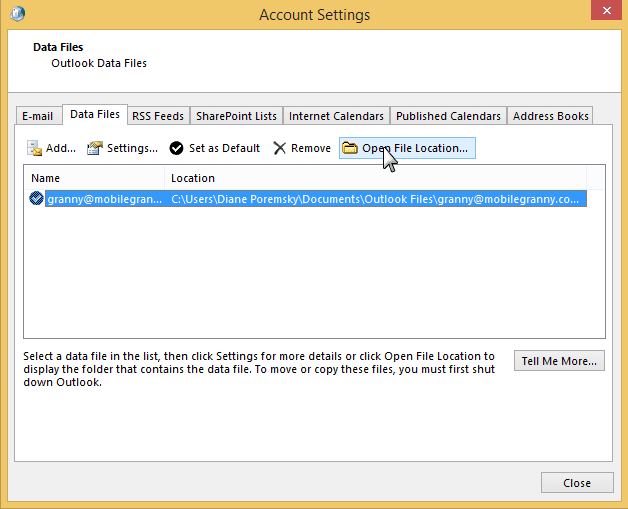
- Open the profile (Control panel, search for Mail) and click on Data files.
- Select the account and click Open File Location to open the folder containing the PST in Windows Explorer.

- Close the Account Settings dialog
- Move the PST to the desired location. The PST files used by POP3 accounts can be renamed. (Default name for pst files Outlook creates for email accounts is email@address.pst)
- Reopen the Data Files window and double click on the account's data file.
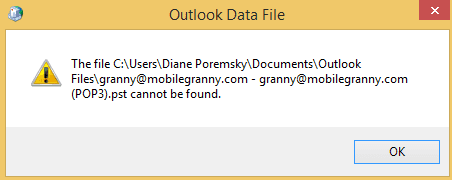
- Now you'll get a 'can't find data file' error message, like this: The file C:\Users\username\Documents\Outlook Files\email@domain.com - email@domain.com (POP3).pst cannot be found. After you click Ok, you can show Outlook where to find it.
- Close the dialogs and you are ready to restart outlook.
Don't forget to check your Rules Wizard rules to make sure they're still moving data into the right folders.
Video Tutorial: How to move a pst
This video tutorial shows how to move a pst file. I'm using Outlook 2016 and Windows 10 but the steps are similar for Outlook 2007 and newer and Windows 7 and newer.
If you have multiple Outlook profiles, you'll need to select the correct profile. Open the Mail dialog in Control panel, click Profiles and double click on the desired Profile, then click Data Files. Continue with Step 2 above.
Changing the default PST folder location
You can change the default folder location Outlook looks to using the ForcePSTPath registry key. You need to set this key before you create this profile when you use an older version of Outlook, or before you add the account to the profile if you have Outlook 2013 and newer.
Note: This does not change the path for existing accounts. It works only for accounts created after the key is set. Remember to create the folder you want to store the IMAP pst files in before you set the key.
This key also changes the default location used for IMAP *ost files in Outlook 2013 and newer. The ForcePSTPath key will cause Outlook to recreate the pst files used by IMAP accounts in Outlook 2010 and up but not in earlier versions.
If you use Outlook 2007, you'll need to move the pst file and repoint the profile to it, following the steps below.
Type regedit on the Start menu and when the Registry Editor comes up, double click to open it.
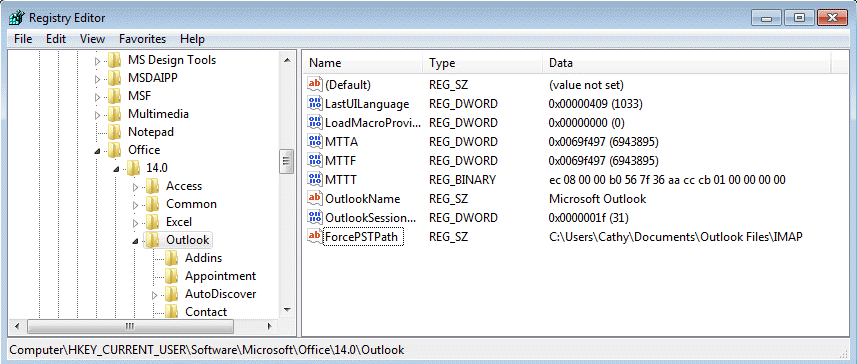
Browse to the following subkey in the registry.
For Outlook 2016, 2019, 365 go to
HKEY_CURRENT_USER\Software\Microsoft\Office\16.0\Outlook
For Outlook 2013, the path is
HKEY_CURRENT_USER\Software\Microsoft\Office\15.0\Outlook
For Outlook 2010 go to
HKEY_CURRENT_USER\Software\Microsoft\Office\14.0\Outlook
For Outlook 2007 (POP3, Sharepoint, and default pst files only):
HKEY_CURRENT_USER\Software\Microsoft\Office\12.0\Outlook
Right click on the key and choose New then click String Value.
String Value: ForcePSTPath with your desired data path as the value data
Click OK and edit the registry editor. If Outlook is open, close it then restart. Newly created data files will default to the location. Existing data files would need to be moved.
Do It For Me
If you don't want to edit the registry directly, you can use one of these text files - you need to edit the path before changing the file extension to reg and double clicking on it to run it.
Be sure the path exists before adding the key to the registry. If it does not exist, Outlook will drop back to the default Microsoft\Outlook location under the user account (and in Outlook 2010 and up, to My Documents\Outlook files for POP3 and additional pst files.)
Remember to use double \\ between folder names in the path in the reg file. (Use single slashes if you edit the registry directly.)
Windows Registry Editor Version 5.00
[HKEY_CURRENT_USER\Software\Microsoft\Office\14.0\Outlook]
"ForcePSTPath"="C:\\folder\\folder\\folder\\folder\\folder"
Outlook 2016/2019/365 Outlook 2013 Outlook 2010 Outlook 2007
Remember: you need to edit the path name, the save it using the .reg extension (or change the extension to reg after saving). Then you need to double click on the reg file to update the registry!
Old Method to move PST files
Find the current location of the PST by looking at the properties for Personal Folders in File, Account Settings. Then, follow these steps:
- Close Outlook.
- Move the file to the new location. (You can also use this technique to rename the file.)
- Restart Outlook. When you're prompted for the location of the now-missing PST file, point to the file in its new location.
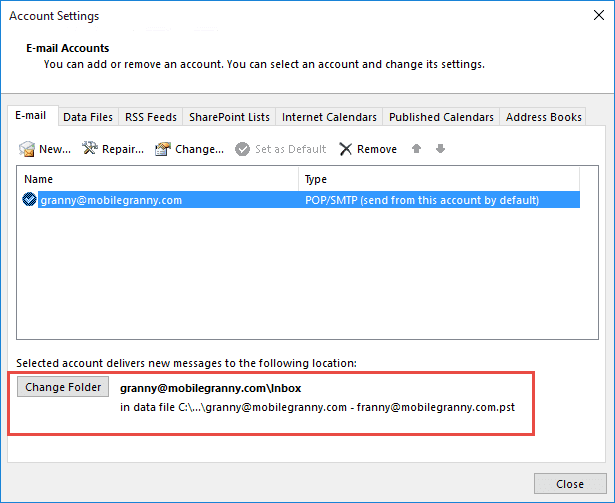
- If mail is being delivered to a pst you moved or renamed, go to File, Account Settings and select the account that uses the pst. Verify the correct pst is listed next to the Change Folder button.
If you are moving a .pst file to a different machine that is running Outlook, see Moving Outlook to a new computer
Note: this method only works with POP3 or standalone PST files. See How to move the IMAP personal folder (*.pst) if you need to move an IMAP or SharePoint PST files. Files used by the Outlook Connector cannot be moved using these methods.
Other methods
It is possible to repoint the folder or file using symbolic links or junction points. You could also use a registry hack to move the user profile folder (this will affect all files in the user profile).
For more information, see Symbolic Links (MSDN), Junction Points (MSDN), and How to Move Shell Folders (and contents).
Notes
If you try to locate a PST file with Start | Find on a Windows system, you need to be aware that Windows treats PST files as hidden files. In Windows Explorer, use Tools | Folder Options | View to make sure that hidden files are shown.
You need to check your Rules Wizard rules to make sure they're still moving data into the right folders.

Ash Nallawalla says
I love your resource that you've curated over many years, but this trick did not work for me in Outlook 2021 and Windows 11. (For the benefit of anyone who has just found this page). I had to move the .pst to the original location to use the account.
Diane Poremsky says
You need to select a folder in a different data file after you move the pst. Either one used by another account or add a new data file and add a folder to it. Click Ok - verify the path is showing next to the change folder button then go back into change folder and select the correct folder.
Mike Mays says
The "NEW" method does not work for Outlook 2013. Step 5 re-creates an empty .ost file when it is clicked, instead of issuing the "Not Found" message
Diane Poremsky says
It works, but I prefer using the registry key to move it, but you need to remove the account from your profile. Junction points work good too, especially for IMAP and Exchange account data files and don't require you to re-add the account to your profile.
watt says
The method works (Office 365) --- EXCEPT, when you next open Outlook, you get a send/receive error -- mail does not go in or out. So I had to move the pst file back to its original location.
Diane Poremsky says
This is with a pop account? You may need to reselect the inbox as the delivery location. (select account in settings, click Change Folder and reselect the correct folder.)
Ron says
I tried this method for Outlook 365 and Win11. I moved the pst file and re-opened Outlook, changed the path to the new location, and all my existing folder/mails were there. But I could no longer send/receive. So, I tried to reselect the inbox of my account as the delivery location, but it would not accept it. The respective field next to "Change Folder" remained blank, no matter which folder I selected in my account. Is there an additional trick to this?
Diane Poremsky says
When you repoint the folder using Change folder, you need to select a folder in a different data file. Either one used by another account or add a new data file and and an inbox to it. Click Ok - verify the path is showing next to the change folder button then go back into change folder and select the correct folder.
You need to use a different data file, not a different folder in the same data file.
Ron says
Yes, I just tried that and it works.
Thanks a lot
michael peterson says
This did not entirely work for me (Outlook 2010, Windows 7, .pst data file default storage location "changed" by moving My Documents folder to non-OS partition during Windows installation, wanted to simply change name of .pst file), though it closely follows advice commonly given. After following the above New Method steps, I finished with the advice given here:
https://www.wintips.org/how-to-fix-outlook-data-file-cannot-be-accessed-solved/
which involves opening Outlook, and using Account Settings to temporarily change the default location to the Inbox of a new temporary data file, then without closing the dialog, switch it right back.
Don W says
Hi Diane,
you have been performing this very generous and outstanding gift of knowledge for many years and my appreciation, like so many others, has grown as it becomes more complex each year -thank you!
I am adding a new workstation to my LAN. We have all Win 10-64 v1909 OS and we have an O-365 home edition revolving account. We use Outlook 2016 on the desktop as our dashboard of choice. All our email accounts are either Google domain accounts or Gmail accounts. Since the new computer is mine, along with the older unit I have been using connected to the LAN (laptop) is as well, I wanted to duplicate the personal folder files.PST which I keep in the folders pane. It is a directory tree of folders into which I sort and file all emails with attachments many as threads. It is not connected to any particular mailbox and loads separately from them. Do I make a copy of this file and move the copy to the new computer's folder for the IMAP OST files like it is on the laptop? How do I keep it in sync? All the OST files are in sync coming in from Google that way, it is a very large file (I should probably split it into 2-3 parts). Sort of sync & drown issue(?).
Any suggestions would be greatly appreciated,
the best, always
Don
Diane Poremsky says
Sorry I missed this previously -
>>
I wanted to duplicate the personal folder files.PST which I keep in the folders pane.
Do I make a copy of this file and move the copy to the new computer's folder for the IMAP OST files like it is on the laptop?
How do I keep it in sync? All the OST files are in sync coming in from Google that way, it is a very large file
>>
Copy the pst to the new computer. You can't easily sync it with the other computer - you'll need to copy it and replace. For this reason, I would keep everything in google until you are done with it and just need to archive it, or run out of space on the server.
Mike B says
Diane there is a problem with your (new) procedure - for Outlook 2007 at least. The problem is step 3, where you say 'Close the Account Settings dialog'. The problem is that when you later re-open this dialog after moving the pst file, Outlook just creates a new (blank) pst file in the original location. This seems to be the problem many people are experiencing.
The solution is easy - leave the Data files dialog open! Now when you double-click on the relevant file (after having moved it to the new location), you get the desired 'pst file cannot be found' dialog, followed by the opportunity to browse for it in the new location.
Diane Poremsky says
There was a reason why it needed to be closed - i believe it kept a lock on the pst if the dialog was open, but forget because I haven't tried it in a long time... if that is no longer a problem (or you move the pst before opening the dialog), then it doesn't need to be closed. I'll boot up a virtual machine and test it.
Mike B says
Hi Diane, I think there may be some confusion over which dialog needs to be closed. After further testing I established that (in Outlook 2007) if you carry out the extra step of double-clicking on a pst listed under the 'Account Settings>Data Files' dialog *before* moving it (not part of the normal process), then the additional properties dialog that opens (headed 'Personal Folders') does indeed put a lock on that pst, however the Data Files dialog by itself doesn't put a lock on it.
To recap then, I found that the only way to provoke the necessary 'pst file cannot be found' dialog (which is essential for allowing you to tell Outlook where you have moved it to) was to leave the 'Account Settings>Data Files' dialog open whilst moving the file, otherwise (if closed first) it just creates a new (blank) pst when re-opened instead of complaining it can't find it.
I hope this makes sense. Thanks for a great site by the way - my first port of call for any Outlook issues!
Jonnyz2 says
I also found the written instructions did not work as intended for 2007. However, the video process, which is different, does work.
Instead of double clicking the data file in step five, click settings for that data file. Then the pop up window asking for the location of the file appears and the process works as intended.
I recommend changing the written portion (step 5) of the instructions to match what the video shows.
Jeff says
Thank you but I have a couple of questions: old computer is Win/10 running Outlook 2007. New computer is also running Win/10 but Outlook via Office 365. The new one has Outlook set up and running but of course does not have all old items... Contacts did sync via iCloud but the same as on the old. now have a week or two of new email on the new computer and want to bring in all the old email and contact lists... have multiple email accounts and I do not want to have any effect to the new items on the new computer but sill add all the older items from the old. I have found the .PST file and have it on "Thumbdrive". What next and will the new get lost if I bring in the old?
Thank you so much.
DAVID A says
Hi - I messaged this site once before but I cannpot find the thread anywhere.
I moved my Microsoft Outlook folder (with the PST file in it), But without using either the new or the old method - because Im an absolute prize idiot.
I noticed the file appeared in two locations, so I deleted the one I dodnt want
(I know - absolute idiot)
When I right click the PST file its properties only show 58mb which suggests to me there's now nothing in it?
Now when I go to my email account in Outlook - all the sub folders I created have vanished. Only the trash, spam and deleted folders remain.
Im getting very lost with all the advice, please please tell me I have just broken the link or patha or explain what has happened and how it can be solved - if at all !!!
H E L P!!!
DAVID says
Hi Diane,
I have a POP3 webmail account thatr I added to Outlook.
I used a shared laptop, so I decided to set up a password, hoping to then get prompted to enter it when opening Outlook. In addition to that,
I moved my outloook data.pst.file from My documents to a personal folder deeper within (Outlook was running when I did this)
Once I moved it, I noticed the outlook data.pst file became duplicated sitting in two locations. So I deleted newly located one, reverting back to the original file in my documents.
However, When I then when to Outlook to check my email, all the folders have disappeared, presenting me with just the default folders (junk, deleted, sent, inbox).
Where has everything gone?
How can I open the PST file?
I have read the whole thread but I dont think anyone has been quite as stupid as I have!!!
Please help. Thanks.
Kasra says
I have also same issue. I did this procedure, I moved all .pst files to new location. When I try to open Outlook, it generate the same files automatically without any message or alert !!! what was wrong?
Thanks ...
Kasra
Maurice says
How do I move "My Documents" folder (Windows 7) to another drive on the same computer from the C default drive leaving Outlook 2013 in its default place? When I do this using the built in properties/location/move/destination dialogue for redirecting personal system folders - all works super great EXCEPT Outlook 2013 no longer works - even when I have otherwise changed the Outlook file location in settings - Error Msg = Outlook Data File.pst path specified is not valid which still remains the old default C:\Users\...\Documents\Outlook Files\ path. So it would seem easier just to leave Outlook as is in it's default location - I have tried to re-direct Outlook after using the "move" folder location function in Windows 7 but have not been successful. Reason is to free up space on a 256GB SSD C drive by moving "stuff" to a secondary 1TB HDD.
Denny Marco says
I have the same issue. I moved the pst using the new method. When I tried Outlook, got the error. I checked the file to make sure is was not read only. It was not checked. When I moved the file back to the original location everything works fine. I guess you cannot move the pst file in 2016. I've done it before in older versions without issue. Now it won't work
Diane Poremsky says
You can move pst files. Moving ost files (imap, exchange, outlook.com) is a bit more effort but can be done.
Which error message did you get?
bbinggeli says
the date changed, I wanted the original date of email instead of the date I move it in Outlook 2010
Diane Poremsky says
The recieved date shouldn't change, but the modified date changes to the date of the move.
Ruud van Dam says
It did not work for me when tried to bring an Outlook 2016 POP3 pst file from a SSD program disk to a HDD data disk. For the transfer I used the commands Cut\Past and then, after opening Office I got the error: Outlook data file cannot be accessed.
When I tried to reverse the transfer with the same commands I got the error: File in use by rundll.exe. However, the revers could be done by using Copy\Paste for bringing the pst file to the original location and then Delete for removing it from the HDD.
Looking at the sensitive subtleties in these exercises I decided to keep the pst file at its default location, although I would prefer to have it at my Data disk.
Diane Poremsky says
On this: Outlook data file cannot be accessed. Did you check to see if the file was marked read only? Outlook needs read/write access. (If it marked read only, i have no idea how that could have happened.)
Ruud says
On my Workstation I have a small SSD program drive and a large HDD data drive with four partitions. So I like to move the Outlook personal folder *.pst for the only account (a POP3) to a folder at a D:\ location on the HDD.
After following exactly the New method I got however still an error message in Outlook saying: Outlook data file cannot be accessed. Is there a solution, or must a pst file be located on the same drive as the program?
Just for your information.
Prior to upgrade to Windows 10 I have installed a new Office 2016 version (no upgrade) under Windows 7.
Although I have a 64bit computer, Outlook is listed at the Control Panel as: Mail (Microsoft Outlook 2016) (32-bit). Besides Outlook I have also LiveMail with the same POP3 account (as I have configured in Outlook) and my outlook mail account (used as MS account)
Diane Poremsky says
It's definitely not because of livemail - that would cause a lock error if both clients tried to pop mail at once, but that is more of a server side issue and would not affect the pst.
PST files can be any where on local drives - they don't work well on network drives or removable media.
It's possible that something with the upgrade to windows 10 cause the pst to be marked read only... or outlook still had hold of the pst when you moved it and the moved copy has some corruption.
Daniel says
For me file name was the issue migrating from 2010 to 2016 on Windows 10.
5. Actually fix the problem: Rename
I had named the file the same as the folder: 0-main-folder-personal. My guess was starting a file with a number and/or using the '-' was the issue. I changed the name to MAINFOLDER. It imported into Outlook 2016 fine and displayed the PST as 0-main-folder-personal
My guess is that it is the leading with a number. Would be nice if the error message was -- cannot open a PST file starting with a number, please rename. Instead I got Cannot Open "FILE" or something ambiguous as that.
Diane Poremsky says
I will see if i can repro.
Jeff says
Diane;
This seems to be the closest thread to what I am trying to accomplish; I hope I have posted it correctly.
I created an IMAP folder in outlook 2013 and used it to store emails with related content and large attachments. Two things have happened since then. First, I have upgraded to Outlook 2016. Second, due to a corrupted Windows 10 user account, I was forced to create a new Win10 account and move all data from the old account to the new one.
I want to move the Outlook IMAP folder to the new installation of Outlook 2016, and have it appear like it did in Outlook 2013: in the folder hierarchy, it was at the same level as all my email addresses. Is this possible?
Diane Poremsky says
if its an imap account, you just need to open the imap account in outlook. if its in a pst file, you need to open the pst file in your new profile.
Rob says
This does not work: With the old method, Outlook simply creates a new version in the AppData folder of the C drive. With the new method you cannot move the PST while Outlook is open... Doh! Just tried both.
Diane Poremsky says
You can't move a pst when outlook is open - it's locked. It's always been this way.
Wells says
These instructions do not work with Outlook 2010 and IMAP accounts. You will end up with duplicate accounts. If you are trying to move your .PST file(s) out of C: to make space, good luck! Outlook will recreate your .PST files on your C: drive and download all your e-mails into them.
Diane Poremsky says
Method 1 works with 2010 but can revert back to the default location - i recommend using the ForcePSTPath key to move IMAP data files. You'll need to remove and resync the account or recreate the profile completely though.
https://www.slipstick.com/outlook/config/how-to-move-the-imap-personal-folder-pst/
michaelkenward says
Has Outlook 2016 broken this advice? It doesn't seem to work here.
Diane Poremsky says
Depends on the account type, but it works for pop3 pst files.
Robert says
Thanks! Microsoft support sites wer no help is solving this issue. Your method helped me save 4gb on my small boot drive.
Rob Vernon says
Thanks Diane, that was exactly what I needed to move my [large] Outlook Data Files to secondary storage and free-up valuable space on my [small] SSD [C: Drive].
Ethel says
I went through all the procedures and it worked. Inbound service is working properly. But when I tried to send mail problem occurs. There appears to be an error "0x8004010F" saying Outlook data file can not be accessed.
Please help me. :(
Diane Poremsky says
You'll need to create a new profile if the correct data file is listed for 'deliver mail to' at the bottom of the Account Settings dialog when you select the email account.
Jon says
according to ms, there also maybe an additional step required. can't someone write a small utility to do this "procedure" without all the manual human intervention required?
jon
ref: https://office.microsoft.com/en-us/outlook-help/move-your-outlook-data-file-to-another-location-HA001112480.aspx
Diane Poremsky says
What step is missing? Naming the data file is not necessary and won't affect anything, it only makes it easier to identify the data files in your profile.
You can use the forcepstpath and forceostpath registry keys, but they only work for newly added accounts, they won't move data files that already exist in the profile.
It's not really something that you'll do a lot, for most people it's a one time thing, which makes a utility less desirable for developers - they want to make something that everyone will need frequently.
Gary Reese says
do not use any of these methods. I am a senior windows administrator. Leave your file where it is if you have configured Gmail or another web based mail client to download to Outlook. Set it up, it works don't change it. Leave it there, and don't listen to anyone who tells you different.
Diane Poremsky says
It's safe to move pst files. If you move imap files and don't do it correctly, the worst that will happen is outlook creates another copy in the default location.
suksun tathana says
verry goood
Barbara says
Have moved .pst's for many years. This method didn't work for me. 2016 on Windows 10 only appears to want mail on local desktop.
Diane Poremsky says
As long as its on a local drive, it should work - it will not work for network or removable drives as those are not supported in outlook.