Working with the code sample at "Use an Outlook Macro to Send Files by Email", a user, gvg wanted to know how to embed, instead of attach, pictures.
Is there a way to send picture as email body instead of text much like one does it manually with Insert-Pictures in Outlook?
With a few tweaks to the first macro on that page, we can embed the images. Namely, we needed to use PropertyAccessors to set properties for the mime type, the cid that identifies the image, and to mark the attached image as hidden (recipients may still see the paperclip and the attachment).
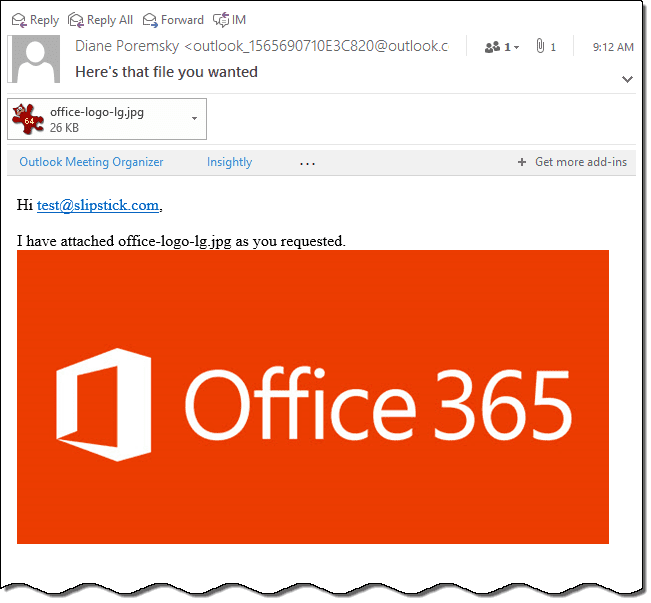
This code should work with Outlook 2007 and newer; it will not work with Outlook 2003. I tested it in Outlook 2016.
To use, change the path where the pictures you want to send are stored and change the To address.
This macro sends one message for each picture in the folder. It sends all of the pictures in the folder. "Outlook macro to send files by email" has other examples which can adapted to use with this macro.
To limit this macro to a specific file type, add an If statement before calling the function (move the message count line inside the If to get an accurate count of messages sent):
     If Right(sFName, 4) = ".png" Then
        Call SendasAttachment(sFName)
        i = i + 1
     End If
      sFName = Dir
Embed One Image per Message
Dim fldName As String
Sub SendFilesbyEmail()
' Fromhttp://slipstick.me/njpnx
    Dim sFName As String

    i = 0
    fldName = "C:\Users\drcp\OneDrive\Pictures\"
    sFName = Dir(fldName)
    Do While Len(sFName) > 0
      Call SendasAttachment(sFName)
       i = i + 1
     sFName = Dir
      Debug.Print fName
    Loop
    MsgBox i & " files were sent"

End Sub

Function SendasAttachment(fName As String)

Dim olApp As Outlook.Application
Dim olMsg As Outlook.MailItem
Dim olAtt As Outlook.Attachments

Set olApp = Outlook.Application
Set olMsg = olApp.CreateItem(0) ' email
Set olAtt = olMsg.Attachments

Const PR_ATTACH_MIME_TAG = "http://schemas.microsoft.com/mapi/proptag/0x370E001E"
Const PR_ATTACH_CONTENT_ID = "http://schemas.microsoft.com/mapi/proptag/0x3712001E"
Const PR_ATTACHMENT_HIDDEN = "http://schemas.microsoft.com/mapi/proptag/0x7FFE000B"

' attach file
olAtt.Add (fldName & fName)

Set l_Attach = olAtt.Add(fldName & fName)
Set oPA = l_Attach.PropertyAccessor
       oPA.SetProperty PR_ATTACH_MIME_TAG, "image/jpeg"
       oPA.SetProperty PR_ATTACH_CONTENT_ID, "myident"
       oPA.SetProperty PR_ATTACHMENT_HIDDEN, True

olMsg.PropertyAccessor.SetProperty "http://schemas.microsoft.com/mapi/id/{00062008-0000-0000-C000-000000000046}/8514000B", True

olMsg.To = "test@domain.com"
msgHTMLBody = "<HTML>" & _
                   "<head>" & _
                   "</head>" & _
                   "<BODY>" & "Hi " & olMsg.To & ", <br /><br /> I have attached " & fName & " as you requested." & _
                   "<br /><img align=baseline border=1 hspace=0 src=cid:myident width='400'/>" & _
                   "</BODY></HTML>"
' send message
With olMsg
  .Subject = "Here's that file you wanted"
  .BodyFormat = olFormatHTML
  .HTMLBody = msgHTMLBody
  .Save
  '.Display
  .Send
End With

End Function
Send All Images In One Message
This version of the macro sends all images in the folder in one message. Send all images of a specific file type by uncommenting the desired line:
Call SendFiles("C:\Users\drcp\OneDrive\Pictures\", "*.png")
and change the fName line in the function:
fName = Dir(fldName & FileType)
Or you can use an If statement. Use this line to call the macro:
Call SendFiles("C:\Users\drcp\OneDrive\Pictures\")
Then filter the images by file type by adding an If statement to the function:
 Do While Len(fName) > 0
  If Right(fName, 4) = ".png" Then
    olAtt.Add fldName & fName
    [snipped code]
    x = x + 1
  End If
   fName = Dir
Loop
Paste this code into the VBA Editor:
Dim fldName As String
Sub SendAllFilesbyEmail()

   Call SendFiles("C:\Users\drcp\OneDrive\Pictures\")

'to send a specific file type
  ' Call SendFiles("C:\Users\drcp\OneDrive\Pictures\", "*.png")
  ' Call SendFiles("C:\Users\drcp\OneDrive\Pictures\", "*.gif")
  ' Call SendFiles("C:\Users\drcp\OneDrive\Pictures\", "*.jpg")

End Sub

Function SendFiles(fldName As String, Optional FileType As String = "*.*")

Dim fName As String
Dim sAttName As String

Dim olApp As Outlook.Application
Dim olMsg As Outlook.MailItem
Dim olAtt As Outlook.Attachments

Set olApp = Outlook.Application
Set olMsg = olApp.CreateItem(0) ' email
Set olAtt = olMsg.Attachments

Const PR_ATTACH_MIME_TAG = "http://schemas.microsoft.com/mapi/proptag/0x370E001E"
Const PR_ATTACH_CONTENT_ID = "http://schemas.microsoft.com/mapi/proptag/0x3712001E"
Const PR_ATTACHMENT_HIDDEN = "http://schemas.microsoft.com/mapi/proptag/0x7FFE000B"
'to send all files
fName = Dir(fldName)
'to send only certain extensions
'fName = Dir(fldName & FileType)
x = 1
 Do While Len(fName) > 0
    olAtt.Add fldName & fName

    Set l_Attach = olAtt.Add(fldName & fName)
    Set oPA = l_Attach.PropertyAccessor
    oPA.SetProperty PR_ATTACH_MIME_TAG, "image/jpeg"
    oPA.SetProperty PR_ATTACH_CONTENT_ID, "myident" & x
    oPA.SetProperty PR_ATTACHMENT_HIDDEN, True
    olMsg.PropertyAccessor.SetProperty "http://schemas.microsoft.com/mapi/id/{00062008-0000-0000-C000-000000000046}/8514000B", True
    strEmbed = "<br /><img align=baseline border=1 hspace=0 src=cid:myident" & x & " width='600'/>" & strEmbed
    sAttName = fName & "<br /> " & sAttName
    Debug.Print fName
   x = x + 1
   fName = Dir

Loop

olMsg.To = "test@domain.com"
msgHTMLBody = "<HTML>" & _
                   "<head>" & _
                   "</head>" & _
                   "<BODY>" & "Hi " & olMsg.To & ", <br /><br /> I have attached " & sAttName & " as you requested." & _
                   "<br />" & strEmbed & _
                   "</BODY></HTML>"

' send message
With olMsg
  .Subject = "Here's the files you wanted"
  .HTMLBody = msgHTMLBody
  .Save
  .Display
End With

End Function
How to use macros
First: You will need macro security set to low during testing.
To check your macro security in Outlook 2010 or 2013, go to File, Options, Trust Center and open Trust Center Settings, and change the Macro Settings. In Outlook 2007 and older, it’s at Tools, Macro Security.
After you test the macro and see that it works, you can either leave macro security set to low or sign the macro.
Open the VBA Editor by pressing Alt+F11 on your keyboard.
To put the code in a module:
- Right click on Project1 and choose Insert > Module
- Copy and paste the macro into the new module.
More information as well as screenshots are at How to use the VBA Editor






























Hi Diane, very good post.
Is there a way to put an image in a specific position in the body of the message?
I have a template with tables and menus that I must always come with copy / paste and I wanted to have ideas to automate the work.
I appreciate your comments
Good code, thanks its perfect