We get many questions on how to create contact groups (distribution lists) from messages in a folder, from addresses on a message, from addresses in another distribution group, or from lists of addresses in Excel or CSV files.
As long as the addresses are one address per line or semi-colon delimited, you can use any list to create a contact group.
Note: Beginning with Outlook 2010, Microsoft changed the name of Distribution lists to Contact Groups. Unless otherwise noted, all information on this page works in all versions of Outlook, for both Distribution lists and Contact Groups.
Split a large Contact Group into smaller Contact Groups
Use the Sender Addresses from Messages in a Folder
This is an all too common question:
I have several hundred emails archived in Outlook and I want to create a mass distribution list without opening each email and pasting the addresses into my address book. Is there a simple, fast way capture all of the addresses at once?
Rather than copying and pasting addresses, just right click on the sender's address, either in the preview pane or open message, and choose "Add to contacts". While this is still much too slow if you have a large number of emails, there are several add-ins that will capture the addresses and create contact records for you. We have a VBA sample that can create contacts using sender's addresses or look for these utilities at Data Entry and Updating Tools for Microsoft Outlook . Outlook should warn you if you are creating duplicates, but if not, there are duplicate contact remover utilities at Remove Duplicate Contacts from Microsoft Outlook .
Once you have the list of addresses, you can convert it to a distribution list one of two ways.
My preferred method is a dynamic DL. Assign categories to contacts then group by category and select the category, then choose Actions, New Message. When you edit contacts, the DL is always updated and adding or removing contacts from the group is as easy as changing the category. If you're saving all of the addresses in your main contacts folder, sort by the Modified date field, select all of the new contacts and right click, choosing Categories... and enter a category. We have a tutorial at Using Categories for Dynamic Distribution Lists
If you prefer using the distribution list form (Contact group in Outlook 2010), you won't need to create contacts for the senders. You can get the addresses from the messages using a custom view.
- Create a custom table view that shows just the email address field
- Select all of the addresses and Copy
After getting the list of addresses, you can paste them into a Contact Group, Notepad, Excel, or other applications that accept paste. If you paste them into Word or an Outlook message or Notes field, you need to use Paste Special, as Text.
To paste into a Contact Group
You can use this method with any semi-colon delimited list of addresses or when the addresses are on separate lines. You do not need a display name column, just the email address.
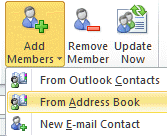
- Click on Select Members (Add Members > From Address Book in Outlook 2010)
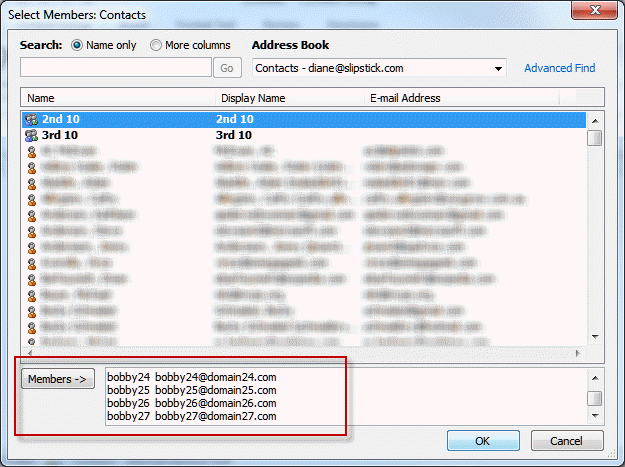
- Paste the addresses into the field to the right of the Members button near the bottom of the dialog
- Click OK and save your DL
See Adding Extended MAPI Fields to Microsoft Outlook for instructions to add the from address field to the view.
Creating and copying from a table view is a cool trick that can be used in place of export to create contact lists for use outside of Outlook, including as a data source for a mail merge when your Outlook and Word versions are mismatched.
Because only the fields used in the view are copied, you can easily control the data you are copying. Note that the copied data contains OLE information and if the other program supports OLE, you may paste the data as contacts, not plain text data. If this happens, you'll need to paste the copied records into notepad then select all and copy to have plain text data.
Create a Contact Group from addresses a message was sent to
A video tutorial and written instructions to create a distribution list using the addresses on an email message is at Tutorial to Create a Distribution List from a List of Addresses
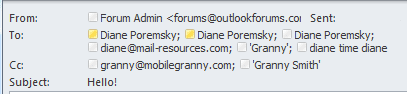
The tutorial shows how to get addresses from a message header, such as the one shown below, and use them to create a contact group.
Split a large Contact Group into smaller Contact Groups
So you have a contact group (distribution list in older versions) containing 100 addresses, but your email provider only allows you to send messages to 25 addresses per message. How do you split it into 4 groups?
There are two ways to do this: by copying and editing the contact group or by creating new contact groups using the list of addresses in the too-large group.
Select the Contact group, press Ctrl+C to copy it, then Ctrl+V to paste. Repeat the Ctrl+V as many times as necessary to create as many copies as you need. Open one copy and remove some addresses and change the name. Save and repeat with the next copy.
The better way, with less chance of removing the wrong contacts, is to get a list of the addresses in the contact group and create new contact groups.
- Open the Contact Group
- Click Forward > In Internet format
- Double click to open the text file attachment on the message form
- Select rows of names & addresses
- Right click and Cut the addresses

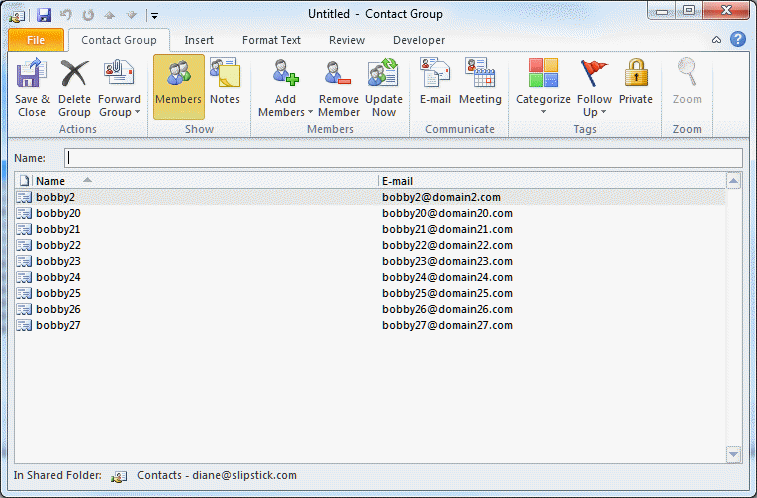
- Open a new Contact Group form
- Expand the Add Members button
- Choose From Address Book
- Paste the list of names into the Members field at the bottom of the dialog and press OK
- Save and close the Contact Group
How to split a Contact Group Video Tutorial
Tools in the Spotlight
The Subscription Manager add-in (SUM) is designed to automatically add to or delete subscribers from Microsoft Outlook distribution lists based on e-mail message with the command SUM in its "Subject" field. Subscription Manager is the first mailing list management software for Microsoft Outlook. Part of the MAPILab Toolbox. |

Tools
Adaxes is a solution for Active Directory management and automation that also allows to control and enhance Office 365 workflow, i.e. automate licenses assignment and revoking procedures, execute rule-based user updates, manage Exchange Online mailboxes, etc. - all that from a single web interface. | |
Use Distribution List Manager to create distribution lists from many emails all at once or from a single email with a lot of addresses (or anything in between). It works with To, CC, and From recipients when adding distribution list members from emails; add to existing lists or create a new list each time you add a member. See the current count of members of your distribution lists before you add the new member and receive a warning you when you approach or exceed the Outlook distribution list limit. | |
Group Management Portal is a self-service web application that allows end-users within an organization to create and manage their own distribution lists in Exchange or security groups in Active Directory. Simply to deploy, easy to manage. | |
Build distribution lists based on queries against the Exchange 5.5 directory or Active Directory, either with or without Exchange Server, or from files, databases, or other external sources. Also provides tools for managing all types of DLs and groups and printing DL lists. | |
GroupID Puts an End To Manual Active Directory & Azure AD Groups Management Keeping Active Directory and Azure Active Directory groups up to date is a labor-intensive task for IT departments. Without GroupID, ensuring members within Active Directory and Azure Active Directory groups have the right access to resources, along with appropriate permissions, is overwhelming. Plus, outdated groups and users on-premises or in hybrid cloud identity environments are how hackers get into your systems and resources. | |
Run reports on distribution lists, users and more, pulling data from Exchange 5.5, Active Directory, or Exchange 2000/2003/2007. List all distribution lists and their members or just the number of members and present the report in XML, HTM, or Excel format. Free. | |
PeopleSearch include the ability to target Active Directory views to specific groups or users, construct user, computer, and group reports against Active Directory, localize your installation using multilanguage support. PeopleSearch uses a web browser to retrieve information stored in the directory, such as telephone number, location, title, and manager. Administrators can customize PeopleSearch to set up searches for any object or attribute in the Active Directory, configure how search results are displayed. Version 3. |
More Information
Get the From address from messages you've received (Video Tutorial)
The no-export way to use Outlook data in Excel (Video Tutorial)

sobhana123 says
hii. In this article is good information it is very nice article thank for sharing this article.
Ms. Stormy Irwin says
I inadvertently deleted my distribution List from my Address Book, but I have a copy of it as an icon on my desk top.....how can I get my list back to my address book without having to
retype the whole list ? I'd be so thrilled if you can help me. I was going to cry but knew
that would not help.............Stormy Irwin..
Diane Poremsky says
What happens if you double click on the icon? If it opens, click save - this should save it back into Outlook. Or try dragging it back into Outlook too.
ISO 22000 in England says
thanks for sharing this post