You can use the following steps to create a new Contacts folder in your Outlook data file. While I don't recommend using Contacts folders as a filter for your Contacts because it makes it harder to manage the contacts, it can be helpful to sort contacts using two or three folders.
I recommend using Categories, not Contact folders, to sort contacts. Use Custom views, Group by Category view, and Instant Search to find contacts.
To create a new Contacts folder
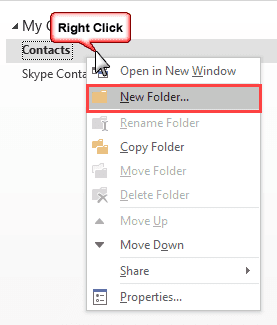
- Right-click on your Contacts folder

- Choose New folder
- Type a name for your folder (1)
- Verify the folder type is correct (2)
- Verify the parent folder (3)
- Click OK to create the Contacts folder
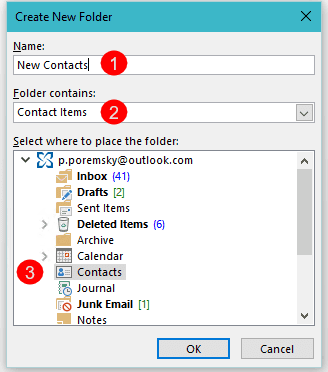
You can select any folder as the parent folder. If you want the new folder to be at the same level as the Inbox, Calendar, Contacts, Outbox, etc, select the top of your data file or mailbox.
To enable the folder as an Address Book
- Right-click on the new folder
- Choose Properties
- Select the Outlook Address Book tab
- Verify the option to use the folder as an address book is selected
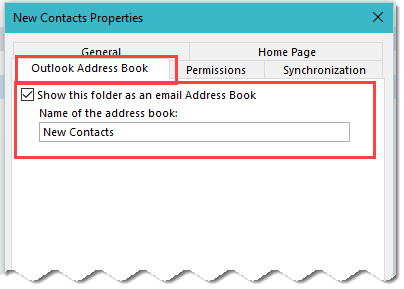
You can right click on any folder and choose New folder but the folder will default to a subfolder of the selected folder and be the same folder type. You'll need to remember to choose the folder type and select where you want the folder to be created.
Create and set a Contact folder as an Address Book
More Information
If the box to enabled contacts as an address book is grayed out, see Contacts are missing when you click the To button.

There is no contacts folder under my contacts...What now Diane?
you start with a screen already open. How do I find where you are from the BEGINNING? thank you
Right click on an existing folder and choose New folder to create a new folder; right click on the new folder and choose Properties to enable as address book or change other folder properties.
First, thanks for the great information. My question is if I create a new outlook contact folder and include in it my gmail contacts, will it be synced when I make changes in Gmail (or vice versa).
Thanks again
No, Outlook doesn't sync gmail contacts at this time. You need to use a 3rd party sync utility, then you will be able to sync the contacts in that folder with gmail contacts.
I am trying to import my personal contacts into a separate address book in Outlook. I do not want the person contacts to be intermingled with my work contacts. I am using Outlook 2013. Is this possible?
You have two choices: create a new contacts folder in your profile mailbox and import them into it or add a pst file and create a contacts folder in it then import the contacts into it.
If you have the personal contacts in a pst file, you can just open the pst file in Outlook. File | Open | Outlook Data file.
I am trying to add folders to a shared contact list. When I add a folder it is just adding them to my contacts and not the shared contacts folder.
Do you know what permissions you have on the folder? You need to have the 'create folder' permissions to create folders in a shared mailbox.
I do have the create folder permissions. I want to do this in contacts (not sure if I mentioned that).
So when you create the folder, it's going into your Default Contacts or are you trying to create new contacts and they are going into your contacts folder?
I would like to create a new group or address book that allows me to mass emails. Many of the contacts to be added to either type are new emails that I would be adding in. We build equipment and I want to target groups of product owners with specific email information that doesn't pertain to other owner groups. I have added a contact group but when i went in to do a new mass email to test it, no group shows up. So, i know I don't have something done correctly or am going about it all wrong. Help!
Thanks
Jer
You're trying to send an email with the group in the BCC field? Do you see the contacts that are in the folder with the group? Does it resolve if you type the group name in the BCC field of a new message then press Alt+K?
Just what I needed, thanks.
I created a new contacts group as shown in the video. Outlook 2010 Contacts Properties/Outlook Address Book\"Show this folder as an e-mail Address Book" is greyed out. I can not click on it
How do I fix this. It is a home PC and I am the administrator
When the box to enabled as an address book is grayed out, it means the address book service is corrupt - you need to remove the accounts and re-add them or make a new profile. More information at Missing Contacts