There are two causes for this error: a registry key is wrong or corrupt and needs to be updated or you are using the Windows Store version of Outlook and Office click-to-run was installed over it.
Microsoft updated Office installation to remove the Windows store version of Office, plus that short-lived experiment in OEM software distribution ended several years ago, so at this point, the most common cause is the registry key.
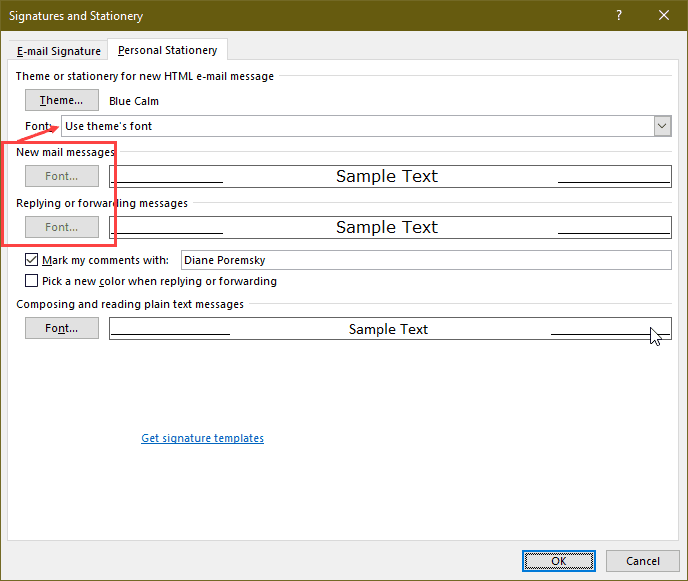
If the signature and Fonts button works in File > Options > Mail but is disabled in the fonts dialog, this is because you are using a theme.
Registry key needs to be updated
This is the original cause of the buttons not working and dates back to 2012.
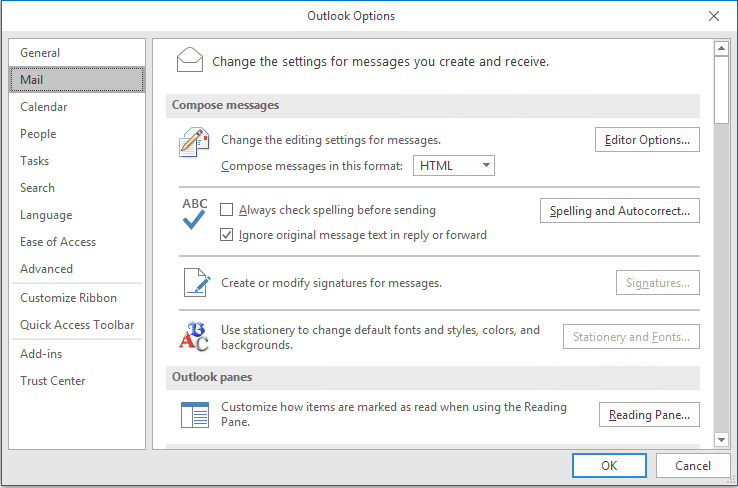
A fairly common problem for 64-bit Windows users is that Outlook's Stationery and Fonts or Signatures buttons won't work.
When the Stationery and Fonts or the Signatures button is grayed out or won't do anything when you click it, you may need to edit the registry.
First, empty your Temporary Internet Files. This may or may not help much, but even if it doesn't do any good, your Internet cache will be clean.
Empty your temp internet files and if it still fails, change both (Default) and LocalServer32 values in each of the following keys to the appropriate path for your installation of Outlook.
HKEY_LOCAL_MACHINE\SOFTWARE\Classes\Wow6432Node\CLSID\{0006F03A-0000-0000-C000-000000000046}\LocalServer32HKEY_LOCAL_MACHINE\SOFTWARE\Classes\CLSID\{0006F03A-0000-0000-C000-000000000046}\LocalServer32
Default installation paths for Office / Outlook are:
Outlook 2016 and newer Subscriptions & Retail Licenses 64-bit:
C:\Program Files\Microsoft Office 16\root\office16\Outlook.exe
Outlook 2016 and newer Subscriptions & Retail Licenses 32-bit:
C:\Program Files (x86)\Microsoft Office 16\root\office16\Outlook.exe
Outlook 2016 ProPlus (volume license) 64-bit:
C:\Program Files\Microsoft Office\Office16\Outlook.exe
Outlook 2016 ProPlus (volume license) 32-bit:
C:\Program Files (x86)\Microsoft Office\Office16\Outlook.exe
Outlook 2013 Subscriptions & Retail Licenses 64-bit:
C:\Program Files\Microsoft Office 15\root\office15\Outlook.exe
Outlook 2013 Subscriptions & Retail Licenses 32-bit:
C:\Program Files (x86)\Microsoft Office 15\root\office15\Outlook.exe
Outlook 2013 ProPlus (volume license) 64-bit:
C:\Program Files\Microsoft Office\Office15\Outlook.exe
Outlook 2013 ProPlus (volume license) 32-bit:
C:\Program Files (x86)\Microsoft Office\Office15\Outlook.exe
Outlook 2010:
C:\Program Files (x86)\Microsoft Office\Office14\Outlook.exe
Don't forget to restart Outlook after editing the registry.
Do it for me
If you are using the default installation location for Office 2010 or Office 2013 ProPlus, you can use the registry file for your version:
Subscriptions & Retail Licenses
Outlook 2016 Outlook 2013
Volume Licensing
Outlook 2016 ProPlus MSI Outlook 2013 ProPlus MSI
Outlook 2010
Outlook 2010
To open the registry editor, press Windows key + R to open the Run command. Type regedit into the Run field and press OK to open the registry editor.
Windows Store version of Outlook is installed
After installing Outlook's January 2018 update, some users are unable to edit signatures.
Microsoft has identified the cause as having both the Windows app store version installed as well as a "normal" version. This would be the case if you have a new computer and Office was preinstalled, then you installed your own copy of Office.
After uninstalling the Windows store app the Signature or Stationery and Fonts button should work.
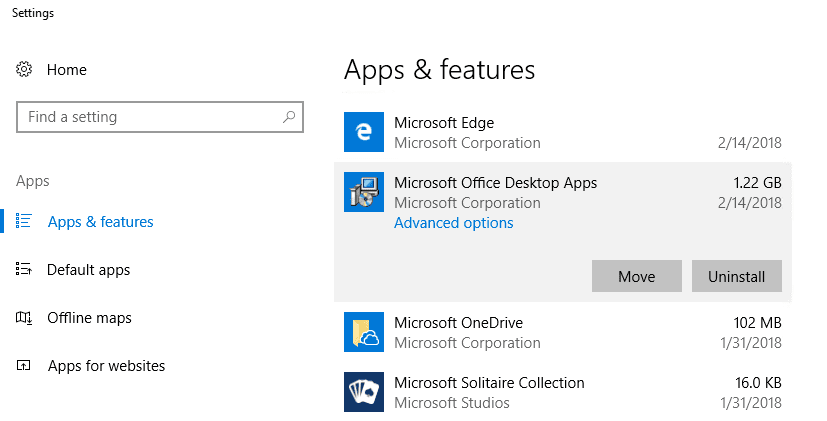
- Open Settings, Find Apps & features.
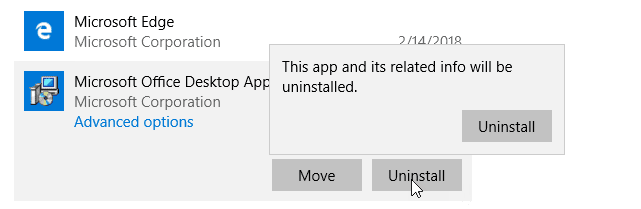
- Click on the Office Desktop App and select Uninstall

- A second small Uninstall dialog will open, for you to confirm.
If you prefer using PowerShell, follow these steps:
Open PowerShell in run as admin mode then paste:
Get-AppxProvisionedPackage -Online | where-object {$_.packagename –like "*Outlook*"} | Remove-AppxProvisionedPackage -OnlineThen:
Get-AppxPackage "*Outlook*" | Remove-AppxPackage
Close the PowerShell window and open it without using run as admin. Run this command:
Get-AppxPackage "*Outlook*" | Remove-AppxPackage
Signature & Fonts button works, Font options not available
If the Stationery and Fonts button opens the Signatures and Stationery dialog but the Fonts buttons are disabled, do you have a Theme set? When you use a theme, the fonts in the theme are used unless you choose Use my font when replying and forwarding messages in the Font menu.

Hello Diane,
I have been an avid fan of your posts on Outlook VBA. Many thanks.
However, all of a sudden a weird problem when I open any email message in the Outlook 365 32b version. The fonts are very weird.
I was trying to update "Stationary and FOnts". The button is NOT greyed out but does not function. The O365 is uptodate. Running on Win10.
Any suggestions?
Ms. Poremsky, you're wonderful!! Only this post by you, and the 'do it for me' registry change, worked as advertised!
I have tried making my font change for several days, having had no success until I read this article by you. I have read more than 5 articles about how to do this and had no luck with these other people's recommendations until I read your recommendations. And your 'do it for me' made the fix one of the easiest things I have ever done on a computer.
You are truly an MVP!
Thanks, by just removing Windows app store version of Office Desktop App, signature and font & stationary buttons start working, for me it was not grey but when you click on them, nothing happened just outlook freezes for few second.
Thanks a lot. The Outlook Signature issue has been resolved after I applied this guideline.
Will I lose my emails and settings by uninstalling outlook?
Thanks so much...so many difficult solutions out there so I never thought, following your instructions, it would be this simp!e. My Outlook 10 is working great again after reinstalling on a new computer.
The first three steps in article worked for me (uninstalling pre-loaded Microsoft Office Desktop Apps). Thanks, I have been looking for a resolution for months!
My signatures button disappeared months ago and it is not greyed out in settings. When I click it, Outlook freezes. I have checked and I do not have the Outlook Desktop app installed. Do you have any other suggestions please? I use Windows 10 and have Office 365 Home installed. It's driving me nuts!!
Which version and build of Outlook are you using? See File, Office Account for the information.