The problem: After attaching a file to an Outlook email message or saving an attachment, you can't move, delete, or rename the Windows folder the file is stored in and you receive an error message telling you the file is in use.
The action can't be completed because the folder or a file in it is open in another program. Close the folder or file and try again.
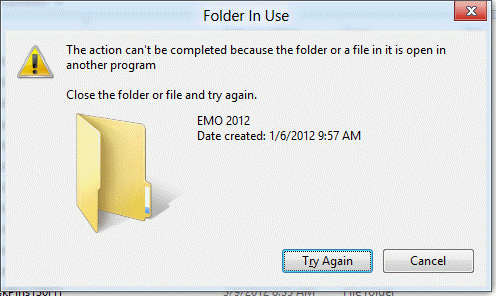
This happens because Outlook keeps a lock on the last folder you accessed to Save or Insert attachments. It will release the lock on the current folder when you change folders or restart Outlook.
Solution
To release the lock, open a new message form, click Insert file and select a different folder. You don't need to select a file and actually insert it, you just need to select a new folder. Close the Insert file dialog and the new message form. Problem solved. Outlook released the lock on the previous folder and you rename, move, or delete it. It puts the lock on the new folder, so I recommend selecting My Documents or another folder you won't be renaming or deleting.
If you know you will be renaming, moving, or deleting the folder, you can click the Insert button and select a new folder right after attaching the file.

its not really a solution, more of a work-around. I mean restarting your PC could be classed as a solution. The proper thing would be for Microsoft to fix this problem by releasing the lock as soon as the file is saved.
Restarting the PC is also a work-around, and actually an even more incovenient work-around. This is a bug and should be fixed (or must have been fixed in later versions).
You should never need to restart it - at most, close outlook (may need to wait a couple of minutes), rename, then reopen it.
Thanks!! I had a similar issue after saving an email. So saved another email to another location and it released the lock on previous folder.
Thanks for the tip - I just used it so I could fix a typo in a folder name I had made while saving a file from Outlook. This "feature" has made me insane since 2007. Finally a solution.