A user cam to me with this problem:
I have 2 email accounts (EmailA & EmailB) and two subfolders (FolderA & FolderB) under my INBOX folder where mail for each account. I'm using rules to move the mail to the correct folder: specific words under sender's (emailA) and recipient's (emailA) address and move it to FolderA. It works well for mail that belongs in the subfolders but my attempts to move mail not addressed to either address results in 2 copies of those messages.
When rules result in duplicates, it always indicates the user is not using the Stop processing action on each rule. My impression is that most users think it means 'stop all rules' so they don't use it. Instead it means 'stop processing this message, move to the next message'.
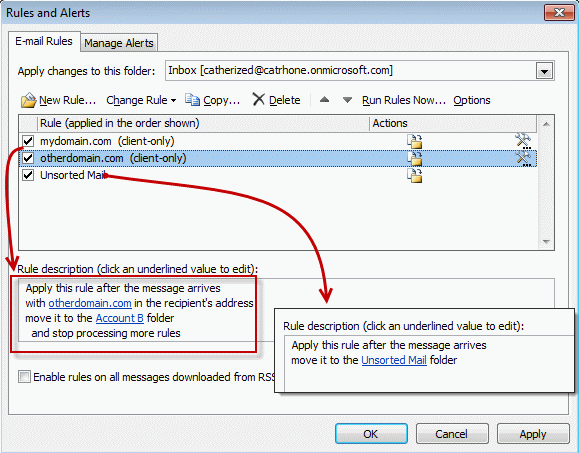 In the example above the user needs to use 3 rules:
Rule 1: Move all mail sent to EmailA, to FolderA, and Stop processing
Rule 2: Move all mail sent to EmailB, to FolderB, and Stop processing
Rule 3: Do something with the mail that is left.
The first two rules each move the messages and Stop processing tells Outlook that it should not check the message against any more rules.
Apply more than one Rule to a message
Conversely, if you want to a message to be processed by more than one rule that might apply, you want those rules at the top of the list (since Outlook runs rules in the order they are listed in Rules Wizard), without stop processing selected. Rules that should be the final rule to process a message will have the Stop Processing action.

Our company has a rule that we set up for customers to redirect outgoing emails that match specific criteria to our inbound email address. The problem we are running into is that when the outbound email contains more than one recipient, we are receiving duplicate copies of the email and in turn sending out duplicate copies of the email. This hurts the clients' experience that are receiving these emails, so finding out why we are having duplicate emails redirect to us is critical. Any thoughts on what we can do stop this?
*Rule is priority 0
*we have enabled "Stop Prcessing More Rules,"
*message is being sent from SENDER X
*Subject cnntains specific phrasing to that O365 knows which emails get redirected... Any ideas?
Hi, I have stop processing ticked, the issue I have is that 2 people access this email account so the rule runs twice when we are both signed in, is there a way to stop this happening?
The best way is choose which one you want to be the master. then use 'on this computer only' condition on the master computer.
Maybe this is for a different version of Outlook... I have 365 and most of my rules are set to stop processing but I still can't find any way to end up with a single saved email in the folder I want it to be in. I will end up with the email in the folder and a copy in the sent folder, or if I turn off saving sent emails then I end up having zero sent copies anywhere.
On previous versions of Outlook my rules made everything run super smoothly, but now my emails are all over the place like a herd of cats in a catnip factory.
After sending rules are a pita - the rule copies the mail, so you need to turn off save sent mail... but if it works with saving sent, it should work with this off.
This is an office 365 Exchange mailbox?
Anyone have an answer to this? I am having the same issue. I get a duplicate of the same email for every email that is moved to a folder.
Do you have stop processing set on the rule? That is a common reason for duplicates.
Don’t have the option to stop processing?
Are you creating rules for incoming mail or outgoing mail? Which version of Outlook are you using?
How about a way of sorting rules? Seems to me that for over twenty years people have asked MS for a way to sort rules in order that duplicates may be removed. But no, they have to be done one by one. Fine if you only have a few but when there are over a hundred or so almost impossible.
They haven't really put a lot of effort into the rules wizard - but one reason for not sorting is because rules are ordered in the order they are to be run. If you sort alphabetically, you need to keep track of the original order so you can go back to the original order. Sperry Software has a utility that will sort rules - he's actually the only one whose done it, which should give you an idea of how hard it is to work with the rules - popular requests get a lot of people looking to make money on an addin.
"When rules result in duplicates, it always indicates the user is not using the Stop processing action on each rule."
Yeah, well, when i used that, i only received ALL messages in one folder. (no duplicates, that's true....) I Have used years and years rules, since 1998, but now its a chaos. Why changing things if things worked good???? Unbelievable MS....Any solution?
Rules haven't changed much over the years - it's still the same basic rules engine as before. The last update was in 2003.
Hello, I am having issues with people receiving double messages. We have a generic unit email set to automatically redirect to our entire group. However, sometimes we receive messages addressed to both our generic email and people included in our re-direct group. We are trying to figure out a way that the email will forward to everyone in the group but those who said email has also been addressed to.
We have tried the "except if" rule but the issue is those not listed by the sender do not receive the message.
Is what we are trying to accomplish even possible?? Is there a way to add a condition to the "Do the Following?" Thank you in advance for your time and consideration.
I believe it should be possible (Totally not 7 years late answering this)
Say there are 5 people in your group: ABCDE (To make things simple)
If you make 5(6) rules:
That should (?) work. It will be sending a copy to each member.
It think it will work... but would need ot test to be sure. ("Trust but verify.")
i don't believe i have outlook rules wizard but my email keep reloading I have now over 57000 emails how do i stop it
Are you using Outlook 2016 and a pop3 account? It's probably a bug. Go to file, office account - office updates, Update now.