When you have multiple profiles in Outlook, you can choose which one is used when you start Outlook.
Open Control Panel, search for Mail and choose Show Profiles.
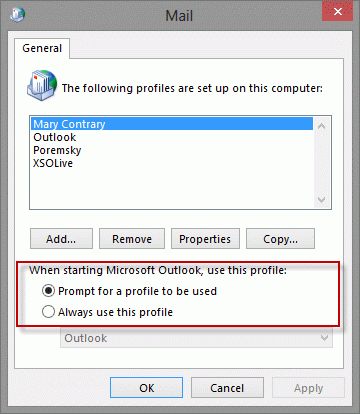
If you always want to start with the same profile, choose Always use this profile.
If you want to select the profile when Outlook starts, select your most used profile in the Always use this profile menu, then change the setting to Prompt for a profile to be used.
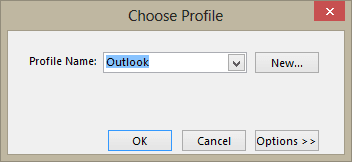
When you start Outlook, the profile listed in the Choose Profile dialog will be selected and you'll have the option of choosing a different profile.
Using Shortcuts
If you prefer to use shortcuts to open Outlook, you can create a shortcut to open Outlook using a specific profile. Use the command line switch /profile profile_name, replacing profile_name with your profile's name.
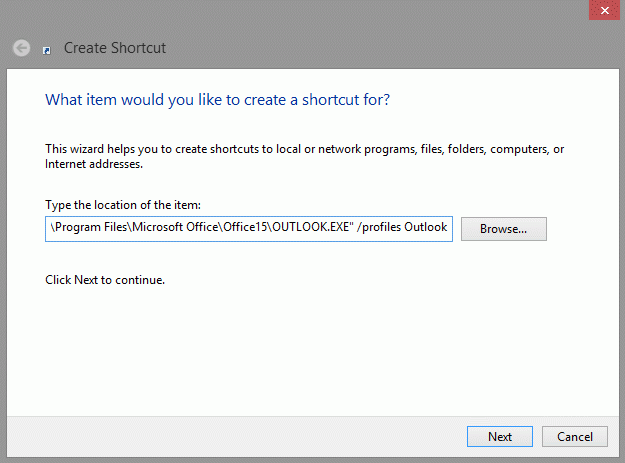
Create a shortcut to Microsoft Outlook, then add the following to the target command for the shortcut.
/profile "<profile name>"
For example, if Microsoft Outlook is installed in C:\Program Files\Microsoft Office and I want to start it with a profile named "MS Fax only," here's the command I would use in the shortcut (put it all on one line, of course):
C:\Program Files\Microsoft Office\Office10\Outlook.exe /profile "MS Fax only"
Right-click on the desktop and choose New > Shortcut then follow the wizard. Alternately, you can copy an existing Outlook shortcut and edit it, adding the /profile switch and desired profile name to the shortcut.
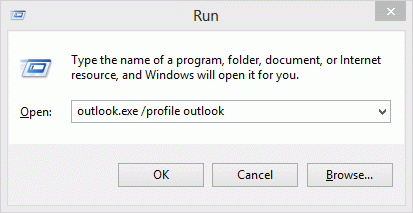
The profile switch also works with the Run command (use Windows key + R to open Run). Type outlook.exe /profile profile_name in the Run box then press Enter to open Outlook using that profile.
Notes
Make sure you include quotation marks around the path and profile if they contain spaces.
"C:\Program Files\Microsoft Office\Office\OUTLOOK.EXE" /profile "Personal only"
Outlook profiles are only available if you are running Outlook 97 or Outlook 2002 and newer or use Outlook 98 or Outlook 2000 in Corporate/Workgroup mode.
Outlook 2000 and Outlook 98 in Internet Mail Only mode do not utilize MAPI profiles like Corporate mode. Since IMO mode uses a static name for its one "profile," if you want to use multiple profiles, you must set up different Windows users to have unique Windows logons. Under Win9x you can enable OS level user profiles on the User Profiles tab of the Control Panel's Passwords applet. Once enabled you have log into Windows with a user name (and password - although the password can be blank).
More Information
How to tell which Microsoft Outlook profile you're using
For other command-line switches you can use when starting Outlook, read the Help topic on Control What Happens When You Start Outlook and see:
Command Lines Switches for Outlook 2010
Command Lines Switches (older versions)

trying to remove the coloured circle around name on email as the initial is incorrect.
thank you kindly for your help
That is not currently user-configurable - outlook use one of the first letters in the display name or email address.
Is there any advantage or reason to remove the profile called Outlook and create one based on the user name? We have always been removing the profile called Outlook and adding one with the user's initials on newly imaged machines. But, if there is no difference from one to the other, can't we just leave the one called Outlook?
no, no difference - its just a name.
Is it possible to also add that this profile must now be the default to the shortcut?
You can set the default profile in Control panel, Mail then use the shortcuts to open outlook to other profiles.
Good article, thanks!
Thanks, but I finally figured it out...
The problem is in the "Kill". If you run Outlook and end the process in Task manager, when you restart Outlook, it will open using whatever profile it was using when you killed it last. Using the /profile switch only works if Outlook is closed cleanly, either from Outlook or programmatically. I got lucky and found a vbs script that cleanly closes Outlook:
For anyone who needs it, it's a .vbs file that contains this:
strComputer = "."
Set objWMIService = GetObject("winmgmts:" _
& "{impersonationLevel=impersonate}!\\" & strComputer & "\root\cimv2")
Set colProcessList = objWMIService.ExecQuery _
("Select * from Win32_Process Where Name = 'Outlook.exe'")
For Each objProcess in colProcessList
Set objOutlook = CreateObject("Outlook.Application")
objOutlook.Quit
Next
Thanks for your help.
David
long way....technical way....around the answer. We don't want 'baby steps users' starting to think they can freely use command lines!
The command line is only needed if you have multiple profiles and set one as default. You can also create shortcuts to specific profiles using command lines. (This page came over from our old site and definitely needs updating!)
I have a batch job that will run weekly; it requires a different Profile be loaded before it runs (it'll do a mail merge).
So, I need to kill Outlook if it's running and restart it with the non-default profile.
The problem is that if I kill Outlook manually and then run this batch file, it does successfully start Outlook using the non-default profile (TBS), but if I let this batch file kill Outlook, then when it restarts Outlook, the default profile is loaded (NOT TBS as it should):
C:\DM-Utilities\PSTools\pskill outlook
timeout /T 10
rem start outlook.exe /profile TBS
start "" "C:\Program Files\Microsoft Office\Office14\OUTLOOK.EXE" /profile TBS
timeout /T 20
I'm stumped,
Thanks,
David
I'm guessing the kill is not really killing outlook, or the wait time for it to completely shut down is not long enough. Check Processes in Tasks manager - is outlook running? (It should also be in the notification tray grayed out.) If it's not completely shut down, restarting will reopen the profile you were using. Utilities that access outlook data (like Lync) can also keep it open in a hidden state.