When you use Outlook's Archive or AutoArchive feature to remove older messages and appointments from your Outlook personal folders or mailbox, the archived messages, appointments, and tasks are moved to the archive.pst.
If you need to look at the messages at a later date, simply open the archive.pst file in your profile and find the message.
Using Outlook's AutoArchive Feature
Configuring Outlook's AutoArchive Settings Tutorial
Automatically Cleanup Outlook's Deleted Item Folder using AutoArchive
Find the Archive.pst
When the archive.pst is not in your profile, you need to open the archive.pst using the File | Open | Open Outlook Data File command in all versions of Outlook. For many users, this command will open directly to the folder where the archive.pst is stored.
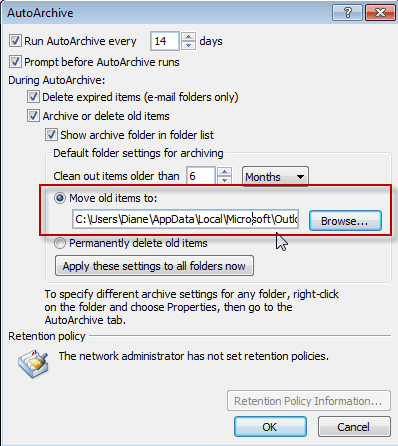 If the archive.pst file is not in the folder with your other pst files, you can get the file path from the AutoArchive settings dialog. Open the Tools | Options | Other | AutoArchive dialog and copy the file path.
Additionally, you can open the *.pst file in Outlook 2010 or Outlook 2007 from Account Settings, Data Files tab, or in Outlook 2003 and Outlook 2007 using the File | Data File Management command.
Click Add, then Ok the pst format dialog to open the Create or Open Outlook Data File dialog.
Select the Archive pst file and click Ok to add it to your profile.
Warning: You don't want to use Import and Export command to import your archived items back into Outlook. If you do, you'll have to archive everything again and may end up with duplicates.
Restore archived messages
If you want to move contents of the archive back into your default data file, don't use Import and Export commands. Open the archive.pst in Outlook then select the folders or items and use the Move to Folder command or drag the items to the desired data file.
Using Import or Copy will change the last modified date (in addition to creating copies) while moving will maintain the last modified date. This is important if you want to archive the messages again, since, by default, Outlook uses the last modified date when determining what to archive.
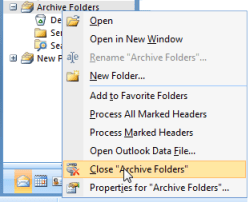 After you have finished working with your archive .pst file, here's how to put it away:
- Display the Folder List if you don't already see it (Folder List button on the navigation pane or Ctrl+6 on your keyboard).
- Right-click the icon for the archive file, then choose Close from the popup menu.
Note that if you copy an archived Personal Folders .pst file to a CD, you will not be able to read it directly from the CD. Outlook requires write access to open a .pst file and you'll need to copy it to your computer hard drive.

Keith Collyer says
Because of the idiosyncracies of Outlook archiving discussed here: https://answers.microsoft.com/en-us/outlook_com/forum/all/how-to-delete-items-older-than-12-months-from/5ad10fb7-6789-4cef-a7ef-182362f40423 I set up auto-archive as default but forgot to turn it off for calendars. So all my calendar entries older than a few months were archived. NOT what I wanted. No problem, just restore them. But in calendars, you can only drag & drop one item at a time. The workaround is to change the view to List. I was then able to select the lot and drag them from the Calendar Archive to the current calendar.
Hope this might help others with the same issue.
Sibu says
i had done a archive recently and the pst file is now missing this is in outlook 2016 is their any means to recover the pst file
Joan Jackson says
Can you undo and email archiving? Mine created the archive at the bottom of my Outlook 2010, now the folder contents are not as I had them in the original folder
Diane Poremsky says
You can import the archive back in - or if the problem is the folder order, rearrange the folders. If the folder contents are sorted as you like, apply a view to the folder.
LTC Larry says
I have OUTLOOK 2007. I did an export of email from one laptop and imported into a different laptop. When I opened OUTLOOK on the second computer all the email was there but there was no ARCHIVE file. hen I tried to import the ARCHIVE file the process began importing the individual folders from the ARCHIVE file incorporating them individually into the Email in PERSONAL Folders and did not create an ARCHIVE folder. Can you help me fix this.
ronnie says
how can i recover errors on archive email
Diane Poremsky says
Are you trying to open the Archive.pst file? What errors are you getting?
David says
My problem is that I have no archive folder on Outlook 2016on my laptop but there is one on outlook on my Samsung smartphone.and some emails go straight to this archive folder bypassing my inbox..
Help
David
Diane Poremsky says
What type of email account do you have configured in Outlook? What is your build and version of Outlook? You need a build that has the archive feature - and the Samsung's would only be available in outlook if you use imap or exchange.
It's possible the folder on the Samsung is a Samsung feature and that's why messages are moved there without you moving them.
Mike says
Great instructional, thanks!
Ariela says
Diane,
I unintentionally archived hundreds of folders in Outlook 2007 (on Windows 8.1). Is there an efficient method for getting the folders and their contents back into my working folders, with the tree structure intact? Or is the only option similar to the one you explained in your post here, which is to select the entire contents of each archived folder and move them back one folder at a time?
I believe you may be one of the few people on the planet who can answer this question.
Many thanks for your excellent posts.
Ariela
Raihan Filux says
I am using Microsoft Outlook 2013. Recently my server is full, so I move my folder to a database I created in outlook. The problem is I lost all my email in one of the folder that I moved. The folder is there but when I clicked, there's no email at all. It is gone? How I retrieved it back? Thanks in advances.
Camella Gooday says
When I try to add the data files or archived files back into Outlook 2010, it won't allow me. It displays "A .pst file is already in use in this profile" is there anther way?
Diane Poremsky says
it sounds like the file you think is the archive is already open in outlook. Look in File, Account Settings - Data Files Tab - is the one you are trying to open already listed? If you aren't sure, check the file path and name on the right side.
Mark says
Hi Diane -
I've read several of your posts referring to Outlook and I just want to say thank you for the very informative information.
My question for you is... I get a lot of emails, and I am an email horder, so I tend to keep many in my multitude of subfolders for reference. My current pst is over 14gb! I am moving to a new computer and want to start using the archive feature which I have avoided till now.
So, if I start manually archiving every six months and name the archive appropriately. Is it relatively easy to access the archives should I need to find a particular email? If so, what's the easiest method to do this? I've yet to find a good article/post about good archiving practices and accessing archived files. BTW I use Outlook 2007 mainly POP but have one gmail account set up to IMAP.
Thank you!
Chris says
I have outlook 2013 and just archived my 2015 mail to a local 2015.pst file. All the mail is present but my sent mail folder is empty. The 2015 sent mails are gone from my current mail sent folder as expect. I have looked in the default archive.pst file and they are not present there either PLEASE HELP
Diane Poremsky says
Look in the Status bar - does it say filtered when you view the Sent folder in the Archive? Was this an IMAP account? If so, it has the IMAP views on the folders. See https://www.slipstick.com/developer/code-samples/change-outlook-folder-type-export/ if the problem is the IMAP folder types and IMAP views.
Jessica says
I archived many emails. In order to save more space on my email I deleted the emails that were in my archived folders. My thoughts were that since the Archives were saved to my documents folder to the outlook files folder, that I could go there anytime to retrieve those needed emails. However, I do not know how open them. Are they lost forever?
Diane Poremsky says
Go to file, open, Outlook data file and find the archive folder.
Rentia Swanevelder says
Can't find emails that were archived that were previously in my inbox under folders. Settings were Archive items older than: 2015-10-07.
If I open the archive there's nothing except the folder headings.
Where can I find my mail
Diane Poremsky says
What type of email account do you use? Is there a filter applied to the folder? If you search, can you find the missing messages?
cheryl.divizio@va.gov says
Hi Diane can you help with this
Has anyone seen this message before?
---------------------------
Error: Cannot open file:C:\Users\OGCHOUEvansB\AppData\Local\Microsoft\Windows\Temporary Internet Files\Content.IE5\3K3PH873\396658559[1].eas
---------------------------
The file was not successfully downloaded. Please ensure that there are sufficient rights on the Web server. Please see your system administrator
---------------------------
User is trying to open archived messages in the EAS Web Client and gets this message on some of them.
Mark says
I reinstalled to operating system, set up Office and then set up archiving and now have 2 pst files, 'archive' and 'archive1', is it possible to use the original archive file?
Diane Poremsky says
Yes, go into File, Options, AutoArchive settings and change the pst it's set to use. Open the autoarchive settings dialog and click Browse next to the Move old items to dialog. Select the older pst. Click Ok to click the dialog.
Elizabeth Myers says
I have an issue. My work computer has over 21,000 Emails on it. And I need the emails archived. Only I can't open outlook without it freezing long enough to archive any of the emails. I realize this should have been done a long time ago. However, no one where I currently work knew how to stop the issue. Here it is my job to fix even though I know what the issue is. Please help.
Diane Poremsky says
What type of email account? Try opening Outlook in Safe mode and see if it helps stop the freezing.
To open Outlook in Safe mode: Close Outlook then hold Ctrl as you click on the Outlook icon. You'll get a message asking if you want to start in Safe mode. Click Ok.
will says
Hi. I have recently started to use auto archive in outlook 2013 and discovered that my sent items will not auto archive. Although they archive perfectly when I do a manual archive. Any ideas??
Diane Poremsky says
Right click on the sent folder and choose properties then AutoArchive tab - is it configured to use different settings?
Sue D says
I am using AutoArchive and have that .pst file opened in Outlook. My problem is when I look at my Sent Items (within my archive), I only see items from the last 8 months, it should be at least two years. When I open a message that is in my Inbox that I have replied to, I select to display all related messages. This will show my reply, sent in June of 2013, and it says it is in the Sent Items folder. Yet when I go back to Sent Items, it only shows I have messages dating back to May of 2014. If I search for that person's name, it yields no results. I have no filters set. Why would only items from May 2014 and newer be displayed?
Diane Poremsky says
Which version of outlook and what type of email account do you use? Is a filter applied to the sent folder or to the archive folders?
Joe says
I recently set my autoarchive in 2010 to archive my folders. The archive file was created but no folders appear in the file and many of my emails are missing from the current mail folder I use. Where did my mail go to and why can't I see the folders they were archived to in the main archive .pst file that was created? Are they lost?
Diane Poremsky says
It's hard to say what happened. Normally Outlook archives based on the last modified date, so if you imported or replied, the date would be changed and it would not be archived. But the items should still be in the original data file. Do you have an old archive file that they could have been added to? Were any of the folders set to delete, not archive?
Beyene says
I was looking for post mails but was unable to find them. Now I do. Thanks.
Julie Obiefuna says
Hello Diane, kudos to the great work you are doing. I tried deleting a file from one of my archived folders, but unfortunately deleted (Shift + Delete) the folder itself! Now over 1000 important mails are gone!
Is there a way I can recover these mails?
Please assist.
Diane Poremsky says
If it's a pst file, you can try to recover them by corrupting the pst or you may need to use a commercial utility. See https://www.slipstick.com/outlook/config/recover-deleted-messages-pst-files/ for instructions.
Katie says
When I archive things, are they accessible by everyone like in a Sharepoint file, or can they still only be viewed by me? I'm not sure how the archiving works and who has access to archived files.
Diane Poremsky says
No, generally speaking, it stays on your hard drive and is not accessible by others. Archiving puts the mail into a pst file. This pst file is in your Documents folder, so only you can open it in outlook and view the contents. If you give others access to your computer or share your documents with them, they can see it also. If you move the pst to a folder other can access, they could open the pst.
If you use Exchange and it archives to an online archive mailbox, only you can see it.
Prateek says
Hi Diane
My company mailbox has migrated to a new domain and so, I deleted the old mailbox without saving the archived file into a pst , thinking that I would be able to connect to it , just like we do with pst file. Now, I cannot find the archived file.
Could you please help me with this, how n where to look for it and recover my mails?
Diane Poremsky says
Are you using Outlook 2013? When you delete the account, the ost file is usually deleted from the hard drive and is not recoverable.
If the ost is on the hard drive, you can use system restore to revert to before you removed the account to get the account back in your profile. But if the ost was deleted, you are out of luck. The default location for the ost in Windows 7 or 8 is %localappdata%\microsoft\outlook - type or paste it in the address bar of windows explorer and press enter. (It's easier if you show file extensions so you know if you are looking at an ost or a pst file.) The old ost should have an older last modified date.
sbranchen says
Hi again - I actually had to take the "To" field and put it there removing the "From" field and now everything is fine. Thank you so much for your help. This worked!
Maria E. Cordero says
Thank you Diane. I was having the same problem with the Sent Mail in the archive pst file but after setting up the View to show "To" instead of "From", it is working fine. This will make searches so much easier.
Sharon says
Hi Diane - hoping you can help. I've successfully done an Auto Archive, but now when I look for older messages in my sub folders in my archive - it has my email address label on all of them instead of the person that I sent those to like it does in my standard inbox. Meaning I can't sort on my "to" function because they all are classified as being to me even though the actual message was to someone else. Why would this happen instead of just being an exact duplicate of my inbox? Any way around this? I appreciate any help - thank you very much.
Diane Poremsky says
You need to reset the view or change the view - in Outlook 2010 and 2013, look on the View tab, Reset to reset the view, or select a different view under change view.
sbranchen says
Thanks, I tried that and it still is showing my email address label. Basically, anything that I sent regardless of subfolder (but especially annoying in my Archives "sent" folder) has my email instead of showing the person I sent the email to - only happening in my Archive file, my regular inbox subfolders & sent mail is fine. I could normally sort on who I've sent things to in order to follow up they are now just sorting everything under my name even though I'm not the "to" address. I've tried playing with a few views and can't seem to correct this - any suggestions?
Diane Poremsky says
it sounds like a sent view is applied to the folder. Assuming Outlook 2010/2013, go to View tab, View Settings. Click Columns (Fields, in older versions) and find the From field on the left, add it to the right and move it between attachment and subject. You can make a copy of the view using Change View command > Save current view as new view and apply it to all folders.
Aniketh Peddu says
Hi Diane,
I'm in a bit of a glitch here. Any help would be wonderful.
I had around 40 or more folders under Inbox all categorized.
Now I have selected Clean up tools in Settings and searched for mails older than 30 days and when i found them just moved them to my PST.
Unfortunately my PST is not categorized and now I desperately need the mails that were transferred to my PST moved back to the exact folders under Inbox(I cannot do it manually since I myself am not aware which folder they might belong to and there is around 1.5GB of mails that need to be reversed).
Can this be done in any way using any kind out software or anyhow fiddling with registry.
My PST is on my company network Drive BTW.
Diane Poremsky says
I'm assuming by categorized, you mean filed in folders, not assigned color categories. I'm not aware of any way to undo cleanup folders and subfolders - you'd need to have a backup copy of the pst to restore. Outlook doesn't create a log or identify the folder the message was in. There is an option in Clean up settings to recreate the folder hierarchy. Is that enabled?
You should use Archive - it always creates the folder hierarchy.
Carole C says
Hi Diane, Help me please. I have read your comments and you seem so smart! I used to have 3 note folders on my Nav bar, but 2 of them have just vanished. I don't know where? Archived or deleted by mistake? Can you help me find them ? Carole
Diane Poremsky says
Switch to the Folder List pane using Ctrl+6 - do you see the missing folders anywhere? Folders aren't archived, only contents, so they should be there somewhere if the pst file they are in is in the profile. Check in the Deleted items folder too.
Are any other folders missing? If so, maybe the data file they were in was closed. Go to File, Open, Outlook Data File and see if you have any listed that aren't in the profile.
Leslie Gertsch says
I don't know what form the archive was, but the archived calendar could be selected through a link on the left side of the window. As for the profile, our IT department set up the new system, so I have no idea about the profile.
Diane Poremsky says
I'm guessing it was in a pst file and it was not added to the new profile. Are you on a new computer? The pst should be on the computer that had the old version of Outlook.
Leslie Gertsch says
My company computer was recently replaced, and Outlook (indeed, all Office) was changed to 2010. The archived calendar has disappeared. Not there-but-empty, just totally gone. No link to click.
Diane Poremsky says
Was the archive in a pst file or in an archive mailbox? Did you create a new profile or keep the old profile?
Willy Ramos says
I am able to access the archive file but how do I conduct a keyword search through the e-mails? I would like to be able to search for a keyword instead of looking at each and every message.
Diane Poremsky says
What version of Outlook? It should work to type your keyword in the Search field in any folder within the archive. In some cases, you might need to index it first - this is set in Search Options.
erin johnson says
I have the same issue. I have looked at the archive 1 folder size and can see that there are contents in the folders size but cannot open or locate them. What do I do now?
Diane Poremsky says
Is there a filtered view on the folder? Use instant search - folderpath:foldername - to see if anything is found.
How large is the folder size?
Don says
I have the same problem that Pamela (July 2, 2012) did - I created an archive and saved certain messages to it (sent mail prior to a certain date) and now the messages have disappeared. I know where the file is that I sent them to, but when I look at it through Windows Explorer (in Windows 7) it is an impossibly small size, and although the folder name (Sent Mail) shows up in my Outlook Window in the Archives section, no mail appears there. But all the mail prior to the date I set is gone from my Sent Mail folder.
Diane Poremsky says
How big is the folder? If you check the folder size, are there anything in any folders? To do this, open the pst file in Outlook then right click on a folder in that data file, choose Properties then Folder size button.
Were was the pst file stored? If you used a backup service, like mozy or carbonite, or stored in in a cloud service (dropbox etc), the pst may not sync or backup properly because its open in Outlook.
castawayranch says
Just bought new computer, I was on XP, with outlook 2010
now on Win 8.1 hard learning curve.
My outlook 2010 is now moving "read" e-mails to ??? I have looked under archives but still can't find them. Help please
Diane Poremsky says
Is it moving them or just hiding them? Can you find them using Instant Search? If you can find the message, you can use the method from find folder paths to locate the folder they are in.
denise says
I cannot read meetings marked as private in my archived calendar. Can you help please?
Diane Poremsky says
This is an Exchange server archive mailbox or a pst archive?
scott says
Hi Diane- I have read many of your posts, but cannot find an answer to this...I restored my archive pst file, after I downloaded it from a cloud source (MOZY) to a new computer. My past emails are there, but no calendar, contact, or tasks show up. I cannot figure why not?
Diane Poremsky says
Did you check in the Folder list? Ctrl+6 will open it. If they are missing, how many email accounts do you have? If you had multiple pst files you didn't backup, they should be in a different pst.
Jerry says
Sorry Diane - I called you Pamela. Please accept my apologies.
Diane Poremsky says
Not a problem... :)
Jerry says
Hi Pamela, I have a archive that has emails in it, but when i open it in Outlook 2007 it dose'nt display any of my emails. Can you help me to find my email in this archive .pst file? Thanks
Diane Poremsky says
In the Folder list - press Ctrl+6 to jump to it - can you find any messages in the pst? Right click on the top level folder and check properties, Folder size. Does it say their are contents in the folder?
Pamela Perrott says
i've found the archive.pst file but my archived sent mail isn't there. Where might it have gone? I recently moved to Windows 7 and Office 2007 from Windows 98 and Office 2003. I never had a problem prior to my upgrade, but now I can't find anything archived since my upgrade. autoarchive has run several times but I don't know where it put my items. I have the archive.pst file in my data files under Outlook, so I can look at what's there, but it doesn't contain my recently archived mail.
Diane Poremsky says
Open the AutoArchive settings in Tools, Options, Other, AutoArchive - what is the file path and name of the archive?