This content has been archived. It may no longer be relevant.
In Outlook, the fonts can be set using styles or in the Stationery and Fonts dialog. The font for new mail messages is used for composing HTML email and in the notes field of calendar, contacts, and task items. The font for composing and reading plain text messages is also used when ‘read as plain text’ is enabled. You can select a Theme (stationery) to use but specific stationeries may have font assignments which override the font settings in this dialog.
+Body Style
If you want to change the +Body style, you need to change the style.
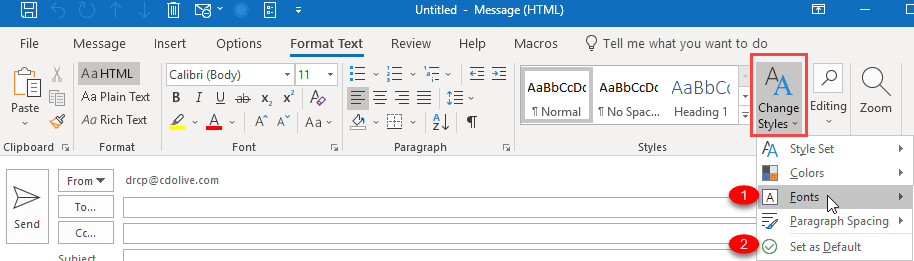
- From a new message form switch to the Format text tab.
- Expand the Change Style button
- Change the fonts (and colors & spacing if desired)
- Click on Set as Default to set this as the +Body style in all new items.
Note: Paragraph Spacing is not active unless the cursor is in the message body.
If you want to set a Font by name, not as the +Body font, you'll do it through the Stationery & Fonts dialog. You can access the Stationery & Fonts dialog through File, Options, Mail (the Stationery & Fonts button is near top of the dialog); it's in Tools, Options, Mail format tab when using Outlook 2007 and older.

Philip Sheppard says
Hi Diane,
Pleasure to be using your great website again.
I am looking at a way of overriding the corporate setting that keeps on setting Arial for the font of emails. I simply want to return to Calibri. I can do this manually at every login, but would like a way to automate it.
Thanks for any help,
Phil