Current versions of Outlook include an option to send immediately. Look for "Send Immediately when connected" on the File, Options, Advanced page.
An Exchange server account configured in cached mode honors the Send immediately setting and Send & Receive settings (Ctrl+Alt+S to open the Send & Receive dialog.)
When you use a Microsoft Exchange server email account in Online mode, Outlook will always send immediately. This is a feature of the Exchange server account. You do not need to enable Send immediately, and if you want to hold mail to send later, you need to set Outlook offline.
Outlook 2010 and newer
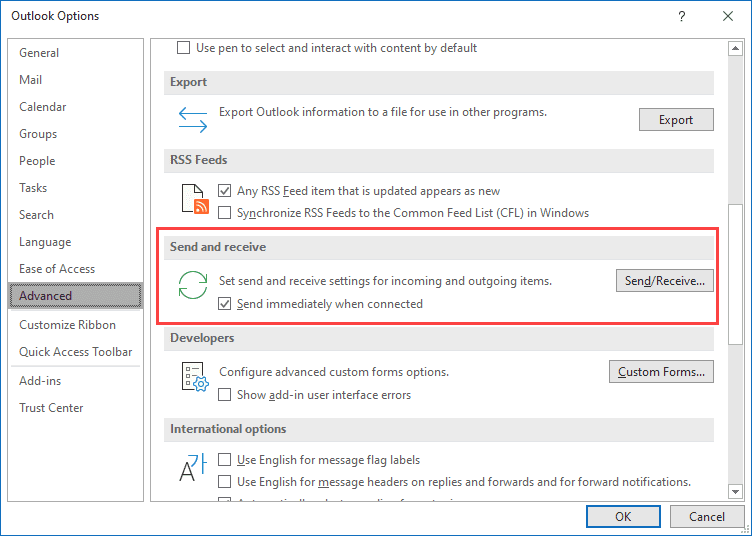
In Microsoft Outlook 2010 and newer, the Send Immediately when connected option is in File, Options, Advanced, about halfway down the page in in the Send and Receive section.
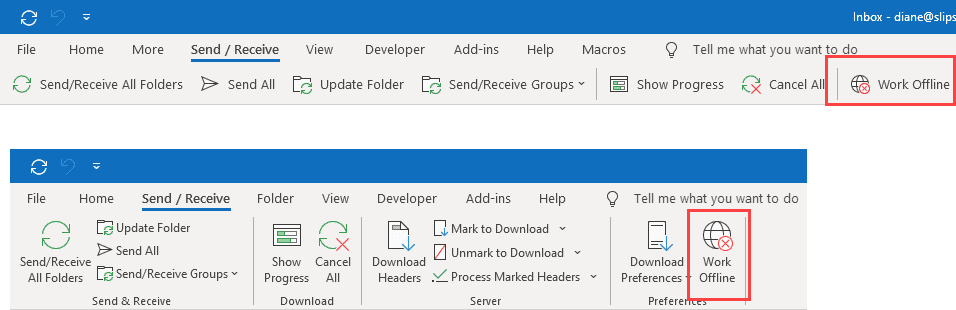
To disable temporarily, set Outlook to Work Offline; it's on the far right of the Send/Receive tab. Note: the icon design has a red x on it. The icon is highlighted when Outlook is in Offline mode and the status bar will also indicate you are offline.
This screenshot shows the Work offline command on the full ribbon and the Simplified ribbon.
If you want a short delay or to defer sending messages until later, see
To delay sending a message in Outlook.
Outlook 2007, 2003
In Microsoft Outlook 2007 and Outlook 2003, the Send Immediately when connected option is in Tools, Options, Mail Setup tab.
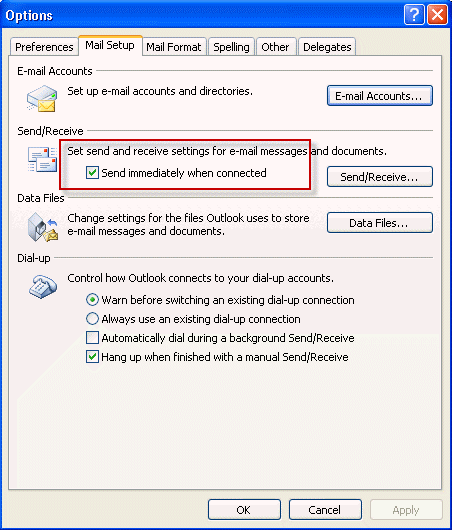
Note: there is a check in front of the Work Offline command when Outlook is in Offline mode and the status bar will also indicate you are offline.

My Outlook in Windows 10 keeps putting itself in Offline mode. I do not put it in this mode, it does it on its own. I have not been able to send e-mail for 3 weeks. Earlier tonight my brother-in-law got a test message out on one of my accounts with the red X on.. Now I cannot get a single account to go out. This is the most frustrating problem. I cannot find the thread online that tells me what to do to get out of this mode. . I cannot change it. The header button does absolutely nothing. I found a thread on Microsoft help 2 months ago and got it off. Now I am ready to kill my computer. I am trying to run a business, but cannot send e-mail except on my iphone. I cannot add attachments from my computer to the iphone. What is wrong with this version of outlook. If I hadn't found over 50 others complaining about it, I would think it is me...but it is this stupid software.
Just loaded 2010. To have the default set in Outlook to send / receive automatically in 30 minutes when you first load this programme is a frigging nightmare. Absolutely ridiculous default. For some weeks I have been working off web mail and have had to leave load of unread messages there to enable me to sort them prior to setting up new outlook prog and folders for filing - having loaded the programme I was setting up the folders and preparing the whole office prog and suddenly the whole 6 - 8 weeks work of work mails (well over a thousand) downloaded without my knowledge. I had a mornings work to sort over a thousand emails. I am not amused.
You write:
In Microsoft Outlook 2010, the Send Immediately when connected option is in File, Options, Advanced – look for it in the Send and Receive section.
There is no "Send and Receive" anywhere to be found in File, Options, Advanced..., at least not in mine.
What type of email account do you use?
Does your File, Options screen look like this one: (it's the same image as in the Outlook 2010 section above). Based on the position of the scrollbar, Send Immediately is near the top of the dialog.
Same problem - Outlook 2007, Win 10 Pro. Have confirmed the Send Immediately box is checked but no effect. Checked the registry at HKEY_CURRENT_USER\Software\Microsoft\Office\12.0\Outlook\Options\Mail, the DWORD was set to 1, changed it to 0, rebooted, no effect, checked the registry and the DWORD was still 0. Another suggestion was check HKEY_CURRENT_USER\Software\Policies\Microsoft\Office\12.0\Outlook\Options\Mail, but I can't find that reg key. Suggestions? Thanks
Policies key would only be set if your Admin set a group policy or you added the key to the registry.
What type of email account is configured in Outlook? Is Outlook online?
Hi Kim. Do you use the "NoOst" registry setting? My Problem was that the NoOst causes that problem.
It only works with business exchange accounts - you set the registry key before adding the account to outlook.