You have two options if you want to use plain text formatting for all messages you send, including Replies and Forwards: read all mail using plain text or convert the message to plain text format before hitting reply.
Unlike other utilities and macros, such as the Convert to Plain Text macro, the message is not actually converted to plain text, it's just not rendered as HTML. If you want to read it in HTML format, click in the Infobar to restore the HTML format.
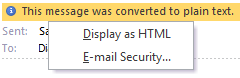 When Read-as-plain text is enabled in Outlook, the Infobar will say if the message was converted to plain text. You can easily switch individual messages to HTML by clicking in the Infobar and displaying the message as HTML.
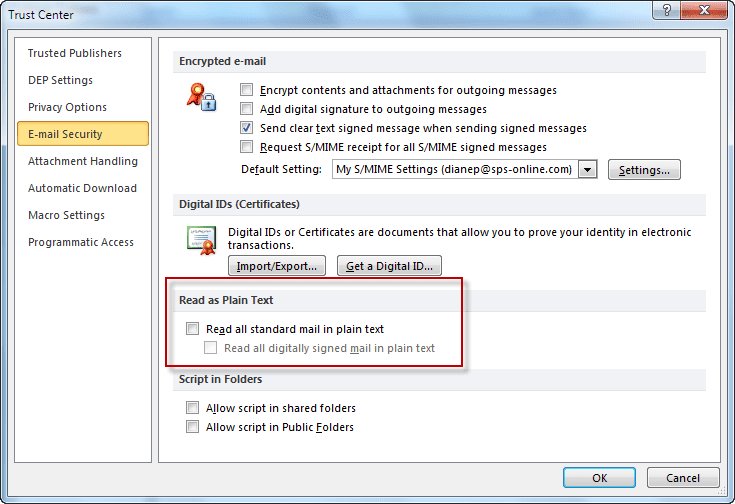
Enable Read as Plain Text in Outlook 2010 and newer
To enable Read all standard mail in plain text setting in Outlook 2010 and newer versions, open File, Options, Trust Center dialog box. Select E-mail Security.
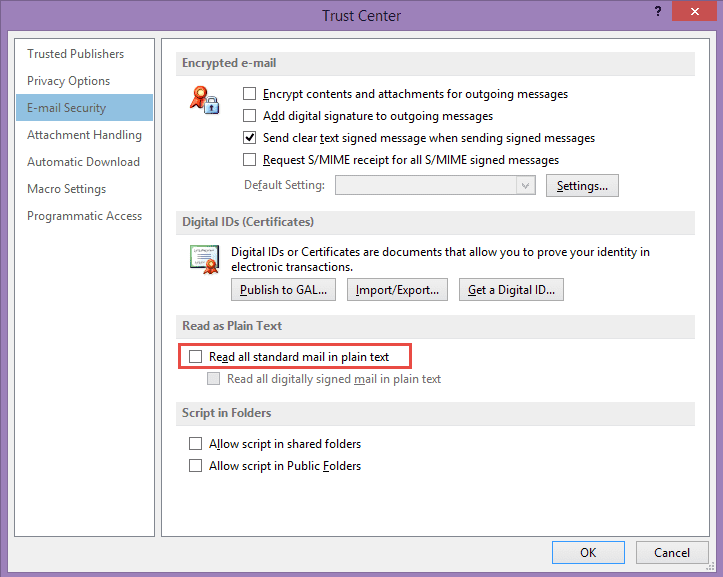
Enable Read as Plain Text in Outlook 2007
To enable Read all standard mail in plain text settings in Outlook 2007, go to Tools, Trust Center, Email Security. In Outlook 2003, look for the option in Tools, Options, Email Options.
Change format to plain text
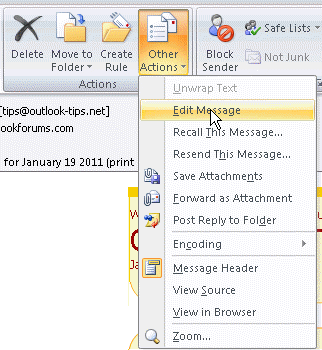
If you prefer to change the messages to plain text when you reply, open the message, go into Edit Message mode then switch to plain text format before hitting Reply.
Run a Script Rule
Note: converting a message to plain text will destroy the HTML part. you will not be able to convert it back to HTML later. Reading all messages in plain text will allow you to switch messages back to HTML.
To use, press Alt+F11 to open the VBA editor. Expand Project1 to locate ThisOutlookSession and paste the following code into the right side of the screen. Save and close the VB Editor.
Create a rule in Outlook with conditions that apply to the affected messages and select the Run a Script as the action. Select the script and complete the rule.
Sub ConvertToPlain(oMail As MailItem)
    Dim strID As String
    Dim objMail As Outlook.MailItem

    strID = oMail.EntryID
    Set objMail = Application.Session.GetItemFromID(strID)
    objMail.BodyFormat = olFormatPlain
    objMail.Save

    Set objMail = Nothing
End Sub

Recently Outlook 2010 began deleting parts of some incoming msgs., primarily html portions of a msg. and attachments. At first I thought the sender had omitted the info, then noticed that the msg. on my phone was ok but the one in Outlook is abbreviated. Outlook also displays/converts the msg. to plain text - it was originally html.
As always, TIA for your many helpful suggestions & assistance w/ Outlook.