When you receive an HTML message, links in it may not work or the File, Open dialog will open, asking to associate an executable file with the link.
Looking at the source, you'll see the URL is prefixed with BLOCKED::, like this:
<A title=//office.microsoft.com/ href="BLOCKED:://office.microsoft.com/">Office Online</a>
This is a security feature in Outlook and may happen when URLs are copied from one email message and pasted into another message.
You can control it by adding the sender to the Safe Sender list or by adjusting the blocked external context setting in Outlook 2003 to allow all external content. You'll find these settings on the Tools, Options, Security, Change Automatic Download Settings menu or click on the Infobar of a message containing blocked content and choose Change Automatic Download Settings or Add Sender to Safe Senders List.

Note that this is NOT a common problem and we are not sure why its a problem for some people and others have never seen it. Internet security settings may be a factor. You may only see it if you don't have anti-virus software installed.
Workarounds
- Add the Sender to Safe Senders list or change Automatic Download Settings to download all content from the Internet in Tools, Options, Security, Change Automatic Download Settings.
- Opening the message in the Internet zone (View menu > View in Internet Zone) will remove Blocked:: from the links.
- Delete Blocked:: from the beginning of the URL in the address bar after clicking a link.
- In Outlook 2002/2003: set Outlook to use the Internet Zone. This is on the Tools, Options, Security tab. (Not recommended)

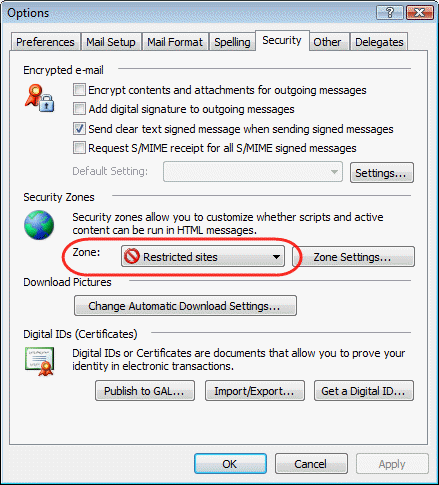
Note: We do not recommend lowering the Internet Security settings or Setting Outlook to use a less restrictive Internet Zone. Resetting the Internet Zone to use the default settings may help.
Warning: Using any zone other than Restricted will lower your security and could leave you open to possible infection from Java exploits. See Why you should block external content in Outlook by default for more information.
Notes
In Outlook 2003, the screentip will include the URL and title (if present):

The URL may still work correctly in both Internet Explorer and Firefox.
In Outlook 2002, you'll see just the title field, if present, in the screentip:

The File, Open dialog opens for you to choose an exe to associate with it. After associating Internet Explorer, the address bar will show blocked:

More Information
- How to use the Automatic Picture Download Setting feature to determine how Outlook 2003 blocks external HTML content
- "Blocked:://....": Outlook 2003 and 2007 is blocking URLs inside the e-mail

Hi Diane,
Thanks for the help, I have this problem with my Outlook 2003 and I did as you said:"... Choose an exe to associate with the link". I associated it with Internet Explorer, then clicked the link again, it started the Internet Explorer but it always led to the home page, not to the link address. Another thing, the address bar did not show blocked::
I appreciate your cooperation,
Thanks in advance..
The url isn't being passed to IE. Did you try resetting IE as your default? Also, you may need to restart the computer for the change to take effect.