If you have multiple accounts configured in Outlook, you can choose the sending account when composing the message. By default, the account that downloaded the message will be used to send any reply. New messages are sent using the account assigned to the data file you are currently viewing, unless you choose the option to always use the default email account.
To choose the account, click the From button in the compose message form. This will display a list of your e-mail accounts.
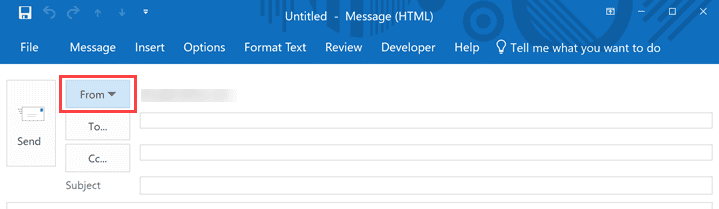
When you have multiple accounts in your profile and deliver the mail to different data files, Outlook uses the account assigned to the data file you are viewing as the default. When you have multiple accounts delivered to one data file, the default account will always be used for new messages; replies will use the account that downloaded the message.
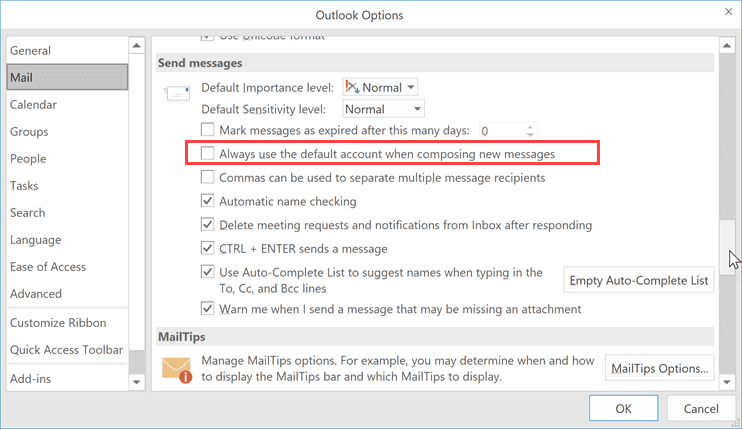
In Outlook 2013 and above, you'll have the option to use the default email account for all new messages, regardless of which data file you are working in. Look for Always use the default account when composing new messages in File, Options, Mail, under the Send Messages section about halfway down.
In Outlook 2010 SP1, you'll need to set a registry key if you want to always use the assigned default account (same behavior as previous versions). See Outlook 2010, Multiple Accounts and the Default Account for details and a ready-to-se registry file.
Outlook 2007, 2003, 2002 (XP)
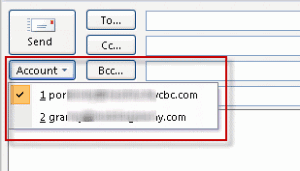
Choose a different sending account when composing the message. By default, the account that downloaded the message will be used to send any reply. New messages are always sent using the default email account.
Outlook 2000/98 IMO Mode
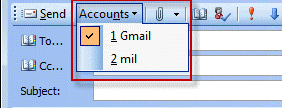
In Outlook 98 or 2000 Internet Mail Only mode, when you are ready to send the message, click the small down arrow next to the Send button on the toolbar. This will display a list of your Internet mail accounts. Choose the one you want to send this message. See:
- OL2002 How to Select an E-mail Account to Send Messages
Outlook 2000/98 Corporate/Workgroup Mode
In Outlook 98 or Outlook 2000 CW mode and in Outlook 97, there is no simple way to designate which account will be used to send a particular message. At the time that the message is composed and sent, the service at the top of the delivery order at Tools | Services | Delivery is the one Outlook will use to send the message.
This suggests several approaches if you need to control which account sends which message or what reply address is used:
- Before you compose a new message, check Tools | Services | Delivery to make sure that the service you want to deliver this message is at the top of the list. Move it up if necessary. You do not need to restart Outlook after changing the delivery order. Repeat this procedure whenever you want to compose a message to be sent by a different service.
- On the Options tab of a new message, select Have replies sent to, and enter the return address that you want to use for this message.
- Use two different profiles for sending and receiving from two different accounts. You can use the same Personal Folders file in both profiles.
- To send with a different From address in Corporate/Workgroup mode from an Exchange Server mailbox -- uses custom recipients in the Global Address List to simulate sending from a particular Internet account without the need to change the Tools | Services | Delivery order
For another method, which uses Exchange Server custom recipients, see Outlook "Send As..." Simulator
More Information
- Changing the Reply Address -- A VBA method for changing the Have Replies Sent To address
- How to Programmatically Set a Form's From Field
- Create a new message with a different originator
- Chose the account to send a reply from
