Outlook includes two methods to send messages at a later time: an after sending rule that holds a message in the Outbox for up to 120 minutes or a setting in Message Options to send the mail at a specific time.
I do not recommend delaying messages more than a few days. Some versions of Outlook uses the date you pressed Send as the sent date, not the date it handed the message off to a SMTP server. If the recipient uses a sort by sent date view, they may not see your message. (Test this before using it.)
You can use VBA to send a message when a reminder fires. See Send an email when an Appointment reminder fires for the code. To delay messages sent during specific hours, see "Delay Delivery of Messages Sent at Specific Times"
To schedule recurring message, see Scheduling a Recurring Message
Hold messages for up to 120 minutes
To hold messages for up to 120 minutes, you need to create an "after sending" rule. This rule can apply to all messages or only to messages that meet the conditions you set.
- Open the Rules Wizard and click New rule.
- Select Apply rule on messages I send (at the bottom of the first Rules Wizard screen)
- Select any conditions you want and click Next or just click Next to apply it to all messages you send
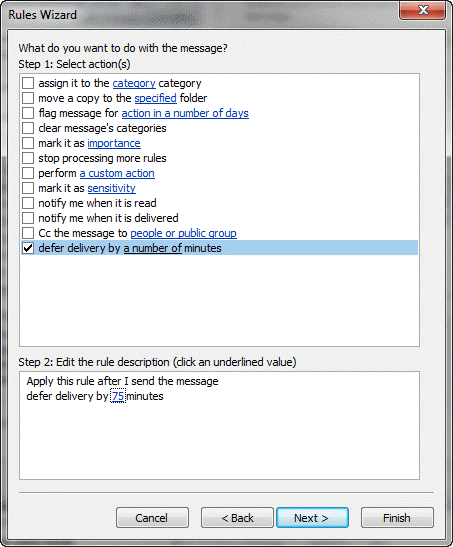
- Choose Defer delivery by a number of minutes at the bottom of the Actions list.

- Click on the "a number of minutes" link to select the desired number of minutes to hold the messages.
- Click Next and set up any desired exceptions, then click Next again.
- Enter a name for your rule, turn the rule on and click Finish to finalize the rule.
Using "Do Not Deliver Before"
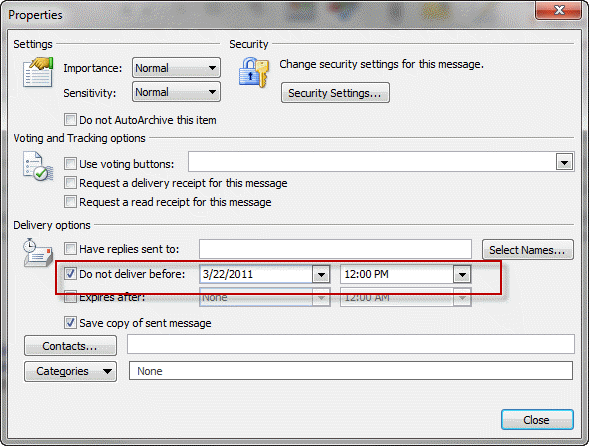
Outlook can hold mail in the Outbox and send it at a later date. For this to work, you need to have Outlook running at the appointed time. If you use Exchange server and online mode, not cached mode, the message is moved to the outbox on the server, allowing you to close Outlook.
I highly recommend testing this feature before using, so you understand how it works. Testing it beforehand will allow you to see if your email server uses the time you sent it to the Outbox or when Outlook actually sent the message. For more information, see "Send Time" time stamp information is incorrect when you send a delayed delivery message in Outlook (MSKB)
The option for "Do Not Deliver Before" is on the Options dialog (shown above) or, in Outlook 2007 and newer, also on the Options tab.

When I Delay Delivery of a message does it get sent from my PC to the server and wait there? Can I close Outlook, log off my PC and it will still get delivered even if I don't log on to my PC again until after the requested delivery date/time?
When you use Delay Delivery, the message is held in the Outbox on your computer, waiting for the scheduled time, so you will need to leave your computer logged in and Outlook open to send it.
There is one exception: when Exchange mailboxes are opened in online mode, the message is held on the server. Note that this is one Exchange feature not supported by Outlook.com, as it only uses cached mode.
If you hold messages to send later, you will receive a prompt from Outlook every time you close Outlook, reminding you that there are messages waiting to be sent.
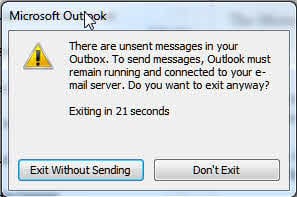
You cannot disable this alert. It really does have purpose: Anyone who doesn't use Send Immediately or is having connectivity issues appreciates being told Outlook hasn't sent the messages in the Outbox. Use this dialog to stop accidentally closing Outlook.
More Information
Scheduling a Recurring Message
Sending and Retrieval Tools for Outlook
Mass Mail Tools for Outlook
Compose Tools for Outlook
Duplicate Remover Tools for Outlook
Mail Tools for Outlook - Outlook mail tools that don't fit in any of the above categories.
Content Control Tools
Security Tools -- Some of these also provide message tracking.
Signature Tools -- including random quotes

This used to work in Outlook 2016. Ever sine updating to Outlook 365, it has a bug. If I don't go into the Outbox, then it works as expected. However, if I go into the Outbox and the message is clicked, it changes to a draft instead of a message going out. I do not have a reading pane and I'm not talking about opening the message. When this happens, even opening it and pressing send does not work, it just becomes a draft again since the cursor is highlighting the message in the Outbox as soon as I click Send again. The only thing that works is clicking forward so that a new copy of the message is triggered. I then have to delete the draft message.
You have an addin that is 'reading' the messages and changing them to drafts.
https://www.slipstick.com/problems/after-viewing-outlooks-outbox-the-messages-in-it-wont-send/
It should work to open the message, change folders then click Send too... but forward might be easier. If you leave the draft and it stays as the first message, the problem will be worked-around.
Absolutely does not work. Attempted delayed transmission just sat in the Outbox, from which it was impossible to send. Message had to be placed in the Inbox before Word allowed "Send."
do you mean you had to move it out of the outbox and into the inbox, then hit Send? Do the messages send if you don't look in the outbox? If so, something is marking the messages read - see https://www.slipstick.com/problems/common-problems-that-cause-email-to-stay-in-the-outbox/#outbox
The delayed messages sit in the outbox. How can you sort them by delivery date?
Add the Defer Until field to the view - then sort by it.
Hi Diane.
I am glad to see that you are still following this question chain. I am using Outlook 2010. I try to send delayed delivery emails, but then I logout when I am not using my computer, so the message does not send until I log back in. Is there a setting that still allows these messages to go through whether I am logged in or not? Thanks so much!!
If you don't use exchange, you will need to leave outlook running. If yo use exchange and can connect in classic online mode, messages get handed off to exchange and outlook can be closed.
How do I make this work? I had a email scheduled for the next day certain time. Than I just closed my laptop not thinking anything of it. Than I go to see if the test email came through and see nothing. How would I do this to make it right?
You need to leave outlook open and the laptop on. If you don't use an exchange server account and online mode, you can't close outlook.
I have a log in to outlook 365 for the web (as its business based email). Is that what you mean by exchange server?
I am not understanding what you mean exchange server account and how it would work. Last night I called godaddy and they couldn't help me so I really appreciate your feedback and answering my question.
Diane,
I am wondering if one can schedule a "reply" or "reply all" for a later time/date? I know how to schedule an initial email to send later but can't figure it out with regards to a reply email.
Thanks,
Chris
It would work the same way - you need to create the reply then set the option to defer it before clicking send.
Hi Diane,
If I create a rule to delay sending a message for 5 minutes in Outlook 2013 with Exchange Server on premises, once I click "Send" the message is held in the Outbox as expected. If I go to the Outbox and I want to send the message without waiting for the 5 minutes, I've tried to open the message and uncheck the "Do not deliver before.....". I was thinking if I cleared this field and click "Send", the message would leave right away without waiting for the 5 minutes. This doesn't work. Is it supposed to work this way?
Thanks!
it should work (but i haven't tried it yet). Is the date & time cleared? (I'd add an exception for assigned to category - then assign a category before sending to bypass the rule.)
Hi Diane,
I have question about outlook. I used option delay email and everything is working great BUT. I am sending message to my client at 11pm and setting don't send before 9am.He will receive this at 9am ,but it showing in the message that I sent this at 11pm.Is it possible that he will have showed that I sent this at 9am and he received at 9am even if I sent at 11pm? I just don't want to show my clients that I am working evening hours as they will be sending me million emails.
Thanks for your help
I've set mine for 1 minute. This is so when I have that "uh oh" moment after hitting send, I have a bit of a buffer.
The problem is this rule seems to cause Outlook to ignore manually deferred delivery, say one I've set for 3-4 hrs later for some reason. Any ideas how to get those to work too?