Many users ask about editing the subject line of messages, usually because they plan to save the make the subject more better reflect the content of the message.
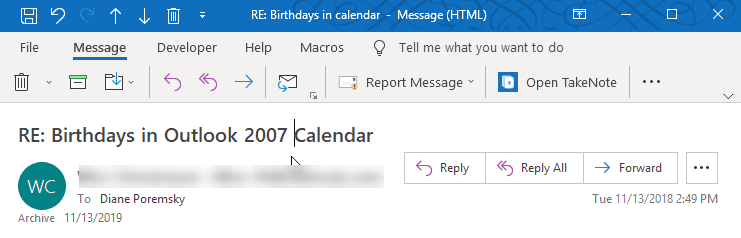
This is possible - and simple - just open the message, select the subject and begin typing. You don't even need to do anything special, beyond opening the message. You can select the subject and type over it or backspace to delete all or part of the subject, or add to the subject.
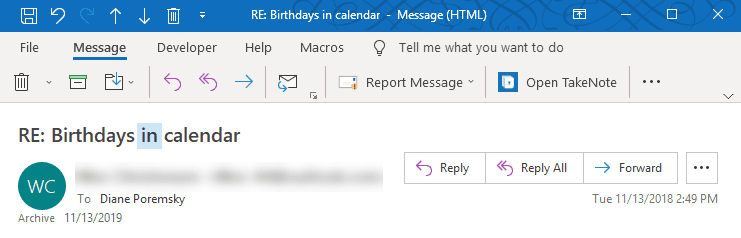
After editing, click Save to commit the changes, or click close and don't save to revert to the original subject.
You can also edit the subject when using a list view with in-cell editing enabled.
In an Open Message
Although the subject field doesn't look editable and appears grayed in older versions of Outlook, which usually means you can't make changes, you can click in the subject area and start typing.
When you use conversation groups, the subject in the message list will not change. The new subject will show in the reading pane.

In order to edit the subject in an open message in Outlook 2013, 2016, or 2019, you need to expand the header by clicking the caret in the lower right to expand the header for editing. For more information and to set the header to always be collapsed or expanded when Outlook is restarted, see Compact Header below.
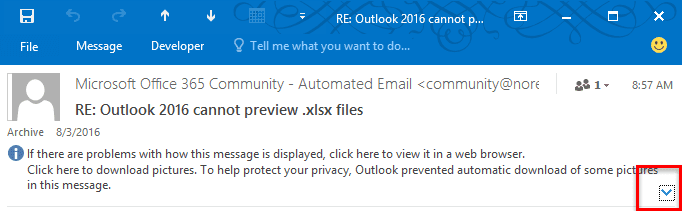
Microsoft made a change to the message header design in Outlook 365 (2016/2019). Rather than a compact header that can be expanded to edit, we return to one header size, which is editable. As with older versions of Outlook, all you need to do is type over the subject to edit it. (Then click Save, although you will be asked to save changes when you close the message.)
In an Outlook View
You can make the subjects editable in the Outlook message list when in-cell editing is enabled.
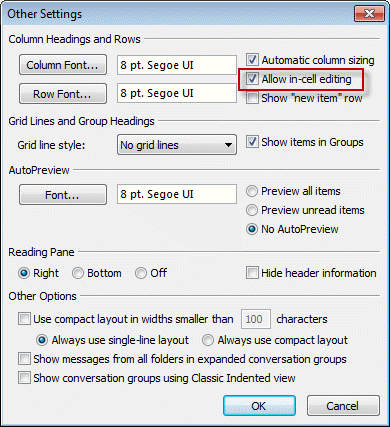
In Outlook 2010 and newer, look for the option in View ribbon > View Settings or click on the row of field names and choose Customize > View Settings. Click Other settings button to open the dialog shown in the screenshot.
You'll see an option for Allow in-cell editing. Check the checkbox, then click OK, and you'll be able to edit the subject of any item in the folder, without the need to open the item first.
Note: In-cell editing works only when the message list is using a single line view. When you use Conversation view in Outlook 2010 or 2013, you'll need to have more than one message in the conversation to use in-cell editing. If there is only one message, turn off view by Conversation.
In Outlook 2007, go to View > Current View > Customize view > Other settings button or click on the row of field names and choose Customize > Other settings.
Outlook 2016 on Mac
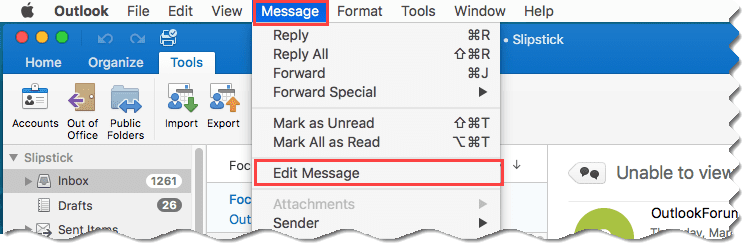
Outlook 2016 on Mac also supports editing the subject. You'll need to select the message in the message list then click Message, Edit Message from the the menu bar to open the message in Editing mode.
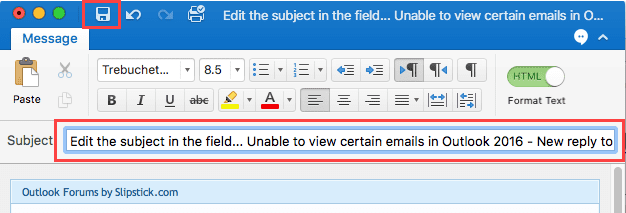
Edit the subject line as needed then click the Save button.
Video Tutorial
This video was created using Outlook 2010, however, it applies to all versions of Outlook.
View Edited Subject in Message List
In older versions of Outlook the Message list shows the edited subject:

In Outlook 2010 and newer, when you use the default view with the Date (Conversation) setting, you'll see the original subject in the message list:

As you can see, the edited subject shows in the preview pane but not in the message list, because you are only changing the subject, not the conversation title, and the new Conversation view uses the Conversation field.
When you turn off the Show messages in conversation view, Outlook will display the edited subject, just as it does in older versions of Outlook.
Disable Conversation View
To turn off Show messages in conversation either:
Switch to the View ribbon and deselect the Show in Conversation option
Or
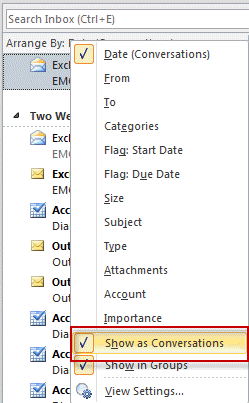
Right click on the row of field names above the message list and click Show message in conversation to deselect it.
Compact Header in Outlook 2013, 2016
Outlook 2013 SP1 and newer allow users to collapse the message header to a more compact size. When the header is collapsed, the subject field is NOT editable.
In Outlook 2013, the default is the expanded header while older builds of Outlook 2016 defaults to a collapsed header.
The default setting for Outlook 2016 is the collapsed header. Once expanded, the header should stay expanded until you click the caret to collapse it again. If you always want to start Outlook with a specific setting, you can set the MinimalHeaderOn value in the registry.
HKEY_CURRENT_USER\SOFTWARE\Microsoft\Office\16.0\outlook\options\mail DWORD: MinimalHeaderOn Value: 0 (expanded) or 1 (collapsed)
Administrators can use the Policies key
HKEY_CURRENT_USER\SOFTWARE\Policies\Microsoft\Office\16.0\outlook\options\mail DWORD: MinimalHeaderOn Value: 0 (expanded) or 1 (collapsed)
Outlook 2016
Outlook 2016 Policies
Changes can't be Saved error message
When you edit a subject field of a message that contains an attachment and the attachment is open, you'll receive an error message:
Your changes cannot be saved because you don't have permission to modify some or all of the items in this folder. Do you want to save a copy of this item in the default folder for the item?
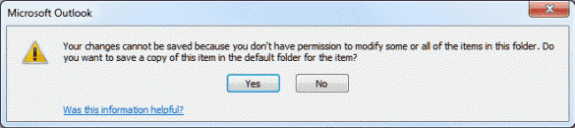
To avoid this, you need to close the attachment first, then save and close the message with the edited subject field.

I relied on this for a long time. Recently my organization got a different kind of subscription that doesn't include desktop apps and we have to use Outlook on the Web. It worked there for a while, but suddenly it doesn't any more. No warning, no documentation, no hits that I can find in help. Removal of functionality is bad enough, but when MS pretends that it never existed and nothing has changed that's when I really see red. Or have they just hidden it very thoroughly? I need this to assign unique case numbers to emails that are generated by a web form.
Hi, In the last week incoming messages began showing [Newsletter] or [Marketing Mail] in the subject line preceding the subject line description of each email. Where can I find a setting to change Outlook from adding these descriptions of each incoming email? I am using Outlook 10. Thanks in advance.
Fantastic...This actually helped to keep our mails further organised
This does not work when I receive an email notifying me of a calendar appointment. I can't edit the email subject line. My computer was just tweaked and it looks different now. I used to click on the email to change the subject line, but I can no longer do this with a calendar appointment. I archive my payroll emails by subject line. Sometimes employees forget to put all the information in the subject line, so I have to change it to archive.
I've tried all the suggestions here. What are the NEWEST ways to do this?
Thanks for this, I was struggling to get this to work as in 2016 the subject field is not labelled in a open mail and I thought it was hidden/locked when blank (until i used the in-cell editing option as a workaround, and voila "oh, there it is!" - of course if I had just opened any other email with a subject that would have also shown me).
Here's how to open the subject line: At the bottom of the reply, there are "dots" (...) below the text that you see and just above the send button. Click it and the subject line open. Here's a screen shot. (On my Gmail, clicking the dots will allow me to see the rest of the email thread - in Outlook it opens the subject line.)
clear and helpful thanks
Works for all email messages except one: is it because there is a note (when expanding the caret) "Please treat this as Private"? If so, workaround please?
I think it is because of the Sensitivity setting, but i will test it to be sure.