In another area where the formatting generates complaints, some users are frustrated by the little blue line down the left side of HTML replies. This blue line is the "quote prefix" for HTML formatted messages. It's used only when you set Outlook to prefix replies.
The problem? If you reply inline, the blue line doesn't break when you press Enter and type a comment. If you don't use colors for HTML replies, or use the standard blue, your comments may be harder to notice.
Screenshots of an Inline reply in an HTML message:
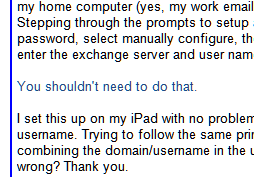
And in a plain text message:
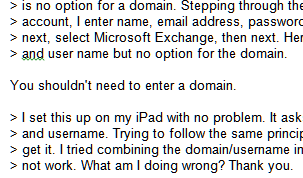
The only way to remove the blue line is by not using a quote prefix or by converting the message to plain text before replying.
To Change Reply Settings
You can change your quote prefix settings in File, Options, Mail (Outlook 2010 and up) or in Tools, Options button, E-mail Options (earlier versions). My preference is "Include original message text" because it results in a clean-looking message, even after multiple replies back and forth.
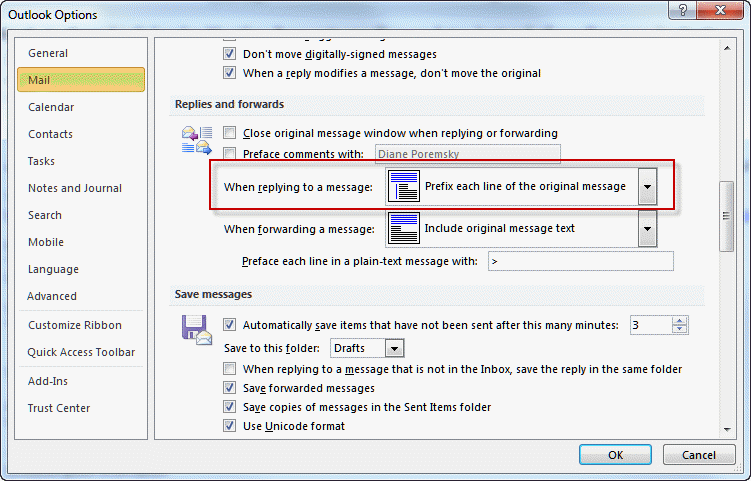
Note that the quote prefix character (usually “>”) is applied only to plain text messages. When you enable this option and reply to an HTML message, the quoted message is prefaced with the blue line.
Outlook 2007 and earlier: Tools, Options, Email options.
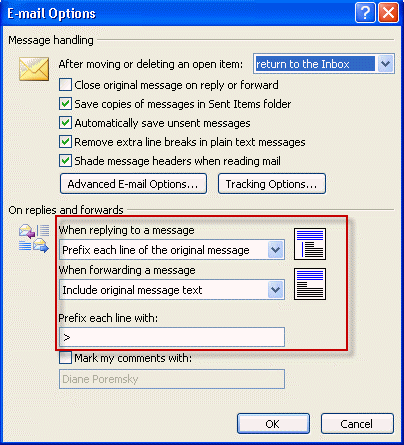
Mark Comments With
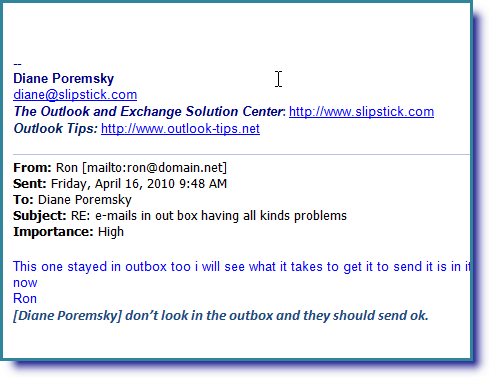
Outlook has an option for "Preface Comments with [name]" - when you begin to type within the quoted message, it adds your name or initials in brackets, like this:

This makes it easier to follow the responses when you use "reply inline", as seen in the screenshot below:

I've tried this in Outlook 2010. Whenever I switch the formatting to plain-text it doesn't bother to insert the > prefix even through it's selected in the options. I ended up having to reset it to read every message as plain text (which is really just good security. Letting HTML/RTF messages display whatever they want in this day and age of massive virus epidemics is just plain stupid.)
Correct, the message needs to be plain text before you hit reply to get the prefix. If you change it after you hit reply, you'll only remove the blue line.
hello, how to get a button to ribbon which turns on/off the CommentWith function?
That is a registry setting - HKCU\Software\Microsoft\Office\15.0\Common\MailSettings\MarkComments - you can use VBA to read and change keys but not all keys will take effect until you restart outlook, so it might not work. (I haven't tested this key.)
Ah, shoot, i forgot the url - https://www.slipstick.com/developer/read-and-change-a-registry-key-using-vba/ with instructions. :)
Looks like this will work - you'll need the functions from that page and this code - then create a button on the QAT or ribbon for it.
Sub ChangeCommentWith()
Dim myRegKey As String
Dim myValue As String
Dim myFileAs As String
Dim myAnswer As Integer
'get registry key to work with
myRegKey = "HKEY_CURRENT_USER\Software\Microsoft\Office\15.0\Common\MailSettings\MarkComments"
If myRegKey = "" Then Exit Sub
'check if key exists
If RegKeyExists(myRegKey) = True Then
'key exists, read it
myValue = RegKeyRead(myRegKey)
If myValue = 1 Then myValue = "0" Else myValue = 1
Else
myRegKey = "HKEY_CURRENT_USER\Software\Microsoft\Office\15.0\Common\MailSettings\MarkComments"
myValue = 1
End If
If myValue <> "" Then
RegKeySave myRegKey, myValue
MsgBox "Registry key saved."
End If
End Sub
Mark comments was really helpful. i was in search for such an option in my company. Appreciated!!!