There are many ways to incorporate Outlook data into a Word letter, depending on which version of Outlook you're using, whether you're comfortable editing code, or whether you prefer a third-party tool. Before choosing the method, you should know that you need compatible versions of Outlook and Word to use the mail merge function or address book. If you have different versions of Outlook and Word, you can export contacts to Excel or CSV then complete the merge in Word.
You cannot attach files when merging to email. If you need to attach files, you will need to use a third-party tool.
Word Mail Merge | Merge Limitations | New Message to Contact Letter Wizard
Insert Address in Word | Code Methods | Tools | More Information
Word Mail Merge
Beginning with Outlook 2000, you can merge just selected items and to use custom Outlook fields in a mail merge if you start the merge from Outlook, rather than from Word. You can also use a merge to generate all kinds of printed reports from Contacts, including labels, not just form labels. With Outlook 2000, you can create plain text email messages in a merge. In Outlook 2002 and up, you can create HTML messages.
For the best filtering capability, start the merge in Outlook. Filter the contacts or select the Contacts you want to use in your merge then click the Mail Merge button to begin the process. If you have a form letter with merge fields already inserted, you can select it as the merge to document.
The first step is picking the contacts you want to include in the merge. You can hold the control or shift key as you select contacts or use custom views to display the contacts you want to use. This is a good reason to use categories–then you can group by category and select the contacts.
Click the Mail merge command on the Tools menu (Outlook 2007 and older) or the Mail Merge button on the ribbon (Outlook 2010 and up) to open the Mail Merge dialog shown here.
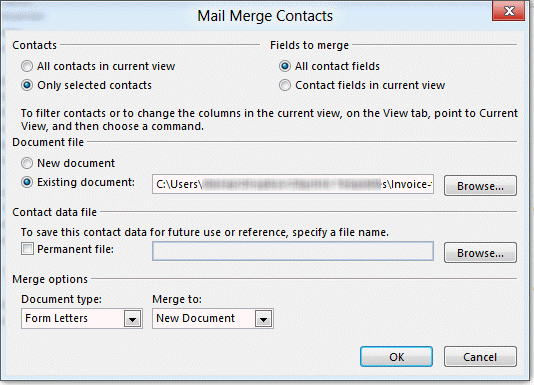 Use a filtered view or select the contacts you want to use in the merge then choose Only Selected Contacts.
If you are merging to a template or document with prepared merge fields, select Existing Document and Browse to select it before clicking OK to complete the merge.
When you begin a mail merge in Word, the merge field names may be different. If you created a merge document in Word, you may need to change the field names if you begin a merge in Outlook.
If you will be using these contacts in future merges, you can save the merge file. The selected contacts are exported to a document called OMM.doc for Word to use as the data source, which you may be able to recover if you decide you want to save the merge data to use again.
Notes for Outlook 2002 Users:
You must install the April 25, 2002, Word 2002 Update if you want to be able to perform merges that don't trigger security prompts and leave hyperlinks intact.
- If you are performing a merge to email in Office XP, in Word, choose Tools | Options | General | Web Options and clear the Rely on CSS for font formatting box. (This will change the compatibility to IE/Netscape 3.0.)
- In the Contacts folder, select a contact, then choose Tools | Mail Merge.
- On the Mail Merge Contacts dialog, select Only selected contacts. (You can also choose All contacts in current view if that's what you prefer.)
- If you have an existing merge document, select Existing document and specify it.
- Click OK.
- If you're creating a new merge document, use the Insert Merge Field button to add field codes from the Database Fields list for the Outlook field data.
- Click the appropriate Merge button (separate buttons for document, printer, and email to complete the merge.
- If you click Merge to E-mail, you will need to choose the field that contains the To address (usually Email); enter a Subject line, if you haven't already; and select HTML as the Mail format (see Limitations below).
See:
- HOW TO Use Mail Merge to Create Form Letters in Word 2002
- How to Use Mail Merge to Create E-mail Messages
Notes for Outlook 2000 users:
- In the Contacts folder, select a contact, then choose Tools | Mail Merge.
- On the Mail Merge Contacts dialog, select Only selected contacts. (You can also choose All contacts in current view if that's what you prefer.)
- If you have an existing merge document, select Existing document and specify it.
- Click OK.
- If you're creating a new merge document, use the Insert Merge Field button to add field codes to hold the Outlook field data.
- Click the Merge button to complete the merge.
You'll probably want to save the merge document -- the one containing the field codes -- so that you can use it again for other contacts by choosing Existing document as in Step 3 above.
Merge Limitations and Notes
- Keep in mind that Outlook offers better filtering capability than Word. So, while you can begin a mail merge in Word, it’s easier to start it in Outlook.
- Once in Word, you can change the document type and Merge to document type.
- “Contact fields in the current view” means fields in the view, including any you need to scroll to see, not just the fields you can see on screen.
- You can save the data source document to use again and again, even if you didn’t select the option on the mail merge dialog. Use search to find OMM*.doc and copy it to your documents directory.
- You cannot attach files when merging to email. If you need to attach files, you will need to use a third-party tool.
- In Office 2000, merge to email will produce only plain text messages.
- In Office XP, you should follow the instructions above for installing a Word update and selecting the HTML format. If you choose the plain text or attachment format, Outlook will display a security prompt for each message you try to send and force you to wait 5 seconds before you can click each one. If you choose HTML format, but have not installed the Word update, recipients will see hyperlinks in your messages as blue and underlined, but they will not function as live links.
- If you don't see a particular custom field in Word, check Outlook to make sure that the field is listed under User-Defined Fields in Folder. If it's not there, add it. The field needs to be in the Outlook folder before Word can use it in a merge.
- You cannot use the Categories field reliably to filter a merge. If you want to merge by category, apply a By Category view to the folder in Outlook, select the contacts in that category, then proceed as usual by starting the merge from Outlook.
- You cannot start a merge with a public contacts folder from Word. You must select the folder in Outlook and start the merge from Outlook.
New Letter to Contact Wizard
The New letter to Contact wizard was removed from Outlook 2007 and 2010. See Create a Letter to a Contact using VBA for a VBA solution.
- In Outlook Contacts, choose Contacts | New Letter to Contact to start the Word Letter Wizard.
- On the Recipient Info tab, the Recipient's name is entered with Courtesy Title, First, Middle, Last and Suffix name fields. The Delivery address includes the Street, City, State/Province, Zip/Postal Code and Country fields. If you reselect the name from the Address Book at this point, the fields change. On the Recipient Info tab, the Recipient's name now omits the Courtesy Title, while the Job Title and Company Name are added to the Delivery address. I don't know how to control the fields used in either case.
See the MSKB article Custom Template Does Not Appear in Word Letter Wizard for details on how to make your own custom templates appear on the list of Page Designs in the Letter Wizard.
Insert Address in Word
From Word, use the Insert Address function to select a name and insert it. See Inserting Addresses in Word Documents for information on how to change the fields that are inserted and how to add an Insert Address button to the toolbar.
Code Methods
- Use Helen Feddema's code sample 6 for creating a custom Microsoft Outlook form that lets you select a contact, then transfer its information to one of your Word templates.
- Use Helen Feddema's code sample 56 to add a procedure to a Word template that pops up the Address Book and fills in fields.
- Use Helen Feddema's code sample 30 and sample 31 (for Outlook 2000 only) to select multiple contacts and generate Word letters, labels or other documents.
- Create a Letter to a Contact using VBA
Tools
More Information
In addition to the specialized tools listed above, many of the tools listed on these pages include the insertion of addresses as a feature:

Andy McCarthy says
Hi Diane - I answered my own question, kind of. The user-defined fields were in the parent folder (Contacts). I used info at this site to "correct" what I had done: https://windowsitpro.com/systems-management/improve-your-custom-outlook-forms. I used the VBA code to populate my folder with the custom fields residing in the parent folder. Thanks! Andy
Andy McCarthy says
Hi Diane: above where you reference adding user-defined fields to the folder... Is it possible to have custom fields (i.e., user-defined fields created during custom form design) show up in the user-defined fields? None of the custom fields I created during form design show up in the user-defined fields and therefore aren't available in the mail-merge from Outlook I'm attempting. Thanks! Andy