When you add a contact without entering a country, Microsoft Outlook, by default, uses the country selected in Control Panel > Regional and Language Settings > Format selection.
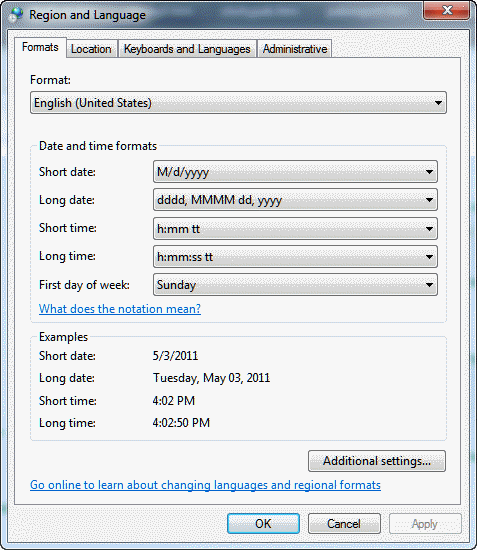
This change will apply to new Contacts only. When you change country in Regional Settings, it doesn't affect existing contacts.
Update the Country field for Existing contacts
The procedure for updating the country field is very simple: group by the Location field and drag between groups.
Outlook 2010 and up:
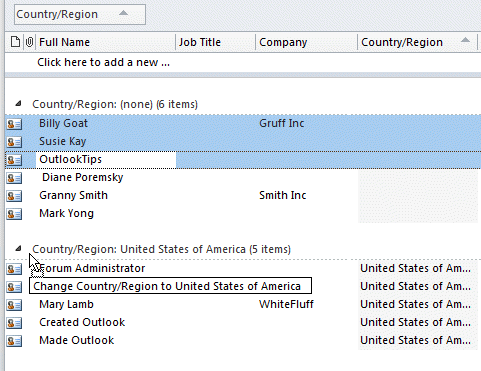
- In the Contacts folder, switch to the List view, then Arrange By: Location.
- Right Click on Country/Region field name and choose Group by this field.
- Select those contacts that have the wrong country.
- Drag the selected contacts to the correct country group heading.
Outlook 2007 and older:
- In the Contacts folder, switch to the By Location view. (Veiw menu)
- Select those contacts that have the wrong country.
- Drag the selected contacts to the correct country group heading.
Note: you can use this same process to change many other editable fields: just group by the field that a large number of contracts need changed to and drag the contacts between groups.

Noel O'Kelly says
"When you add a contact without entering a country, Microsoft Outlook, by default, uses the country selected in Control Panel > Regional and Language Settings > Format selection"
I have Ireland set as instructed, but new Contacts still default to USA and phone numbers are formatted in USA layout.
Outlook 2016, Office 365 - using iCould for my Contacts.
Thereasa Murphy says
ok that worked but the business phone numbers do not show Canada as the country. How can I up date the country for the telephone?
Diane Poremsky says
if they all need changed and none have the country code, you can use a variation of the macro at https://www.slipstick.com/outlook/contacts/bulk-move-phone-numbers-to-a-different-phone-field/
you'll change the with block to something like this
With objContact
.businesstelephonenumber = "1" & .businesstelephonenumber
.MobileTelephoneNumber = "1" & .mobiletelephonenumber
.Save
End If
End If
End With
Rhonda says
BRILLIANT! You just saved me a HEAP of time manually changing the country for about 900 contacts!
Johnny says
1.In the Contacts folder, switch to the By Location view - I do not have the option "By Location view" - Would you kindly advise how I may activate this option?
Diane Poremsky says
What version of Outlook? In Outlook 2010 go to View Ribbon, click the Change View button, select List then location from the Arrangements. In older versions, its on the View menu. The view menu layout is slightly different in each older version, but it should be on the arrange by menu.