Beginning with Outlook 2003, you could add contact photos to your contacts. Each contact needs to edited to add the image, however you can use VBA to automate the process. For best results, the image needs to be named the same as the contact, otherwise you need to use a lookup table to associate names with pictures.
To export contact photos to a folder on the hard drive, see Export (save) Outlook Contact photos. See "Import Images into the Active Directory" if you want to import photos into the Active Directory.
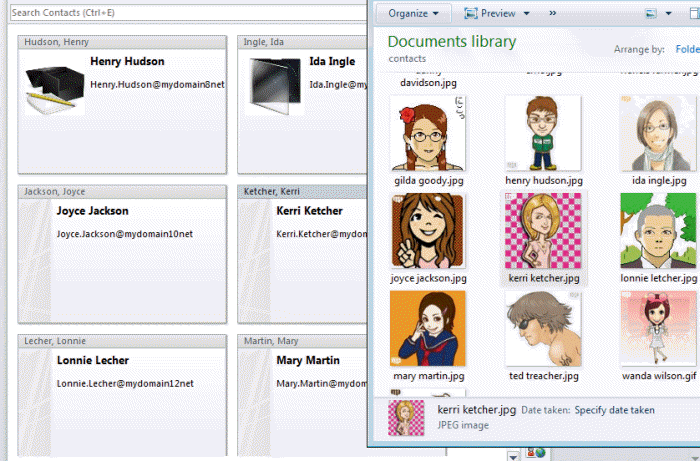
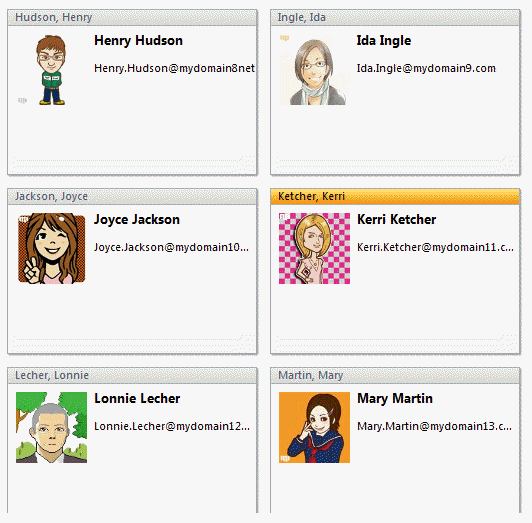
If the contact has a picture assigned and one exists in the folder, it will be replaced. If no picture exists, the contact is skipped. The screenshots below are before and after shots of the business card view. (Contact pictures are from Portrait Illustration Maker)
You can use the full name , "last, first" or FileAs format for the image name by changing the following line in the code (don't forget to change the file path and file extension if needed.):
strPhoto = "C:\photos\" & myContact.FullName & ".jpg"
myContact.FileAs uses the file as format on each contact
myContact.FullName for "first last.jpg" name format, ie "diane poremsky.jpg"
myContact.LastNameAndFirstName results in "last, first.jpg" format, or "poremsky, diane.jpg"
You can make up your own formats using Outlook fields. For example, if the file name is last first with no comma and a space (Poremsky Diane.jpg) use
strPhoto = "C:\photos\" & myContact.LastName & " " & myContact.FirstName & ".jpg"
If the names are lastfirst without a space (poremskydiane.jpg), use
strPhoto = "C:\photos\" & myContact.LastName & myContact.FirstName & ".jpg"
VBA code sample
Tested in Outlook 2007 and 2010.
Public Sub UpdateContactPhoto()
    Dim myOlApp As Outlook.Application
    Dim myNamespace As Outlook.NameSpace
    Dim myContacts As Outlook.Items
    Dim myItems As Outlook.Items
    Dim myItem As Object
    Set myOlApp = CreateObject("Outlook.Application")
    Set myNamespace = myOlApp.GetNamespace("MAPI")

  ' use the default contacts folder
   Set myContacts = myNamespace.GetDefaultFolder(olFolderContacts).Items

  ' to use the selected folder use this line instead:
  '  Set myContacts = myOlApp.ActiveExplorer.CurrentFolder.Items

    Dim fs As Object
    Set fs = CreateObject("Scripting.FileSystemObject")
    For Each myItem In myContacts
        If (myItem.Class = olContact) Then
            Dim myContact As Outlook.ContactItem
            Set myContact = myItem

            Dim strPhoto As String

      '  use myContact.LastNameAndFirstName = "last, first.jpg" format
      '  replace "C:\photos\" with the correct path.
            strPhoto = "C:\photos\" & myContact.FullName & ".jpg"

     ' use for testing only, to confirm the path is correct.
     ' Delete or comment out
    ' MsgBox (strPhoto)


            If fs.FileExists(strPhoto) Then
                myContact.AddPicture strPhoto
                myContact.Save
            End If
        End If
    Next
End Sub
How to use the code
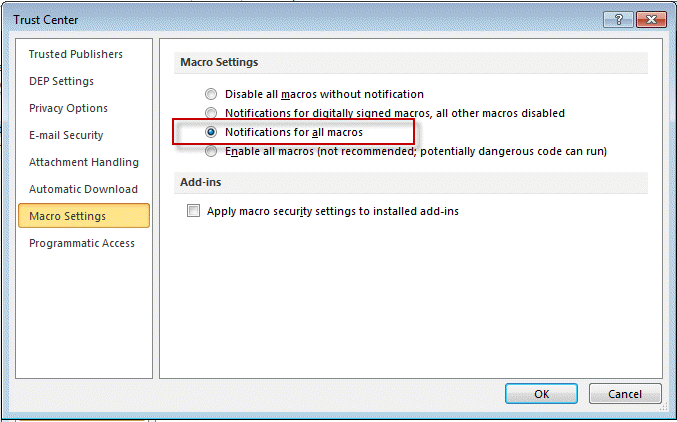
Go to the Trust center and make macros are configured to notify. (File, Options, Trust center in Outlook 2010, Tools, Trust center in Outlook 2007.)
Close and restart Outlook.
Press Alt+F11 to open the VBA editor and double click on ThisOutlookSession to open it in the editor.
Copy and paste the code into ThisOutlookSession.
Press the Run button (F5) to run the macro now. To run it later, use the Tools, Macro command (Outlook 2007).
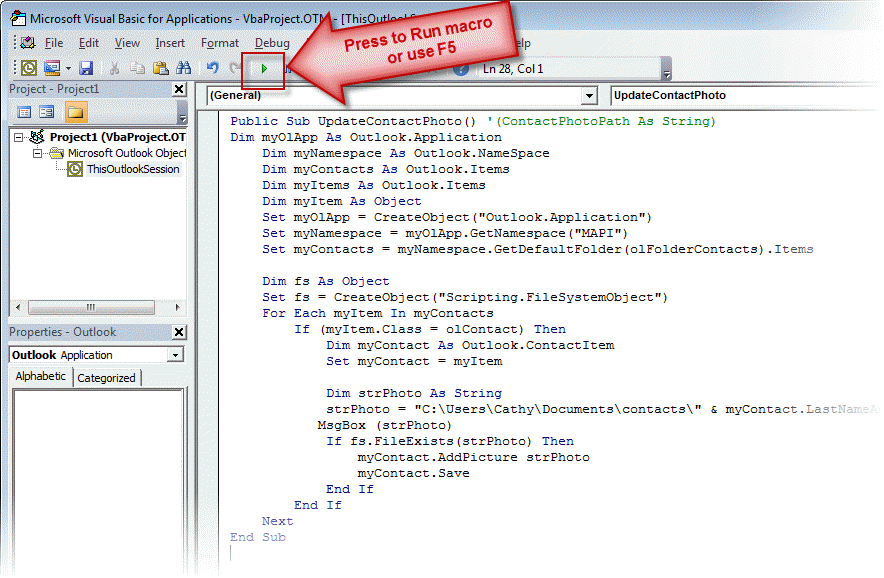
Uncomment the 'MsgBox (strPhoto) line and run to verify the file path is correct. (Uncomment the line by removing the apostrophe from in front of the line.)
More Information
ContactItem.AddPicture Method (MSDN)
Sample images from Portrait Illustration Maker
Change Contact's File As format

Wow. This worked first time - I did my preparation though.
An old post but still useful. I am migrating from Gmail to O365. In Gmail the pictures can bulk be exported to CSV but endup as a http link to a JPG. I used Excel to prepare a PowerShell WGET to pull down the JPG and name it correctly. Then ran your script.
MS instructions to export/import without photos.
=IF(ISBLANK([@Photo]),,CONCAT("wget ",[@Photo]," -outfile """,[@Name],".jpg"""))Thank you so much.
How do I set all contacts where the CompanyName is 'Acme' (for example) to update with a set photo? So I have one image I would like to apply to all contacts in one company but not touch any other contacts, how do I do that please?
Change myContact.FullName to myContact.companyname - and name the image to match the company name. this will change all contacts to use company logos as the photo. If only contacts from acme need the photo matched to the company name, editing the macro to work with selected contacts might be easier - then select all contacts from one company and run it. https://www.slipstick.com/developer/code-samples/working-items-folder-selected-items/
now... do you really want to use the photo in the contact or add the image to the business card view? i have a macro for that too.
When I ran the macro I got an error:
Run time error 91:
Object or With block variable not set
This is brilliant. I imported my photo file name to a user field in Outlook and linked it from there instead of cross referencing to another table.
Can I buy you coffee today?
whats happen if i don this process in my pc , them export address book to import in other s workstation? is possible? thaks srry abaut my english
if you export to a pst file, you'll be fine. If you export to a csv, you won't have the images.
Guys there is a easy no need to write and execute the Script use this software and very simple to upload photos
[software name removed]
If you had read the page, you'd know the script on this page tells end-users how to import photos into their Outlook Contacts, not into the Active Directory.
PowerShell scripts to bulk import into the AD are at Import Images into the Active Directory. That page has a list of utilities for those who don't want to use PowerShell directly.
Hi, Thank you, I have it working now!! It seems to work on my default email only when i change to my other email addresses it doesn't work. Do I need to change something? Thanks again this has saved me hours and hours
Oh, i forgot to mention - as written, its for the default contacts folder. I'll put up a version that works on selected contacts.
Use this line to work on the selected folder:
Set myContacts = myOlApp.ActiveExplorer.CurrentFolder.Items
that will replace this line:
Set myContacts = myNamespace.GetDefaultFolder(olFolderContacts).Items
Hi Can you please check what I have done, I cant seem to get running:
Public Sub UpdateContactPhoto()
Dim myOlApp As Outlook.Application
Dim myNamespace As Outlook.NameSpace
Dim myContacts As Outlook.Items
Dim myItems As Outlook.Items
Dim myItem As Object
Set myOlApp = CreateObject("Outlook.Application")
Set myNamespace = myOlApp.GetNamespace("MAPI")
Set myContacts = myNamespace.GetDefaultFolder(olFolderContacts).Items
Dim fs As Object
Set fs = CreateObject("Scripting.FileSystemObject")
For Each myItem In myContacts
If (myItem.Class = olContact) Then
Dim myContact As Outlook.ContactItem
Set myContact = myItem
Dim strPhoto As String
' use myContact.Categories & ".jpg” format
' replace “D:\Hybrid Clark\Standard Documents\Hybrid Data\Hybrid - Icons\Outlook”
strPhoto = “D:\Hybrid Clark\Standard Documents\Hybrid Data\Hybrid - Icons\Outlook” & myContact.Categories & “.jpg”
' use for testing only, to confirm the path is correct.
' Delete or comment out
' MsgBox (strPhoto)
If fs.FileExists(strPhoto) Then
myContact.AddPicture strPhoto
myContact.Save
End If
End If
Next
End Sub
I have changed the following:
1. ' use myContact.Categories & ".jpg” format
2. ' replace “D:\Hybrid Clark\Standard Documents\Hybrid Data\Hybrid - Icons\Outlook”
strPhoto = “D:\Hybrid Clark\Standard Documents\Hybrid Data\Hybrid - Icons\Outlook” & myContact.Categories & “.jpg”
The path to the photos is long. Thanks for your help Clark
It's working here. The category name is case sensitive - if it's Cat1 in outlook, you need to call the image Cat1. The extension needs to be correct too. Oh - and the file path needs a \ at the end "D:\Hybrid Clark\Standard Documents\Hybrid Data\Hybrid - Icons\Outlook\" - otherwise it's looking for an image called OutlookCategoryName.jpg