If you are having problems sending and receiving mail, you may need change your authentication method or send and receive ports.
In Outlook 2016 and newer with the new simplified accounts dialog, go into Send & Receive settings to view More Settings.
You can access this dialog using the Ctrl+Alt+S shortcut or from File, Options, Advanced, Send/Receive button or the Send/Receive menu, Send/Receive Groups, Define Send/Receive Groups. After opening the Send/Receive dialog, Edit, select the account then click Account Properties.
- Click on File, Account settings in Outlook 2010 and 2013 (and some older builds of Outlook 2016) or Tools, Account settings in Outlook 2007. See below for the menu path in older versions of Outlook
- Select the account and click Change to open the account settings dialog (or double click on the account).
- Click More Settings.
- On the Outgoing server tab, select the authentication method used by your SMTP server. Most will use the same as the Incoming server. If you use a server that is associated with a different account, enter the correct username and password on this tab.
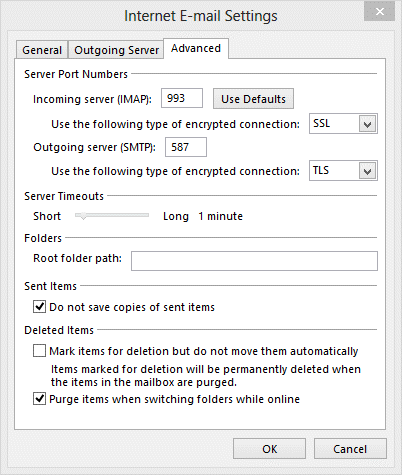
- Change the port numbers and encryption method on the Advanced tab as needed.
Note: The screenshot above is the More Settings dialog for an IMAP account in Outlook 2013. The options available vary for POP3 accounts and in older versions of Outlook.

i am trying to yahoo mail to my outlook 2013, i did all step but i am getting sent test e-mail message" cannot find the e-mail server, verify the server information in your account properties .
i did all options from you tube video , no luck please help.
i have a problem after i configure account settings ,every thing is working except the address book didn't imports users emails and it is empty
Do you have contacts in the Contacts folder in outlook? That is what populates the address book.
What type of email account do you have configured in Outlook? POP, IMAP, Outlook.com, or Microsoft Exchange?
i'm trying to erase all cookies and get the porn of my computer.
suggestions please
If your computer is infected, you'll need to clean it with malwarebytes to make sure its clean.
couldnot find it
Ah, a page I missed updating for Outlook 2016...
Assuming you are using the newest builds, try this: open Send & Receive settings - Ctrl+Alt+S - then click Edit, select the account then Account Properties.
Note, you can also access this dialog from File, Options, Advanced, Send/Receive button or the Send/Receive menu, Send/Receive Groups, Define Send/Receive Groups.
Sending' reported error (0x80042109) : 'Outlook cannot connect to your outgoing (SMTP) e-mail server. If you continue to receive this message, contact your server administrator or Internet service provider (ISP).'
Send test e-mail message: Outlook cannot connect to your outgoing (SMTP) e-mail server. If you continue to receive this message, contact your server administrator or Internet service provider (ISP).
I can't link my gmail account after I fix the settings. I use IMAP for configuring my gmail and after it requires to sign in my username and password. It didn't work out even though I try to change my password in my gmail and type the new password in the log in access. Please help
Are you using two-factor authentication with gmail? If so, you need to use an app password as outlook can't authenticate. If not, are you getting any error messages?
My outlook e-mails get stuck in the outbox only with certain wireless networks? If I create a hotspot with my mobile they all fly out no problem! Why is this?
Check the outgoing authentication and the port #. See https://www.slipstick.com/outlook/email/send-mail-when-traveling/ for more info.