In this calendar sync bug, All Day events that recur yearly are changed to recur every 12 years. This bug first appeared with the release of Office 2007 SP2 and affects devices that sync with Outlook 2007 using ActiveSync. It may only affect users who sync their device between two different computers.
The problem is related to Outlook's ability to set an appointment's recurrence to "every N years".
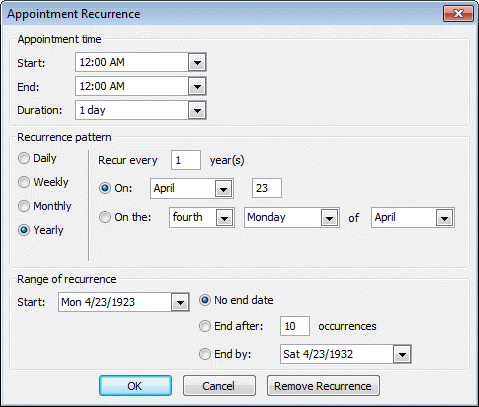
This recurrence setting was added to Outlook beginning with Outlook 2007 SP2 but this recurrence pattern is not supported by Window Mobile's calendar.
Hotfix
To fix this problem (and a long list of other issues) install the following hotfix:
Description of the Office Outlook 2007 hotfix package (outlook-x-none.msp): April 27, 2010
Palm Devices
This was a problem synching PalmOS devices with Outlook 2007 via Chapura PocketMirror conduits (which use Palm HotSync software).
Chapura issued an update to (Version 4.3.1) on November 14, 2008 that fixes this issue. Install the latest update to fix.
Solutions
If your calendar is affected by this bug, set the events to have an end date (within the next few years - don't go too far into the future). This reportedly fixes the problem. A future update may address the problem.
If setting an end date doesn't work, set the appointments to be timed - such as from 8AM-9AM.
Restore existing events to 1 year recurrence
You'll need to fix the Events yourself or use VBA code such as the sample code below. (You'll need to be viewing the calendar folder when you run this code.)
'Posted by Viade
'//social.microsoft.com/Forums/en-US/windowsmobilehelp/thread/8dbfde6c-9788-4ff9-a4b8-6b5751b765da/

Sub ChangeIntervalFrom144To12()
    Dim ai As AppointmentItem
    Dim rp As RecurrencePattern
    For Each ai In ActiveExplorer.CurrentFolder.Items
        If ai.IsRecurring Then
            Set rp = ai.GetRecurrencePattern
            If rp.Interval = 144 Then
                rp.Interval = 1
                ai.Save
            End If
        End If
    Next ai
End Sub
Using VBA Code
To use VBA code, press Alt+11 to open the VBA Editor. Locate ThisOutlookSession and paste the code into the editor.
Press F5 or the Run button to test the macro. (It's highly recommended you make a backup of the folder or message store before running macros.)
You'll also need to change macros security or use selfcert.exe to sign your macros. Access the dialog to change the security level from Tools, Macros, Security. (This is at File tab, Options, Trust Center, Macro Security in Outlook 2010). Set it on "always ask". Do not choose the Low option (run all, never ask). Some security software will set it to High and your macros will not run.
To run the macro later, press Alt+F8 to open the macro dialog, then select the macro and choose Run. Or add a button for the macro to your toolbar or add it to the QAT in Outlook 2010.
See How to use VBA code samples in Outlook for more information.
"Best Practices" Suggestion
Even if you don’t sync with devices, I recommend setting an end date on all recurring appointments and events. If the appointment occurs frequently, set the end date for Dec 31 and make new events each Jan 1. Use 2012 as the end year for less frequent events such as birthdays or set them to end after 10 events. As long as you do not add notes to individual occurrences within the series or create exceptions, you can change the end date later without issue.
More Information
Discussion of the problem at Windows Mobile forum at Microsoft.com
Help!!! - Problem with 1 year recurrences synchronization (Pocket Outlook - ActiveSync - MS Outlook 2007) Has several VBA code samples, including the one above, that you can use to fix the appointments in Outlook.
