An interesting problem came up in the Microsoft public newsgroups this week. Richard posts:
We have a specific user requirement to auto accept meeting requests only from some selected organizers, but I don't see any choice in Rule Wizard for meeting requests. Does anyone have an idea, please?
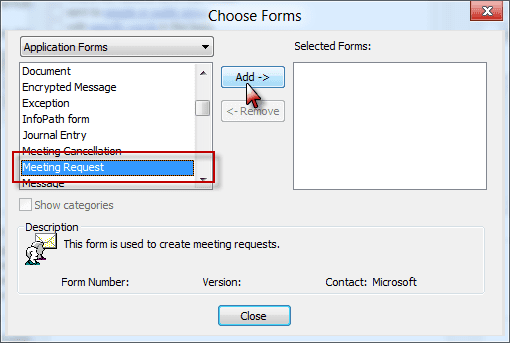
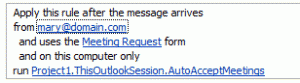 Of course I have an idea. Begin with a rule using the conditions "from people or distribution list" and "uses the specified form", choosing the Meeting Request form under Application forms.
Since there is not an action to respond to meeting requests, you'll need to use a script to accept it. Outlook MVP Michal Bednarz offers this script, which you need to add to ThisOutlookSession before creating the rule.
This was tested in Outlook 2007 and should work in any version which supports the Run a Script action.
The Basic Code
Sub AutoAcceptMeetings(oRequest As MeetingItem)

If oRequest.MessageClass <> "IPM.Schedule.Meeting.Request" Then
  Exit Sub
End If

Dim oAppt As AppointmentItem
Set oAppt = oRequest.GetAssociatedAppointment(True)

Dim oResponse
 Set oResponse = oAppt.Respond(olMeetingAccepted, True)
 oResponse.Display '.Send
End Sub
How to use
Open Outlook's VBA editor (Alt+F11), expand Microsoft Office Outlook Objects then double click on ThisOutlookSession. Type or paste the code into the module, then create the rule with the 'run script' Action and select this script
To decline a meeting, replace olMeetingAccepted with olMeetingDeclined:
Set oResponse = oAppt.Respond(olMeetingDeclined, True)
To Save with no response sent
To accept the meeting and add it to your calendar automatically, without sending a response, one of two options should work to suppress the response:
oResponse.Close (olDiscard)
or
oResponse.Close (olSave)
oResponse.Delete
The difference between the two is that olSave saves a draft of the acceptance (or decline) and if you don't delete it using the Delete line, a tentative appointment may be added to the calendar.
Sub AutoAcceptMeetings(oRequest As MeetingItem)

If oRequest.MessageClass <> "IPM.Schedule.Meeting.Request" Then
  Exit Sub
End If

Dim oAppt As AppointmentItem
Set oAppt = oRequest.GetAssociatedAppointment(True)
Dim oResponse

Set oResponse = oAppt.Respond(olMeetingAccepted, True)
' creates response, saves to drafts without sending
oResponse.Close (olSave)
' deletes draft response
' if not deleted, may create tentative appt on calendar
oResponse.Delete
End Sub
Add a Category when the meeting is accepted
This version looks for the meeting acceptance message and adds a category to the meeting, allowing you to see at a glance if it was accepted.
Sub AutoAcceptMeetings(oRequest As MeetingItem)

If oRequest.MessageClass <> "IPM.Schedule.Meeting.Resp.Pos" Then
  Exit Sub
End If

Dim oAppt As AppointmentItem
Set oAppt = oRequest.GetAssociatedAppointment(True)

Debug.Print oAppt.Subject
oAppt.Categories = "Accepted"
oAppt.Save

End Sub
Move meeting to a new calendar after accepting
This run a script macro accepts the meeting then moves it to another calendar (a subfolder of the default calendar as written). See Working with VBA and non-default Outlook Folders for the methods needed to move it to other calendar folders.
Because moving a meeting adds Copy to the subject, it picks up the original subject and replaces the subject with it after the move.
Sub AutoAcceptMeetings(oRequest As MeetingItem)
If oRequest.MessageClass <> "IPM.Schedule.Meeting.Request" Then
  Exit Sub
End If

Dim oAppt As AppointmentItem
Dim strSubject As String
Dim newCalFolder As Outlook.Folder
Dim apptMove As Object

Set oAppt = oRequest.GetAssociatedAppointment(True)
Dim oResponse
 Set oResponse = oAppt.Respond(olMeetingAccepted, True)
 oResponse.Send

strSubject = oAppt.Subject

Set newCalFolder = Session.GetDefaultFolder(olFolderCalendar).Folders("New")
Set apptMove = oAppt.Move(newCalFolder)

' use original subject and save
apptMove.Subject = strSubject
apptMove.Save
End Sub
Turn off Reminders
To turn reminders off on the meeting, add these lines to the code. It can either go right after the 'Set oAppt' line or before End Sub.
Appt.ReminderSet = False
Appt.Save
To Delete from the Inbox once processed
Add the following before End Sub:
oRequest.Delete
Apply rule to meetings scheduled for a specific day of the week
This edit uses the WeekDayName function to get the day of the week and automatically process the meeting. Use the full weekday name in the string.
dayWed = WeekdayName(Weekday(oAppt.Start))
If dayWed = "Wednesday" Then
Sub AutoAcceptMeetingsWed(oRequest As MeetingItem)

If oRequest.MessageClass <> "IPM.Schedule.Meeting.Request" Then
  Exit Sub
End If

Dim oAppt As AppointmentItem
Set oAppt = oRequest.GetAssociatedAppointment(True)

dayWed = WeekdayName(Weekday(oAppt.Start))

If dayWed = "Wednesday" Then

Dim oResponse
 Set oResponse = oAppt.Respond(olMeetingAccepted, True)
 oResponse.Send

End If
End Sub
Accept Meetings during working hours
Use this macro to accept meetings only during your working hours. Any meetings before your working time or after your day ends, you be declined. Meetings during those times will be accepted.
Sub AcceptWorkingHours(oRequest As MeetingItem)
If oRequest.MessageClass <> "IPM.Schedule.Meeting.Request" Then
  Exit Sub
End If
Dim oAppt As AppointmentItem
Dim oResponse
Set oAppt = oRequest.GetAssociatedAppointment(True)
meetingtime = Format(oAppt.Start, "h:mm:ss AM/PM")

If meetingtime < #8:45:00 AM# Or meetingtime > #6:45:00 PM# Then

Set oResponse = oAppt.Respond(olMeetingDeclined, True)
oResponse.Send

 Else

Set oResponse = oAppt.Respond(olMeetingAccepted, True)
 oResponse.Send
End If

oRequest.Close (olSave)
oRequest.Delete
End Sub
Decline if not enough lead time
This version of the macro will decline the meeting request if the meeting is on short notice. For this example, it is configured for 8 hours.
You can use either decimal points (Time + 0.333333) for the time difference or divide by hours or minutes: Time + 8/24 (or 480/1440).
Tip: If your lead time has many decimal places, the more you use, the more accurate the time, however, 5 to 6 decimal places should be accurate within a few seconds.
Sub LeadTime(oRequest As MeetingItem)
If oRequest.MessageClass <> "IPM.Schedule.Meeting.Request" Then
  Exit Sub
End If
Dim oAppt As AppointmentItem
Dim oResponse
Set oAppt = oRequest.GetAssociatedAppointment(True)

meetingtime = Format(oAppt.Start, "h:mm:ss AM/PM")
Debug.Print Time, Time + 0.333333

If Time + 0.3333333 < meetingtime Then

Set oResponse = oAppt.Respond(olMeetingDeclined, True)
oResponse.sEnd

 Else

' delete these if you want to accept/decline yourself
Set oResponse = oAppt.Respond(olMeetingAccepted, True)
 oResponse.sEnd
End If

oRequest.Close (olSave)
oRequest.Delete
End Sub
Check Free/Busy before accepting
Steve wanted to know how to decline if there was a conflict. For this we need to check Free/Busy. Checking the Free/Busy is actually fairly easy and the code we need is at Recipient.FreeBusy Method.
Set yourself as a Recipient, using your email address, display name, or alias:
Set myAcct = Session.CreateRecipient("alias@slipstick.com")
Then get your Free/Busy string:
myFB = myAcct.FreeBusy(oAppt.Start, 5, False)
You need a date to check, and we'll use the appointment start date. The Free/Busy string begins at midnight on this date.
The next value is how many minutes are in each Free/Busy "period" represented by the myFB string. After much trial and error, I've decided that 5 minutes is probably the best value, since it's the smallest time period displayed on the calendar.
The final value is True or False (if you leave it blank, it's False). False tells Outlook to either return 0 for Free (and Working elsewhere in Outlook 2013) and 1 for "not free". True returns values specific to the Show time as setting.
Next, you need to know how many time periods are between midnight and the appointment time (there are 288 5 minutes periods each day):
i = (TimeValue(oAppt.Start) * 288)
Use that value to create a string of the periods the appointment covers. If you want to build in some downtime between appointments, subtract from i before calculating ( i - 2 gives 10 min between appointments) and add the same value to the duration calculation.
test = Mid(myFB, i, oAppt.Duration / 5)
test = Mid(myFB, i-2, (oAppt.Duration / 5)+2) starts 2 periods before the start time, or in my example, leaves 10 min between the last appointment and this one.
Finally, we use InStr to look for a match within the substring that covers our appointment period. If the string contains a 1, the appointment should be declined:
If InStr(1, test, "1") Then
To help you understand the code (and check my calculations), I left my Debug.Print code in. Open the Immediate windows in the VB Editor using Ctrl+G or select it from the View menu to see the results. Those 0, 1, and 2's each represent a 5 minute block of time beginning at 12:00 AM on that date.
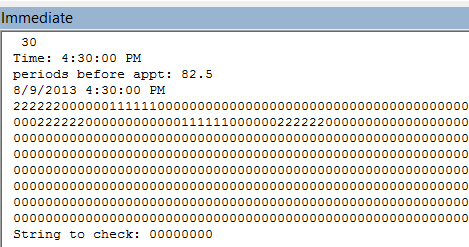
Sub CheckFreeBusy(oRequest As MeetingItem)
If oRequest.MessageClass <> "IPM.Schedule.Meeting.Request" Then
  Exit Sub
End If

Dim oAppt As AppointmentItem
Set oAppt = oRequest.GetAssociatedAppointment(True)

Dim myAcct As Outlook.Recipient
Dim myFB As String

Set myAcct = Session.CreateRecipient("alias@slipstick.com")

Debug.Print oAppt.Duration
Debug.Print "Time: " & TimeValue(oAppt.Start)
Debug.Print "periods before appt: " & TimeValue(oAppt.Start) * 288
Debug.Print oAppt.Start

myFB = myAcct.FreeBusy(oAppt.Start, 5, False)

Debug.Print myFB

Dim oResponse
Dim i As Long
Dim test As String

i = (TimeValue(oAppt.Start) * 288)
test = Mid(myFB, i - 2, (oAppt.Duration / 5) + 2)

Debug.Print "String to check: " & test

If InStr(1, test, "1") Then
 Set oResponse = oAppt.Respond(olMeetingDeclined, True)
 oResponse.Display

 Else
  Set oResponse = oAppt.Respond(olMeetingAccepted, True)
 oResponse.Display
End If
End Sub
If you want to check for specific values or consider tentative appointments as Free, you can change If InStr(1, test, "1") Then to use different values. Use If InStr(1, test, "2") or InStr(1, test, "3") Then to check for Busy and Out of Office.
| Free/Busy | Value |
|---|---|
| Free | 0 |
| Tentative | 1 |
| Busy | 2 |
| Out of Office | 3 |
| Working Elsewhere (Outlook 2013) | 0 |
How to use the macros on this page
First: You need to have macro security set to the lowest setting, Enable all macros during testing. The macros will not work with the top two options that disable all macros or unsigned macros. You could choose the option Notification for all macros, then accept it each time you restart Outlook, however, because it's somewhat hard to sneak macros into Outlook (unlike in Word and Excel), allowing all macros is safe, especially during the testing phase. You can sign the macro when it is finished and change the macro security to notify.
To check your macro security in Outlook 2010 and newer, go to File, Options, Trust Center and open Trust Center Settings, and change the Macro Settings. In Outlook 2007 and older, look at Tools, Macro Security.
After you test the macro and see that it works, you can either leave macro security set to low or sign the macro.
The macros on this page should be placed in a module.
Open the VBA Editor by pressing Alt+F11 on your keyboard.
To put the code in a module:
- Right click on Project1 and choose Insert > Module
- Copy and paste the macro into the new module.
More information as well as screenshots are at How to use the VBA Editor
More Information
More Run a Script Samples:
- Autoaccept a Meeting Request using Rules
- Automatically Add a Category to Accepted Meetings
- Blocking Mail From New Top-Level Domains
- Convert RTF Messages to Plain Text Format
- Create a rule to delete mail after a number of days
- Create a Task from an Email using a Rule
- Create an Outlook Appointment from a Message
- Create Appointment From Email Automatically
- Delegates, Meeting Requests, and Rules
- Delete attachments from messages
- Forward meeting details to another address
- How to Change the Font used for Outlook's RSS Feeds
- How to Process Mail After Business Hours
- Keep Canceled Meetings on Outlook's Calendar
- Macro to Print Outlook email attachments as they arrive
- Move messages CC'd to an address
- Open All Hyperlinks in an Outlook Email Message
- Outlook AutoReplies: One Script, Many Responses
- Outlook's Rules and Alerts: Run a Script
- Process messages received on a day of the week
- Read Outlook Messages using Plain Text
- Receive a Reminder When a Message Doesn't Arrive?
- Run a script rule: Autoreply using a template
- Run a script rule: Reply to a message
- Run a Script Rule: Send a New Message when a Message Arrives
- Run Rules Now using a Macro
- Run-a-Script Rules Missing in Outlook
- Save all incoming messages to the hard drive
- Save and Rename Outlook Email Attachments
- Save Attachments to the Hard Drive
- Save Outlook Email as a PDF
- Sort messages by Sender domain
- Talking Reminders
- To create a rule with wildcards
- Use a Macro to Copy Data in an Email to Excel
- Use a Rule to delete older messages as new ones arrive
- Use a run a script rule to mark messages read
- Use VBA to move messages with attachments

Hi Diane, My company has a need for several custom Outlook add-ins. Can you recommend anyone who might be interested in working with us on this? Thanks in advance.
Diane, This is amazing. Thank you. For the FreeBusy macro on Outlook 2016, I noticed a couple things: It seems like meetings were being automatically set for "Tentative" when the request arrived, so it was necessary to change "myFB = myAcct.FreeBusy(oAppt.Start, 5, False)" to "True", otherwise everything got automatically declined. With that set to True, it works fine for me since I "accept" the request, even if I am "Tentative" during the time slot. It seemed like the time calculation was starting one "5-minute segment" too early. So if I had an invite come through for any otherwise free spot but scheduled directly behind another meeting, the string would look like, "2000000" which would cause it to be declined. I changed the "test" to be "test = Mid(myFB, i + 1, oAppt.Duration / 5)" and that seems to have solved the problem, but I'll continue to test. Curious to hear your thoughts on both of those items, especially the second one. I'm trying to think of scenarios where my "i + 1" might cause an issue. Seems pretty unlikely if it will ever matter if I am checking 8:05-8:30 rather than 8:00-8:30 (if that is indeed what my +1 is… Read more »
>> Seems pretty unlikely if it will ever matter if I am checking 8:05-8:30 rather than 8:00-8:30 (if that is indeed what my +1 is actually achieving,
Correct, that is what the +1 is supposed to check.
That it works, that is what matters. :)
Thanks so much for this code. I am trying to implement the above codes for lead time and free/busy with some modifications. I am a novice with this coding and want to add a reply to the meeting organizer to tell them why their meeting is declined (too little notice or busy). How can I send the response with comments from within the scripts? And is it ok to run these scripts in successive rules (free/busy, then lead time)? Or do I need to put them in one script?
This is how I'm sending comments in the appointment response... (taken from my script to decline based on working hours):
Thanks for this code, it is really helpful, just one question:
I understand that these macros only work while outlook is running, correct? If I have my computer switched off and I recieve a meeting invite, it will not be processed until I switch on my computer and run outlook.
Correct, VBA only runs when outlook is open.
VB keeps failing on the oResponse. Close (olSave) line highlighted below.
Running Outlook for Office 365 MSO (16.0.11929.20536) 64-bit
I feel like it's a syntax error but unsure.
Sub AutoAcceptMeetings(oRequest As MeetingItem)
If oRequest.MessageClass "IPM.Schedule.Meeting.Request" Then
Exit Sub
End If
Dim oAppt As AppointmentItem
Set oAppt = oRequest.GetAssociatedAppointment(True)
Dim oResponse
Set oResponse = oAppt.Respond(olMeetingAccepted, True)
oResponse.Send
oResponse.Close (olSave)
oRequest.Delete
End Sub
Thanks!
Joe
Is there any way to add conditions to the auto decline/accept, say if I wanted to automatically decline meeting invitations from a specific user?
Hi.
I have a few questions / problems:
1. Lets say someone sent me a meeting and the script auto-accepted it.
Then he adds an invitee and sends the update to everyone. The script auto-declines the meeting because I'm using the FreeBusy segment and it detects the same meeting at that time slot. What can I do?
2. After the script declines a meeting, the message is deleted. But not after accepting it.
How do I do that?
3. When I get a meeting request on a time slot that's free, the FreeBusy returns 1 as any meeting received is automatically set to tentative by outlook. Anything I can do so it would return 0?
Thanks!
1. The update should not be detected as a new meeting. If it is, you'll need an if statement the for is a meeting update message class, to exit the macro. If using rules, you can create an exception for the meeting update form.
2. I thought that was fixed. Do you have oRequest.Delete in the code?
3 We'll need to replace 1 with 0 for the test. Either do a replace after getting the string in this line:
myFB = myAcct.FreeBusy(oAppt.Start, 5, False)
myfb = replace(myfb, "1", "0")
or change false to true and look for 2's. Using Replace might be easier.
1. It is detected as a new meeting.
Even if I use the update class, I only want to exit if it wasn't a time change.
If it was a time change then I need to handle the FreeBusy logic again.
But then I can run into a problem again if the new updated time includes part of the old time.
Let's say if the original meeting was 10:00 - 11:00 and the new one is 10:30 - 11:00
In that case I would like to confirm it and not detect my schedule as busy... Unless the new updated meeting would be detected as tentative again... and then i have no problem. I'll have to do some tests.
Regarding item 2 - you're right. I was missing that.
Thanks for a great script. I'm using the first scenario (the basic code) and it's working up to a point: It auto-accepts on my side but doesn't automatically send the acceptance email. Rather it just pops up an acceptance window and I then have to click send. Not a huge deal but as I'm hoping to send an acceptance as soon as the invite comes through this adds a delay (if I'm not at my machine at that very moment).
Any ideas as to why this might happen? Do I have some sort of security setting blocking automatic sending of mails?
It's set to display for test purposes.
Change this line:
oResponse.Display '.Send
to
oResponse.Send
and it will send it automatically.
It's working perfectly now.Thanks Diane!