While many people want to unblock file types that are blocked by Outlook's security, with recent viruses using the zip file type to propagate, you may want to block zips to prevent someone from opening zips accidentally.
Choose between two options:
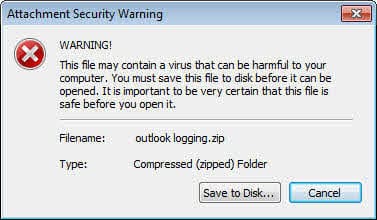
Level1Remove -- slow down access to the zip by forcing users to save them to the hard drive before opening them. With this enabled, users will be presented with a dialog like the one shown here when they double click on an attachment.
Level1Add -- treat *.zips like *.exes to completely block access to them.
Level1Remove
To Add file types to Level1Remove key:
- Press windows key + R to open the run command. Type Regedit and press enter to open the registry editor.
- Browse to the appropriate key for your version of Outlook
- Add a new String value named Level1Remove.
- For the value for Level1Remove, enter a semicolon-delimited list of file extensions. For example, entering this: .zip;.mdb;.url; would force you to save Zip file type and unblock Microsoft Access files and Internet shortcuts.
Outlook 2016 and newer
HKEY_CURRENT_USER\Software\Microsoft\Office\16.0\Outlook\Security
String: Level1Remove
Value: .ext;.ext; format
Outlook 2013
HKEY_CURRENT_USER\Software\Microsoft\Office\15.0\Outlook\Security
String: Level1Remove
Value: .ext;.ext; format
Outlook 2010
HKEY_CURRENT_USER\Software\Microsoft\Office\14.0\Outlook\Security
String: Level1Remove
Value: .ext;.ext; format
Outlook 2007
HKEY_CURRENT_USER\Software\Microsoft\Office\12.0\Outlook\Security
String: Level1Remove
Value: .ext;.ext; format
Level1Add
To Block file types using the Level1Add key:
To add additional attachment file name extensions types that you want blocked, you must add the Level1Add key to the registry. To do this, follow these steps.
- Run Regedit browse to the appropriate registry key for your version of Outlook.
- Add a new string value named Level1Add.
- For the value for Level1Add, enter a semicolon-delimited list of file extensions. For example, entering .zip would treat the Zip file type like exe's and block access to them.
Outlook 2016 and newer
HKEY_CURRENT_USER\Software\Microsoft\Office\16.0\Outlook\Security
String: Level1Add
Value: .zip;.pdf; format
Outlook 2013
HKEY_CURRENT_USER\Software\Microsoft\Office\15.0\Outlook\Security
String: Level1Add
Value: .zip;.pdf; format
Outlook 2010
HKEY_CURRENT_USER\Software\Microsoft\Office\14.0\Outlook\Security
String: Level1Add
Value: .zip;.pdf; format
Outlook 2007
HKEY_CURRENT_USER\Software\Microsoft\Office\12.0\Outlook\Security
String: Level1Add
Value: .zip;.pdf; format
File types blocked in Outlook
Below is a list of file extensions blocked in Outlook.
| Extension | File type |
|---|---|
| .ade | Microsoft Access Project Extension |
| .adp | Microsoft Access Project |
| .app | Executable Application |
| .asp | Active Server Page |
| .aspx | Active Server Page Extended |
| .asx | ASF Redirector file |
| .bas | Exported VBA file, BASIC Source Code |
| .bat | Batch File |
| .cer | Security Certificate File |
| .chm | Compiled HTML Help |
| .cmd | Command File |
| .cnt | Microsoft Help Workshop Application |
| .com | Command |
| .cpl | Windows Control Panel File |
| .crt | Certificate File |
| .csh | csh Script |
| .der | DER Encoded X509 Certificate File |
| .diagcab | Microsoft Support diagnostic tools |
| .exe | Executable File |
| .fxp | Microsoft FoxPro Compiled Source |
| .gadget | Windows Vista gadget |
| .grp | Microsoft program group |
| .hlp | Windows Help File |
| .hpj | AppWizard Help project |
| .hta | Hypertext Application |
| .htc | HTML component file |
| .inf | Information or Setup File |
| .ins | Microsoft IIS Internet Communications Settings |
| .isp | Microsoft IIS Internet Service Provider Settings |
| .its | Internet Document Set, Internet Translation |
| .jar | Java Archive |
| .jnlp | Java Network Launch Protocol |
| .js | JavaScript Source Code |
| .jse | JScript Encoded Script File |
| .ksh | UNIX Shell Script |
| .lnk | Windows Shortcut File |
| .mad | Microsoft Access Module Shortcut |
| .maf | Microsoft Access |
| .mag | Microsoft Access Diagram Shortcut |
| .mam | Microsoft Access Macro Shortcut |
| .maq | Microsoft Access Query Shortcut |
| .mar | Microsoft Access Report Shortcut |
| .mas | Microsoft Access Stored Procedures |
| .mat | Microsoft Access Table Shortcut |
| .mau | Media Attachment Unit |
| .mav | Microsoft Access View Shortcut |
| .maw | Microsoft Access Data Access Page |
| .mcf | Media Container Format |
| .mda | Microsoft Access Add-in |
| .mdb | Microsoft Access Database |
| .mde | Microsoft Access Database File |
| .mdt | Microsoft Access Add-in Data |
| .mdw | Microsoft Access Workgroup Information |
| .mdz | Microsoft Access Wizard Template |
| .msc | Microsoft Management Console Snap-in Control File |
| .msh | Microsoft Shell |
| .msh1 | Microsoft Shell |
| .msh2 | Microsoft Shell |
| .mshxml | Microsoft Shell |
| .msh1xml | Microsoft Shell |
| .msh2xml | Microsoft Shell |
| .msi | Windows Installer File |
| .msp | Windows Installer Update |
| .mst | Windows SDK Setup Transform Script |
| .msu | Windows Update file |
| .ops | Office Profile Settings File |
| .osd | Open Software Description |
| .pcd | Visual Test |
| .pif | Windows Program Information File |
| .pl | Perl script |
| .plg | Developer Studio Build Log |
| .prf | Windows System File |
| .prg | Program File |
| .printerexport | Printer backup file |
| .ps1 | Windows PowerShell |
| .ps1xml | Windows PowerShell |
| .ps2 | Windows PowerShell |
| .ps2xml | Windows PowerShell |
| .psc1 | Windows PowerShell |
| .psc2 | Windows PowerShell |
| .psd1 | Windows PowerShell |
| .psdm1 | Windows PowerShell |
| .pst | Microsoft Outlook Personal Folder File |
| .py | Python script |
| .pyc | Python script |
| .pyo | Python script |
| .pyw | Python script |
| .pyz | Python script |
| .pyzw | Python script |
| .reg | Registry key File |
| .scf | Windows Explorer Command |
| .scr | Windows Screen Saver |
| .sct | Windows Script Component, Microsoft Foxpro Screen |
| .shb | Windows Shortcut into a Document |
| .shs | Shell Scrap Object File |
| .theme | Desktop theme file settings |
| .tmp | Temporary File |
| .url | Internet Location |
| .vb | VBScript File or Visual Basic Source |
| .vbe | VBScript Encoded Script File |
| .vbp | Visual Basic project file |
| .vbs | VBScript Script File |
| .vhd | Virtual Hard Disk |
| .vhdx | Virtual Hard Disk Extended |
| .vsmacros | Visual Studio .NET Binary-based Macro Project |
| .vsw | Visio Workspace File |
| .webpnp | Internet printing file |
| .website | Pinned site shortcut from Internet Explorer |
| .ws | Windows Script File |
| .wsc | Windows Script Component |
| .wsf | Windows Script File |
| .wsh | Windows Script Host Settings File |
| .xbap | Browser applications |
| .xll | Microsoft Excel add-in |
| .xnk | Microsoft Exchange Public Folder Shortcut |

just delete the Level 1 key and then restart outlook...worked for me.
The level1 key shouldn't exist by default, so yeah, if you (or an application) added it, delete it.
FYI, there is a THIRD level for extension types which will allow you to avoid saving the file first (at least for Outlook 2007) before opening it: OtherAdd
The meaning of the three levels are: Level1=Fully blocked, Level2=Prompt to Save, and Other=Prompt to open or save.
The way Outlook is supposed to work is that any extension not in Level1 and not in Level2 should fall to Other. That's not always true.
When creating a registry key for an extension, keep it simple and only use the level you wish to add your extension into.
In other words, don't use a Level1Remove and a Level2Remove hoping to get the desired extension added to the Other list; just use a single OtherAdd registry entry.
Lastly, when Outlook compares an attachment extension to the lists from the registry, IT IS CASE SENSITIVE! Therefore, say you want to allow Outlook to immediately Open the Excel 2003 .xls extension: Create a single key for OtherAdd and cover your bases by using the value of .xls;.xlS;.xLs;.xLS;.Xls;.XlS;.XLs;.XLS; (Also: REMEMBER TO END THE STRING WITH A SEMI-COLON!)
Hope that helps someone,
Sean
There is not actually an "other list" - it's just all of the extensions not blocked as unsafe. Unless things changed in a recent update, the extensions are NOT case sensitive - you should use lower case.
FWIW, Office files shouldn't be blocked. If the check box on the open or save dialog is turned off, open outlook using run as administrator and open the file - you'll be able to tick the checkbox to never ask again. More info: https://www.slipstick.com/problems/disable-always-ask-before-opening-dialog/
this page keeps re-loading in internet explorer. please fix
What version of IE are you using?