The Rules Wizard for Microsoft Outlook automatically processes both incoming and outgoing messages. You set conditions similar to those used for Microsoft Outlook filters, then indicate what action(s) you want to be performed on messages that meet those conditions.
Rules in the Rules Wizard apply to only to mail at the time its downloaded. They can be applied to mail after its downloaded using the Run Rules Now command.
For Microsoft Exchange Server users, Rules Wizard automatically converts rules created with the Inbox Assistant feature (which Rules Wizard replaces). Exchange Server users also have an Out of Office Assistant for handling such things as vacation notices and Folder Assistant rules that run on public folders. See Server-based vs. client-based rules.
Filters are used with Search folders, Custom Views, and Advanced Find. Filters are used with Outlook items in the data file and show or hide but do not move items. You can apply filters to any Outlook item type, not just email. Filters can show, hide, or highlight items in different colors based on a variety of conditions and criteria.
Although Outlook does not support locking views against changes, you can lock view in Outlook 2010 using VBA. See How to prevent changes to Outlook views for a code sample.

Receive a Reminder When a Message Doesn't Arrive?
Use a run a script rule to set reminders to alert you if a new message (such as routine server alerts) doesn't arrive within a specified time.
Rules and Tools to Filter Junk Mail
Outlook includes a Junk Email filter. This filter cannot be updated by the end user and Microsoft stopped releasing updates for it in November 2016. For most users, setting the Junk email filter set to high is good enough, especially if their mail is also scanned by a server side anti-spam filter. If it does
Create a Task from an Email using a Rule
Create tasks from email as they arrive using a simple script and Rules Wizard. With a slight variation, you can create a task from the message you are reading in the reading pane. Complete instructions and ready-to-use code samples included.
Run a Script Rule: Forwarding Messages
An Outlook user asked how to automatically change the subject of a message and forward it to another address. Using a "run a script" rule is one option and we show you how to do it.

Create a rule to delete spam with no sender address
How to create a rule that deletes messages with no address in the From field, in either Outlook on the we or Outlook desktop software.
Disable New Mail Notifications for Some Accounts
How to disable new email notifications for some email accounts in your Outlook profile, using either Outlook for Windows or Outlook for Mac.

Understanding the Safe and Blocked Senders lists
Understanding and using Outlook's Junk Mail Safe Sender, Safe Recipient, and Blocked sender's lists.
Run-a-Script Rules Missing in Outlook
Microsoft released an update to disable any existing run-a-script and run application rules. This update affects Outlook 2010 and newer. Run a script and Run applications can be enabled using a registry key.
Show a Desktop Alert when Rules move messages
Problem: Rules are moving messages to other folders but you'd like to see the desktop alert that shows the sender and subject for a few seconds in the lower right corner of your screen. Or you only want the desktop alert to display for messages from certain people. Solution: Create a rule with the action
Using Rules Wizard
The Rules Wizard for Microsoft Outlook automatically processes both incoming and outgoing messages. You set conditions similar to those used for Microsoft Outlook filters, then indicate what action(s) you want to be performed on messages that meet those conditions. Rules in the Rules Wizard apply to only to mail at the time its downloaded. They
To Make Automatic Reply Rules
Using Microsoft Outlook, you can create rules to reply automatically to incoming messages with the Rules Wizard and Out of Office Assistant.
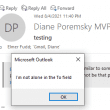
Filter mail when you are not the only recipient
A user wanted "a rule that will perform an action if I am the only one in the To box, even when there are others in the CC box". He also asked for a rule "that will perform an action if I am included in the To box but am not the only one in the To box".
Outlook's Rules and Alerts: Run a Script
How to use Outlook's Rules Wizard Run a Script action to process messages using VBA. Using Run a Script rules will allow you to use actions not available in the Rules Wizard.

Send a New Message when a Message Arrives
How to use a Run a Script rule to have Microsoft Outlook automatically send a new email message using a template to new email addresses when a message meeting specific conditions arrives.
Creating an AND rule in Outlook Rules
A user wanted to know how to create an AND rule: If the subject contains outlook AND word, do something For example: "outlook AND word" to match on a Subject line of "Mail merge Outlook and Word", but not "Outlook Teams Meeting" While Outlook Rules don't support AND within a rule, you can make it