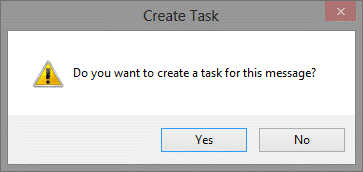
This application startup macro watches for the user to send an email and asks if they want to create a task for the message. If they choose no, the message is sent. If they select yes then a task is created before the message is sent.
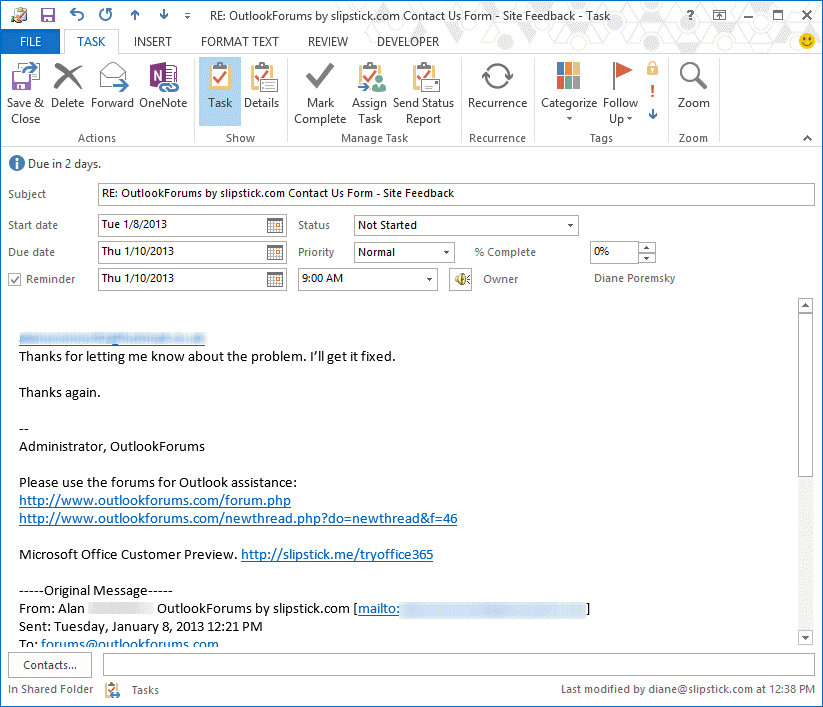
The code adds the message recipients to the task body, along with the message body. The start date is "today" (when the message is sent) and the due date is 2 days from now. The reminder is set for 2 days from now at 9 AM.
To automatically create tasks for messages you receive, see Create a Task from an Email using a Rule
Create task from sent message macro
To use this macro:
- Set macro security to low.
- Open the VBA Editor (Alt+F11)
- Expand Project1 to find ThisOutlookSession
- Copy the macro and paste at the top of ThisOutlookSession
Edit the start date, due date, and reminder time fields as needed.
To test the macro, click in the Application_Startup procedure and click the Run button then send a message.
May 14 2018: update the code to fix a problem where the reminder was set for the beginning of this month, if creating the task at the end of the month.
Private Sub Application_ItemSend(ByVal Item As Object, Cancel As Boolean)

Dim intRes As Integer
Dim strMsg As String
Dim objTask As TaskItem
Set objTask = Application.CreateItem(olTaskItem)
Dim strRecip As String

 strMsg = "Do you want to create a task for this message?"
 intRes = MsgBox(strMsg, vbYesNo + vbExclamation, "Create Task")

    If intRes = vbNo Then
      Cancel = False
    Else

    For Each Recipient In Item.Recipients
        strRecip = strRecip & vbCrLf & Recipient.Address
    Next Recipient

With objTask
    .Body = strRecip & vbCrLf & Item.Body
    .Subject = Item.Subject
    .StartDate = Item.ReceivedTime
' Can use Now + nn for the start and/or due dates
 '   .DueDate = Now + 10
 '   .StartDate = Now + 9

    .ReminderSet = True
    .ReminderTime = Now + 2 + #9:00:00 AM#
' alternately, use the due date to set the reminder:
'   .ReminderTime = .DueDate - 2 + #2:00:00 PM#

    .Save
End With

    Cancel = False

    End If

Set objTask = Nothing

End Sub
Add Sent Message as attachment
If you want to add the sent message as an attachment, you can't use .Attachments.add because it adds a blank message. One way to do it is to watch the Sent folder for a new item and attach it to the Task.
While you could use the Itemsend macro then add the attachment after the message is moved to the sent folder, this version of the macro watches the sent folder and asks if you want to create at task after the message is sent.
You'll need to restart Outlook or click in the Application_Startup macro then click Run to start the macro.
Private objNS As Outlook.NameSpace
Private WithEvents objItems As Outlook.Items

Private Sub Application_Startup()

Dim objWatchFolder As Outlook.Folder
Set objNS = Application.GetNamespace("MAPI")

'Set the folder and items to watch:
Set objWatchFolder = objNS.GetDefaultFolder(olFolderSentMail)
Set objItems = objWatchFolder.Items

Set objWatchFolder = Nothing
End Sub

Private Sub objItems_ItemAdd(ByVal Item As Object)
Dim sentMsg As Object
Dim objTask As TaskItem
Dim intRes As Integer
Dim strMsg As String
Set objTask = Application.CreateItem(olTaskItem)
Dim strRecip As String

 strMsg = "Do you want to create a task for this message?"
 intRes = MsgBox(strMsg, vbYesNo + vbExclamation, "Create Task")

    If intRes = vbNo Then
      Cancel = False
    Else

    For Each Recipient In Item.Recipients
        strRecip = strRecip & vbCrLf & Recipient.Address
    Next Recipient

Debug.Print Item.Subject

With objTask

    .Body = strRecip & vbCrLf & Item.Body
    .Subject = Item.Subject
    .StartDate = Item.ReceivedTime
' Can use Now + nn for the start and/or due dates
 '   .DueDate = Now + 10
 '   .StartDate = Now + 9


    .ReminderSet = True
    .ReminderTime = Now + 2 + #9:00:00 AM#
' alternately, use the due date to set the reminder:
'   .ReminderTime = .DueDate - 2 + #2:00:00 PM#

    .Attachments.Add Item
    .Save
End With

End If

Set Item = Nothing
End Sub
Add the Recipient Display name to the task
This version of the code adds the recipients name to the task. You can use the full name or the first word in their name (hopefully it's the first name)
Private Sub Application_ItemSend(ByVal Item As Object, Cancel As Boolean)

Dim intRes As Integer
Dim strMsg As String
Dim objTask As TaskItem
Set objTask = Application.CreateItem(olTaskItem)
Dim strRecip As String

 strMsg = "Do you want to create a task for this message?"
 intRes = MsgBox(strMsg, vbYesNo + vbExclamation, "Create Task")

    If intRes = vbNo Then
      Cancel = False
    Else
 ' get the name, not the email address
    For Each Recipient In Item.Recipients
        strRecip = strRecip & vbCrLf & Recipient.Name
    Next Recipient
' get the first name in the display name
StrSplit = Split(strRecip, " ")

With objTask
    .Body = strRecip & vbCrLf & Item.Body
    .Subject = StrSplit(0) & ": " & Item.Subject
    .StartDate = Item.ReceivedTime
' Can use Now + nn for the start and/or due dates
 '   .DueDate = Now + 10
 '   .StartDate = Now + 9

    .ReminderSet = True
    .ReminderTime = Date + 2 + #9:00:00 AM#

' alternately, use the due date to set the reminder:
'   .ReminderTime = .DueDate - 2 + #2:00:00 PM#

    .Save
End With

    Cancel = False

    End If

Set objTask = Nothing

End Sub
Video Tutorial
This tutorial shows how to add the macro to Outlook and use it.
How to use the Macro
First: You will need macro security set to low during testing.
To check your macro security in Outlook 2010 or 2013, go to File, Options, Trust Center and open Trust Center Settings, and change the Macro Settings. In Outlook 2007 and older, it’s at Tools, Macro Security. If Outlook tells you it needs to be restarted, close and reopen Outlook. Note: after you test the macro and see that it works, you can either leave macro security set to low or sign the macro.
Now open the VBA Editor by pressing Alt+F11 on your keyboard.
To use the macro code in ThisOutlookSession:
- Expand Project1 and double click on ThisOutlookSession.
- Copy then paste the macro into ThisOutlookSession. (Click within the code, Select All using Ctrl+A, Ctrl+C to copy, Ctrl+V to paste.)
Application_Startup macros run when Outlook starts. If you are using an Application_Startup macro you can test the macro without restarting Outlook by clicking in the first line of the Application_Startup macro then clicking the Run button on the toolbar or pressing F8.
More information as well as screenshots are at How to use the VBA Editor.

Suresh Babu says
Hi Diane,
strMsg = strMsg & "Please find the pay slip of April 2023 attached." & vbcrlf & vbcrlf
I'm using the the above statement in the vbscript (notepad) for sending bulk mailers....kindly let me know how to choose font color
James Ziobro says
Hello Diane:
This macro has been working great, however, recently the macro has stopped after this step:
'removes your signature from the top of the Forward
If objDoc.Bookmarks.Exists("_MailAutoSig") Then
Set oBookmark = objDoc.Bookmarks("_MailAutoSig")
oBookmark.Select
objDoc.Windows(1).Selection.Delete
End If
Any ideas on what it could be?
Diane Poremsky says
Any error messages? Does it work if you remove that line?
If the bookmark doesn't exist, it should end, not error, so it shouldn't be that line causing the error.
James says
Hello Diane - is there a way to NOT have this run when responding to a meeting (accepting, tentative, decline). I love this macro and however just wondering if there is a work around for meetings.
Diane Poremsky says
Yes, use an if statement as the first line -
if instr(1, item.messageclass, "IPM.Meeting") > 0 then exit sub
James Ziobro says
Diana - worked like a charm!!! Thanks so much.
Michael says
Hi,
I'm trying to use the Add Sent Message as Attachment macro however i'm getting the below error for the second line of the code:
Compile error:
Invalid attribute in Sub or Function
Private WithEvents objItems As Outlook.Items
I'm currently using Outlook 2013. Are you able to help correct the VBA?
D K says
I am also using your code here in order to create tasks from an email and automatically assign the task to a specified task folder. Is there a way to combine the two? I'm hoping to get two prompts whenever an email is sent: first prompt asks if I want to create a task (this is accomplished via your code above), and the 2nd prompt asks the user to select the desired task folder (for me, the folders are 'Action', 'Waiting', and 'Someday').
Diane Poremsky says
Yes, you can do that.
the prompt would get the tFolder variable
Set taskFolder = Ns.GetDefaultFolder(olFolderTasks).Folders(tFolder)
Franz-Josef Knelangen says
Just correcting myself: The information I want to add should go to the subject of the task, not of the sent message. I'd like to see tasks like:
Recipient.Firstname - Subject of my sent e-mail MM/DD
David - Finalize Proposal on XYZ 02/09
Then I would have a nice list to talk about all things I have to talk about with David :-)
Diane Poremsky says
Getting just the first name is tough - you can easily get the display name and could split it at the first space, keeping the first segment, but it wont necessarily be the first name.
To get the first name, you could do a look up of the contact and take it from the contact. I have some code on the site that does a contact lookup for new messages (to add categories to the message) so its just a matter of putting the lookup code into this code.
This will get the first word in the display name:
For Each Recipient In Item.Recipients
strRecip = strRecip & vbCrLf & Recipient.Name
Next Recipient
StrSplit = Split(strRecip, " ")
With objTask
.Body = strRecip & vbCrLf & Item.Body
.Subject = StrSplit(0) & " " & Item.Subject
Franz-Josef Knelangen says
Hi Diane,
thank you for providing this handy macro. I used the version with the date-added subject, and I'd like to add the recipient's name to the subject string, if possible, first name only. Adding "& Recipient.Name" to the subject line seems not to be sufficient, and that's already the end of my VBA knowledge. Could you help me out here?
Cheers,
Franz-Josef
daivd thompson says
Hi Diane,
I think there might be another comment pending for your revierw. I promise this is the last request!
Cheers,
David
Diane Poremsky says
>> I promise this is the last request!
I'll hold you to that. LOL
(Yes, I'm way behind in answering comments.)
daivd thompson says
Hi Diane,
Did you manage to see my comment of last week?
Thank you,
David
Diane Poremsky says
No. :) Will look at it next.
David Thompson says
Diane,
I have another 2 questions if I may.
1) For a new email, do you know how to include automatically in the subject line yearmonthdate - . For eg, "20180820 -". Of course, the date needs to change automatically everyday?.
2) Also, when I click "send" the script asks if I want to create a task yes/no. However, If I want to change something in the email, I can't. Do you know how to remove this option so I can amend the email?
Many thanks, this script is excellent.
All the best,
David
Diane Poremsky says
I actually thought I answered this - I must of typed it up but didn't finish or Edge crashes. :(
Date:
.Subject = Format(date, "yyyymmdd ") & Item.Subject
That returns a subject of '20180828 original subject'
It needs a cancel option. changing vbYesNo to vbYesNoCancel adds the button, you also need some code to handle it.
If intRes = vbCancel Then
' cancel send
Cancel = True
End if
If intRes = vbYes Then
' code to create the task
ElseIf intRes = vbNo Then
' nothing
end if
I'll take a closer look at it in the morning.
daivd thompson says
Hi Diane,
Sorry for my late reply.
I tried that but it didnt work.. here is the scipt in full ..
Does it look right?
Cheers,
David
Private Sub Application_ItemSend(ByVal Item As Object, Cancel As Boolean)
Dim intRes As Integer
Dim strMsg As String
Dim objTask As TaskItem
Set objTask = Application.CreateItem(olTaskItem)
Dim strRecip As String
strMsg = "Do you want to create a task for this message?"
intRes = MsgBox(strMsg, vbYesNo + vbExclamation, "Create Task")
If intRes = vbNo Then
Cancel = False
Else
For Each Recipient In Item.Recipients
strRecip = strRecip & vbCrLf & Recipient.Address
Next Recipient
.Subject = Format(Date, "yyyymmdd ") & Item.Subject
If intRes = vbYes Then
' code to create the task
ElseIf intRes = vbNo Then
' nothing
End If
With objTask
.Body = strRecip & vbCrLf & Item.Body
.Subject = Item.Subject
.StartDate = Item.ReceivedTime
' Can use Now + nn for the start and/or due dates
' .DueDate = Now + 10
' .StartDate = Now + 9
.ReminderSet = True
.ReminderTime = .DueDate + 7 + "2:00:00 PM"
7 .Save
End With
Cancel = False
End If
Set objTask = Nothing
If intRes = vbCancel Then
' cancel send
Cancel = True
End If
If intRes = vbYes Then
' code to create the task
ElseIf intRes = vbNo Then
' nothing
End If
If intRes = vbCancel Then
' cancel send
Cancel = True
End If
If intRes = vbYes Then
' code to create the task
ElseIf intRes = vbNo Then
' nothing
End If
End Sub
Diane Poremsky says
I got an error on .subject - it needed item added (or you could use strSubject = then insert the string in the task subject.
Next Recipient
Item.Subject = Format(Date, "yyyymmdd ") & Item.Subject
This will cancel the send but we also need to jump it out so we dont create a task.
intRes = MsgBox(strMsg, vbYesNoCancel + vbExclamation, "Create Task")
To not create a task on No or Cancel, use this
If intRes = vbNo Or intRes = vbCancel Then
Diane Poremsky says
Try this one - we actually dont need cancel = true in the If statement for the cancel since we're exiting the sub if cancelled.
Private Sub Application_ItemSend(ByVal Item As Object, Cancel As Boolean)Dim intRes As Integer
Dim strMsg As String
Dim objTask As TaskItem
Set objTask = Application.CreateItem(olTaskItem)
Dim strRecip As String
strMsg = "Do you want to create a task for this message?"
intRes = MsgBox(strMsg, vbYesNoCancel + vbExclamation, "Create Task")
If intRes = vbCancel Then
' cancel send
Cancel = True
Exit Sub
End If
If intRes = vbNo Then
Cancel = False
Else
For Each Recipient In Item.Recipients
strRecip = strRecip & vbCrLf & Recipient.Address
Next Recipient
Item.Subject = Format(Date, "yyyymmdd ") & Item.Subject
If intRes = vbYes Then
' code to create the task
ElseIf intRes = vbNo Then
' nothing
End If
With objTask
.Body = strRecip & vbCrLf & Item.Body
.Subject = Item.Subject
.StartDate = Item.ReceivedTime
' Can use Now + nn for the start and/or due dates
' .DueDate = Now + 10
' .StartDate = Now + 9
.ReminderSet = True
.ReminderTime = .DueDate + 7 + "2:00:00 PM"
.Save
End With
Cancel = False
End If
Set objTask = Nothing
End Sub
daivd thompson says
Hi Diane,
it does help if I scroll to the bottom of the page ! Humble apologies I didn't say thank you earlier, I only saw your note today.
Thanks for everything, really.
David
Josh N says
This is great! If I wanted to change the trigger for the macro from the popup (asking you to confirm) to when an email is moved into a specific folder, what would I need to change?
Diane Poremsky says
For that, you would use an itemadd macro and watch the folder. Basics of it is here: https://www.slipstick.com/developer/itemadd-macro/
I'll take a closer look at it in the morning.
David T says
Hi Diane,
When using the script & adding 7 days to paramètres, at the end of the month the script adds 7 days, but to the start of the same month.
Ie..
Task created on 28/05
Reminder 04/05 (not 04/06)
Do you know how this can be changed?
All the best,
David
Diane Poremsky says
You are using this code: .ReminderTime = DateSerial(Year(Now), Month(Now), Day(Now + 7)) + #9:00:00 AM#
I'm using this on my own computer (which is probably why I never noticed the error in that code). If you want the reminder before the due date, try duedate - nn: .ReminderTime = .DueDate - 2 + "2:00:00 PM"
.DueDate = Now + 3
.StartDate = Now + 2
.ReminderSet = True
.ReminderTime = .DueDate + "2:00:00 PM"
David T says
Hello Diane,
Actually I want the reminder 7 days from the date I created the task. Which means at the end of the month the reminder should be in the following month & not the start of the month we are in!
(I did post another reply but can't see it)
I copied the script above but it doesnt work. Are you able to help?
Many thanks & this is really helpful.
Cheers,
David
Diane Poremsky says
Then you want to use now + 7:
.ReminderTime = Now + 7 + "2:00:00 PM"
(The other reply is here - everything goes into moderation so its easier for me to find the comments. And to keep out the spammers.)
David Thompson says
Sorry for the delay in reply & thanking you :) Working perfectly.
All the best,
David
david thompson says
Hi?
*I'm using this script" Create task from sent message macro", however, at the end of the month the reminder sets the date for +2 days in the same month.
Today (30/04/2018) sets the reminder for the 02/04/2018.
What parameters should I change to have this set to +2 days & the following month.
Thank you,
David
Diane Poremsky says
Thanks for bringing the bug to my attention - sorry I missed your comment earlier. I have updated the code.
Thanks again!
bjorn says
Hi,
How can i add the original email, from which the task is created, as an attachment to the created task?
thanks in advance Bjorn
Diane Poremsky says
Before the .Save, add .Attachments.Add item.
Diane Poremsky says
Actually, scratch that - it's not working correctly. We need to get the sent message another way. (I'll post the code on the page as soon as I get it working.)
Diane Poremsky says
Ok... i finally got it working - had to change the macro to watch the Sent folder for a new message. As a result, it will only work with one email account (unlike the itemsend macro that works for all accounts, but saves everything in the default tasks folder.)
https://www.slipstick.com/developer/code-samples/create-task-sending-message/#itemadd
Arthur says
Hi Diane - thanks a lot for all the codes and tutorials they are really very helpful.
Just wanted to check if there is any way we can attach or create a link to refer to the email you are just sending when using the code above.
To my understanding you can't do it with Application_ItemSend but just wanted to double check.
I know this can be done when using Application.ActiveExplorer.Selection for emails that have already been sent but not sure how to do it for the current email.
Again, thanks a lot !
Diane Poremsky says
the problem is that you won't have the entry id until its saved in sent. You could watch the sent folder and grab it at that point.
Alan says
Yes it's a pity as this code would be very useful but I too get the "- 2146959355 (80080005)" error in Outlook 2017. Any assistance to correct would be appreciated.
Diane Poremsky says
The error message says something about the attachment may not have need installed properly? I'm looking into it - a security update caused it.
Diane Poremsky says
Ok... the fix was easy: remove the app startup macro and change the itemsend macro name:
Private Sub Application_ItemSend(ByVal Item As Object, Cancel As Boolean)
The updated macro is on the page.
luis castanheiro says
Hello Diane, I would like to use this feature as it will save me precious time at work and keeps me organized.
However i followed the instructions bit I get a compile error of Invalid attribute in Sub or Function.
I have attached a screen shot of the error.
I am running Outlook 2010 on a Windows 7 64 bit
Would you please help?
Thank you
Diane Poremsky says
Did you put the macro is ThisOutlookSession or in a module? It needs to be in thisOutlooksession.
luis castanheiro says
Hello Diane. Yes I placed it in ThisOutlookSession. I am not sure why it gives me the error.
Please see the attached screen shot.
Diane Poremsky says
Put that line at the very top of the page that should fix it. (The things outside of a sub or function need to be at the top).
luis castanheiro says
Hello Diane, Thanks for the prompt reply I appreciate it very much.
Moved the line to top of the page and the error disappeared.
I did a test and it did not ask me if I wanted to create a task form the message.
It did create a "copy" of the message in the tasks folder, but there is no due date or anything.
so it is not a task, even the corresponding icon looks a message.
can you please help? I have added screen shots to illustrate the above.
Thank you very much.
luis castanheiro says
Hello Diane the macro finally worked. however i have to items in my tasks window. a copy if the email message and a task itself.
Is it possible not to have a duplicate message there?
Please advise.
Thank you,.
Diane Poremsky says
You should only have the task with this macro - if the message is flagged, the flag will be in the to-do list as a message, but not in the Task folder.
Nick says
I'm getting a similar error on a different VBA. The bit that hits yellow is: Set myOlApp = CreateObject("Outlook.Application")
Diane Poremsky says
Is the macro in thisoutlooksession and is Public WithEvents myOlApp As Outlook.Application the first line?
Bob says
Diane, I found your code and get the same message and when I debou, it is that Set myOlApp libe that is highlighted. The first line in the section is Public WithEvents myOlApp As Outlook.Application Can you assist?
Diane Poremsky says
Is the macro in ThisOutlookSession? Do you get an error message?
Peter says
Hello I have problem after running this macro in outlook 2013. In fact it works but when I'm restarting outlook runtime error occurs -2146959355 (80080005), nevertheless when I open outlook macro works fine but I have problem with outlook folders that do not work properly.
Do you have any hint how to fix this problem?
thanks in advance
Diane Poremsky says
Click Debug on the error dialog - which line is highlighted in yellow? That error generally means an object that is referenced in the code can't be found. Nothing in the code should trigger that error though.