Lili wanted to know how to create a macro that will add "Privacy" to the subject of every message she sends, if privacy is not already in the subject.
This is easy using an ItemSend event. My code looks for the word anywhere in the subject, to account for RE: and FW:. You could use Left(Item.Subject, 6) or Right(Item.Subject, 6) = "Privacy" if you want to look for the word at the beginning or end of the subject.
Public WithEvents myOlApp As Outlook.Application

Private Sub Application_Startup()
    Initialize_Handler
End Sub

Public Sub Initialize_handler()
    Set myOlApp = CreateObject("Outlook.Application")
End Sub

Private Sub myOlApp_ItemSend(ByVal Item As Object, Cancel As Boolean)

 If InStr(1, Item.Subject, "Privacy", vbTextCompare) = False Then
    Item.Subject = "Privacy " & Item.Subject
 End If
End Sub
Add the keyword on send
This version of the macro adds the keyword when you send the message.
Private Sub Application_ItemSend(ByVal Item As Object, Cancel As Boolean)
 Dim objRecip As Recipient
 Dim strMsg As String
 Dim res As Integer

 On Error Resume Next

 Dim strTemp As String
 Dim strFilenum As Variant

 strFilenum = InputBox("Enter the file number")

 If strFilenum = "" Then
       Cancel = True
       MsgBox "The file number was blank or you clicked Cancel." _
       & vbCrLf & "click Send and select No if you don't want to BCC & add a file number."
       Exit Sub
     Else
       strTemp = "[" & strFilenum & "] " & Item.Subject
       Item.Subject = strTemp
       Item.Save
 End If

End Sub
BCC and add a code to the subject
In this version of the macro, the user is asked if he wants to BCC the message. If yes, then he needs to add a code to the subject. If he leaves the code blank or cancels it, the message is not sent.
Private Sub Application_ItemSend(ByVal Item As Object, Cancel As Boolean)
 Dim objRecip As Recipient
 Dim strMsg As String
 Dim res As Integer
 Dim strBcc As String

 On Error Resume Next

 strBcc = "me@domain.com"
 res = MsgBox("BCC this message?", vbYesNo + vbDefaultButton1, _
 "BCC Message")

 If res = vbNo Then
   Cancel = False
 Else

 Dim strTemp As String
 Dim strFilenum As Variant

 strFilenum = InputBox("Enter the file number")

 If strFilenum = "" Then
       Cancel = True
       MsgBox "The file number was blank or you clicked Cancel." _
       & vbCrLf & "click Send and select No if you don't want to BCC & add a file number."
       Exit Sub
     Else
       strTemp = "[" & strFilenum & "] " & Item.Subject
       Item.Subject = strTemp
       Item.Save
 End If

 Set objRecip = Item.Recipients.Add(strBcc)
     objRecip.Type = olBCC

 If Not objRecip.Resolve Then
     strMsg = "Could not resolve the Bcc recipient. " & _
          "Please check the BCC Script configuration. " & _
          "Do you want still to send the message?"
     res = MsgBox(strMsg, vbYesNo + vbDefaultButton1, _
           "Could not resolve BCC")

 If res = vbNo Then
    Cancel = True
 End If

End If
End If

End Sub
Customize the macro
To use this macro to do other things when you send a message, remove or replace the contents of myOlApp_ItemSend macro. Remove everything from Dim... to End If and inset your code.
For example, to display the Category picker dialog when you send a message, use
Item.ShowCategoriesDialog
How to use the macro
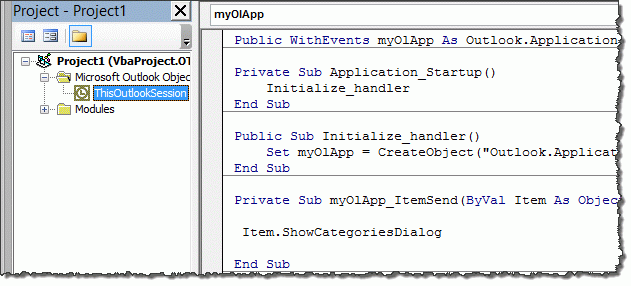
To use this code, open the VB editor using Alt+F11. Expand Project1 to locate ThisOutlookSession and paste the code at the top of ThisOutlookSession.
Click in the Application_Startup macro and press F5 or the Run button to kick start the macro without restarting Outlook.
Oh, and don't forget to check your macro security settings in Trust Center, Macro Security. (Tools, Macros, Security in older versions of Outlook.)

Lilia says
I see where you put the code. I movef it to thay same location and i didnt get an error that time but it didnt run the macro automatically when outlook started either
Lilia says
I tried and when i hit run i got an error compile error invalid function in sub or function
Diane Poremsky says
Did you put it in ThisOutlookSession? Was any of the code in red?
Diane Poremsky says
Sorry - Ijust realized that there is no app startup - add this to it:
Private Sub Application_Startup()
Initialize_Handler
End Sub
Lilia says
Another question. How do i make it to autorun every time outlook starts. Right now i have to manually run it when i start outlook. My current setting are set to default warnings for all macros and i am not allowed to change because of administrative settings by my company
Diane Poremsky says
It should run automatically when you send a message. If it's not, click in the Initialize_handler macro and click Run - but you should only need to do that while testing. When you start Outlook, it should kick in on its own.
lilivr112 says
Thank you for your help.
lilivr112 says
Thank you for the help. I do need "Privacy" to be writen at the end of the subject but i must not be putting Right(Item.Subject, 6) = in the right place because it erros out when i wrote Right(Item.Subject, 6) = "Privacy " & Item.Subject. i want to check the whole subject if the word Privacy is in there and if not to put it at the end of the subject. what is the correct script? Another questions, if the email already had Privacy in the subject but it was typed with capital letters, would the macro recognize that PRIVACY is in the subject or now? Thank you
Diane Poremsky says
You want to check the entire subject:
If InStr(1, Item.Subject, "Privacy", vbTextCompare) = False Then
that will find the word anywhere in the subject, beginning with the first letter, and is case insensitive. (It correctly identified pRiVacy in a subject)
This will add it to the end of the subject:
Item.Subject = Item.Subject & " Privacy"