We have another code sample from Valk Beekman. This code sample parses a distribution list, looking for the contact with the mail address and adds a category to it.
You can use this to more easily see what contact groups the contact belongs to or to convert contact groups to dynamic distribution lists.
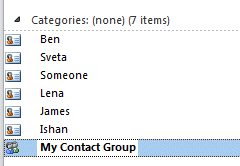
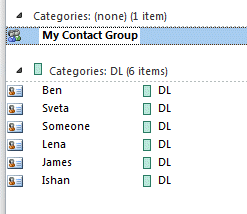
To use, select the Contact group (distribution list) and run the macro. The category you've set as t_cat variable will be added to the contacts. Note that the category must exist in the master category list for this to work.
Add Category to Contact Group Members Macro
To use, open the VBA Editor using Alt+F11 and paste the code into a new module.
Get the GetCurrentItem function from Outlook VBA: work with open item or selected item and paste it at the end of the module.
Open or select the Contact Group and run the macro.
Sub distrib_to_cat()
Dim N_NS As NameSpace
Dim o_fold As Items
Dim o_list As Object
Dim o_dfold As Items
Dim o_cont  As Object
Dim b_Found As Boolean

Set N_NS = Application.GetNamespace("MAPI")

'current contact folder
Set o_fold = Application.ActiveExplorer.CurrentFolder.Items.Restrict("[Email1Address]>''")

' select or open the distributionlist
Set o_list = GetCurrentItem()

' use the list name as the category
    t_cat = o_list.Subject

'main contact folder
Set o_dfold = N_NS.GetDefaultFolder(olFolderContacts).Items.Restrict("[Email1Address]>''")

For i = 1 To o_list.MemberCount
     t_test = "[Email1Address] = '" & o_list.GetMember(i).Address & "'"
     Set o_cont = o_fold.Find(t_test)
     b_Found = Not (o_cont Is Nothing)
     If Not b_Found Then 'look in main contacts
        Set o_cont = o_dfold.Find(t_test)
        b_Found = Not (o_cont Is Nothing)
     End If
     If b_Found Then
        If InStr(o_cont.Categories, t_cat) = 0 Then
            o_cont.Categories = o_cont.Categories + ";" + t_cat
            o_cont.Save
        End If
     End If
     b_Found = False
Next
End Sub

John Budzynslki says
I must be missing something because when I run this I get the error The Property 'Email1Address" is unknown. I am no good with VBA but know you are a super star use a lot of your stuff. I open my Distribution list and then run the Macro and get the error above. Any help?
Diane Poremsky says
You're in the contacts folder, correct? And there are contacts in the folder?