The more things change, the more they stay the same.
Nearly fifteen years have passed since email clients first supported HTML and people are still arguing over plain text and HTML formatted email. It's a "hot" topic, with some users insisting they are right and anyone who disagrees is wrong.
In the early days, the arguments were about whether to use HTML formatting at all. Now it's about replying in the original format or HTML. The tables have turned. It's not pro-plain text saying HTML should never be used, it's pro-HTML saying plain text has to go.
It's just as heated now, with many on the pro-HTML side as unwilling to compromise as the pro-plain text side was in years past. I've even heard a few naughty suggestions about what one could do with netiquette from the 'always reply with HTML formatting' crowd.
When replying to, or forwarding, an email that is in plain text format, it always uses plain text. I want to force it to use HTML. I know I can change it every time, but I want it to be automatic.
Outlook does not offer a way to always use a specific format for all replies, be it RTF or HTML. You need to change it on each message or use a VBA macro to change the format.
Do not use RTF format for any message unless you know the recipient uses Outlook. Only Outlook can decipher the winmail.dat files used by rich text formatting so the recipient will get a plain text message and an attachment that they can't use.
Outlook's behavior with the reply format is to always reply in the format of the original message. If someone sends a plain text message, the reply will always be plain text, because Outlook assumes the sender prefers mail in that format or can only accept mail in that format. This is good netiquette.
In the beginning, when Pine was the #1 client and only a few clients supported HTML, it made sense to reply in the format of the message you were replying to because there was a good chance the recipient couldn't read HTML. With many people on dial-up, plain text messages were faster to send because they were smaller. Additionally, many users paid for internet access by the minute or KB and HTML formatted messages are much larger than plain text messages.
It's surprising how little things have changed. While all modern desktop email clients can handle HTML formatted messages, the popularity of smart phones, blackberries, tablets, and other devices means many users still pay for the amount of data they use.
I stand by recommendations made years ago: avoid changing the format on replies. Don't change the format just because you like HTML better. If you are replying with basic paragraphs of text, respect the sender's choice of plain text.
If you have a valid reason - such as highlighting text and inserting tables, it's fine to change the format. Changing it so a pretty signature can include formatted text and a logo is not a good reason. If the recipient can't read HTML, they are going to see a plain text signature. You should make sure it looks good in plain text.
Edit Signatures
If your HTML signature looks awful in plain text, create a simple plain text signature to use by editing the signature text file.
Type or paste %appdata%\microsoft\signature in the address bar of Windows Explorer and press Enter to open the signature folder, locate your text signatures and make them look nice.
Always use Plain Text
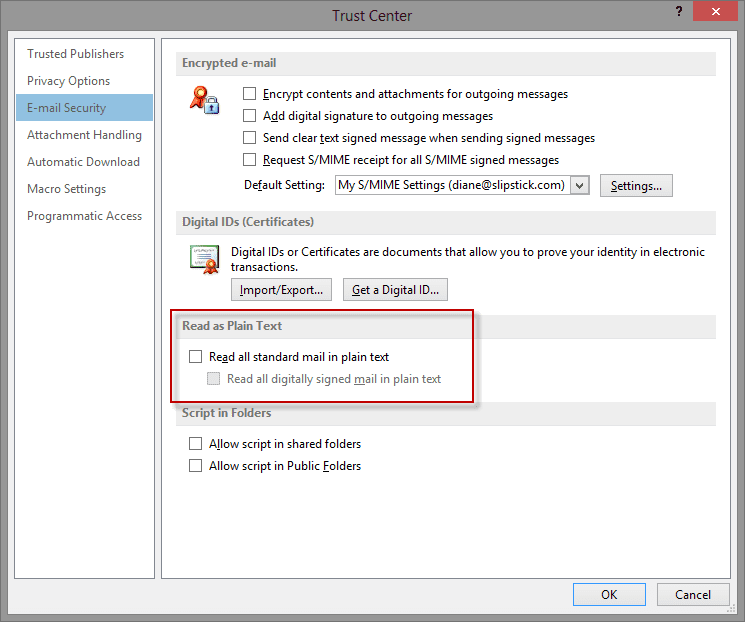
Outlook users who prefer plain text all the time can force plain text replies to all messages by using the option to read all mail in plain text. It won't make your email more secure - modern, updated clients are safe and won’t run scripts in email - but can reduce data usage on metered connections.
In Outlook 2010/2013, always use plain text is set in File, Options, Trust Center, Email Security. In Outlook 2007, it's in Tools, Options, Trust Center, Email Security and in Outlook 2003, look in Tools, Options, Preferences, Email Options.

Hi Diane,
Some executive users I support showed me an issue in replying to messages that were delivered to them in plain text format. The end goal is for the recipients to easily see their response notes. After hitting reply, they immediately change the format from Plain Text to HTML so that their comments will be inserted prefaced by [Name in Brackets] and in another color automatically as they have it set to do in the Outlook Mail Options.
The problem is this setting (Signatures and Stationery | Replying or forwarding messages | font color | mark my comments with: JMK) only works with messages originally sent in HTML. Even when switching immediately to HTML upon clicking reply, the color is not applied all the [Name in Brackets] does get inserted and the bold and italics formatting is applied.
We have tested this in Outlook 2007, 2010, and 2013 and it seems to be broken in all versions as the automatic coloring is not applied. They want it to be efficient, quick, and automatic so they don't have to spend time manually highlighting and formatting the color of all their responses.
Thank you for your help!
It's broken because the necessary CSS is added when you hit reply, and changing the format after reply keeps the plain text formatting. You need to change it before you hit reply. Its an extra step though - open message, cgo into Edit Message, change format, Reply.
I have a macro at Selectively change message format when replying that changes the format before reply, but mark my comments is not working in it, only font color. I also have a macro that changes all messages to HTML when replying, and can put together one that changes messages as they arrive. You'd want to change messages as they arrive - so mark my words works.
This is used with a run a script rule - every plain text message is converted to html.
Sub ChangePlaintoHTML(Item As Outlook.MailItem)
If Item.BodyFormat = olFormatPlain Then
Item.BodyFormat = olFormatHTML
Item.Save
End If
End Sub